Saturday, January 2, 2021

10 Best Text-to-Speech Apps For Your Android Smartphone

15 Best Text-to-Speech Apps For Your Android (2020 List)

You don’t need to have visual impairments to enjoy the benefits of text to speed apps for Android. Through text to speech apps for Android, you can listen to the news in the morning; you can read up the text messages at night while in bed, enjoy your favorite eBook without looking at the screen, etc.

There are tons of Android text to speech apps available on the web which can read out the text on your behalf. Here in this article, we will share some of the best Android text to speech apps that will quickly speak the text written on your Android screen. So, let’s explore.

Best Text-to-Speech Apps For Your Android

1. Google Translate
Google Translate

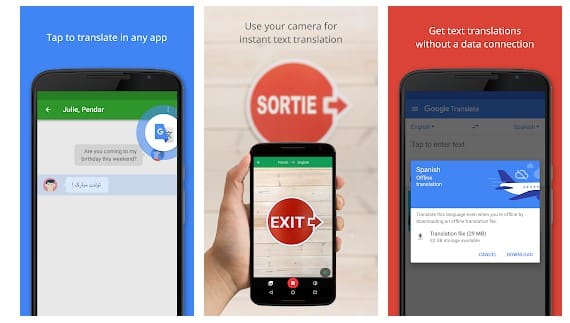
Google Translate is one of the best text translation app available for the Android smartphone. Although the feature comes built-in with Android, still if your phone doesn’t have it, you can install the standalone app. As of now, the app supports over 103 languages for translation. For text to speech translation, the app requires microphone access.

2. Voice Aloud Reader
Voice Aloud Reader

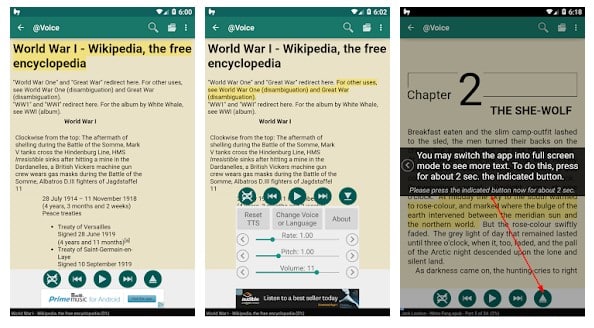
Voice Aloud Reader is another best Android text to speed app that you would love to use on your Android device. The best thing about Voice Aloud Reader is that it supports a few different ways of reading text. Voice Aloud Reader is compatible with all apps with the share feature because users need to share the text file to the Voice Aloud Reader to read out the text.

3. Narrator’s Voice
Narrator's Voice

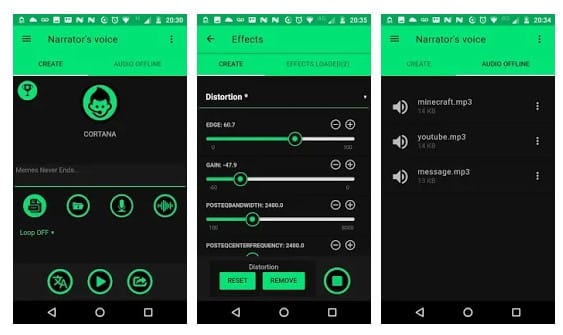
Narrator’s Voice is one of the best and unique text-to-speech app available on the Play Store. You just need to speak or type a message on this app, choose the language, and apply the voice/special effect to convert it into a voice. Also, the app allows you to convert and save the audio files in MP3 format.

4. Talk Free

Talk Free

If you are looking for a free and straightforward Text to speech app for your Android device, then Talk Free might be the perfect pick for you. The great thing about Talk Free is that it allows users to import the web pages containing the text files directly from the web browser or through some third-party apps.

5. T2S
T2S

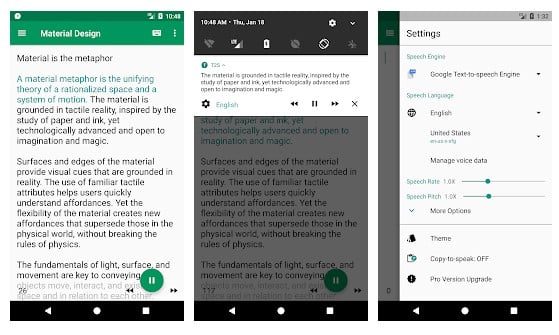
If you are searching for a text-to-speech app that comes with a modern interface, then T2S might be the best pick for you. The best thing about T2S is that it offers a web browser that you can use to listen to the web pages without copying and pasting. Not just that, but T2S also shows a popup button whenever you copy any text from apps or web pages. Pressing the button will make the app to start reading the text content.

6. TK Solution’s Text To Speech
TK Solution's Text To Speech

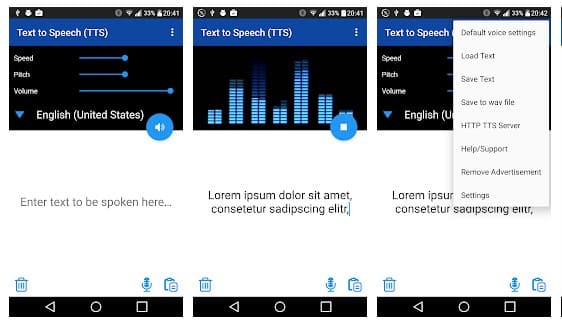
TK Solution’s Text To Speech is another best text to speed app on the list, which is worth mentioning. The great thing about TK Solution’s Text To Speech is that it allows users to type their text to make the app read out aloud. Not just that, but it can also translate the text into a different language. However, TK Solution’s Text To Speech offers a wide range of features that sometimes confuses users.

7. Pocket
Pocket

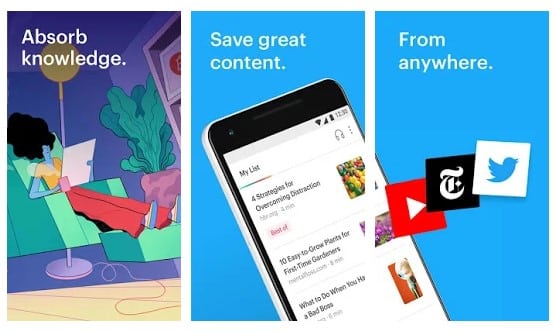
Well, you might have already heard about the popular app known as Pocket. Pocket is an Android app that allows users to save articles to read later (offline). The great thing is that Pocket also offers a text-to-speech feature that has the support of multiple voices and language. Not just that, but the text-to-speech feature also works in the background, which means you can listen to the text while using other apps.

8. Tell Me – Text To Speech
Tell Me - Text To Speech

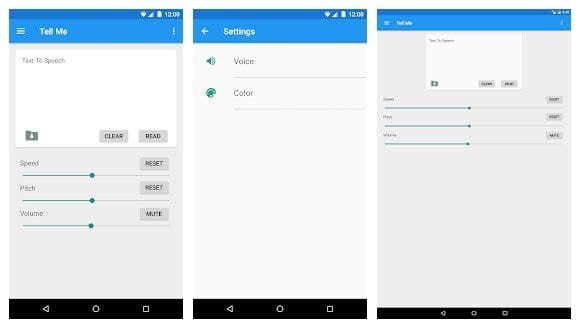
Tell Me – Text To Speech is one of the best text to speech app available on the Google Play Store that you can use right now. It reads any text that you type. Not only that, but Tell Me – Text To Speech also offers volume, pitch, and speed sliders. The app has a clean interface, and there are lots of customizable colors.

9. Text to Speech (TTS)
Text to Speech (TTS)

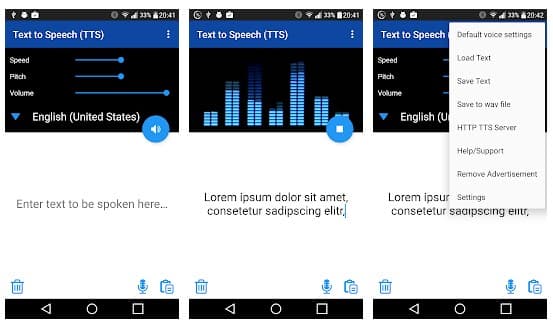
Text to Speech (TTS) is one of the most lightweight text to speech app that you can use on Android. All you need to do is enter the text, and the app will speak it aloud for you. It also lets you save the converted speech in .wav file format.

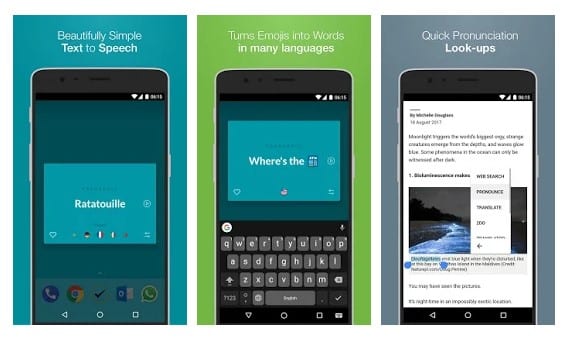
10. Pronounce – Free offline Text to Speech
Pronounce - Free offline Text to Speech

Pronounce – Free offline Text to Speech is another best free text-to-speed app available on the Google Play Store. The app is free with no-ads. Apart from that, the app can turn any word, phrase, or even Emojis into speed. What’s more interesting is that Pronounce – Free offline Text to Speech works offline once it has downloaded the required TTS pack.

So, these are the best Text-to-Speech apps that every Android user would love to have. If you know any other apps like these, then make sure to drop the name in the comment box below. I hope this article helped you! Please share it with your friends also.

The post 10 Best Text-to-Speech Apps For Your Android Smartphone appeared first on TechViral.


from TechViral https://ift.tt/2J87sJj

10 Best Family Locator Apps For Android in 2021

15 Best Family Locator Apps For Android 2020

One of the most significant features of advancing technology is the ability to find the real-time location. Nowadays, every smartphone has a GPS feature that can be used to see anyone’s location on earth. With such features, you can not only find your current location, but you can also grab the location information of your friends or family members as well.

Everyone anxious about the well-being of their family, and children should use location tracking apps. Since Android smartphones already got the ability to find a device and locate other smartphones, all you need is a family locator app.

With Family locator apps for Android, you can look up another phone’s location through the GPS. In this article, we will share some of the best family locator app for Android. These apps are simple to use, and it can help you and your loved ones to locate each other.

Best Family Locator Apps For Android

It’s worth noting that there are tons of Family locator apps available on the Google Play Store and mentioning all of them is not possible at all. Therefore, in this list, we have only listed the free ones. So, let’s explore the list.

1. Family Locator – GPS Tracker

Family Locator - GPS Tracker

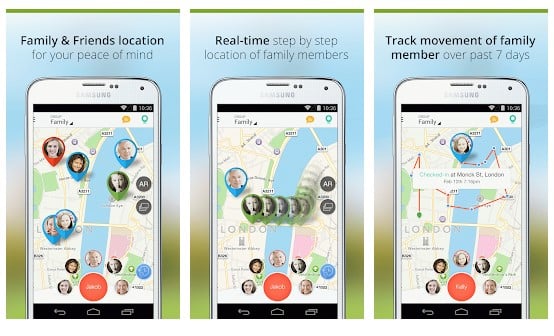
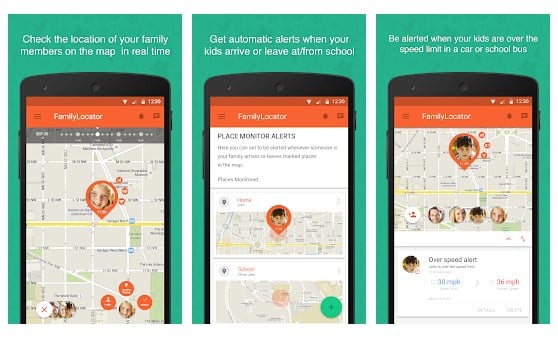
Family Locator – GPS Tracker is one of the best Android family locator apps available on the Google Play Store. The app will help you to stay connected to the people who matter the most. On Family Locator – GPS Tracker, you need to create a private group and add your loved ones. Once added, you can view the real-time location of the members.

2. Sygic Family Locator

Sygic Family Locator

If you are searching for a full-fledged real-time family locator app for your Android smartphone that comes with few extraordinary features, then you need to try Sygic Family Locator. Apart from just sharing the location, Sygic Family Locator also provides users an SOS features. SOS feature instantly shares the live location in an emergency.

3. ZoeMob Family Locator

ZoeMob Family Locator

It is another best Android app on the list that offers you a very accurate service to monitor your family with GPS technology. Like every other family locator app, it also displays your family members’ current location on a map. Also, the map shows all past location history, current speed, etc.

4. Glympse

Glympse

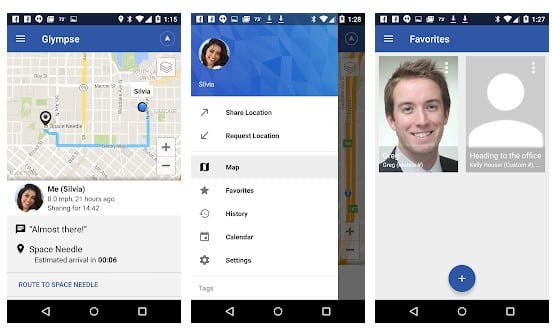
If you are searching for a fast, free, and simple to use location sharing app for your Android smartphone, then Glympse might be the best pick for you. Guess what? With Glympse, you can not only share the real-time location, but you can also create events. The app is heavily popular on the Google Play Store, and it’s the best family locator apps for Android.

5. Family Locator by Fameelee

Family Locator by Fameelee

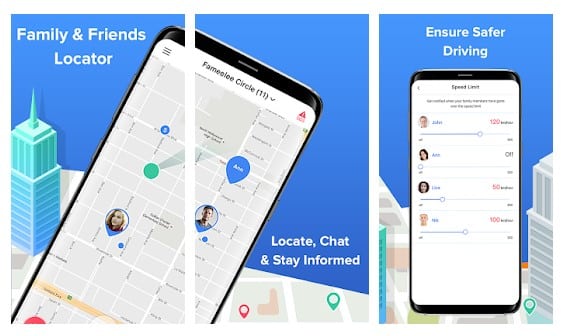
Although not very popular, Fameelee is still one of the best apps to connect with people you love and value the most. It is a location-sharing app that allows you to share real-time location with your family on a map. However, before sharing a location, you need to create circles and add friends. That means that others also need to use the same app to get the location data.

6. My Family

My Family

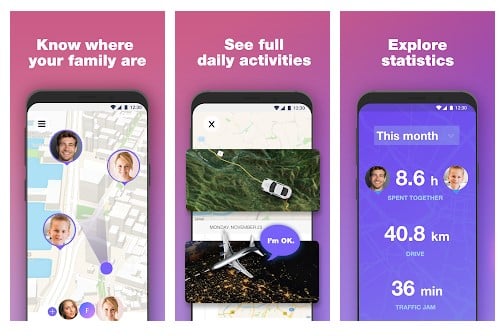
My Family is another new Android family locator app that’s available on the Google Play Store. It’s both a family safety and parental control app. With My Family, you can track other phone’s real-time locations at ease. Not only that, but My Family can also be used to check the browsing history, app usage, statistic of movements, etc., of other phones.

7. Google Family Link for parents

Google Family Link for parents

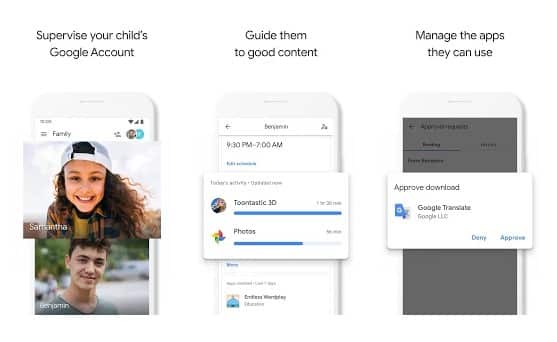
Google Family Link for parents from Google is a top-rated family locator and parental control app that you can use right now. The best thing about Google Family Link for parents is that it has everything you need to guide your kids to good content. With Google Family Link for parents, you can view your kid’s activity, track app usage, etc. Apart from that, the app can also be used to track your kid’s smartphone’s live location.

8. FamilyWall

FamilyWall

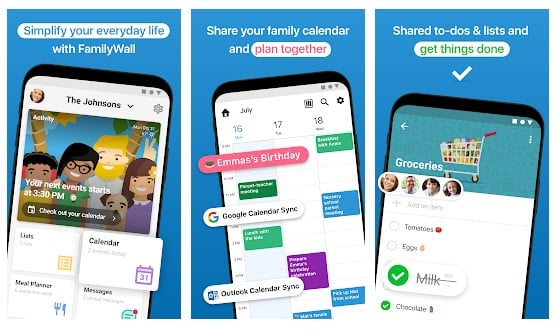
If you are searching for an Android app to organize your family life and keep everyone in the loop, then FamilyWall might be the best pick for you. With FamilyWall, you can create To-Do lists, shopping lists, etc. Not only that, but FamilyWall also offers real-time location tracking as well.

9. Life360

Life360

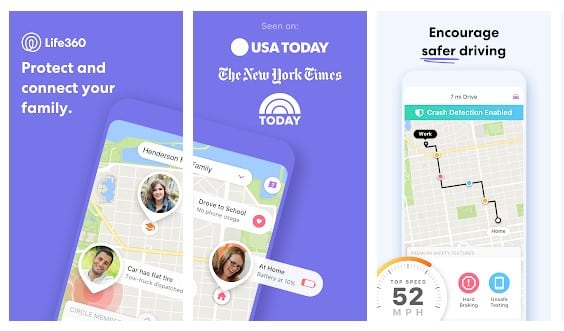
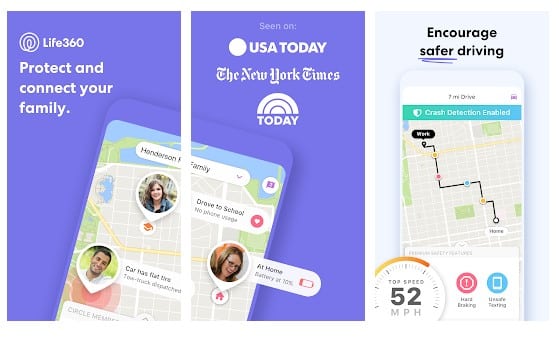
With Life360, you can easily stay connected and in sync with your entire family by real-time location sharing. Apart from that, the app can also be used to receive real-time alerts when Circle Members arrive at or leave destinations.

10. TrackView

TrackView

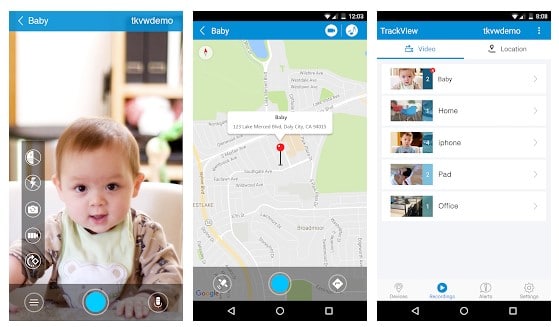
Trackview is an Android app that helps you to find your lost or stolen devices. The app turns your smartphone into a connected camera with a GPS locator. Once set up, it can be used as Family Locator and GPS finder. Apart from that, it also acts as an IP camera for home security.

These are the best Family locator app for Android. If you know any other such apps, let us know in the comment box below. I hope this article helped you! Please share it with your friends also.

The post 10 Best Family Locator Apps For Android in 2021 appeared first on TechViral.


from TechViral https://ift.tt/2FZZ0ro

Friday, January 1, 2021

How to Optimize Storage Drives For Better Performance in Windows 10

How to Optimize Storage Drives For Better Performance in Windows 10

If you have been using the Windows operating system for a while, you might know that the operating system becomes bloated very quickly. It’s because the app availability is high on the platform. We often install high-end programs or games on our PC that fills up the storage rather quickly.

As long as you have sufficient storage left on your PC, you won’t face any performance issues. However, if your system has limited storage, then unnecessary files on your hard drive can slow down your computer. To deal with such problems, the Windows operating system has a feature called ‘Disk Defragment.’

The latest Windows 10 operating system also allows you to optimize drives for better performance. On techviral, we have already shared an article on the best free PC optimization software for Windows. However, now it looks like you no longer need to depend on a third-party optimization software to enhance your system’s performance.

Also read: How to Optimize Windows 10 For Gaming & Performance

Optimize Storage Drives For Better Performance in Windows 10

You can use the built-in disk optimization feature of Windows 10 to clean up HDD/SSD space. It automatically removes unnecessary files, temp files, and empties the recycle bin. In this article, we will share a detailed guide on how to optimize your drives for better performance. Let’s check out.

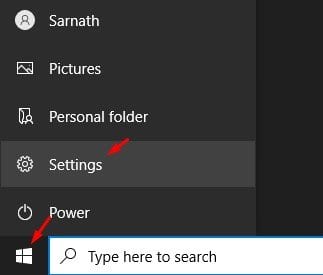
Step 1. First of all, click on the Start button and select ‘Settings’

select 'Settings'

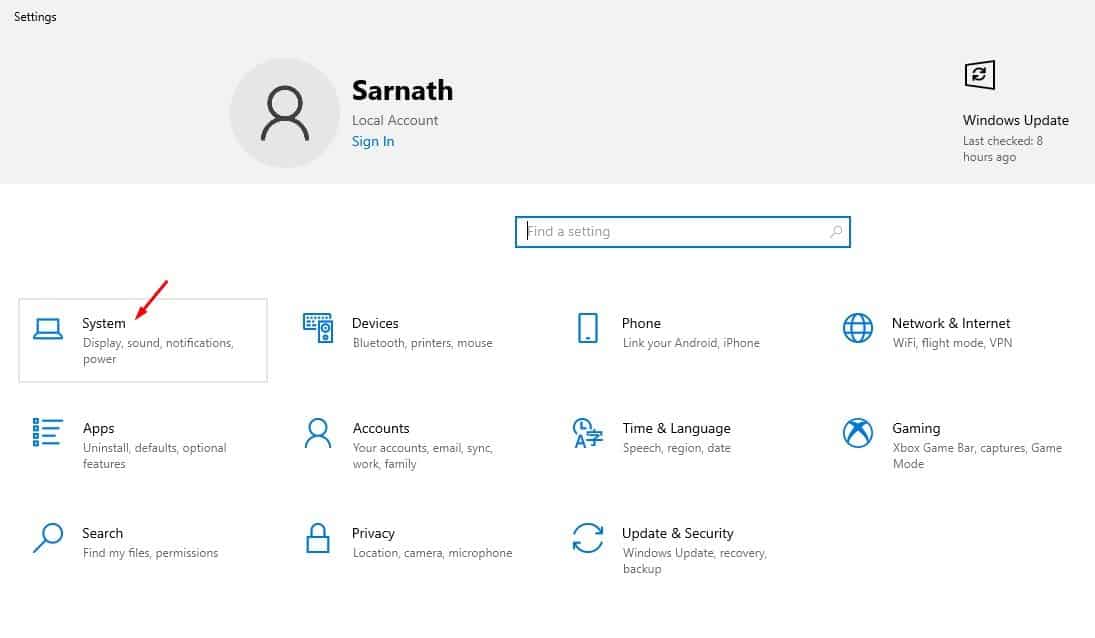
Step 2. On the Settings, click on the ‘System’

click on the 'System'

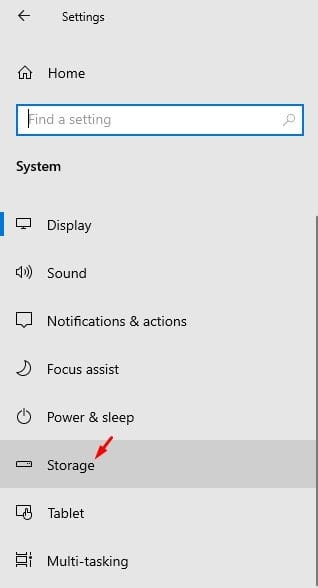
Step 3. From the left pane, select ‘Storage’

select 'Storage'

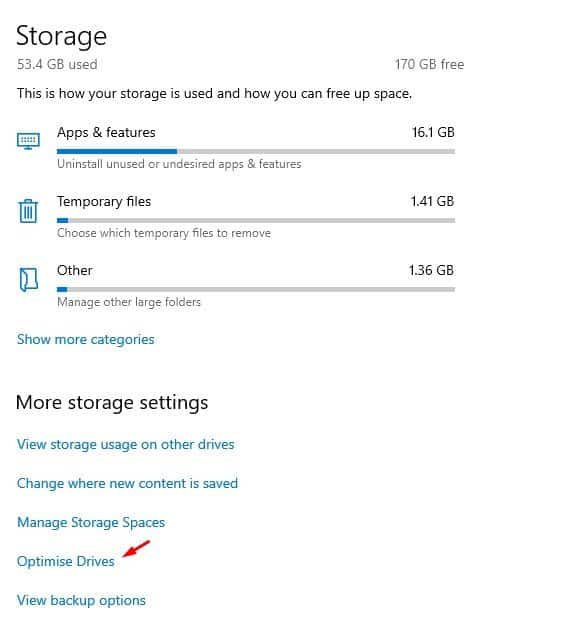
Step 4. Scroll down and click on the ‘Optimise Drives’ option.

click on the 'Optimise Drives' option

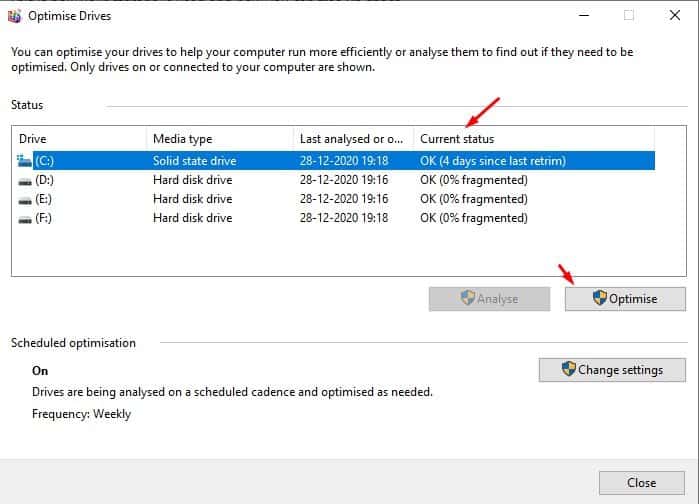
Step 5. Now you will see all HDD/SSD partitions. If it shows less than 10% fragmented under the current status, you probably don’t need to optimize the drive. However, if it shows more than 10% fragmented, click on the ‘Optimize‘ button below.

click on the 'Optimize' button

Step 6. Once done, wait until the process complete. After the optimization, the current status should display ‘0% fragmented’. That simply means that your disk is not optimized for better performance.

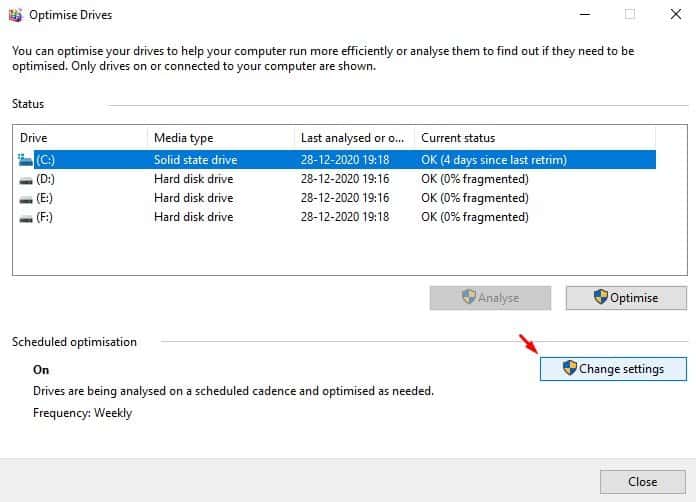
Step 7. You can also set the feature to run on a schedule. For that, click on the ‘Change Settings’ button, as shown below.

click on the 'Change Settings' button

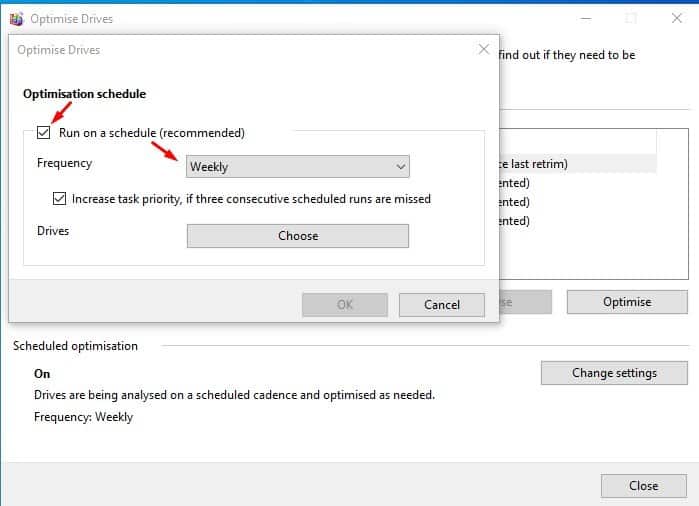
Step 8. Enable the option ‘Run on a schedule’ and set the frequency. Once done, click on the ‘Ok’ button.

click on the 'Ok' button

That’s it! You are done. This is how you can optimize your drives to help your computer run more efficiently.

So, this article is all about optimizing drives for better performance. I hope this article helped you! Please share it with your friends also. If you have any doubts related to this, let us know in the comment box below.

The post How to Optimize Storage Drives For Better Performance in Windows 10 appeared first on TechViral.


from TechViral https://ift.tt/2JCuUiV

How to Enable Text Prediction for Hardware Keyboard On Windows 10

How to Enable Text Prediction for Hardware Keyboard on Windows 10

Text prediction is something that we all want to have. On Android, we already have this feature in the Gboard app. We are talking about the feature that helps you correct the spelling mistakes or suggest text suggestions as you type.

If we talk about the desktop operating system – Windows 10, the text suggestion feature has been there for a long time, but it was only available on the on-screen keyboard. However, starting with Windows 10 version 1803, Microsoft has changed the way text suggestions work.

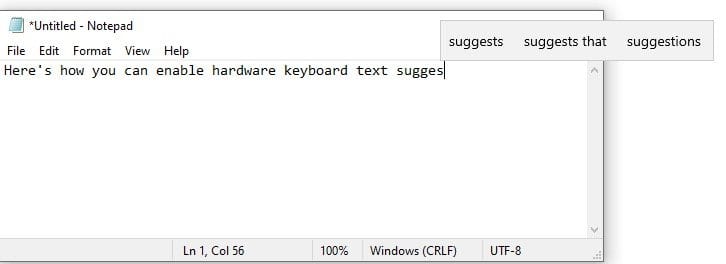
On Windows 10 version 1803, Microsoft has made it possible to enable text prediction for hardware keyboards in Windows 10. Once enabled, the text suggestions will appear floating over text as you type. What’s more useful is that the text suggestion will work everywhere, including Notepad, Word Document, anywhere on the internet, etc.

Also Read: How to Setup and Use Focus Assist On Windows 10

Steps to Enable Text Prediction for Hardware Keyboard on Windows 10

This article will share a detailed guide on enabling text prediction for a hardware keyboard on Windows 10. The process is going to be very easy, so let’s check out.

Step 1. First of all, click on the ‘Start’ button and select ‘Settings.’

Select 'Settings'

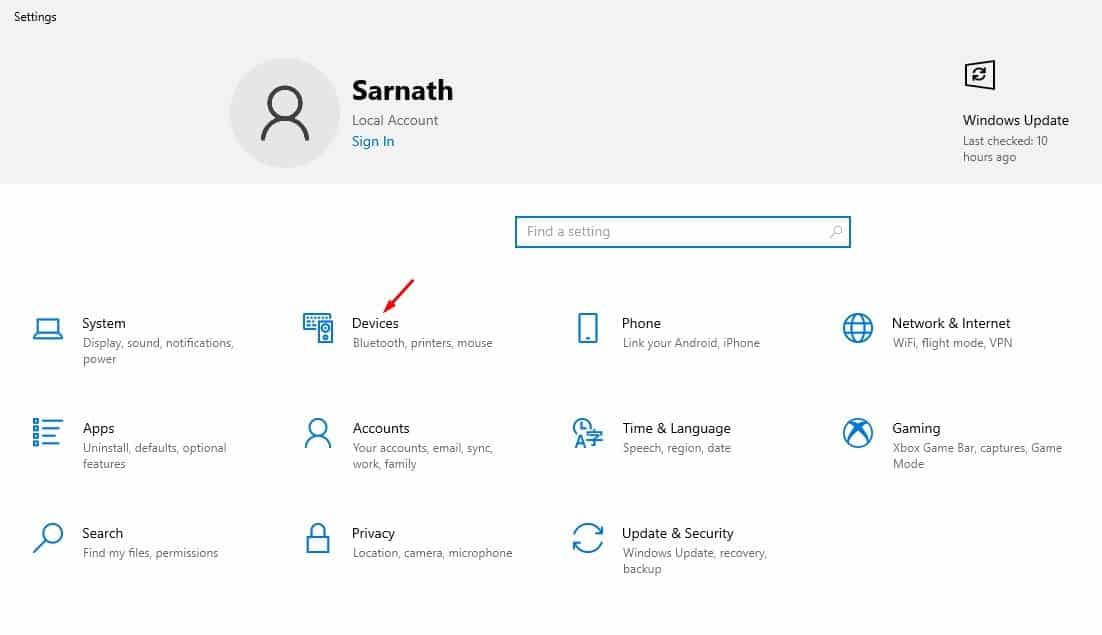
Step 2. On the Settings, click on the ‘Devices’ option.

click on the 'Devices'

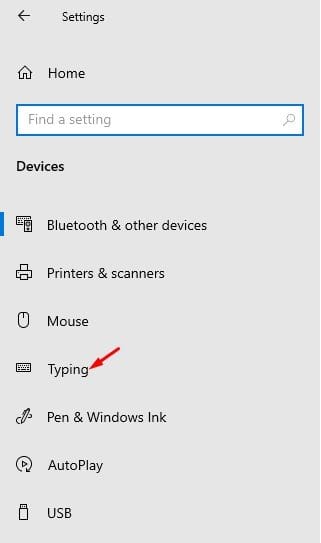
Step 3. Now, on the left pane, click on the ‘Typing.’

click on the 'Typing'

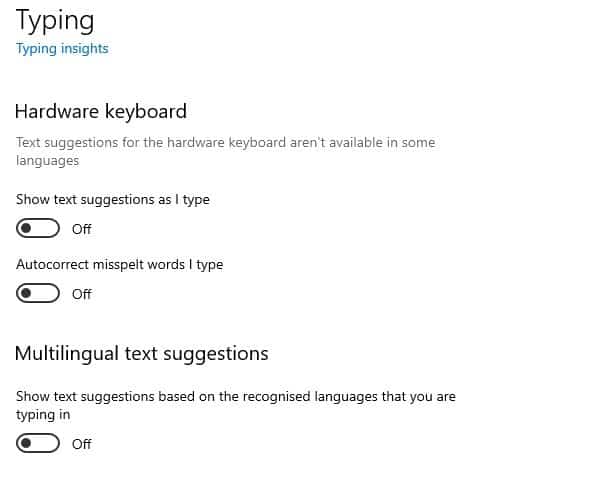
Step 4. Now scroll down and find the option ‘Hardware keyboard.’

find the option 'Hardware keyboard'

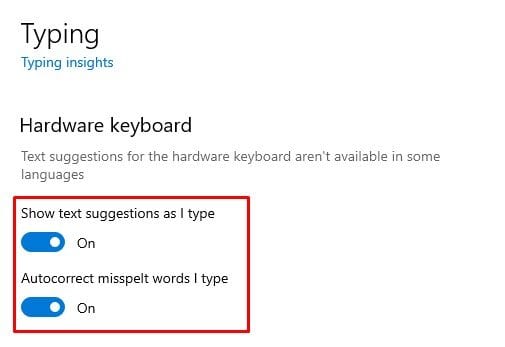
Step 5. You need to enable two options – Show text suggestions as I type, and Autocorrect misspelled words I type.’

Enable the options

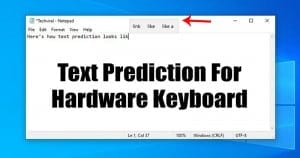
Step 6. After enabling both of the options, open any note-taking application like notepad and start typing the text. You will find the text suggestions floating over text as you type.

text suggestions

Step 7. To disable the feature, disable the two options that you have enabled in Step 5.

That’s it! You are done. This is how you can enable text prediction for a hardware keyboard.

This article is all about how to enable text prediction for a hardware keyboard on Windows 10. I hope this article helped you! Please share it with your friends also. If you have any doubts related to this, let us know in the comment box below.

The post How to Enable Text Prediction for Hardware Keyboard On Windows 10 appeared first on TechViral.


from TechViral https://ift.tt/3hFNJOH

10 Best Android Apps To Automate Tasks in 2021

10 Best Android Apps To Automate Tasks in 2021

Our phones are now called ‘Smart’ for a reason. Smartphones running on Android and iOS mobile operating systems can do many things that you could have never expected. If we look around, we will find that technology around us is evolving at a rapid pace. Nowadays, our smartphones are capable enough to handle complicated and multiple things simultaneously.

If we talk mainly about Android, you will find apps for every different purpose on the Google Play Stor. Some apps can make your life much more comfortable, like automation apps. These are the apps that help users to automate different tasks on Android smartphones.

In this article, we have decided to share a list of the best Android apps that could help you automate different tasks. These apps provide shortcuts, configurations, triggers, and rules to help you get more out of your Android smartphone.

Best Android Apps To Automate Tasks

Before exploring the list, please keep in mind that most of the article’s apps work on non-rooted devices, but if you have a rooted device, you can explore some hidden features. So, let’s explore the list of best Android apps to automate tasks.

1. SkipLock

SkipLock

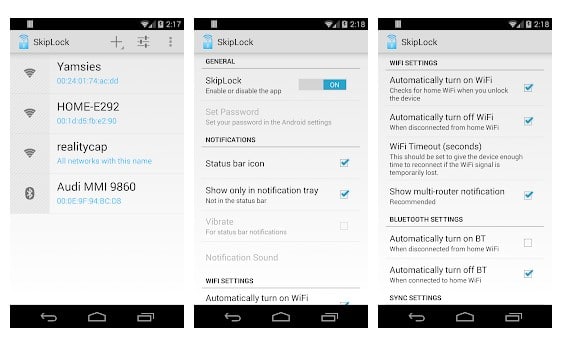
Skiplock used to be a premium app, but after receiving lots of support from users, it had been made free for everyone. It’s a simple app that lets you skip past the lock screen when connected to a designated WiFi. That means that you no longer need to enter your lock screen password whenever connected to a set WiFi or Bluetooth device.

2. Cleaner

Cleaner

If you are using an Android smartphone for a while, then you might know that the operating system slows down over time. This happens because most of the app data is cached on your internal memory to ensure better load speed. However, in the long run, it affects the performance of the device. So, with the Cleaner Android app, you can set a schedule to clean your cache automatically. On the settings, there’s an option to set when Cleaner can clean up your cache, from every 1 hour to every seven days.

3. Tasker

Tasker

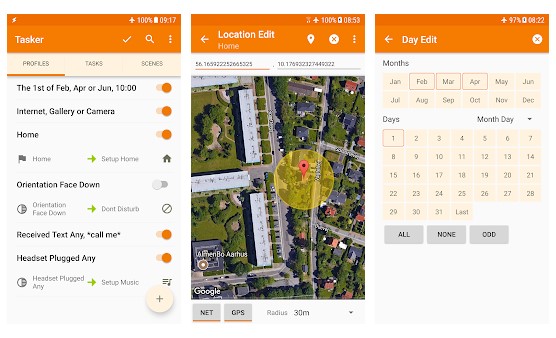
Tasker is by far the best and most advanced Android automation app available on the Google Play Store. With root access, Tasker can control the software, hardware, and different aspects of Android. What’s more interesting is that Tasker allows users to create triggers to launch specific apps, widgets, and other features automatically. Right now, Tasker has over 200 plugins to do different tasks.

4. AutomateIt

AutomateIt

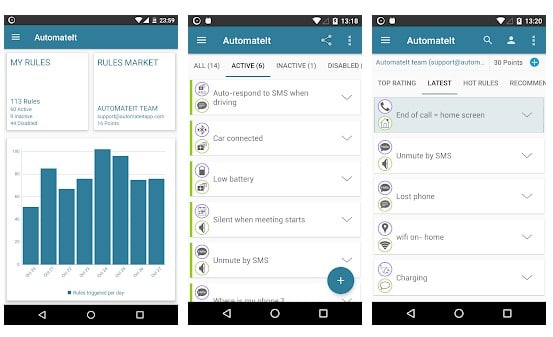
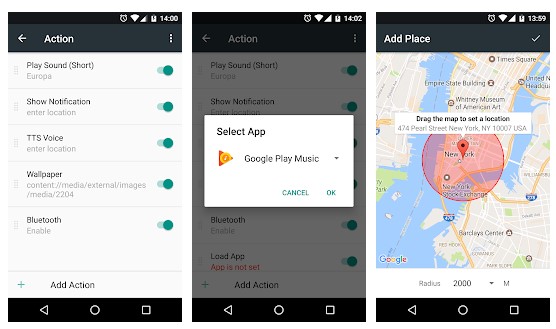
It is one of the best and most popular automation apps you can use on your Android smartphone. With AutomateIt, you can easily create rules to perform different tasks like sending SMS as soon as you reach specific GPS locations, launching the app when connected to any particular WiFi, etc.

5. MacroDroid

MacroDroid

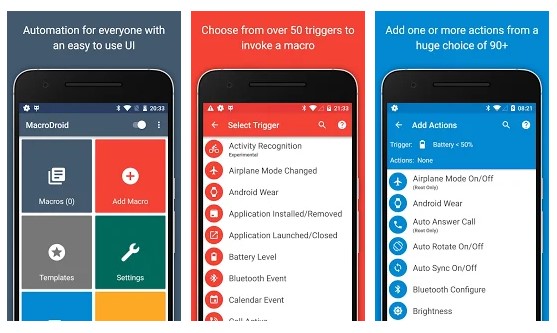
Well, MacroDroid is another excellent option in the list you can consider to automate Android tasks. On MacroDroid, you need to create custom macros to perform specific actions. You can also choose from hundreds of built-in macros as well. The app works on both rooted and non-rooted devices, and it’s the best Android automation app that you can use right now.

6. Call Recorder – ACR

Call Recorder - ACR

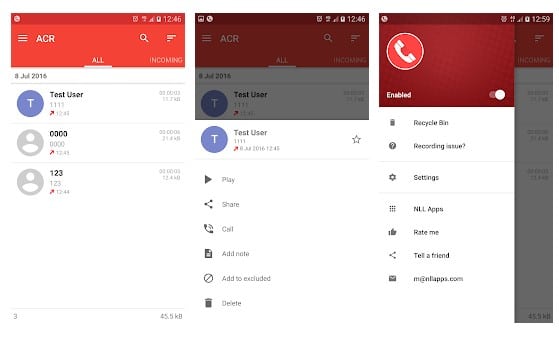
Ever wanted to record phone calls automatically? If yes, then you need to give Call Recorder – ACR a try. Guess what? Call Recorder – ACR allows users to automated the entire call recording process. The app got the ability to record both incoming and outgoing calls on your Android smartphone.

7. Automate

Automate

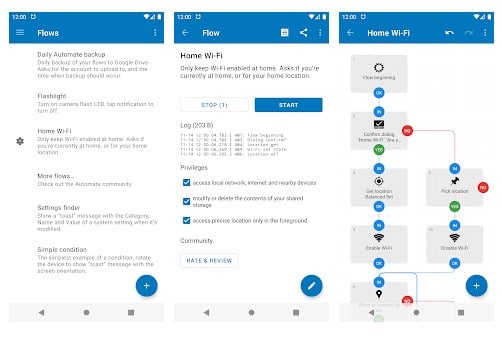
As the app’s name says, the Automate Android app allows users to automate various tasks on Android smartphones or tablets. Like every other Android automation app, Automate also allows users to create a flowchart to perform different tasks. For instance, you can create your automation to change settings like audio volume, Bluetooth, GPS, WiFi, sending SMS, etc.

8. Droid Automation

Droid Automation

It’s a relatively new Android automation app on the list, which you can consider. The app is not much popular, but it got a wide range of options for automation. To use this app, you need to create triggers, set tasks, and select the options. That’s it! The app will perform everything that you have set.

9. RuleBot: Automation

RuleBot: Automation

Droid Automation is another best event-driven task scheduler app for Android that allows you to automate repetitive tasks. Compared to all other apps listed in the article, Droid Automation is lightweight and pretty easy to use. To put certain tasks in automation mode, you need to create a profile, add tasks, and select the triggers.

10. Power Automate

Power Automate

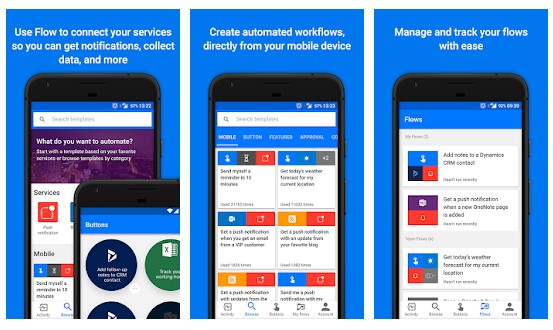
Power Automate from Microsoft is another best Android automation app that you can use right now. Unlike all other apps, Power Automate is meant to assist your business workflows. For instance, you can set the app to alert you when you receive an email from any particular contacts; you can choose to record your work hours, etc.

So, these are the best Android automation apps that you can use right now. If you know any other such apps, let us know in the comment box below. I hope this article helped you! Please share it with your friends also.

The post 10 Best Android Apps To Automate Tasks in 2021 appeared first on TechViral.


from TechViral https://ift.tt/377ighZ

10 Best Apps To Customize Any Android Phone in 2021

10 Best Apps To Customize Any Android Phone in 2021

It’s no doubt that Android is right now the most popular mobile operating system. Compared to every other mobile operating system, Android provides users far more features and customization options.

Since it’s a highly customizable operating system, apps related to customizations were also high. You will find countless apps on the Google Play Store for customizations. In this article, we have decided to share a list of the best customizations apps for Android.

Best Apps To Customize Any Android Phone

With these apps, you can easily change your Android’s user interface and more. So, let’s check out the best apps to customize your Android device.

1. Launcher Apps

Nova Launcher

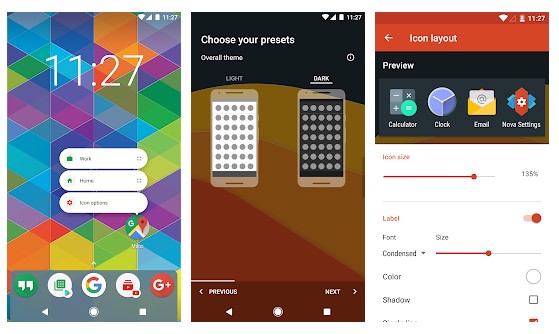
Well, Launcher apps are something that can transform the look of your Android smartphone. There are thousands of Android Launcher apps available on the Google Play Store, and each of them comes with its own unique sets of features. You can install Nova Launcher to customize your Android because it provides users with lots of customization options. With Nova Launcher, you can add transition effects, add new icons, add your text, etc.

2. Get an Icon Pack

Get an Icon Pack

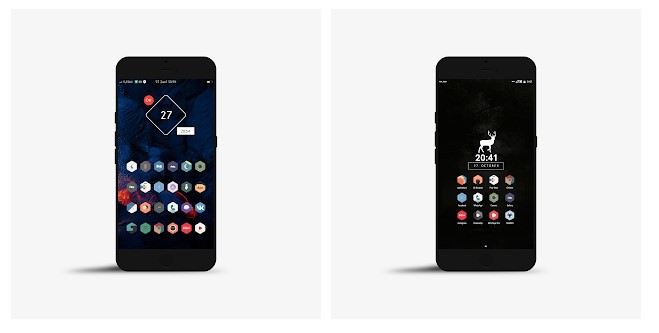
Just like Android Launcher apps, there are hundreds of Icon Packs available on the Google Play Store. After installing a launcher, the next thing that you will probably need is an icon pack because any launcher is incomplete if your home screen shows the old icons. We have shared a list of the best free icon packs for Android that could help you to pick your favorite icon pack.

3. Navbar Apps

Navbar Apps

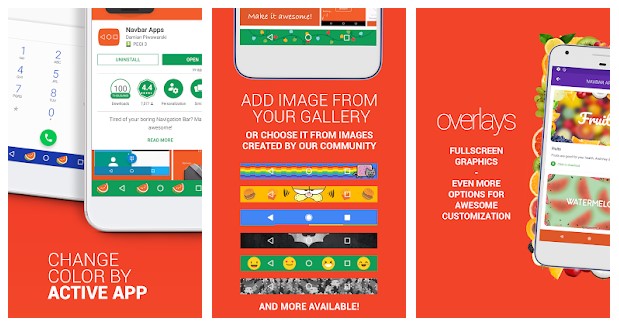
Navbar Apps is one of the best Android apps to transform the navigation bar. With Navbar Apps, you can make your navigation bar blue, red, or whatever you want. Also, the app lets you add a cool image as a navigation bar background. The app is entirely free to use, and it’s the best Android customization app that you can use today.

4. Muviz

Muviz

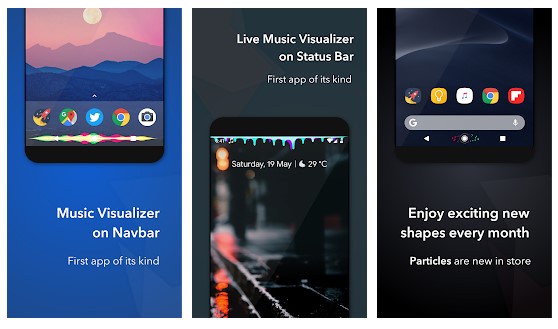
Muviz is one of the cool apps that you can have on your Android device. The Android customization app adds a music visualizer on your Phone’s navigation bar or the Status bar. What’s more interesting is that the app offers you hundreds of visualizer designs to choose from. Also, the design catalog is updated almost every day.

5. Energy Bar

Energy Bar

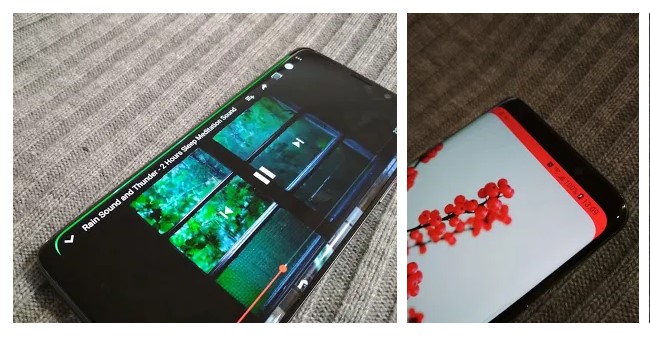
This app adds a battery level indicated right on the top of your screen. The great thing about the Energy bar is that it works on a non-rooted Android smartphone, and it displays some of the crucial information regarding Android’s battery. For example, the battery indicator will show you how much time is left, how much the battery has been charged, etc.

6. Material Notification Shade

Material Notification Shade

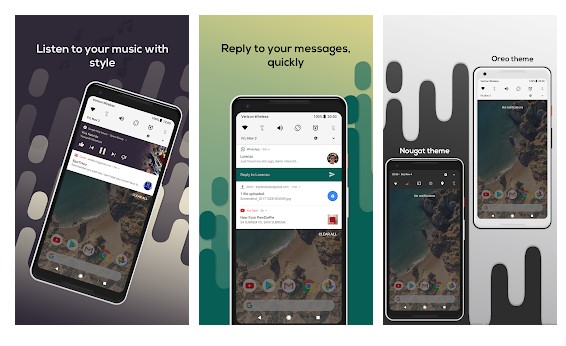
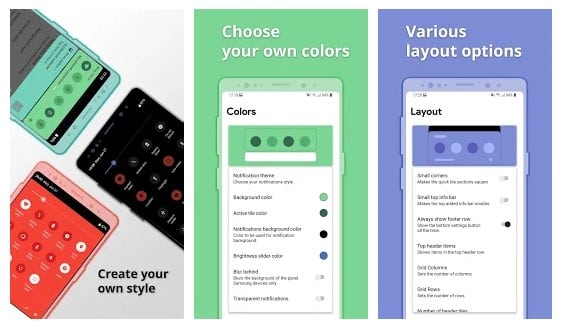
Well, Material Notification Shade replaces the stock notification panel without having root access. Material Notification Shade is heavily inspired by Android 8.0 Oreo, and it offers multiple Notification panel themes like Light, colored, and Dark. Not just that, but Material Notification Shade also allows users to customize the notification panel like you can add your custom quick settings menu.

7. Power Shade

Power Shade

It is another best customization app that you can use on your Android smartphone. The best thing about Power Shade is that it will make your notification drawer look outstanding. With Power Shade, you can fully customize your notification drawer by changing color, add new features, quick setup reply, etc.

8. Bottom Quick Settings

Bottom Quick Settings

If you find notifications and quick settings hard to reach with one hand at the top of the screen, then you need to give this app a try. The app provides a smooth, fast, and native feeling Android styled notification panel at the bottom of the screen. So, with Bottom Quick Settings, you can move your device’s status bar to the bottom of the screen. Not just that, but Bottom Quick Settings also helps the user to customize the notification panel.

9. Cornerfly

Cornerfly

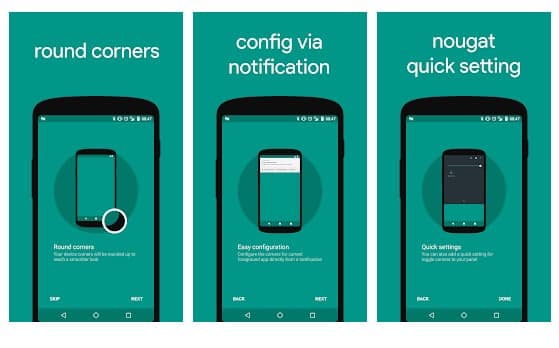
Most of the new Android smartphones arriving these days have rounded corners on their display for a much smoother look. If you want to add rounded corners to your display, you need to use the Cornerfly Android app. The app is straightforward to use, and it just adds a rounded corner to your display. Apart from that, it also provides users a few options to customize the rounded corners as well.

10. GravityBox

GravityBox

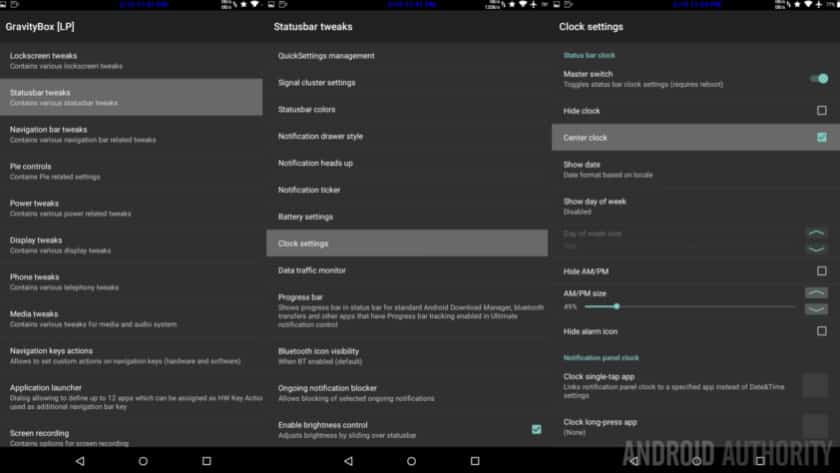
GravityBox is an Android app that requires root access to work. It offers a set of tools to tweak the core features of Android. On a rooted Android device, GravityBox enables customization for the status bar, adds lock screen features, change the icon style, etc. We have already shared a detailed guide on how to use GravityBox. Make sure to check that article.

So, these are the best apps to customize your Android in your own style. If you know any other Android customization apps like these, please drop the name in the comment box below.

The post 10 Best Apps To Customize Any Android Phone in 2021 appeared first on TechViral.


from TechViral https://ift.tt/2EESTd9