Saturday, April 29, 2023

10 Best MightyText Alternatives To Send SMS From PC

10 Best MightyText Alternatives To Send SMS From PCTechnology is evolving at a rapid pace, and so does the way of communication. Previously, we had to pick up our smartphones to send text messages; now, we can do the same from desktop computers.

Many Android apps on the Google Play Store allow users to exchange text messages from their PC, like MightyText. For those who don’t know, MightyText is one of the popular desktop clients to control and access smartphones from the computer.

With MightyText, you can easily sync SMS, MMS, Photos, Videos, etc., to other devices. Not only that but MightyText can also be used to send text messages from PC. However, it’s a premium service, a huge letdown to everyone looking for free service. So, if you are also searching for free alternatives to MightyText, check out the list of the best MightyText alternatives for PC.

List of Best MightyText Alternatives To Send SMS From PC

In this article, we will share some of the best MightyText alternatives that offer unlimited messaging from Windows PC.

1. MySMS
MySMS

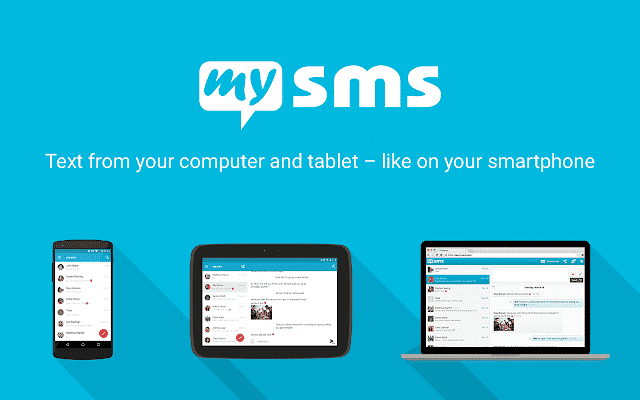
MySMS is probably the best MightyText alternative available on the web. The app is known for its SMS capabilities and offers a few additional features.

It has both free and premium plans. The free version of MySMS can be used to send and receive SMS text messages from a computer. Once set up, the app automatically syncs SMS and MMS between your phone, tablet, and computer.

To send and receive SMS from a PC, you must log in to the MySMS app on your smartphone with Google Account. Then on the MySMS desktop app, log in with the same Google account to sync SMS. The user interface of MySMS is pretty clean and well-organized.

2. AirDroid
AirDroid

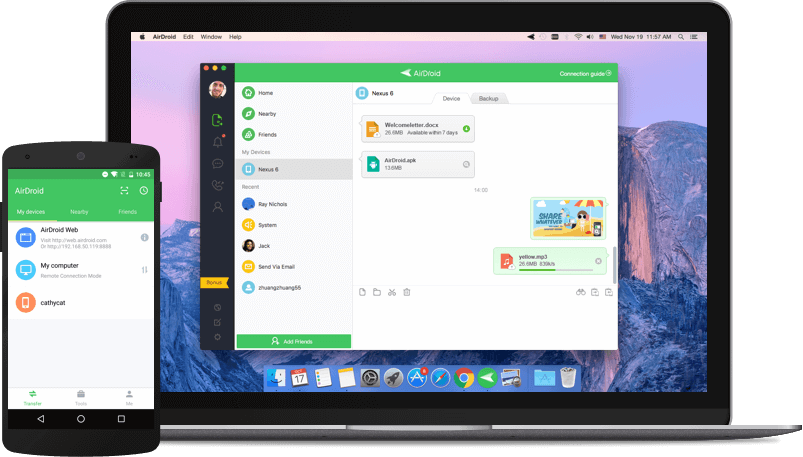
If you are searching for the best MightyText alternative for Android to manage SMS from a PC, then AirDroid might be your best pick.

Guess what? With AirDroid, you can manage SMS and sync messages from instant messaging apps like Telegram, Facebook Messenger, etc. Not only that but AirDroid can also be used to sync smartphone photos & videos to the computer.

Airdroid has both a desktop app and a web app. The web version needs no app installation; you need to scan the QR code on the web via your Airdroid’s mobile app, and your phone will be connected to the computer immediately.

3. Microsoft Your Phone
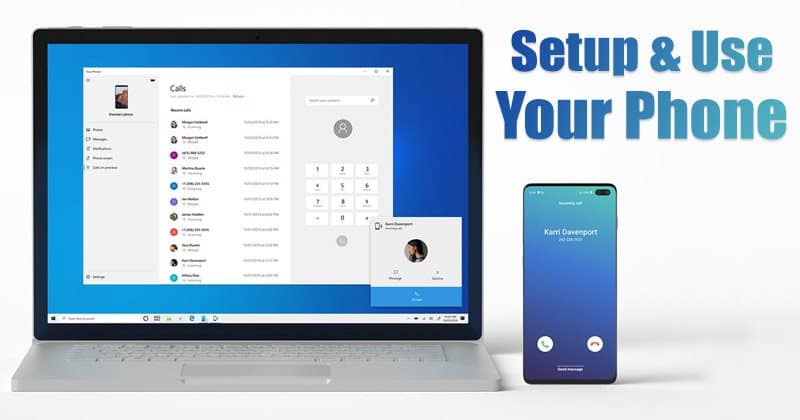
How to Setup Microsoft's Your Phone app to Connect Your Phone to PC

Microsoft Your Phone is a companion app with Windows and Android operating systems. In addition, the app comes built-in on the latest version of Windows 10.

You must install the Your Phone Companion app to link your device to the Windows operating system. Once linked, you can make calls, exchange text messages, and receive Android notifications on your PC.

4. PushBullet
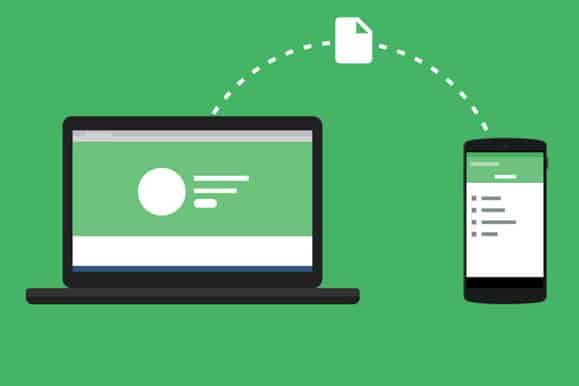
PushBullet

PushBullet is most probably the best Mightytext alternative on the list. The tool specializes in utilities like transferring files between devices, sending SMS messages from a PC, etc.

PushBullet is available in two versions – Free and Premium. The free version has some limitations on SMS sync, but in the pro version, there are no limitations.

5. Pulse SMS
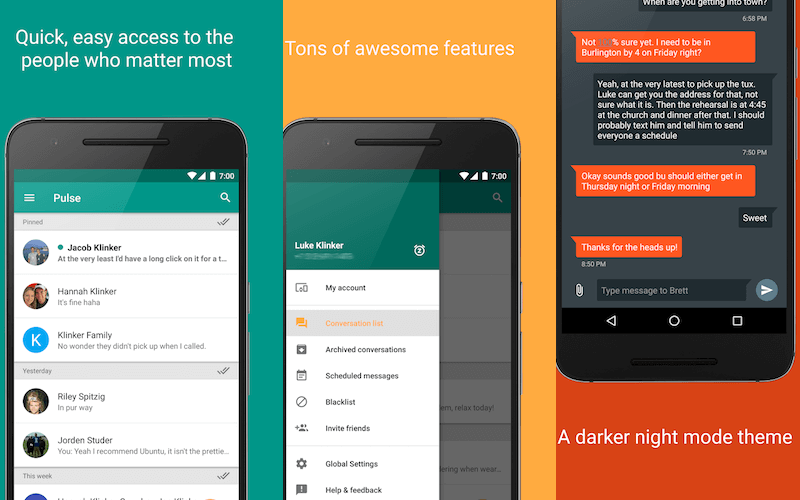
Pulse SMS

Pulse SMS is an SMS app for Android with multi-device support. Once installed, you can turn the app into a multi-device SMS app with its browser extension or web messenger.

After the setup, you can respond to SMS and MMS from your PC or web browser. You even get additional features like scheduling messages, archiving conversations, etc.

6. Text Free

Text Free

Text Free is another best SMS and calling app you can use on your Android smartphone. It’s different compared to all others listed in the article. It’s a web app, which means you can use Text Free from any browser.

It provides users with a real phone number that can be used to exchange messages. The real phone number can also be used to make calls, but it’s not free like SMS.

7. TextNow
TextNow

TextNow is pretty much similar to the Text Free Android app, which has been listed above. Like Text Free, TextNow gives users a random phone number to send text messages. Since it’s a web app, it can be used from any device and browser. It also has calling features, but it’s not free.

8. Pushline
Pushline

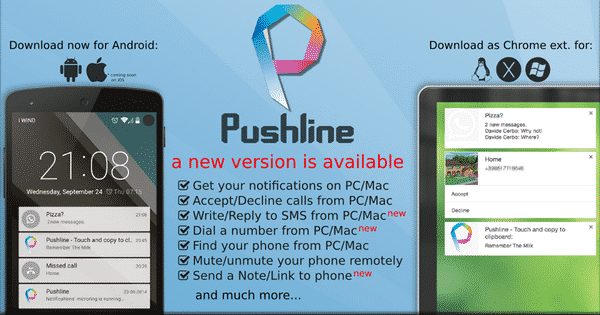
Pushline is another best free app to manage the smartphone from the computer. The app is pretty much similar to the Pushbullet listed in the article.

If we talk about the feature with Pushline, you can send and receive SMS from PC. What’s more interesting is that Pushline doesn’t show ads or pop-ups.

9. AnyDesk Remote Control
AnyDesk Remote Control

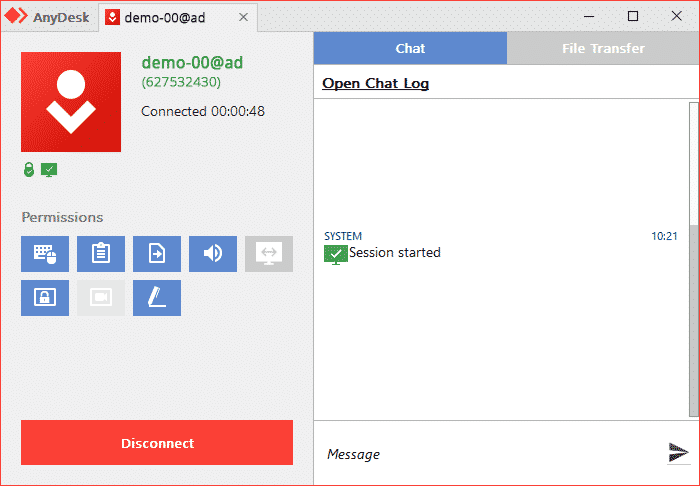
Well, remote access apps for Android can also send SMS from a PC. All you need to do is connect your Android to your PC via WiFi or Bluetooth to send and receive texts.

Besides sending and receiving an SMS, remote access apps can also manage other file types stored on Android, like Photos, Videos, Docs, etc.

10. Handcent Next SMS
Handcent Next SMS

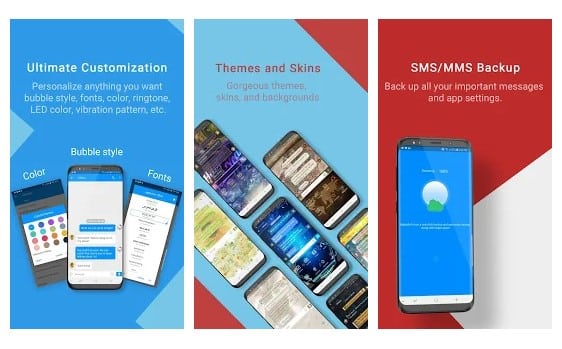
Handcent Next SMS is a replacement for the stock Android SMS app. With Handcent Next SMS, you can send SMS from your PC, MAC, or tablet.

To send and receive SMS from a PC, you must head to the Handcent Anywhere website and log in to your account. Once logged in, you will be able to receive and send Android SMS from your PC.

Frequently Asked Questions

What is better than MightyText

Apps like Microsoft Phone Link and PushBullet are mainly used for managing mobile SMS from PC. That said, all apps listed in this article do their job pretty well, and you can settle down with anyone.

Is MightyText free?

While you can use MightyText for free, what you get is not truly free. It has a strict limitation that limits users from sending only up to 25 messages per month. This means the free version only provides you with 25 messages per month.

MightyText vs Airdroid

There’s a lot of comparison between MightyText and Airdroid, but there are some differences between the two. AirDroid provides you with more features but lacks SMS features. You can use AirDroid to transfer files as well.

You can use these free Mightytext alternatives to send a text from your PC. If you know of other such apps, let us know in the comment box below. I hope this article helped you! Please share it with your friends also.

The post 10 Best MightyText Alternatives To Send SMS From PC appeared first on TechViral.


from TechViral https://ift.tt/Z1KmvYQ

Download Vuze Bittorrent Client for Windows (Latest Version)

Download Vuze Bittorrent Client for Windows (Latest Version)Currently, hundreds of torrent clients are available for Windows 10. However, if you still rely on Torrent websites to download files from the internet, you might know that not every torrent client is perfect.

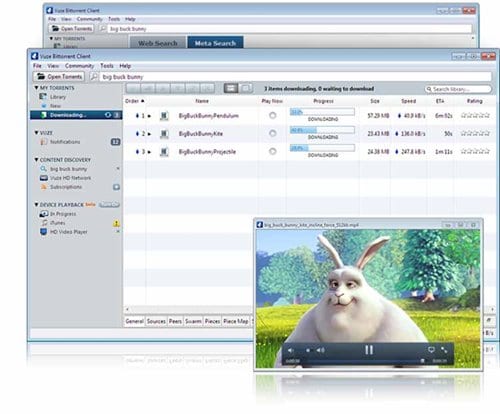
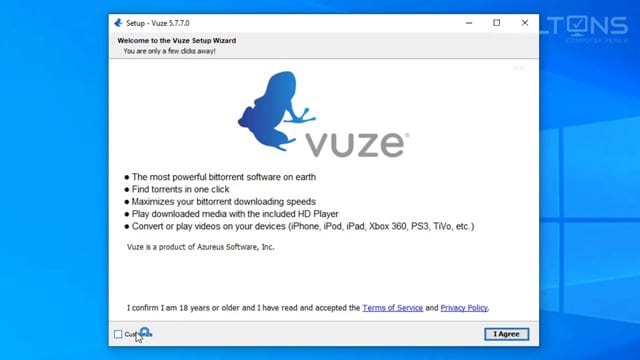
Each torrent client for Windows 10 has its advantages and disadvantages. Mostly, users were recommended to use uTorrent, BitTorrent, or Vuze.

Until now, we have shared articles on BitTorrent and uTorrent. Not only that, but we have also shared a detailed guide on how to download uTorrent and BitTorrent on PC. Today, we are going to discuss Vuze.

Also Read: Best Torrent Clients For Windows 10

What is Vuze?

Vuze

Among the many ways to download content from the web, torrent remains the most popular one. Vuze, previously known as Azureus, is another best Torrent clients for Windows 10.

You can compare Vuze with BitTorrent and uTorrent because it allows you to download torrent content online. The good thing about Vuze is that it has several add-ons that help the client beat its competitors.

However, there’s one thing to note here. Vuze is not open-source software, but it has a free version. The free version of Vuze shows you ads. You can purchase the Vuze Plus to get an ad-free torrenting experience.

Features of Vuze

Features of Vuze

Now that you know Vuze, you might eagerly await its features. Below, we have highlighted some of the best features of the Vuze torrent client for PC.

Free

Vuze is not an open-source application but is entirely free to use. You can manually add or remove unlimited torrent contents on the Vuze. There are no restrictions on the free version.

Download Torrents

With Vuze, you can download torrent files from the internet. Not only that, but Vuze also has magnet link support. That means web browsers can directly detect the Vuze application installed on your PC.

Bandwidth Management

Like every other torrent client for desktop, Vuze also offers bandwidth management features. With Vuze, you can control the download speed and upload speed manually.

Supports Multiple Torrent Downloads

With Vuze, you can download multiple torrent files at the same time. Not only that, but you can even adjust the download and upload speed of all your torrent content.

Vuze Remote App

Well, Vuze also has a remote app available for mobile devices. With the Vuze Remote app, you can control your desktop torrent client via a mobile device while on the go. For example, you can start, pause, or stop downloads via the mobile app.

Integrated Media Player

Vuze also offers a Play Now feature that allows users to play a video in Vuze’s integrated player. The feature plays video even before it has been downloaded.

So, these are some of the best features of the Vuze torrent client for desktop. It would be best to start using the application to explore more features.

Download Vuze Torrent Client for Windows

Download Vuze Torrent Client for Windows

Now that you know the Vuze Torrent client, you might want to install it on your system. Please note that Vuze is a free torrent client. That means you can download it from Vuze’s official website.

However, if you want to install Vuze on multiple systems, it’s best to save the installation file on a portable device. Below, we have shared the download links of the Vuze torrent client for Windows 10.

Below, we have shared both the online and offline installer of Vuze. So, let’s get to the download links.

How to install Vuze on PC?

Installing the Vuze offline installer is pretty straightforward. First, you must move the offline installer to the operating system you want to install.

Once done, just run the executable file and follow the on-screen instructions. If you are using the online installer, then just run the installer and follow the on-screen instructions.

Once installed, you must run the application from the desktop or the Start menu.

Frequently Asked Questions

Does Vuze work on Windows 11?

While the Vuze desktop client is meant for Windows 10, it’s also fully compatible with the latest Windows 11. You need to use the same Vuze installer to download & install Vuze on Windows 11.

Which is better Vuze or uTorrent?

Vuze and uTorrent are good, but Vuze is more lightweight and shows fewer ads than uTorrent. Since uTorrent shows ads, the download speed is affected. If you want more features, functionalities, tools & plugin support, go for Vuze.

What is the best alternative to Vuze?

There are many Vuze Alternatives for PC available on the web. The most popular ones are uTorrent and BitTorrent.

Is Vuze legal?

Every torrent client is legal, but the files you download from the Vuze can be illegal. For example, if you are using Vuze to download movies & TV Shows, it will be ‘illegal’. But, on the other hand, if you use Vuze to download freeware files like Linux ISO, it will be termed ‘Legal’.

So, this article is all about Vuze Offline Installer for PC. I hope this article helped you! Please share it with your friends also. If you have any doubts, let us know in the comment box below.

The post Download Vuze Bittorrent Client for Windows (Latest Version) appeared first on TechViral.


from TechViral https://ift.tt/kclt6h8

How to Post Voice Note on WhatsApp Status in 2023

How to Post Voice Note on WhatsApp Status

When WhatsApp was first introduced, it was just about sending messages and pictures. But, over time, the instant messaging app has greatly improved, allowing you to share photos, videos, GIFs, Stickers, Status, and more.

WhatsApp Status is the feature that made the instant messaging app more popular. It’s just a Instagram Stories like feature that lets you share text, photos, videos, and GIF updates with your contacts. The content you have shared will automatically disappear after 24 hours.

Voice Note on WhatsApp Status

We are discussing WhatsApp Status because recently, the app got an update, and now it allows you to share voice notes on your WhatsApp Status. Yes, you read that right; along with the text, image, video, or URLs, you can now post voice notes as your WhatsApp Status.

Voice Notes on WhatsApp Status is live now and is available to all users globally. However, to share Voice notes as WhatsApp Status, you must ensure you’re running the latest version of the WhatsApp app for Android or iPhone.

Post Voice Note on WhatsApp Status

Hence, if you want to post voice notes on WhatsApp Status, continue reading the article. Below, we have shared steps for sharing voice notes on WhatsApp status for both Android and iPhone. Let’s check out.

How to Share Voice Notes in WhatsApp Status Android

Android user needs to update their WhatsApp app from the Google Play Store. Once updated, follow the steps shared below.

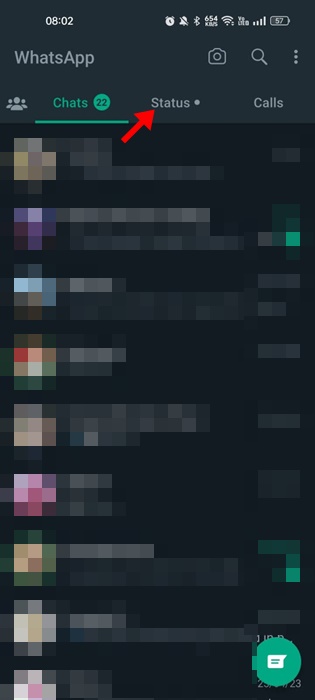
1. First, open the WhatsApp app on Android and switch to the ‘Status‘ tab.

Status

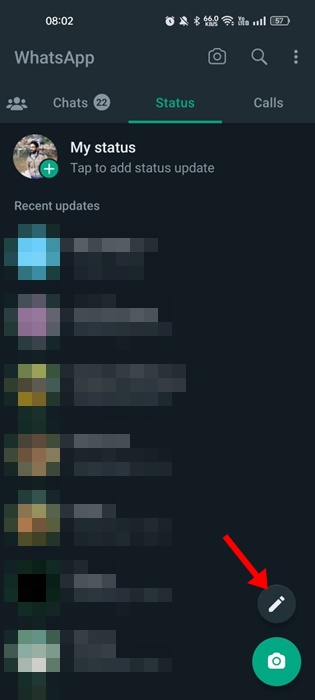
2. Tap the Pencil icon at the bottom right corner on the Status.

Pencil

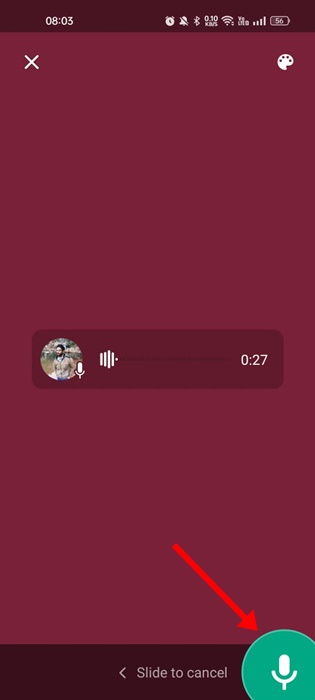
3. You will see a new microphone icon on the right side. Hold the microphone icon to record a voice note.

Hold the microphone icon

4. You can slide your finger towards the left to cancel or start again while recording.

5. To stop the recording, leave the Microphone icon. The recorded voice note will appear on the Status screen. You can listen to the voice recording by pressing the Play button.

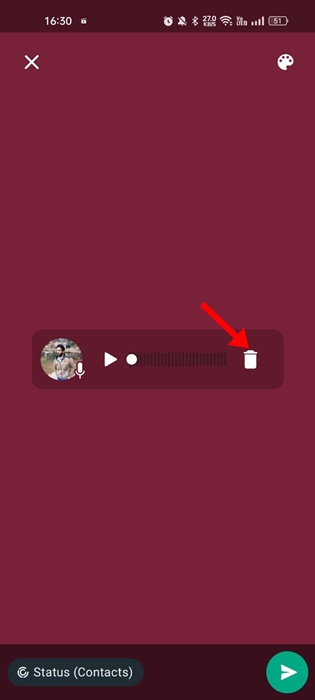
6. If you are not satisfied with the recording, tap on the trash can icon.

trash can

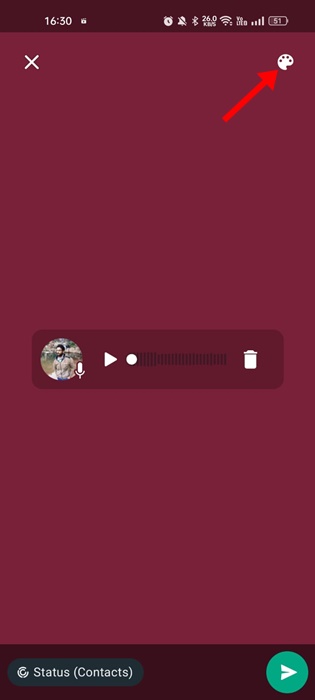
7. Next, tap the color palette icon at the top-right to change the background color.

color palette

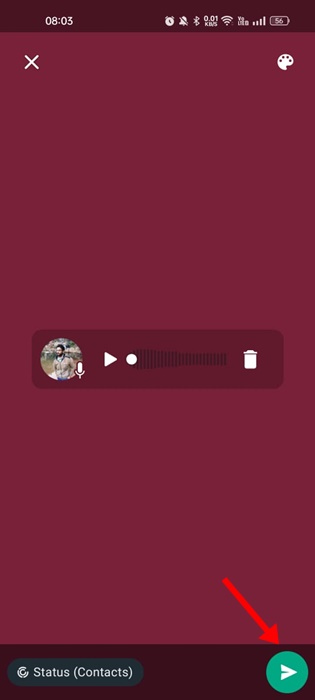
8. Once done with the editing, tap on the Send button.

Send button

That’s it! The voice note will be uploaded to your WhatsApp Status. You can now tap on ‘My Status’ to hear the recording.

How to Post Voice Notes in WhatsApp Status iPhone?

The ability to share voice notes in Status is available even on the WhatsApp app for iPhone. iPhone users must follow these steps to post voice notes in WhatsApp Status.

1. Open the WhatsApp application and switch to the Status tab at the bottom left corner.

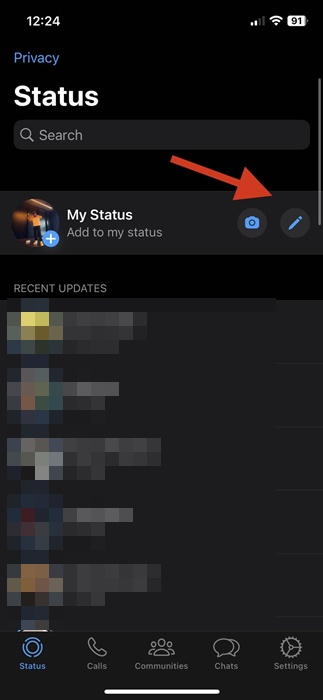
2. On the Status screen, tap the Pencil icon on the ‘My Status‘.

My Status

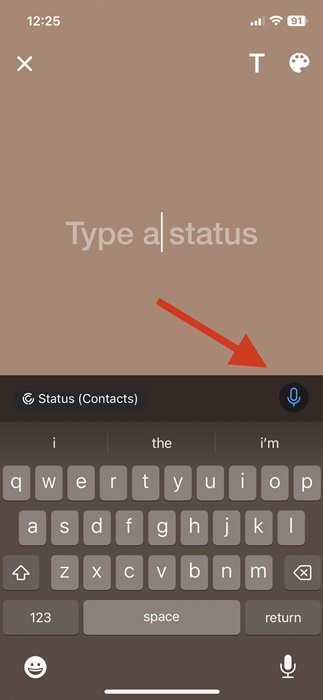
3. Next, tap and hold the Microphone icon on the Type a Status screen.

Microphone icon

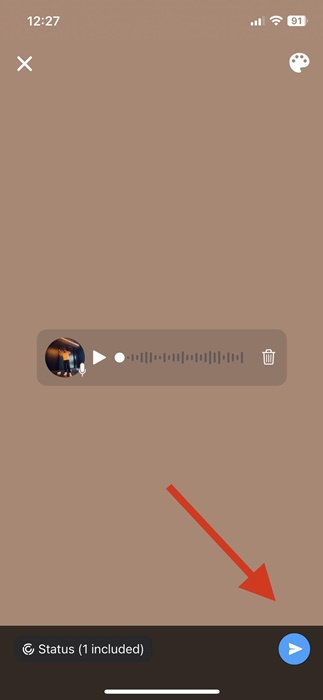
4. Now record the voice recording that you want to post on WhatsApp status and tap on the ‘Send‘ button.

Send

That’s it! The voice note will be posted on your WhatsApp account.

How to Delete Whatsapp Voice Status?

You can delete your voice status just like you delete text, images, or URLs. If you don’t know how to delete a WhatsApp status, follow these steps.

1. Open WhatsApp and switch to the Status tab.

Status

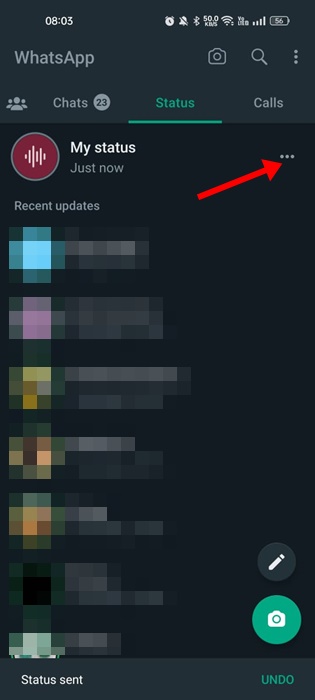
2. Just beside the My Status, tap on the three dots.

three dots

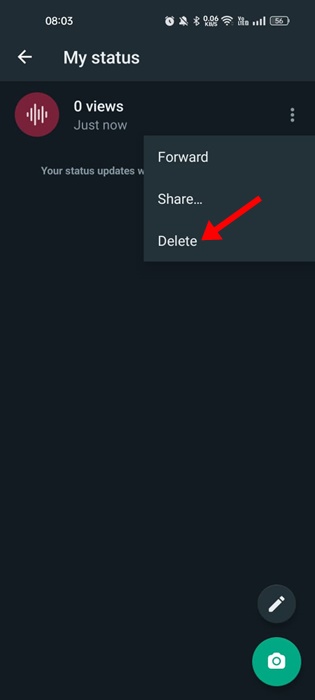
3. From the options that appear, select ‘Delete‘.

Delete

4. On the Confirmation prompt, tap on the Delete option again.

That’s it! That’s how easy it is to delete a WhatsApp voice status on Android or iPhone.

Frequently Asked Questions

Is Voice Notes different from Voice Messages?

Voice Messages are the ones that you send on the chats. On the other hand, Voice notes are being shared on WhatsApp Status. So, all contacts can see Voice Notes you share on your Status if you haven’t changed the Status privacy.

My Voice Notes have no sound?

If your voice notes have no sound, you need to check whether the microphone of your phone is functioning. If it’s functioning, you can force-stop the WhatsApp app and share the voice note again.

Why Can’t I record audio on WhatsApp?

WhatsApp fails to record audio when it is not permitted to use your microphone. So, if you can’t record audio on WhatsApp, you need to ensure that ‘Microphone access’ is enabled for the WhatsApp app.

Can you Schedule Voice Notes to send later?

Currently, there’s no option to record and schedule voice messages on WhatsApp. However, several third-party apps or WhatsApp Mods provide you with this feature. Nevertheless, we recommend avoiding such apps for security & privacy reasons.

Also read: 5 Best Sticker Packs for WhatsApp

Voice Notes for WhatsApp Status is a great addition, especially for those who don’t prefer text or graphics. The feature is of great use to all Android and iPhone users. If you need more help posting voice notes on WhatsApp Status, let us know in the comments.

The post How to Post Voice Note on WhatsApp Status in 2023 appeared first on TechViral.


from TechViral https://ift.tt/FQthYiq

Friday, April 28, 2023

How to Open RAR Files on Android (5 Methods)

How to Open RAR Files on Android (5 Methods)

Internet users may often deal with the RAR of ZIP files. Unfortunately, these are the type of files that requires a dedicated program for extraction.

For those who don’t know, RAR is a file format for compressive files into an archive. If you often download files from the internet, they will probably be uploaded in RAR or ZIP format.

Uploaders often compress their files in RAR format to exclude the file size restrictions imposed on file storage services.

While RAR files were easy to deal with on the desktop operating system, opening them on Android is challenging. On Android, you must rely on third-party apps to open RAR files.

Best Methods to Open RAR Files on Android

So, if you are looking for ways to open RAR files on Android, you have landed on the right page. Below, we have shared a few simple ways to open RAR files on Android. So, let’s check how to open RAR files on an Android device.

1) Open RAR Files using the RAR app

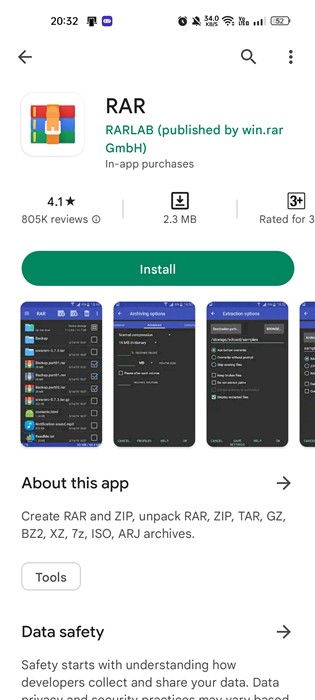
In this method, we will use the RAR app from RARLAB to open RAR files on our Android smartphone. Here are some of the simple steps you need to follow.

1. First, download and install the RAR app on your Android smartphone.

RAR

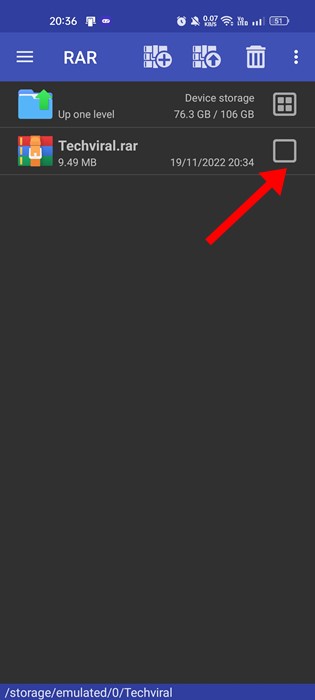
2. Once installed, open the application and grant the permissions. Now locate the folder where the RAR file is stored.

3. Now select the RAR file on the list.

grant the permissions

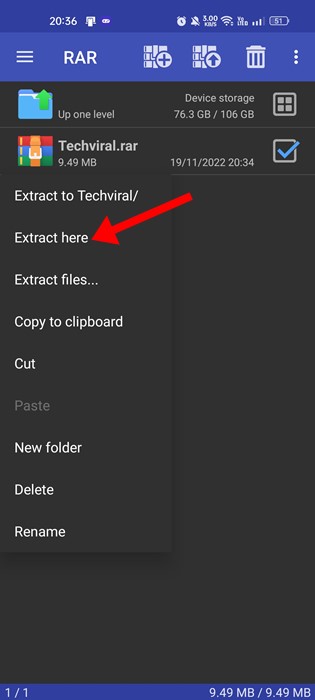
4. Long press on the RAR file and select the ‘Extract Here‘ option.

Extract Here

That’s it! This is how you can open RAR files on Android with the RAR app from RARLAB.

2) Open RAR Files on Android using ZArchiver

ZArchiver is another best archive management programs for Android that’s available on the Google Play Store. You can also use this to open RAR files on your Android smartphone. Here’s what you need to do.

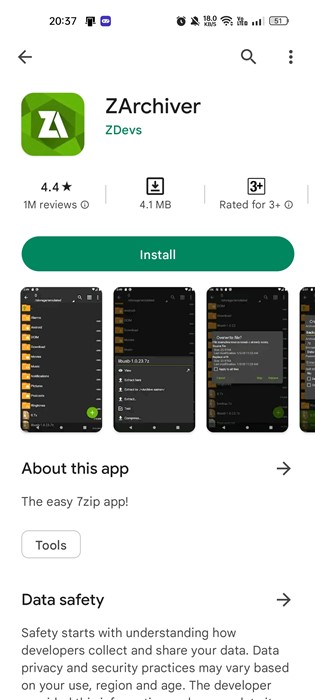
1. First, download and install the ZArchiver app on your Android smartphone.

ZArchiver

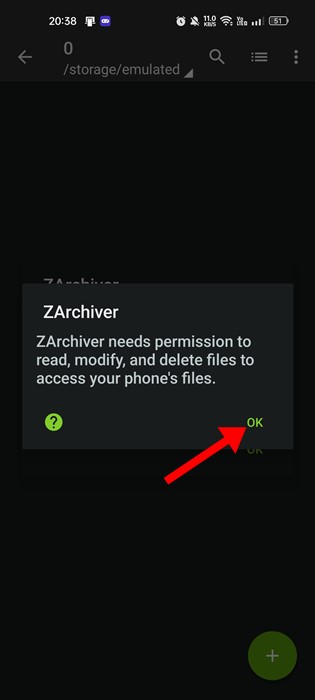
2. Now, ZArchiver would ask you to grant the permissions. Grant the permissions.

Grant the permissions

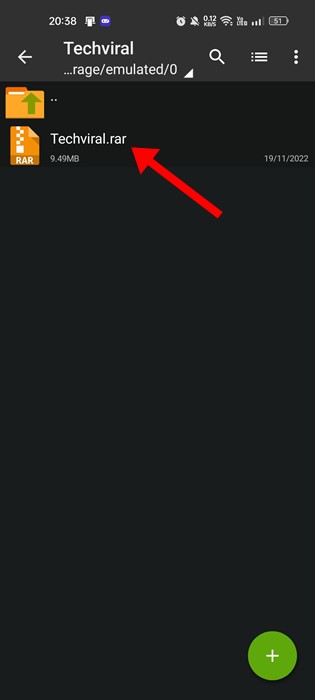
3. Now locate the folder where the RAR file has been stored.

locate the folder

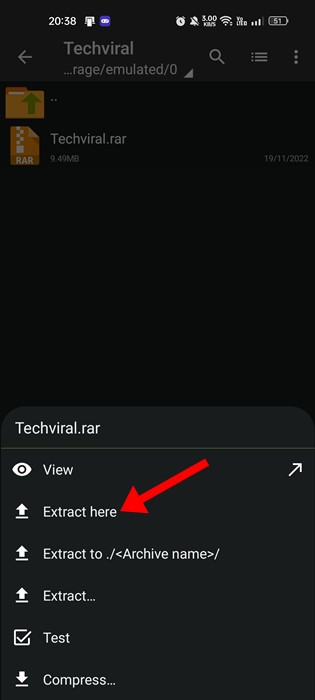
4. A list of options will pop up from the bottom. Here you need to tap on the Extract Here option.

Extract Here

5. If you want to extract the file in any other location, select the ‘Extract to‘ option and select your folder.

That’s it! This is how you can open RAR files on Android with the help of ZArchiver.

3) Open RAR files on Android with AZIP Master

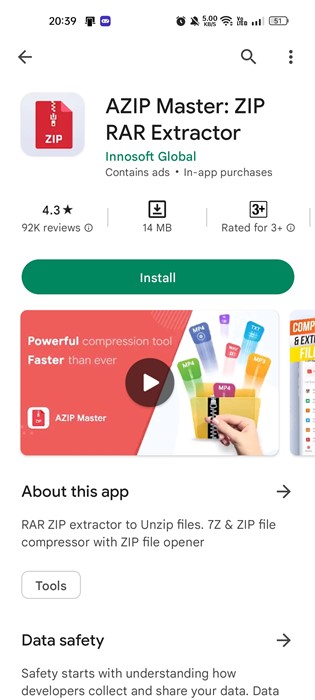
AZIP Master is a full-fledged RAR and ZIP extractor for Android smartphones. With this, you can decompress the archive files in any location. Here’s how to use AZIP Master on an Android smartphone.

1. First of all, download & install AZIP Master on your Android smartphone from the Google Play Store.

AZIP Master

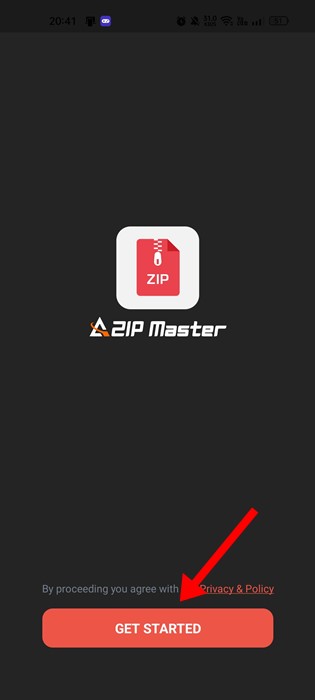
2. When the app opens, tap on the Get Started button and grant the permissions.

grant the permissions

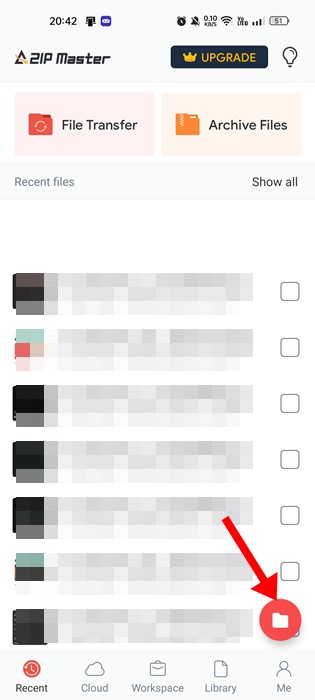
3. Now tap the file manager button at the bottom right corner.

file manager button

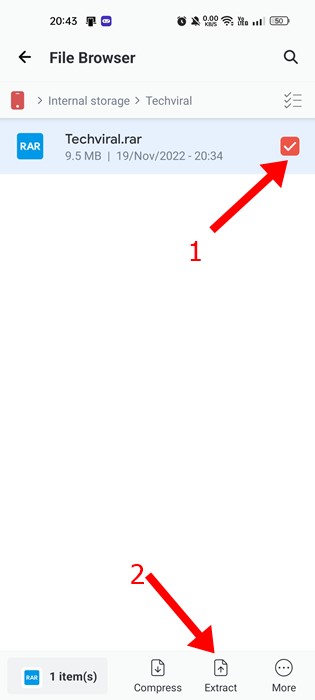
4. On the File Manager, locate the file where you have stored the RAR file.

locate the file

5. Now select the RAR file and tap on the Extract button.

That’s it! You can use AZIP Master on your Android to open RAR files.

4) Open RAR Files on Android using B1 Archiver

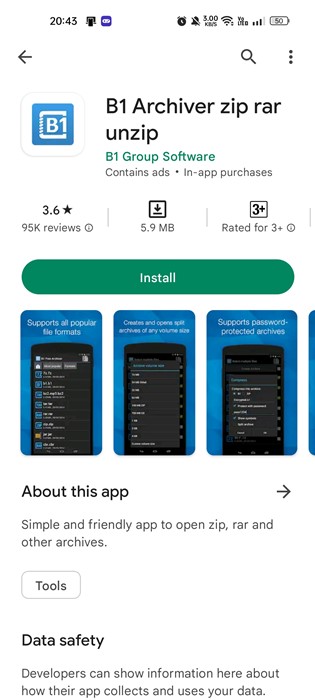
This method will use another file compression utility for Android to open the RAR file. Here we have used the B1 Archiver to open RAR files on Android.

1. First, download and install B1 Archiver on your Android smartphone.

B1 Archiver

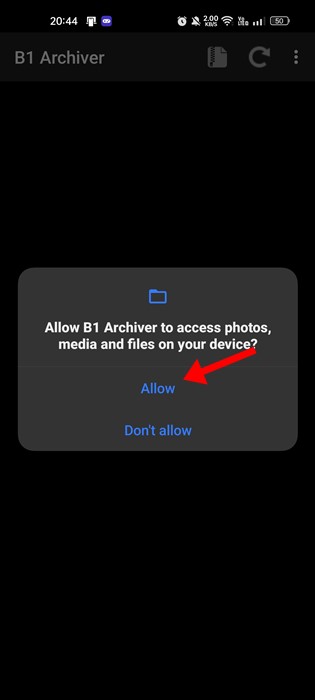
2. Once installed, open the app and grant all the permissions.

grant all the permissions

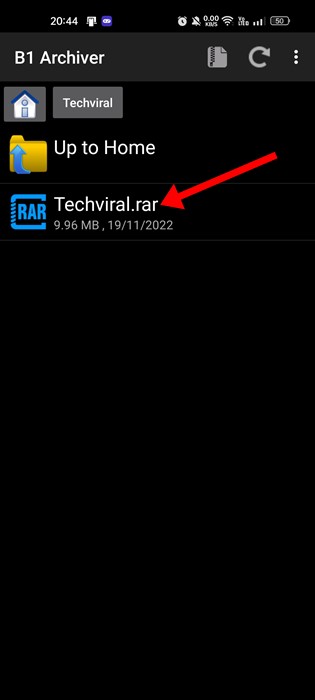
3. Now, navigate to the folder where you have stored the RAR file.

navigate to the folder

4. Now, long press on the RAR file and select the Extract option.

Extract

That’s it! Now specify the file extract destination. Your RAR file will be extracted in no time.

5) Open RAR files on Android using FArchiver

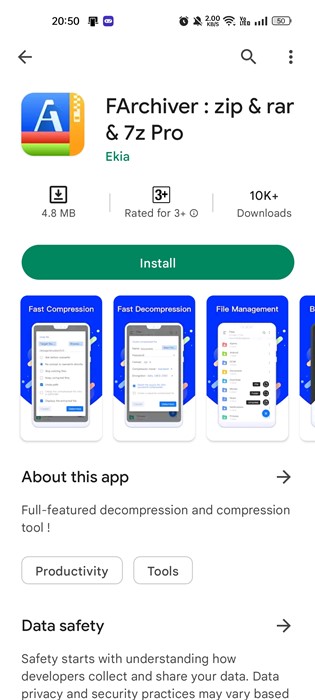
This method will use FArchiver, another best free ZIP & RAR extractors for Android. Here’s how to open RAR files on Android via FArchiver.

1. First, download and install FArchiver from the Google Play Store on your Android smartphone.

FArchiver

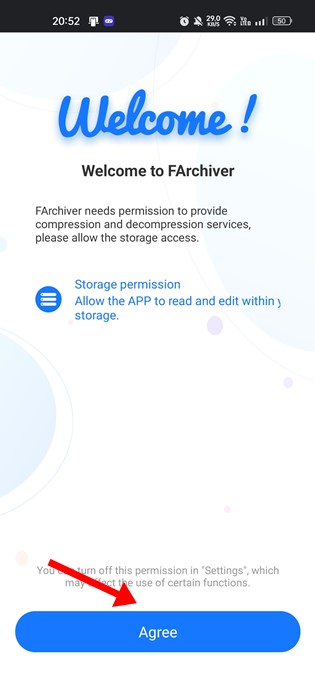
2. Once installed, open the application and grant the permissions.

grant the permissions

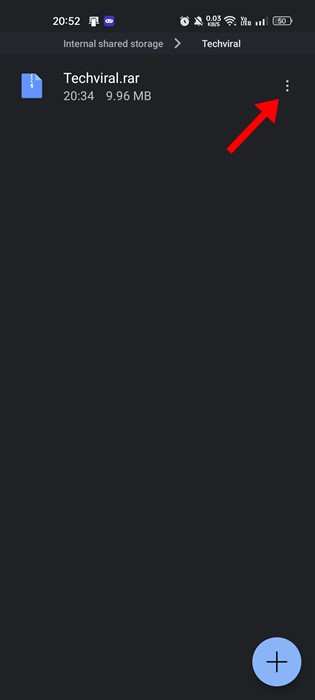
3. After granting the permissions, you will see a full-fledged file manager. First, you need to navigate to the path where the RAR file is stored. Next, tap on the three dots beside the RAR file.

full-fledged file manager

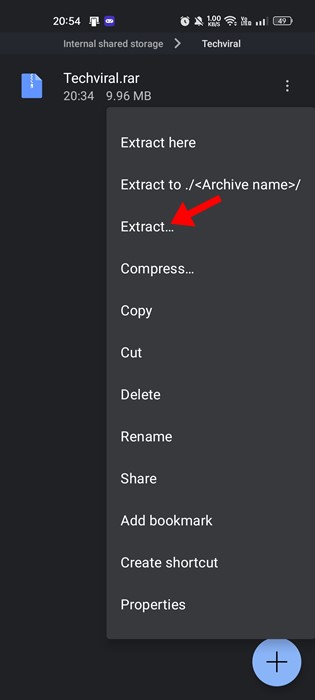
4. Next, tap on the three dots beside the RAR file and select ‘Extract‘

Extract

That’s it! This is how you can extract RAR files on Android using FArchiver.

Other Apps to Open RAR Files on Android

Zipify

Zipify

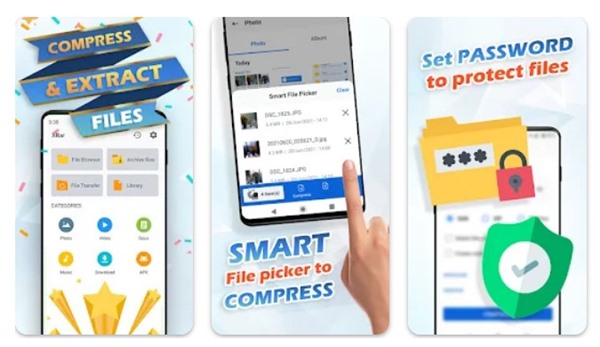
Zipify is a full-fledged file archiver app for Android. The file manager can be used to deal with all sorts of file compression formats and can handle zip/RAR files pretty well.

The app lets you open the RAR files in the rar viewer & unzip files. Other than that, you also get a ZIP file reader that lets you read the files without even extracting them.

XZIP

XZIP

With XZIP, you can easily extract the RAR and ZIP files. This one is a file manager for managing compressed file formats.

The file manager of XZIP displays only the file types it supports, and you can compress and decompress files from the file manager interface itself.

ALZip

ALZip

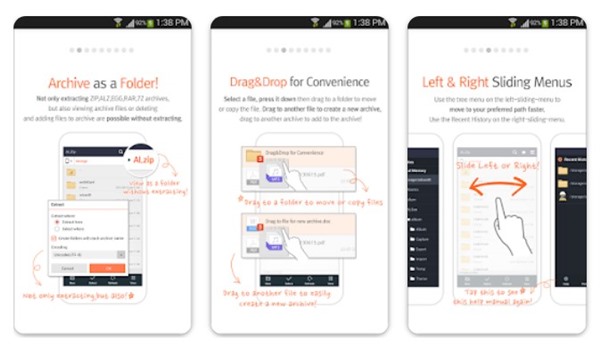
ALZip is an Android multi-purpose file manager app that can compress or extract compressed file formats.

You can use ALZip to compress files into zip, egg, and alz formats. While the app doesn’t support compressing files to RAR, it can extract the RAR files and can view the files.

The app also has an image viewer that can view the image files inside the archive without even extracting them.

Like the one we have used, you can use other file Compression apps for Android to open RAR files. With file compression apps, you can also deal with other file formats, such as ZIP, 7Z, etc.

It’s easy to open RAR files on Android since many third-party apps are available. So, these are some of the best and most free ways to open RAR files on Android. If you need more help opening RAR files on your Android device, let us know in the comments below.

The post How to Open RAR Files on Android (5 Methods) appeared first on TechViral.


from TechViral https://ift.tt/rTdPkbW