Monday, February 27, 2023

What Does Timer Mean on WhatsApp? How to get rid of it

What Does Timer Mean on WhatsApp? How to get rid of it

Being the most used instant messaging app, WhatsApp is used by almost everyone with an Android or iPhone right now.

The app lets you exchange texts, make voice and video calls, create and join groups, share files, and what’s not.

Also, the company behind WhatsApp regularly pushes updates and entices users by offering new features. If you’re an active WhatsApp user, at some point, you might have to think about what does timer mean on WhatsApp.

The timer symbol on WhatsApp can appear in two different situations, and many users still don’t know what it means. Below, we have discussed ‘What does Timer mean on WhatsApp‘. Let’s get started.

What Does Timer Mean on WhatsApp?

Like every similar category of apps, WhatsApp also uses a few symbols to describe certain features.

For example, the blue tick on the chat messages is shown when the read receipts are enabled. Blue Tick signifies that the receiver has read the message.

Similarly, the timer icon on WhatsApp appears in two different parts of the app. You will either see it in a chat or the WhatsApp profile.

What Does Timer Mean on WhatsApp Chat?

If you see a timer symbol in your messages in a selected chat, it could mean ‘Network Issues’. The timer is displayed next to the message when the app experiences an issue with your network.
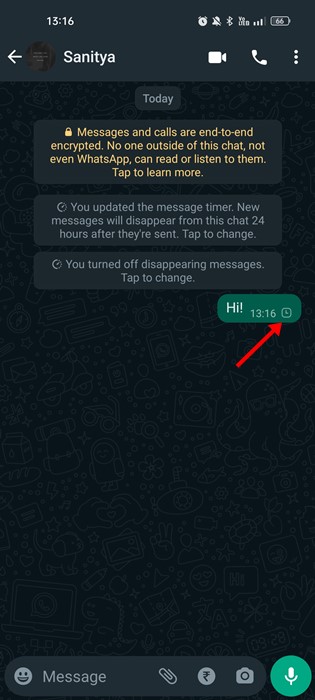
What Does Timer Mean on WhatsApp Chat?

The timer icon means that the message is not sent. The best thing you can do to remove the timer icon on WhatsApp messages is to resolve internet connection problems.

You can confirm whether your internet is working by opening fast.com. The site will show you the current internet speed. Alternatively, if you’re connected to WiFi, you can switch to Mobile data.

Whenever the WhatsApp app detects the internet, the message will be sent, and the timer icon next to the message will be gone.

What Does Timer Mean on WhatsApp Profile?

While messaging someone on WhatsApp, you may see a time icon on the profile picture. The timer icon can appear in individual chats or the group’s picture.

The appearance of timer symbol on WhatsApp profile means disappearing messages. If you don’t know, Disappearing messages is an optional feature you must manually turn on for more privacy.

WhatsApp’s disappearing messages allow you to set messages to disappear automatically after 24 hours, 7 days, or 90 days of being sent. It’s a great privacy feature that you should use.

So, when a person enables the disappearing message feature, you see the timer icon on the profile picture, meaning the sender has activated the Disappearing message.

How to Send Disappearing Messages on WhatsApp?

If you haven’t yet used the Disappearing messages on WhatsApp, here are the steps to help you get started.

1. First, open the WhatsApp app on your Android or iPhone.

2. Open the chat where you want to send the disappearing messages.

3. Next, click on their profile picture.
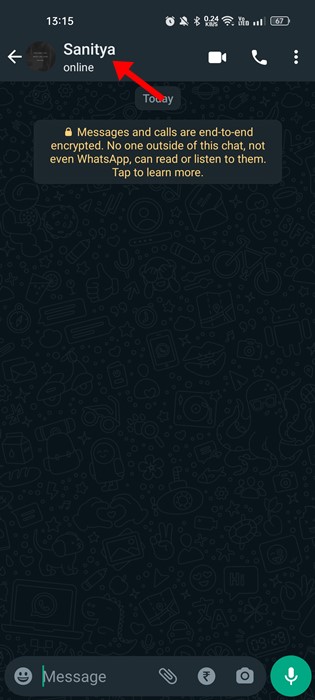
profile picture

4. On the next screen, scroll down and tap on Disappearing Messages.
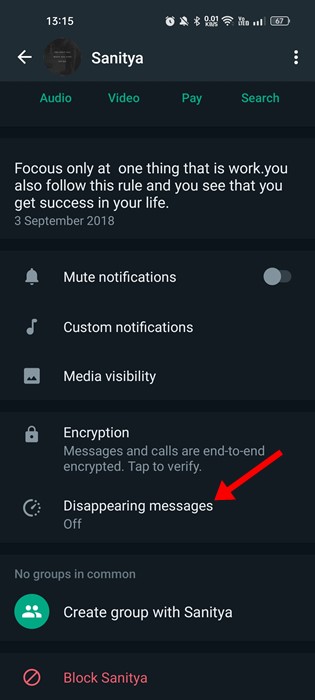
Disappearing Messages

5. Now, you will be asked to select the duration for the disappearing messages.
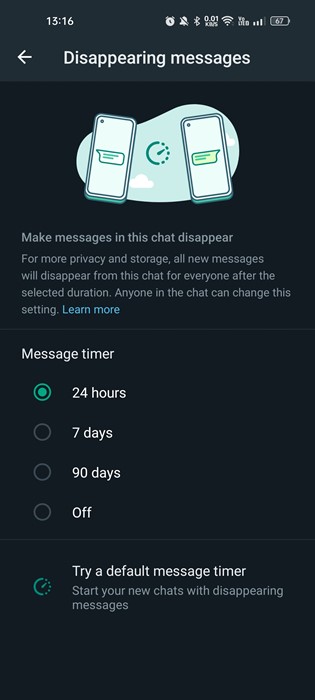
select the duration

6. Select the duration and move back to the chat page. You will notice a timer icon on the person’s profile picture.
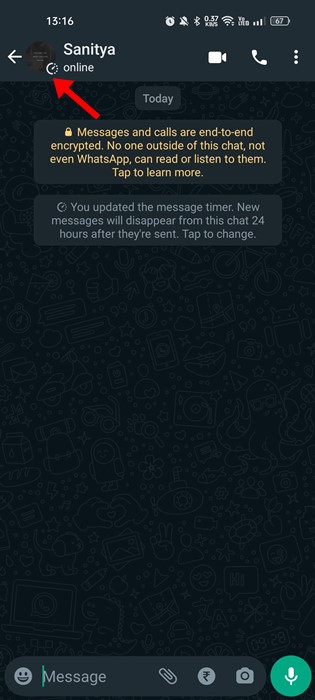
Timer icon on the person's profile picture

This is how you can enable Disappearing messages on WhatsApp. The messages you will send with this feature enabled will disappear automatically.

How to get rid of clock symbol on WhatsApp?

The WhatsApp clock symbol problem means the WhatsApp app is waiting for an active connection to send the message.

You need to check your internet connection if the clock symbol appears on the messages. You can switch your internet connection to WiFi or Mobile.

If the clock symbol appears on the WhatsApp profile picture, disable the disappearing message feature. Here’s what you need to do.

1. Open WhatsApp and select the chat where the clock symbol appears.

2. Next, tap on the person’s profile picture on the chat page.
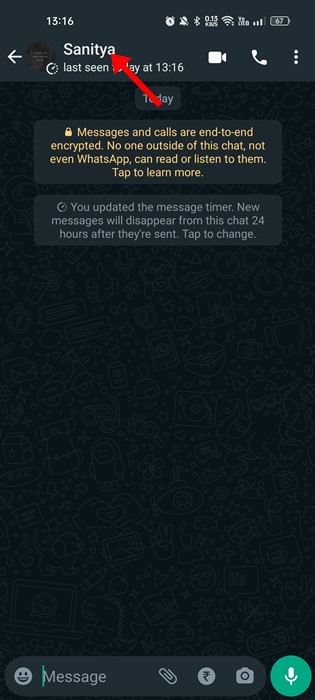
tap on the person's profile picture

3. On the next screen, scroll down and tap on Disappearing Messages.
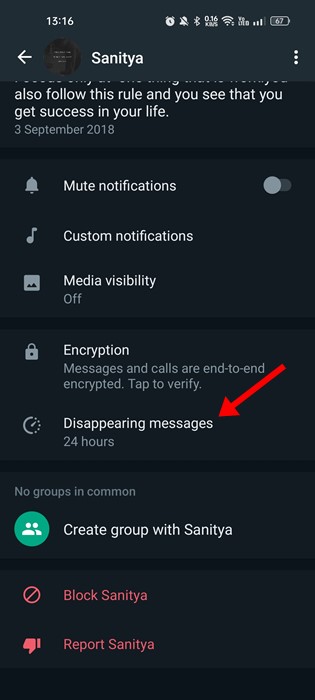
Disappearing Messages

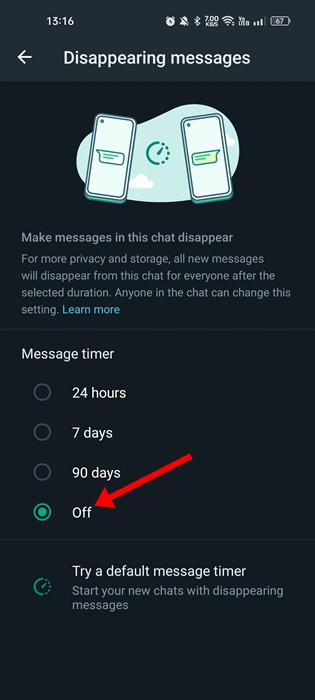
4. On the duration prompt, select ‘Off

Off

That’s it! This is how you can get rid of the clock symbol on WhatsApp.

Also Read: How to Send Anonymous Messages on WhatsApp

So, this guide is all about timers on WhatsApp Profile pictures and what it means. We have also discussed what the timer on WhatsApp Messages means. If you need more help understanding what timer means on WhatsApp, let us know in the comments.

The post What Does Timer Mean on WhatsApp? How to get rid of it appeared first on TechViral.


from TechViral https://ift.tt/FlUimeB

Sunday, February 26, 2023

Missing Chinese tech banker 'assisting' authorities

Bao Fan's disappearance this month renewed concerns of a potential crackdown on finance and tech figures.

from BBC News - Technology https://ift.tt/TcIqfwk

The high-tech weeding machines cutting herbicide use

Using AI technology, the latest weeding systems can automatically find and spray individual weeds.

from BBC News - Technology https://ift.tt/s67gYai

How to Fix File Explorer Tabs Not Showing in Windows 11?

Fix File Explorer Tabs Not Showing in Windows 11

Microsoft gave Windows users many reasons to switch to its new Windows 11. Windows 11 has a fresh look, themes, features, and many other visual changes.

If you are already a Windows 11 user using the 22H2 build, you are already witnessing the very useful ‘File Explorer Tabs’. Yes, the Windows 11 22H2 build got the tab support for File Explorer, and it’s a very useful multitasking feature.

However, the problem is that many Windows 11 cannot find the new File Explorer tabs even after updating their Windows 11 version to build 22621.675.

Many Windows 11 users installed the latest updates to experience the new tabs in File Explorer, but some were disappointed. Many users have reported missing tabs in Windows 11 file explorer.

7 Ways to Fix File Explorer Tabs Not Showing in Windows 11

So, continue reading the guide if File Explorer tabs are not showing in Windows 11, despite installing the Windows 11 22H2 update. Below are some of the best methods to troubleshoot File explorer tabs not showing Windows 11.

1. Make sure you are using the correct Windows 11 build

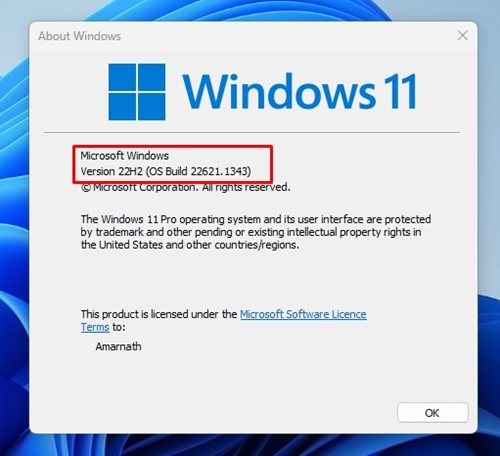
Not every build of Windows 11 has file explorer tabs. To experience the new file explorer tabs, ensure your PC runs on Windows 11 Build 22621.675 or later.

If you have installed the update delivered on October 18 – KB5019509, you should see the tabs in the file explorer. Here’s how to ensure your PC runs on Windows 11 Build 22621.675 or above.

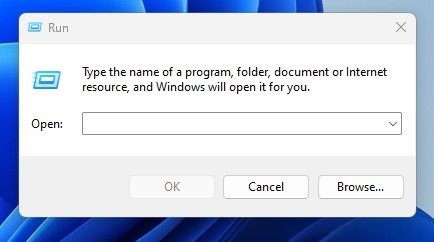
1. Press the Windows + R button on your keyboard to open the RUN Dialog box.

RUN Dialog box

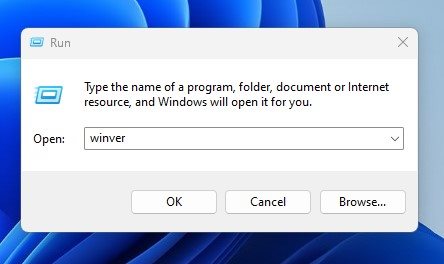
2. When the RUN dialog box opens, type in winver and press the Enter button.

winver

3. This will open the Above Windows app. Here you need to check the Windows 11 version.

check the Windows 11 version

That’s it! This is how you can check if your PC uses the correct Windows 11 build for the File Explorer tabs.

2. Update your Windows 11

You should update your operating system if your PC is not running on Windows 11 Build 22621.675 or above. It’s easy to install the Windows 11 22H2 update. Here’s what you need to do.

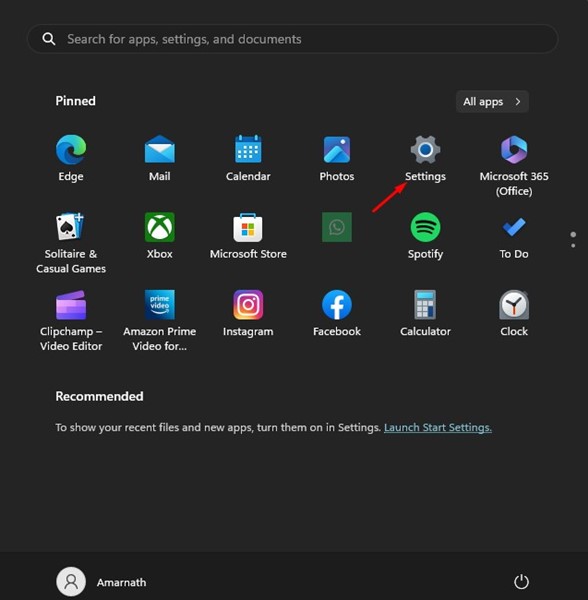
1. First, click the Windows 11 Start button and select Settings.

Settings

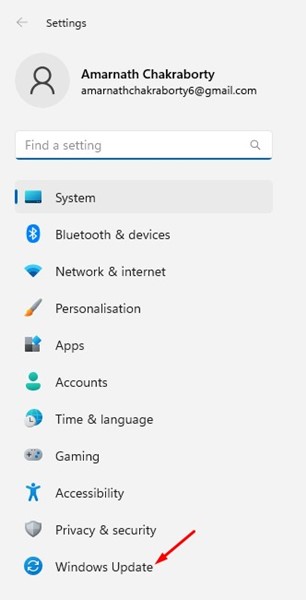
2. On the Settings app, switch to Windows Updates.

Windows Updates

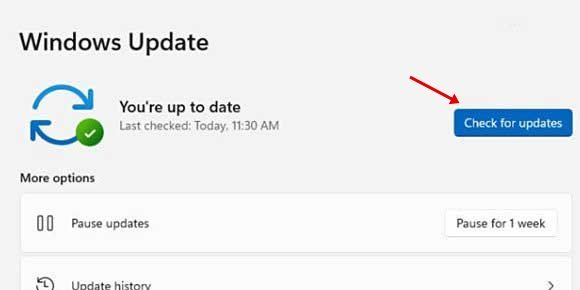
3. On the right side, click the Check for updates button.

Check for updates

4. Now you need to download & install all pending updates. If your PC is compatible with Windows 11 22H2, the version update will appear on the Windows update screen.

That’s it! This is how you can update your Windows 11 to fix file explorer tabs not showing on Windows 11.

3. Restart your Windows Explorer

If you don’t restart your PC often, it’s best to restart only the Windows Explorer process from the Task Manager.

New file explorer features may fail to show up due to the processes running in the background. And when you restart your computer or Windows explorer, all background processes likely preventing the File explorer tabs from showing up will be terminated.

It’s pretty easy to restart Windows Explorer on Windows 11. For that, follow some of the simple steps we have shared below.

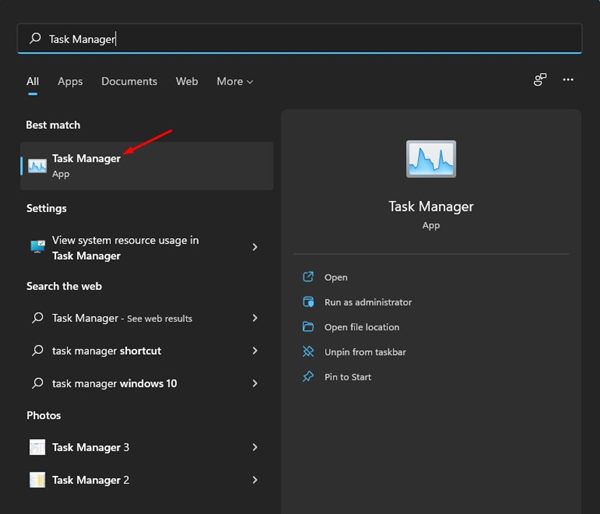
1. First, click on Windows 11 search and type in Task Manager. Next, open the Task Manager app from the list.

Task Manager

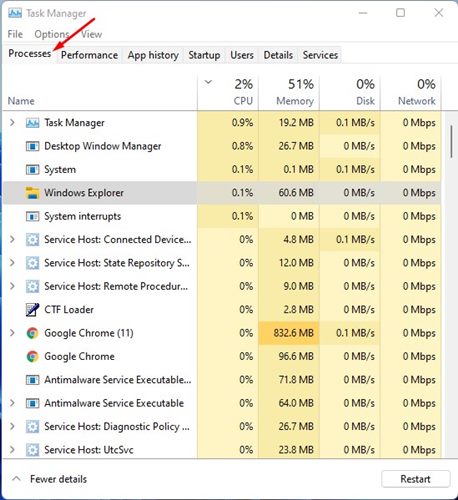
2. When the Task Manager opens, switch to the Processes tab.

Processes

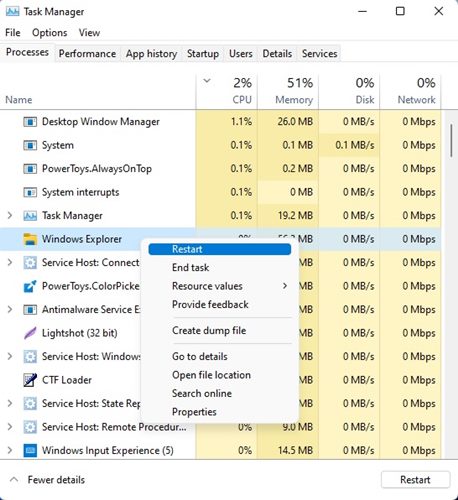
3. Find and select the Windows Explorer process on the right side. On the top-right corner, click on Restart. Or else, right-click on Windows Explorer and select Restart.

Restart

That’s it! This will restart File Explorer on your Windows 11 computer. Once restarted, open File Explorer and check whether tabs are appearing.

4. Enable Tabs in File Explorer via ViveTool

Well, a method enables tabs in Windows 11 File explorer forcefully. But that requires using the ViveTool.

We have already shared a detailed guide on enabling tabs in File Explorer using ViveTool. The method requires joining Windows Insider, downloading the ViveTool ZIP file, and executing a few commands on the Command Prompt.

Follow that guide to force enable tabs in the Windows 11 File Explorer using Vivetool.

5. Clear the File Explorer Cache

If everything is right on your end, but if File Explorer tabs are still not showing in Windows 11, you must clear the File Explorer Cache.

Windows 11 22H2 file explorer tabs not showing problem may be because of a corrupted file explorer cache. Hence, you can enable Windows 11 explorer tabs by clearing the cache file of File Explorer. Here’s what you need to do.

1. First, open File Explorer on your Windows 11. You can press the Windows + E button to open it.

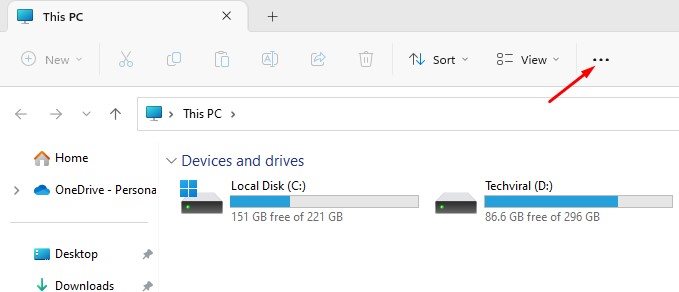
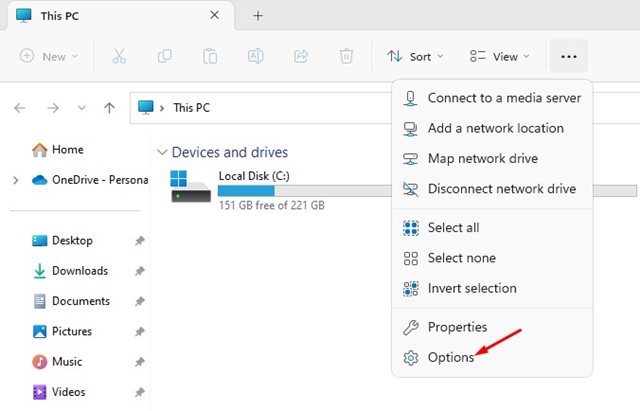
2. On the top menu, click the three dots shown in the screenshot below.

three dots

3. Select ‘Options‘ from the list of options that appears.

Options

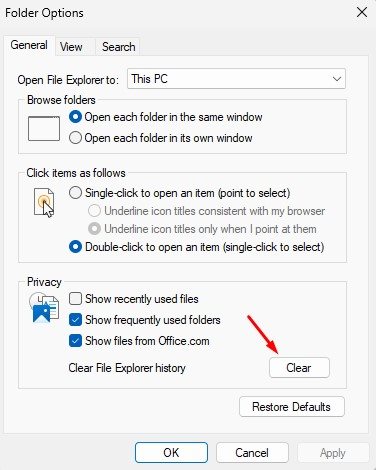
4. On the Folder options, switch to the General tab. Next, click on the Clear button in the Privacy section.

Clear

That’s it! After making the changes, click the Ok button to close the Folder options prompt.

6. Run the SFC command

SFC or System File Checker is a utility that scans and repairs corrupted system files. If the system files that handle the functionality of File Explorer are corrupted, the tabs won’t show up.

Also, you will need help with using the features of Windows 11 File Explorer. Hence, you can run the SFC command to fix File Explorer tabs not appearing on Windows 11.

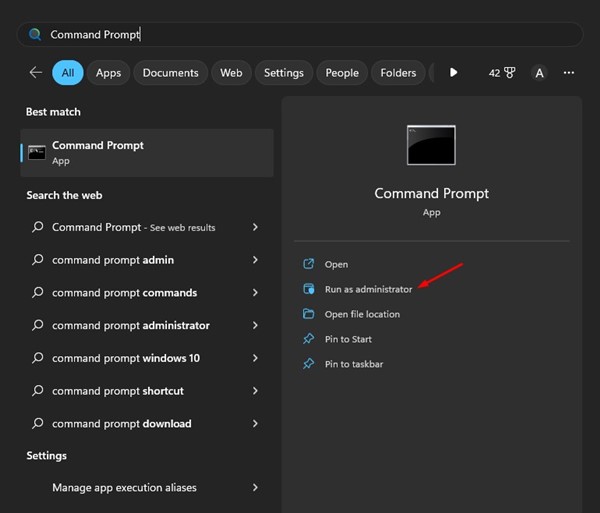
1. Click on Windows 11 search and type in Command Prompt. Next, right-click on the Command Prompt and select ‘Run as administrator‘.

Command Prompt

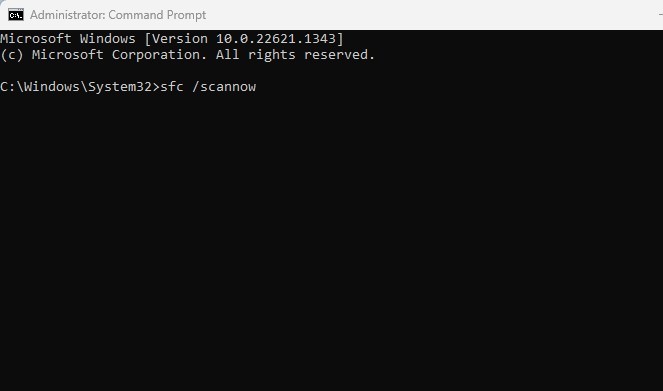
2. When the Command Prompt opens, type in the given command and press the Enter button.

SFC /scannow

SFC /scannow

3. Now, you need to wait patiently until the scan completes.

That’s it! This should fix Windows 11 File Explorer no tabs problem.

7. Reinstall the Windows 11 22H2 Update

If you have followed every method exactly how they are described, chances are that the missing File explorer tabs on Windows 11 issue might be fixed. If nothing worked for you, the remaining option is to reinstall the Windows 11 22H2 update. Here’s what you need to do.

1. First, click the Windows 11 Start button and select Settings.

Settings

2. On Settings, switch to Windows Update.

Windows Updates

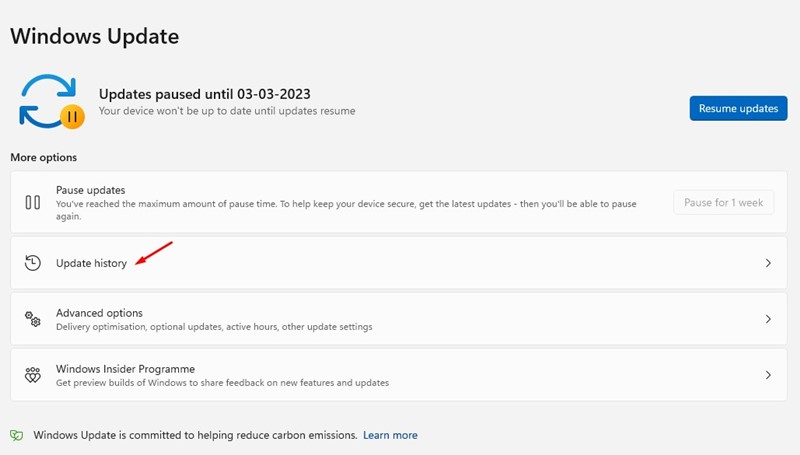
3. Next, on the right side, click on Update history.

Update history


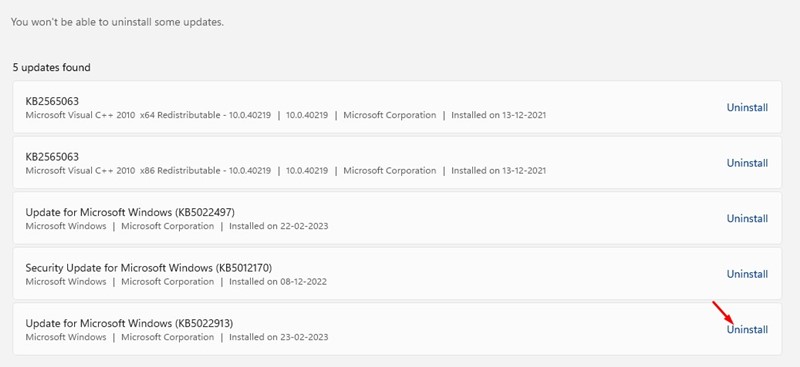
4. On the Update history screen, click on Uninstall updates.

Uninstall updates

5. Now, find the recent updates and look for the 22H2 build. Click on the Uninstall button next to it.

Uninstall

6. Once uninstalled, restart your computer and check for updates again. This time install the Windows 11 22H2 update again.

That’s it! This should fix no tabs on Windows 11 file explorer problem.

Also read: Windows 11 ISO Free Download

These are easy ways to fix missing file explorer tabs on Windows 11. If you need more help fixing the no file explorer tabs Windows 11 problem, let us know in the comments. Also, if the article helped you, share it with your friends.

The post How to Fix File Explorer Tabs Not Showing in Windows 11? appeared first on TechViral.


from TechViral https://ift.tt/zfDCtc6

Saturday, February 25, 2023

Unblock TikTok: 10 Best VPNs To Watch TikTok in 2023

How to Unblock TikTok

The short video-sharing app, TikTok, has gone viral within weeks after its launch. Today, TikTok is banned in many Asian countries, such as India, Bangladesh, Pakistan, and Azerbaijan.

Also, it’s banned in more than 20 states in the USA. While the service is getting banned for genuine reasons, one thing that we can’t ignore is its uniqueness. TikTok is the first app to present the concept of short video sharing to the world.

And that’s the sole reason it got viral within a few weeks of its launch. Today, major video & photo-sharing sites such as Instagram, YouTube, etc., are trying to provide users with a TikTok-type platform where everyone can create short videos and become a viral sensation overnight.

But, the unfortunate thing is that no alternative matches the features & simplicity of TikTok. This is why people still look for TikTok alternatives or find ways to unblock TikTok in 2023.

List of 10 Best VPNs To Watch TikTok

So, if TikTok is banned in your country and you are looking for ways to access the app, continue reading the guide. Below, we have listed a few best and working VPNs to unblock TikTok. Let’s check out.

Note: Since TikTok can be accessed from both desktop and mobile, we have listed the VPNs available for both platforms. We have linked the official website of the VPN providers; you need to follow those links and download the VPN app for desktop or mobile.

1. ExpressVPN

ExpressVPN

ExpressVPN is the leading VPN provider known for its IP Address masking feature. With ExpressVPN, you can easily mask your IP address and unblock TikTok.

To access TikTok after the ban, you must connect to a VPN server where TikTok is available. In this way, your device will appear as it is located in the selected region without revealing your true IP address & location.

ExpressVPN has served as a great VPN to unblock content from anywhere. This VPN app lets you watch, listen, and stream content from censored or blocked websites worldwide.

However, ExpressVPN is not free. You need to subscribe to a premium subscription to use the ExpressVPN servers.

2. SurfShark

Surfshark VPN

SurfShark is a premium VPN, but it does offer you a 7-day free trial. However, the 7-day free trial is only available on the Android, iOS, and macOS versions of SurfShark.

Another important thing to note about SurfShark is its 30-day money-back guarantee. You can claim the money-back guarantee if you don’t want to use the SurfShark VPN.

SurfShark is available for every platform, including Mac, Android, iOS, Windows, Linux, FireTV, etc. It also has an extension for Edge, Chrome, and Firefox browsers.

If we talk about the features, SurfShark provides you with all features you can expect from a premium VPN. You get 100+ server countries and thousands of servers to connect from to access TikTok from anywhere.

3. ProtonVPN

ProtonVPN

ProtonVPN is the best free VPN for TikTok that you can use today. It’s available for mobile and desktop and offers better speed than any other free VPN.

Like every other VPN, ProtonVPN sends your internet traffic through an encrypted VPN tunnel, so your passwords and confidential data remain safe.

Every server on the premium version of ProtonVPN was powered by VPN Accelerator technology that claims to improve browsing and stream speed by over 400%.

When unblocking TikTok from India or any other banned regions, you get to connect from over 2000+ servers spread across 67 countries. Overall, ProtonVPN is a great VPN for TikTok that you can use today.

4. PrivadoVPN

PrivadoVPN

You won’t find any free plan on the main page of PrivadoVPN, but it does have a free one. PrivadoVPN can be used for free, but you get 10GB of bandwidth every 30 days.

10GB might be just enough for accessing and watching TikTok after the ban. If we talk about the premium versions of PrivadoVPN, every premium plans are affordable, at least compared to other premium options on the list.

PrivadoVPN provides you top of line encryption and offers you many features to protect your privacy. You get thousands of servers in 46 countries and 61 cities to unblock and watch TikTok.

The thing that makes PrivadoVPN the best free VPN for TikTok is that it’s completely ad-free, keeps no activity logs, and gives users more server choices than any other free VPN provider.

5. NordVPN

NordVPN

This is one of the oldest and most settled VPN service providers in the world. NordVPN is a premium VPN app that has its app available for all major platforms.

If you are looking for ways to unblock TikTok on mobile, you can use the NordVPN mobile app for iPhone or Android. Alternatively, you can use the NordVPN desktop client to access and watch TikTok on your desktop.

The premium plans of NordVPN are quite affordable and provide more server choices than any other VPN service provider. With a premium NordVPN subscription, you can choose from over 5400 ultra-fast servers in 60 countries.

If we talk about the features, NordVPN is known for its awesome features like Threat Protection, Meshnet, Dark Web Monitor, Kill Switch, Split Tunneling, SmartDNS, and more.

6. Windscribe

Windscribe

Windscribe has free and premium versions, but it’s mostly sold for its free plan. The free plan gives you a 10GB/month bandwidth allowance.

Windscribe has its app available for both desktop and mobile. On mobile, you can get the Windscribe app from the Apple App store or Google Play Store for your iPhone or Android.

The plus point that Windscribe has over other free VPNs is that it doesn’t restrict you from installing and using Windscribe free on many devices simultaneously.

Server choices in the free version is another highlight; with Windscribe free version, you can choose from 14 different servers in 11 countries. This beats most free VPN providers on the list.

The VPN speed is good enough to access and watch TikTok. The VPN app itself is lightweight, and if you are looking for a free VPN option, you can definitely go with this one.

7. Atlas VPN

Atlas VPN

Atlas VPN may not be very popular, but it’s still one of the best VPNs you can use on your computer or mobile. The VPN is available for all sorts of platforms you can think of.

Like Windscribe, Atlas VPN also has both free and paid plans. The free plan offers you 10GB of bandwidth every month. If you use it on Mac, you will get 2GB/day, which makes it 20GB/month.

Mac users have a little more edge over Windows users regarding bandwidth. Every plan of Atlas VPN comes with a robust no-log policy, location detector, network kill switch, multihop+, etc.

At the time of writing, Atlas VPN has over 750 servers across 45 locations. The servers of Atlas VPN can easily unblock most streaming websites, gaming websites, and TikTok.

8. Hide.me VPN

Hide.me

Hide.me VPN may be more promising, but it’s a freemium VPN app that can easily unblock TikTok or similar apps. To get started, Hide.me provides 10GB of data per month to every free user.

The free account of Hide.me VPN provides you access to 5 different P2P-friendly locations. While the VPN may not be best for torrenting, it can still provide access to sites like TikTok.

If we discuss the Premium Plan of Hide.me VPN, you get 2100 servers across 78 locations. The premium plan offers 10 simultaneous connections and has strict no-logs policies.

Some of the Hide.me Premium version’s key features include unlimited data traffic, fixed IP address, dynamic port forwarding, etc.

9. IPVanish

IPVanish


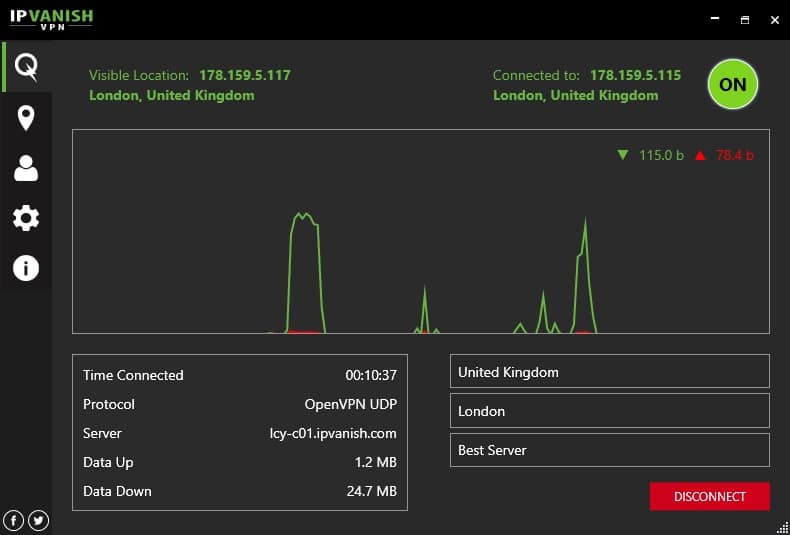
Like every other VPN app, IPVanish also works by securing connections from a device to the internet. It’s not a free VPN program, but its subscription costs are quite affordable.

The VPN doesn’t log your data, has a kill switch, IPv6 Leak Protection, Lan blocking, etc. You can get IPVanish on Android, iOS, Windows, MacOS, Linux, Routers, etc.

When unblocking TikTok, you get over 2200 servers across 75+ VPN locations. The data cap is unlimited; hence, you can stream TikTok for hours without worrying about the extra cost.

The biggest plus point of IPVanish is that it doesn’t meter active connections; hence you can protect all your devices simultaneously.

10. TunnelBear VPN

Tunnelbear VPN

TunnelBear recently ended its free plan offering unlimited bandwidth. Now you get only 2GB of monthly bandwidth for browsing & streaming with the free version.

While 2GB of monthly data may not be enough for watching videos on TikTok, you can still use it to unblock the site.

Like every other VPN, TunnelBear VPN also works in the same way. It encrypts your internet connection and keeps your online activity private on any network.

Also read: 10 Best TikTok Video Downloaders

These are the few best VPNs for TikTok that you can use today. These VPNs are available for Windows, MacOS, Android, and iOS. You need to visit your device’s app store and download the VPN app that satisfies your needs. Let us know in the comments below if you want to suggest any other VPN to watch TikTok in any country.

The post Unblock TikTok: 10 Best VPNs To Watch TikTok in 2023 appeared first on TechViral.


from TechViral https://ift.tt/kmaSp9v

What Does ‘#oomf’ Mean on Twitter? (Meaning with Examples)

What Does '#oomf' Mean on Twitter? (Meaning with Examples)

If you just joined Twitter to connect with celebrities and popular public figures, you may need help understanding certain abbreviations and slang.

Some acronyms, abbreviations, and slang may sound strange, especially if you are new to the social network site.

Recently the abbreviation confusing many Twitter users is ‘OOMF’, used on many social networking platforms.

If you are reading this guide, you are probably looking for an answer to your question, ‘What does #oomf mean on Twitter‘. Hence, below, we have explained what does #oomf mean on Twitter and how you can use it. Let’s get started.

What does #oomf Mean on Twitter?

OOMF is an abbreviation used on Twitter, Instagram, and Facebook. You will only find people using OOMF on instant messaging or gaming apps such as Discord.

The ‘OOMF’ on Twitter stands for ‘One of my Followers’; people often use it with a hashtag: #oomf.

Usually, Twitter users use it when they want to mention their followers but want to keep their name and account private. It’s one of the most famous ways to mention a follower without mentioning their name.

The mention of #oomf in Twitter tweets will let one of your followers know you’re talking to them without mentioning them.

How to use OOMF on Twitter?

The definition of OOMF may be confusing to you, and that’s why we came up with a few examples that will show you how to use this abbreviation on social media sites.

Example 1:

Oomf is a wealthy men, but I would rather select health before wealth!”

In the above statement, a Twitter user refers to one of its followers by mentioning “OOMF” at the beginning but without tagging them.

When followers read the tweet, they will know it is for them. The goal is to avoid mentioning the follower’s name in the tweet.

Example 2:

“I just met Oomf at the grocery store; she is so nice and kind!”

In this example, a Twitter user refers to a girl follower by using “Oomf”. This is an indirect way of tagging the girl to make her feel special.

When the follower comes across the tweet, she will know that the tweet is for her.

Example 3:

“I think I have a crush on Oomf! But I hope he never finds out because I’d die of shame.”

In this example, a Twitter user claims to have a crush on one of her followers. But she wants to keep it secret.

Other Acronyms & Abbreviations used on Twitter

Like the #oomf, Twitter houses hundreds of other acronyms and abbreviations. Since recalling all of them is impossible, we have mentioned a few popular ones.

RT: This means ‘Retweet’.

DM: DM on Twitter means ‘Direct Messages’.

DP: This means ‘Display Picture’.

NSFW: Not Safe for Work.

IRL: In Real Life.

ICYMI: In case you missed it.

TBH: To be honest.

ATM: At the Moment.

IDEK: I don’t even know.

IDM: I don’t know.

These are not the only acronyms & abbreviations used on Twitter. You will find hundreds of them on the platform. Ultimately, it all comes down to you which acronyms, abbreviations, or slang suits your tone of the conversation well.

And the good part of abbreviations is that they can be used on any chat-based application or service. The same goes for Oomf on Twitter as well.

Also Read: What Does ‘TL’ Mean on Twitter?

So, this guide is all about what #oomf means on Twitter and how to use it. We have also shared a few examples to help you better use the abbreviation on the social networking site. If you need more help understanding what oomf means on Twitter, let us know in the comments. Also, if the article helped you somehow, share it with your friends.

The post What Does ‘#oomf’ Mean on Twitter? (Meaning with Examples) appeared first on TechViral.


from TechViral https://ift.tt/iKESfNk

Google’s Magic Eraser Is Now Available for iPhone & Android Users

Google's Magic Eraser Is Now Available for iPhone & Android Users

Google is finally making some of its extraordinary and exclusive features widely available as it announced to release Google Photos app’s multiple features, such as Magic Eraser and HDR video for Android and iOS users who have subscribed to Google One subscriptions.

We all know the Google Photos app is not a favorable app for photos, but it has some advanced features compared to any other photos app, and now, non-Pixel or even iOS device users can use them, so let’s discuss all details below.

Google One Subscribers Can Use Pixel 7’s Exclusive Features on Any Android & iOS Device

Google One Subscribers Can Use Pixel 7's Exclusive Features on Any Android & iOS Device

You may be familiar with Google’s Magic Eraser feature and its capability of removing unwanted objects and distractions from the selected image with just a few taps.

It is said to be the best object remover tool than others as once it was compared to its competitor Samsung’s Object Eraser, and it was found to have more advancement.

Currently, it is only available for Pixel 6 & Pixel 7 series smartphone users, but very soon, it will arrive for more Pixel phones for free, and Google One members will also be able to use it on Android and iOS.

Besides, this is not the only feature that is coming for Google One members. The list also includes the Google Photos app’s HDR effect for videos which helps to enhance the color of videos.

And they will also get some exclusive collage editor styles in the app. Also, Google noted that all Google One subscribers would get all upcoming photo editing features earlier than everyone gets access.

Earlier, Google also launched its own VPN service, which is included in the subscription so subscribers can use it on their iPhone, PC, or any Android phone, and for Pixel 7 & 7 Pro users, it is completely free.

The starting subscription of 100GB storage costs $2 a month or $20 annually, and there is also a free trial, you can check out more details on its official site.

The post Google’s Magic Eraser Is Now Available for iPhone & Android Users appeared first on TechViral.


from TechViral https://ift.tt/7tPxOZA