Saturday, July 30, 2022

How to Remove Dangerous Softwares From Windows 11 (MSRT)

Remove Dangerous Softwares From Windows 11 (MSRT)

Both Windows 10 and Windows 11 operating system ships with a built-in security tool known as Windows Security. Windows Security is excellent as it comes for free and provides real-time protection against viruses, malware, spyware, and more.

The latest version of Windows security is capable enough to find and remove hidden malware, but there are still some sorts of threats that pass through the antivirus protection. To deal with such a group of threats, Microsoft has an MSRT Tool.

What is MSRT Tool?

MSRT or Malicious Software Removal Tool is a security program made by Microsoft to run on Windows operating system. The security tool is designed to run on an already infected system.

This means if specific malware or dangerous software were preventing you from using the core features of Windows, you need to run this tool.

The security tool comes built on Windows operating system and is also available as a standalone tool. You can rely on this tool to find and remove specific, prevalent threats and reverse the changes they have made.

Also read: 10 Best Free Malware Removal Tools for Windows

Use Malicious Software Removal Tool on Windows 11

If you believe your Windows 11 PC has dangerous software, you must run the MSRT tool immediately. Here’s how to run the MSRT tool on Windows 11 computer.

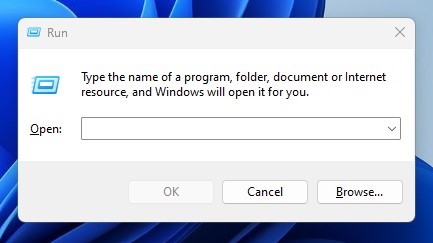
1. Press the Windows Key + R button on your keyboard. This will open the RUN dialog box.

RUN dialog box

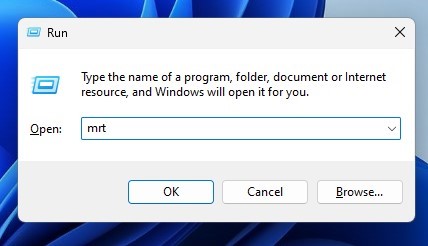
2. On the RUN dialog box, enter mrt and hit the Enter button.

mrt

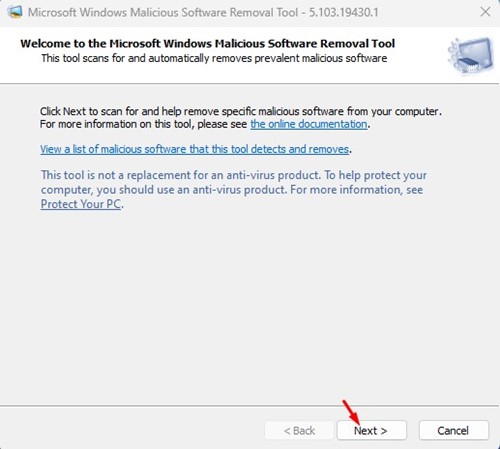
3. This will immediately open the Windows Malicious Software Removal Tool. Simply click on the Next button.

Windows Malicious Software Removal Tool

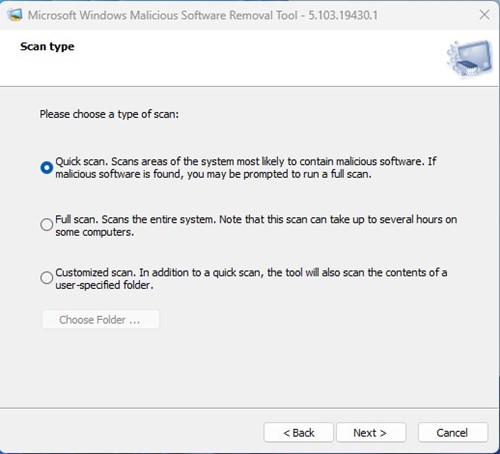
4. To get started, select the type of scan you want to run. There are three scan options – Quick, Full, and Customized. It’s recommended to run the Full Scan if your PC is infected with malware.

select the type of scan

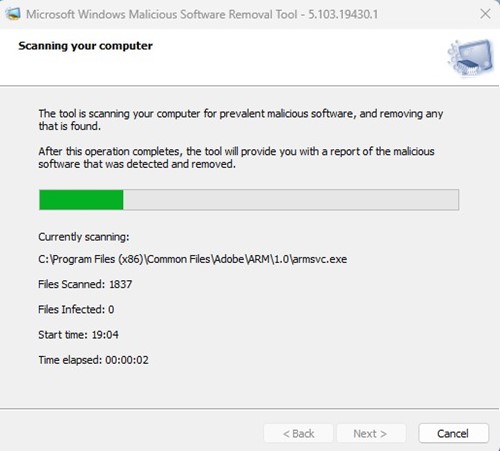
5. Now, the Microsoft Windows Malicious Software Removal Tool will run the scan.

run the scan

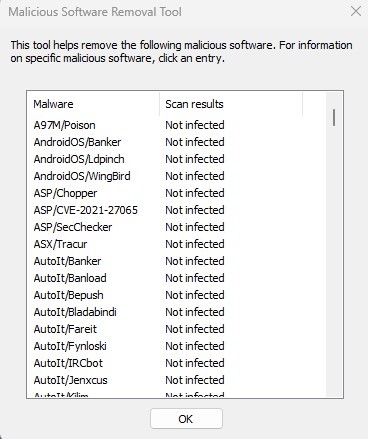
6. Once completed, click on the View detailed results of the scan link.

View detailed results of the scan

7. You can also view the scan log file from the location: C:\Windows\Debug\mrt.log

view the scan log file

That’s it! You can remove dangerous software from your Windows PC by running the MSRT tool.

While the MSRT tool is excellent and can deal with the most dangerous malware, it’s not an actual replacement for a premium antivirus suite. For the best protection, it’s recommended to have premium antivirus software for PC such as Malwarebytes or Norton. So, this guide is all about how to remove dangerous software from your Windows PC. If you have any doubts about this, let us know in the comments below.

The post How to Remove Dangerous Softwares From Windows 11 (MSRT) appeared first on TechViral.


from TechViral https://ift.tt/iK2ksRy

Samsung Galaxy Watch 5 & Watch 5 Pro Clear Renders Leaked

Samsung Galaxy Watch 5 & Watch 5 Pro Clear Renders Leaked

Samsung Galaxy Watch 5 & Watch 5 Pro clear and high resolution renders have surfaced ahead of its launch, so seemingly we can confirm its launch in the upcoming event.

The Korean tech giant Samsung has already announced a Galaxy Unpacked Event to launch new smartphones and other gadgets, where we also expect the launch of the Galaxy Watch 5.

Samsung Galaxy Watch 5 & Watch 5 Pro Design & Colors

Samsung Galaxy Watch 5 & Watch 5 Pro Design & Colors
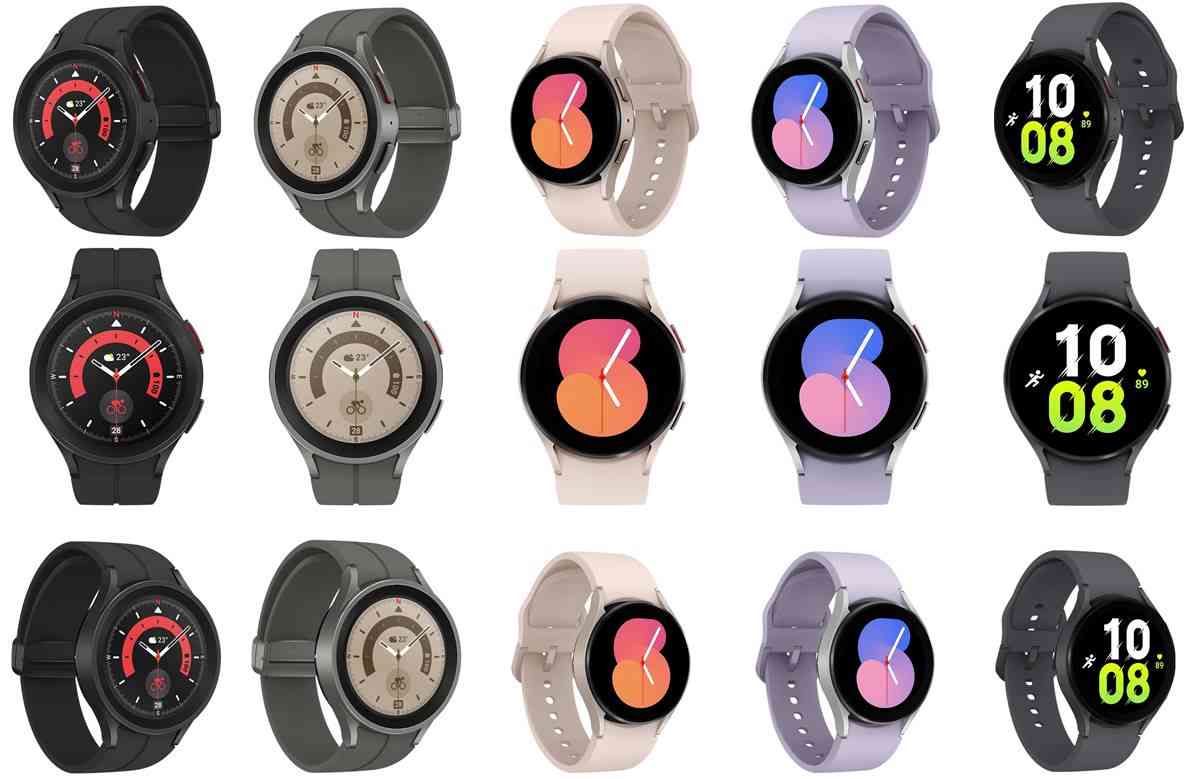
Image: 91Mobiles

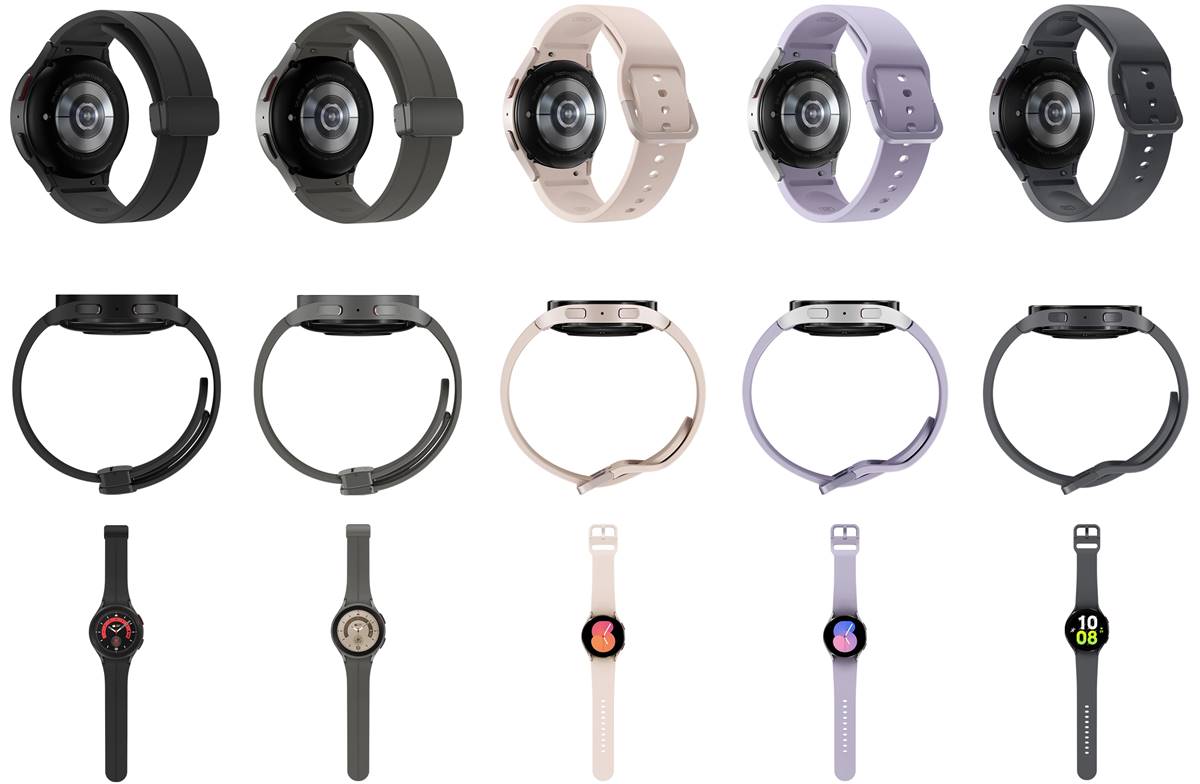
These all render has been leaked by Evan Blass via 91Mobiles. As you can see in the above image, its design is in a complete 360-degree view.

On the left side, two heavily designed smartwatches are the Galaxy Watch 5 Pro in Black and Dark Grey colors. Besides, these smartwatch designs are similar to the Galaxy Watch 4 Pro.

And other three are the base model of the Samsung Galaxy Watch 5, which doesn’t have such new design changes, and according to these renders, it will come in three different colors: Lavender, Dark Grey, and Peach.

There’s little change spotted in the display panel. The bezels seem slimmer than their predecessors, while it might also seem because of the round-shaped bezel, but exactness will only reveal after its launch.

Besides, some other details about Galaxy Watch 5 have been rumored from past reports and leaks, such as it will have fast charging support with a 10W capacity, which will be the most significant point for its promotion.

And Galaxy Watch 5 will cost you more than last year’s, and its pricing details were suggested by a tipster named Roland Quandt. You can check out these tipped prices in this article.

The latest rumors also clarified that it would not have thermometer features whose testing details came out last year and might be planned for next year.

Availability

These smartwatches are expected to launch at Galaxy Unpacked event, which will take place on 10 August. You can see this event all detail in this article.

The post Samsung Galaxy Watch 5 & Watch 5 Pro Clear Renders Leaked appeared first on TechViral.


from TechViral https://ift.tt/YkFaBKE

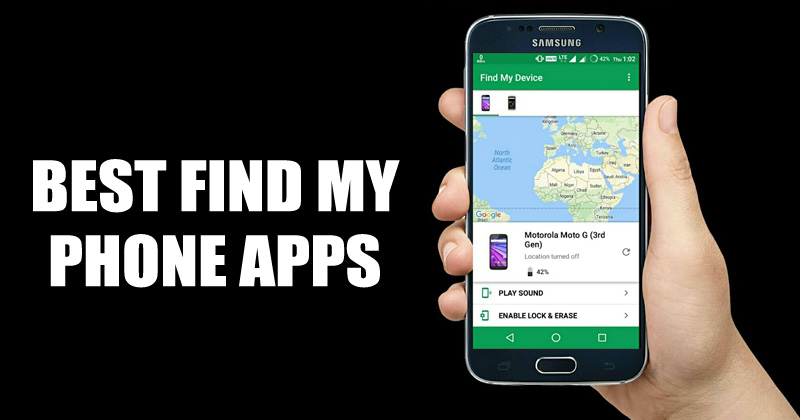
10 Best Find My Phone Apps For Android in 2022

10 Best Find My Phone Apps For Android in 2022

Let’s admit it, losing a smartphone is always an unpleasant experience. You have your contact information, personal information, pictures, videos, etc., on there. Nobody wants to think about their phones getting stolen in the modern age, as they can invite personal and financial troubles.

However, losing a smartphone or phone theft is pretty standard, and it could happen to anyone. So, it’s always better to be on the safe side by installing to find my phone apps. There are plenty of Find my phone apps available on the Google Play Store, and in this article, we will list a few of them.

List of 10 Best Find My Phone Apps For Android

Find my phone apps can quickly recover your stolen or lost phone. So, let’s check out the best to find my phone apps.

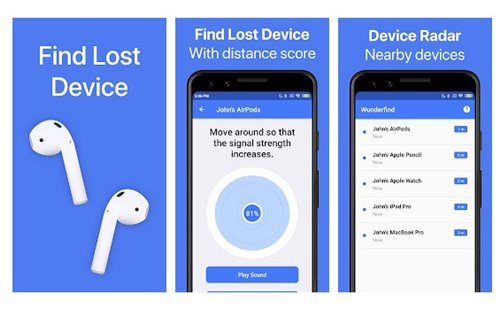
1. Wunderfind

Wunderfind

Wunderfind is one of the unique phone finder applications on the list. Guess what? Wunderfind can help you find your lost AirPods, headphones, Fitbit trackers, and Android & iOS devices.

You need to connect your devices with this app. Once connected, the device radar shows you all the devices near you.

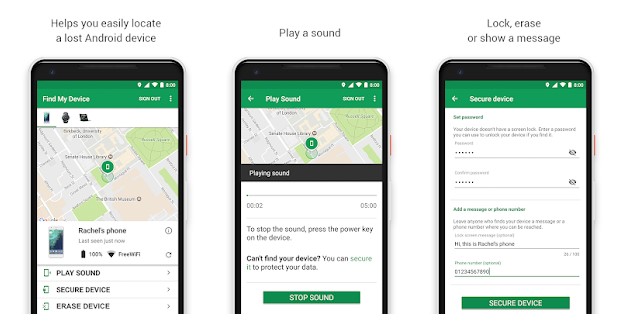
2. Find My Device

Find My Device

This is a native find my phone app provided by Google. If we talk about the features, the app does all the basic stuff like sounding alarms, locking devices, etc. Not only that, but it also lets you wipe your phone via the web interface.

To track the location, the app relies on the GPS functionality of your phone. The great thing is that it’s completely free with no in-app purchases or advertisements.

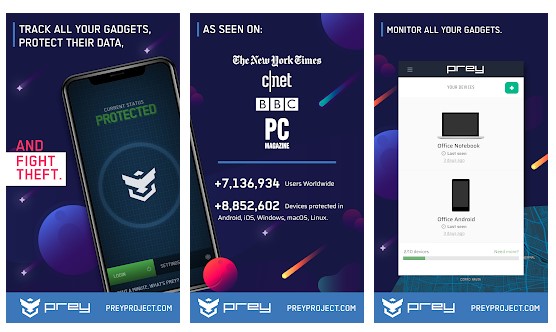
3. Prey Anti Theft

Prey Anti Theft

One of the best and top-rated anti-theft, data security, and device management apps available on the Play Store.

The app lets you create control zones on the map to alert device movement in and out of them. Apart from that, Prey Anti Theft is known for its accurate GPS geolocation tagging.

4. TrackView

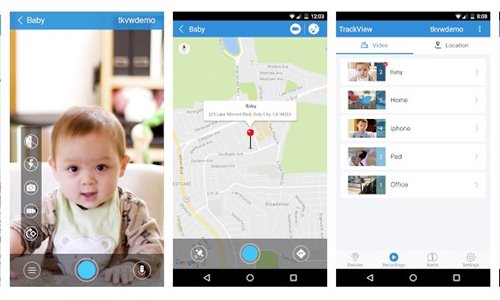
Well, TrackView is a family safety application for Android. The app turns your smartphone into a connected IP camera with a GPS locator. It also provides valuable data like event details, two-way audio detection, IP camera for home security, and more.

Also, with the premium plan, you get cloud storage options to backup your recordings. Overall, TrackView is the best IP camera and GPS locator app for Android.

5. Phone Tracker By Number

Phone Tracker By Number

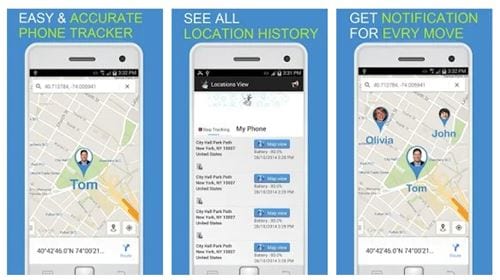
If you are searching for a robust and accurate GPS tracker app for your Android device, then you need to try Phone Tracker By Number. The Android app has been designed to find your kids’ location by mobile number.

First, you must set up the Android app and register a phone number. Once done, you will be able to track the GPS location of the device.

6. Locator 24

Locator 24

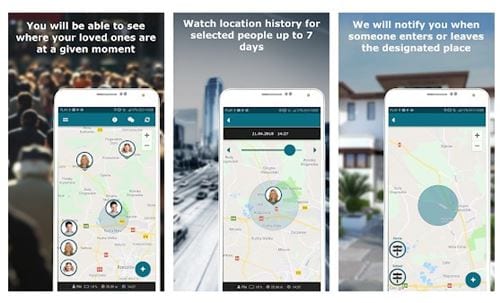
Locator 24 is another best parental control app for Android to track a lost smartphone. The app lets you create both Child and Parent Profiles. Then, depending on your selections, the app generates a unique code you need to share with the other devices.

Once added, the app lets you see the circle members’ location history, sends you a notification when someone enters a designated place, sends an alert in the event of an emergency, etc.

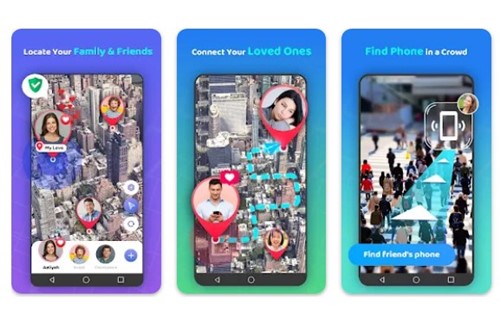
7. sharing Location Tracker

iSharing Location Tracker

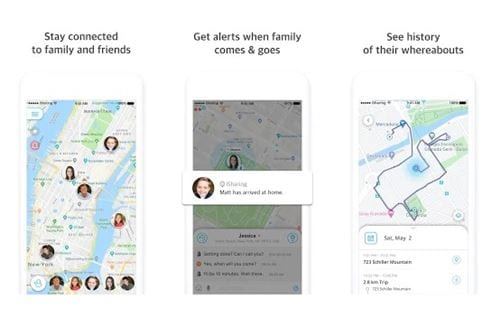
iSharing Location Tracker allows family members and friends to share their location information privately. With iSharing Location Tracker, you can view the location of added contacts, receive real-time alerts of location-based events, track lost or stolen smartphones, etc. The app also offers free voice messaging features.

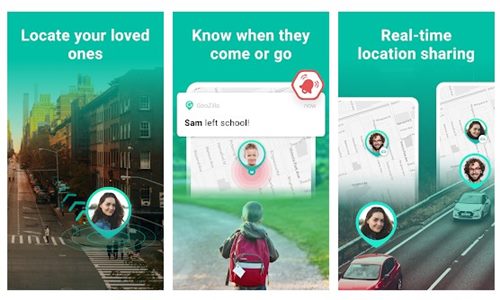
8. GeoZilla

GeoZilla

GeoZilla is one of the best Android apps to track family locations. This one is very similar to the other apps listed in the article.

In this app, you create a circle, invite your family members, and share your location. Other family members can see or find your exact location in your circle.

The app requires location services to provide you with real-time location sharing services. Overall, this is a great find my phone app for Android.

9. BetterLife Family Tracker

BetterLife Family Tracker

BetterLife Family Tracker is a GPS location tracker app for Android devices. You can use this app to find your family, friends, or loved ones through phone numbers.

To start using the app, you need to generate a family link and share it with your loved ones. They need to install the app and join the family link. Once joined, you can track their location or share your own.

Apart from location tracking, it also offers you a few other features like sending SOS signals, creating private groups, and more.

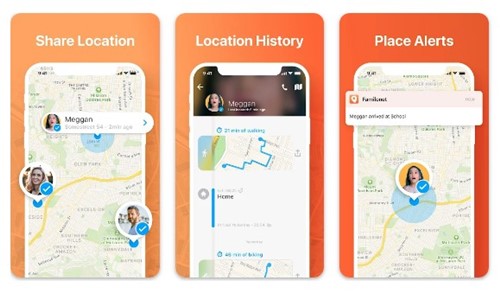
10. Familo

Familo

Familo is an Android app that lets you share your real-time location with others on a map. It’s a simple location-sharing app you can use with your family and kids.

You can use it to track the location of other family members or share your own. Apart from the basic location-sharing features, Familo provides chat options.

You can communicate with your family members and kids in a private family chat, know when family members arrive or leave a location, and more. Overall, Familo is an excellent location-sharing app you shouldn’t miss.

So, these are some of the best find my phone apps for Android. You can easily find your phone with these Android apps. Also, if you know any other such apps, let us know in the comment box below.

The post 10 Best Find My Phone Apps For Android in 2022 appeared first on TechViral.


from TechViral https://ift.tt/jDQVSUk

10 Best Free Email Services/Service Providers in 2022

10 Best Free Email Services/Service Providers in 2022

Email services serve as an easy contact option for people. Through email services, anyone can share their documents, manage their business work, chat with others, etc. Currently, plenty of web email services are available for anyone to register and use.

However, not every service is best; some offer unlimited storage, whereas others focus on privacy. So, in this article, we have decided to share a list of the best free email services and service providers you can use today.

List of 10 Best Free Email Services/Service Providers

We have used these email services, which are worth your time and money. So, let’s check out the best free email services and email service providers.
1. Gmail

Gmail

If you are using Google Services, you might be well aware of Gmail. Gmail is an email service from Google that lets you exchange emails. With Gmail, you can send file attachments, schedule emails, etc.

With every Google account, you get 15GB of free storage space. You can utilize that storage capacity to store important emails, photos, videos, documents, and many other things.

Other than that, Gmail also offers a few useful features like sending confidential emails, email scheduling, email forwarding, and more.
2. Outlook

Outlook

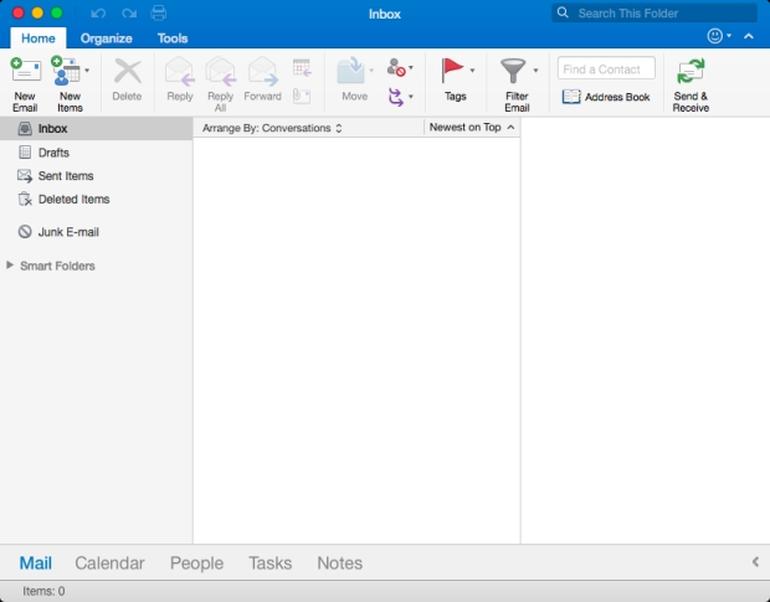
Microsoft Outlook is the second-best email service you can use today. With Outlook, you can not only send and receive emails, but you can also create new meetings, tasks, etc.

Outlook is mainly known for its excellent integration with Microsoft products and availability on all popular platforms.

Outlook app is also available for Android and iOS. Also, it lets you schedule important emails beforehand. The only downside of Outlook is that sometimes it marks legitimate emails as spam.
3. Mail.com

Mail

Well, Mail.com is another best email service provider on the list which you can consider. It’s a free webmail service with an email domain, mobile access, and Mail collector feature.

Mail.com provides you with 2GB of free online storage. You can use that storage to store your important emails. Also, Mail.com has its app available for Android and iOS users.
4. Zoho mail

Zoho mail

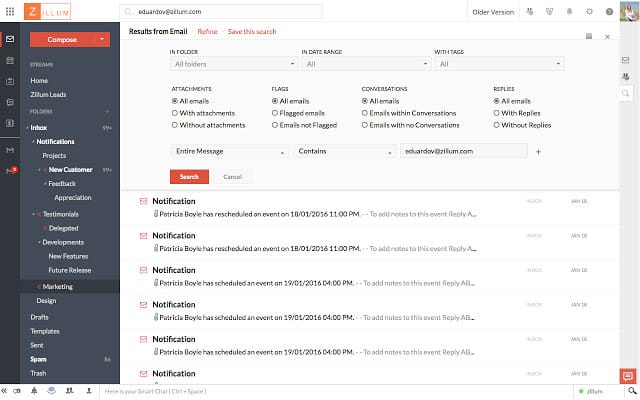
If you are looking for a secure and reliable business email solution, you must try Zoho mail. Zoho mail provides an integrated calendar, contacts, tasks, notes, and bookmarks right within your inbox.

Apart from emails, Zoho mails also offer you many other features like your work collaboration features.

Also, if you have a Zoho account, you can organize your calendar events, take notes, create tasks, and manage your contacts.
5. Yahoo! mail

Yahoo! mail

Yahoo Mail is still a worthy competitor of Gmail regarding personal/business solutions. The new Yahoo Mail offers some exciting features compared to the old one.

The latest version of Yahoo Mail also has a calendar integrated and offers you a new theme & layout.

The free version of Yahoo Mail shows many ads that might disturb your email experience. However, you can eliminate all ads by purchasing a Yahoo Mail Pro subscription that starts at only $3.49 per month.
6. AOL Mail

AOL Mail

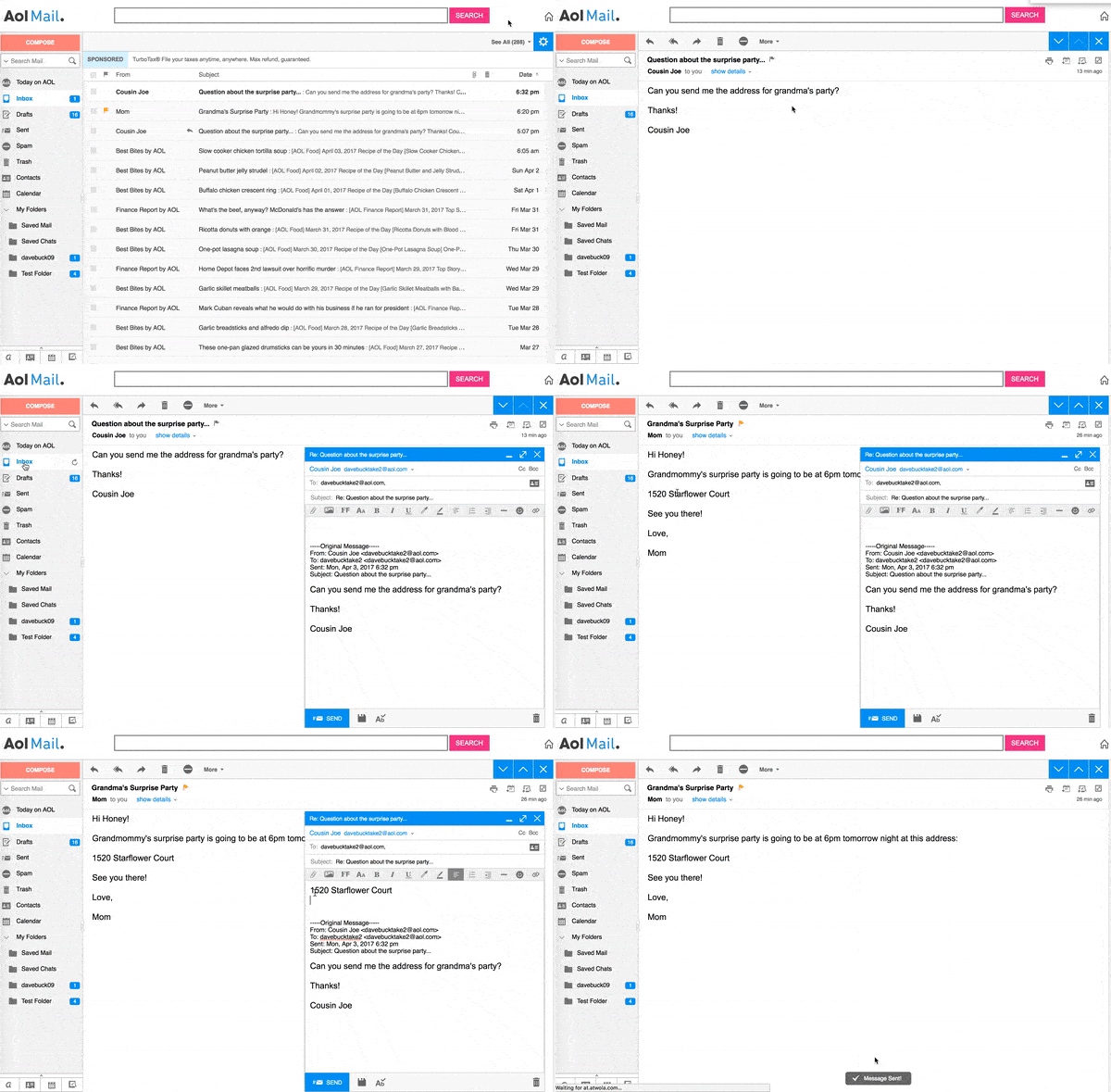
This one is known for its security and spam filters. Not just that, but AOL Mail also claims to detect emails with malware-filled attachments. Another best thing about AOL Mail is that it provides users with the unlimited storage facility to the users.

So, if you are looking for a secure email service, give AOL Mail a try. It can even integrate with lots of third-party programs.
7. iCloud mail

iCloud mail

Apple users mostly use this one. Since iCloud mail is meant for Apple devices, the Apple ID can be associated with the iCloud email address. In addition, the email server offers users lots of features like security verification, spam protection, etc.

You can even integrate many cloud-based tools with iCloud like Reminder, Calendar Notes, and more.
8. ProtonMail

ProtonMail

ProtonMail is another best free email service on the list that you can use today. Like every other email service, You can use ProtonMail to send or receive emails. However, the mailbox size of ProtonMail is limited to only 500MB.

The email service is meant for privacy-focused users, and its app is available for Android and iOS. The only downside of ProtonMail is its poor customer support service.
9. GMX

GMX

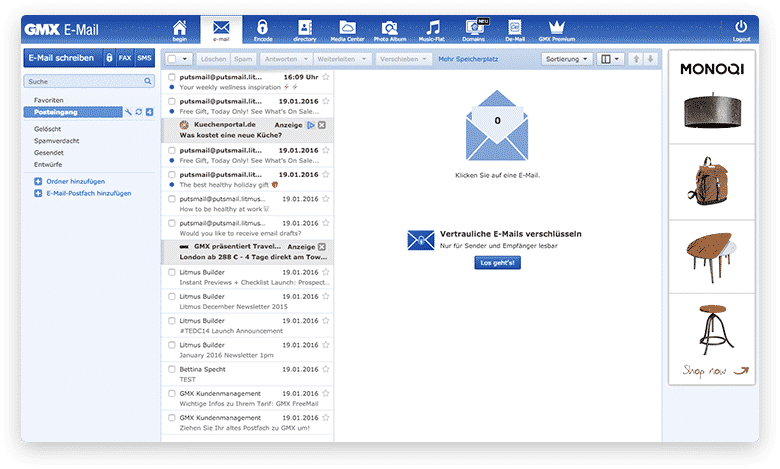
GMX is very similar to the Mail.com we have listed above. It’s a full-fledged email service that allows you to create a free email account fast.

It provides enough storage space to store your essential emails, send attachments up to 50MB in size, and more.

Apart from all these, GMX also offers a few other features like an Online office and organizer. You can manage docs, PDFs, etc., right from the email interface with online office integration.
10. Tutanota

Tutanota

If security is your priority, you shouldn’t look other than Tutanota. Tutanota is a highly secure email service that provides you free email address.

The good thing about Tutanota is its mobile app is available for Android and iOS. This means you can easily manage your emails from your mobile devices.

Tutanota provides 10GB of space to store emails, and the file upload size is limited to only 25MB. The only drawback of Tutanota is that it misses out on email scheduling.

So, this article is all about the best free email services. You can create an account on these email services for free. Also, if you know of other such services, let us know in the comment box below.

The post 10 Best Free Email Services/Service Providers in 2022 appeared first on TechViral.


from TechViral https://ift.tt/uSabcEg
How to Change Account Lockout Threshold in Windows 11

change the Account Lockout threshold in Windows 11

If you are using the Windows operating system, you may know that the operating system automatically locks your account after several incorrect login attempts. By default, Windows 11 locks the user account if anyone enters the wrong password/PIN 10 times in a row.

However, the good thing is that you can easily modify the account lockout threshold to increase or decrease the failed sign-in attempts. You can set a value ranging from 1 through 999 failed sign-in attempts or specify the value to ‘0’ to remove the account lockout threshold.

Also read: How to Enable Dynamic Lock in Windows 11

Best Ways to Change Account Lockout Threshold in Windows 11

So, if you are interested in changing the Account Lockout threshold in Windows 11, you are reading the right guide. Below, we have shared a step-by-step guide on changing the Account Lockout threshold in Windows 11. Let’s get started.

1) Change Account Lockout Threshold via Group Policy Editor

This method will use the Local Group Policy Editor to change the account lockout threshold. Here are some of the simple steps you need to follow.

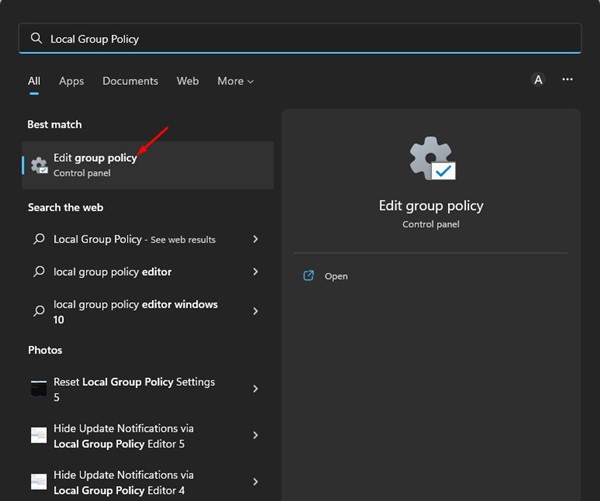
1. First, click on the Windows 11 search and type in Local Group Policy Editor.

Local Group Policy Editor

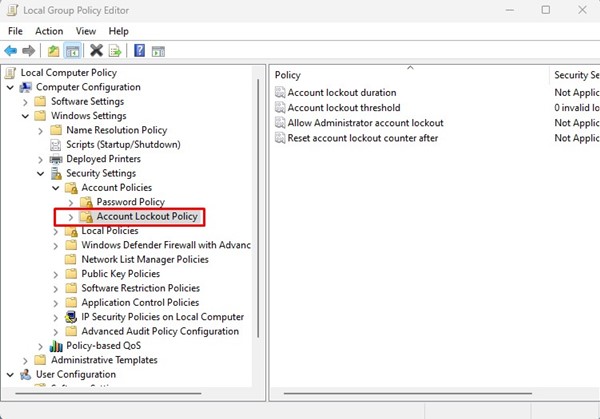
2. On the Local Group Policy Editor, navigate to the following path:

Computer Configuration > Windows Settings > Security Settings > Account Policies > Account Lockout Policy

navigate to the following path

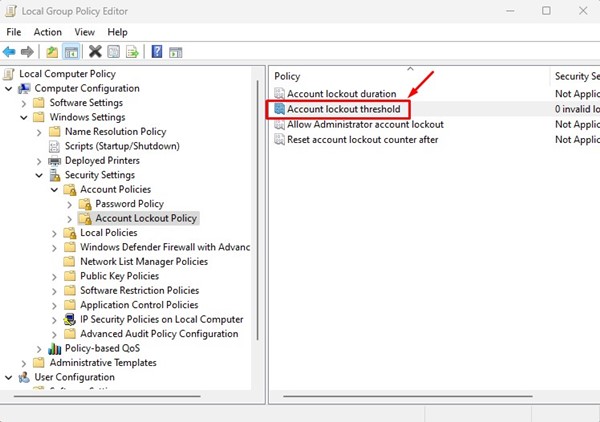
3. Now, select the Account Lockout policy on the left. On the right, double-click on the Account Lockout threshold.

Account Lockout threshold

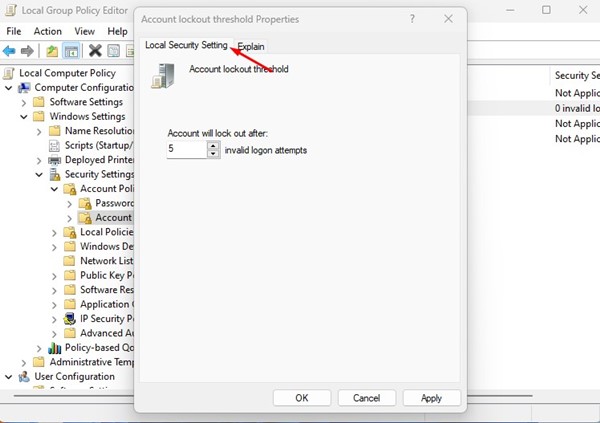
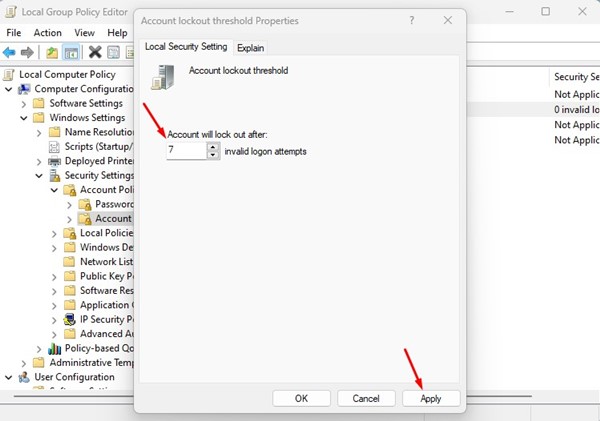
4. On the Account Lockout threshold Properties, switch to the Local Security Setting tab.

Local Security Setting

5. On the Account will lock out after field, set the number of invalid logon attempts. Once done, click on the Apply button and then on Ok.

number of invalid logon attempts

That’s it! This is how you can change the Account Lockout threshold on Windows 11 computers.

2) Change Account Lockout Threshold via Command Prompt

This method will use the Command Prompt utility to change the Account Lockout threshold. Follow some of the simple steps we have shared below.

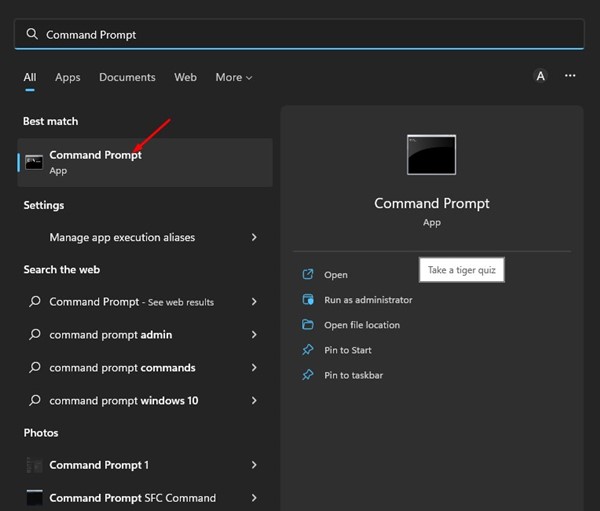
1. Click on the Windows 11 search and type in Command Prompt. Next, open the Command Prompt utility from the list of matching results.

Command Prompt

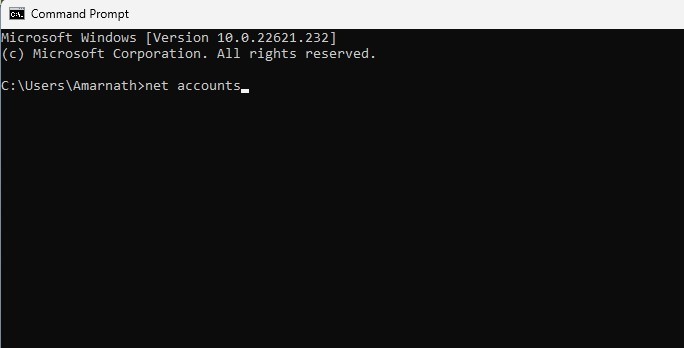
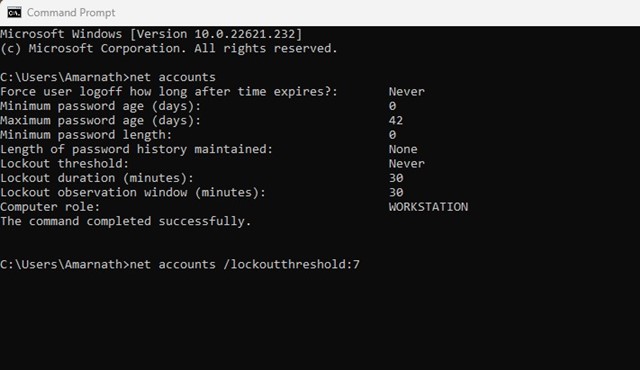
2. On the Command Prompt, execute the command:

net accounts

execute the command

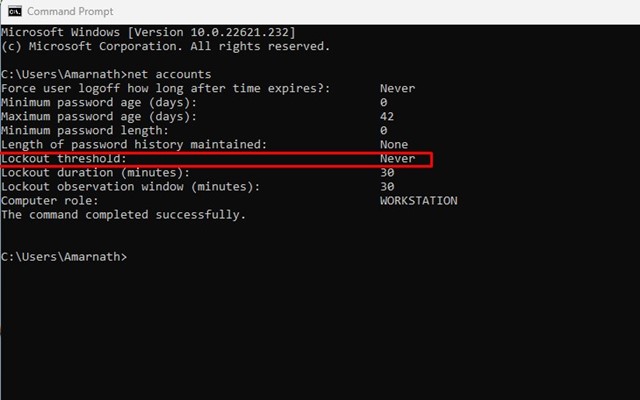
3. This will list many details. You need to check the Lockout threshold value.

Lockout threshold value

4. To change the account lockout threshold, enter the following command and hit the Enter button.

net accounts /lockoutthreshold:<number>

enter the following command

Important: Make sure to replace the <number> with the number you want to set. You can set the number between 0 and 999. 0 means the account will never be locked.

That’s it! You can change the account lockout threshold in Windows 11 via Command Prompt.

Also read: How to Disable Login After Sleep in Windows 11

So, these are the best ways to change the account lockout threshold in Windows 11 computers. You shouldn’t change the Account Lockout Threshold for security reasons, but if you have personal reasons, you can change it by following these two methods. If you need more help modifying the account lockout threshold in Windows 11, let us know in the comments below.

The post How to Change Account Lockout Threshold in Windows 11 appeared first on TechViral.


from TechViral https://ift.tt/dklyohm

Friday, July 29, 2022

Instagram Is Taking Back Step on Full-Screen Home Feed

Instagram Is Taking Back Step on Full-Screen Home Feed

Instagram is reportedly taking a back step on some recently rolled features that make it look like a short video platform, TikTok, due to a backlash, which was started by well-known Instagram influencers.

Previously, Instagram announced that it is experimenting with a new full-screen feed view, which it made available for many users. And this also means that platform wants to make its feed like TikTok.

Meta-Owned Instagram Will Roll Back Some Features

Meta-Owned Instagram Will Roll Back Some FeaturesWith these features, many users got offended and stated negative feedback that Instagram is trying to make the platform like other video platforms.

But this matter got heated when the Kardashian family’s Kylie Jenner (3rd most followed Instagram account owner) and Kim Kardashian entered and demanded to make Instagram the Instagram again.

We all know Instagram is a photo-sharing platform, but Meta’s heads are more focusing on its video segment, such as recently it rolled out many new features for the Reels.

Today, Instagram head Adam Mosseri responded to this backlash in an interview with well-known Casey Newton and announced rolling back the full-screen feed and making it like the earlier one.

But it doesn’t mean that the company will stop experimenting with new features for the video segment, and Mosseri showed gratitude that they took a risk on this feature, but they will keep moving forward.

Mosseri’s official statement, “When you discover something in your feed that you didn’t follow before, there should be a high bar — it should just be great; you should be delighted to see it. And I don’t think that’s happening enough right now. So I think we need to take a step back, in terms of the percentage of feed that are recommendations, get better at ranking and recommendations, and then — if and when we do — we can start to grow again.”

Besides, Mosseri also presents his thought about improving their algorithm, for which they will reduce some recommendations to improve the system.

If you are wondering when it will be removed so, there is no answer for it, but we can expect it to be done soon.

The post Instagram Is Taking Back Step on Full-Screen Home Feed appeared first on TechViral.


from TechViral https://ift.tt/ie9takJ

Samsung Galaxy Z Fold 4 Leaks In Gold Color Option

Samsung Galaxy Z Fold 4 Leaks In Gold Color Option

Samsung Galaxy Unpacked event is scheduled for 10th August. The event will be live streamed on the company’s official website and Youtube channel.

The company is expected to launch the next batch of Foldable smartphones at the event. Recent leaks suggest the Galaxy Z Fold 4 will have a new stunning Gold color option.

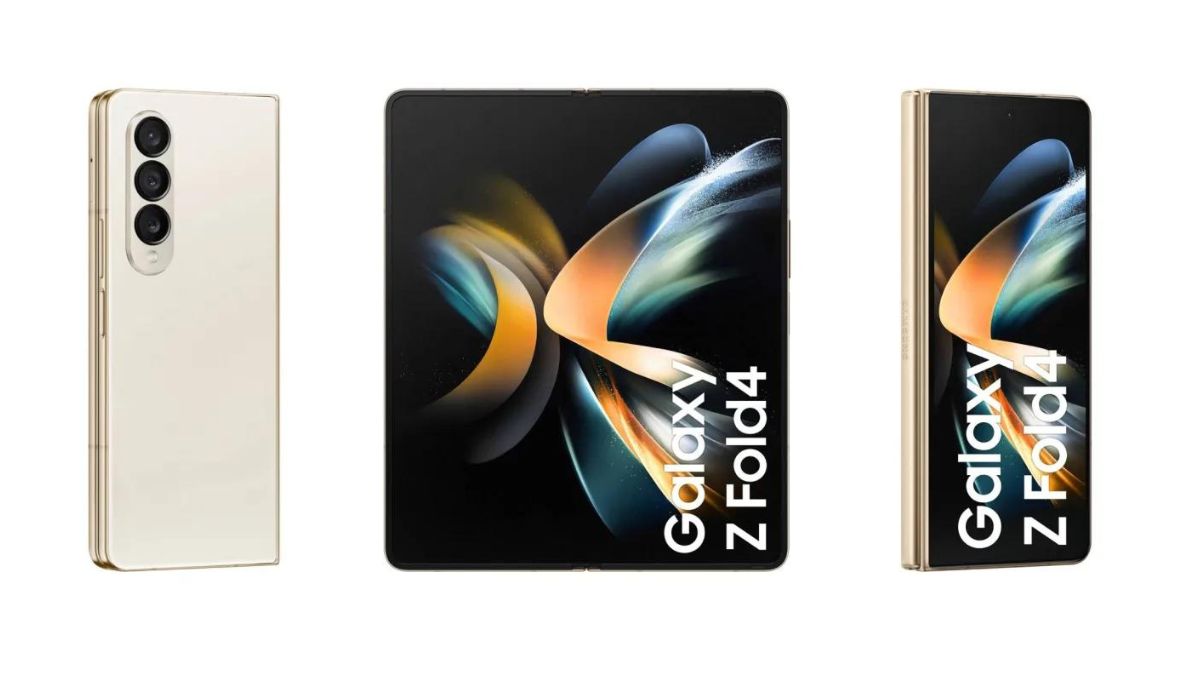
91Mobiles has published a couple of official images of the Galaxy Z Fold 4 that show the device in three color variants. The foldable smartphone is available in Black, Gray/Green, and Beige/Gold.

Galaxy Unpacked Event 2022 Scheduled For 10th August

Samsung Galaxy Z Fold 4 Leaks In Gold Color Option

Already we have seen a few leaks of the smartphone till now, including specifications. It is said that Samsung is changing the design, and the display will limit the crease in the foldable display.

In the images shared by 91Mobiles, we can see the device’s design is virtually identical to Galaxy Z Fold 3. Earlier, it was expected that the Fold 4 might look more like Galaxy S22 Ultra.

It’s hard to see the changes in aspect ratio from these shots without a point of comparison, but Samsung is expected to be aiming for a wider outer display while making the inner display more of a square shape.

Samsung is expected to bring a wider outer display and make the inner display a square shape. Already the reservations pre-order is open for Galaxy Z Fold 4. Reservations earning customers up to $200 in additional credit while purchasing a device.

At the Galaxy Unpacked Event 2022, Samsung is expected to launch Galaxy Buds 2 Pro, Galaxy Watch 5 Series, Flip 4, and Fold 4.

It is said that the Galaxy Buds 2 Pro might be priced at $230. However, $30 is more than the original Galaxy Buds Pro and $80 more than the current Galaxy Buds 2. Samsung is expected to add 24-bit audio to the earbuds.

Galaxy Watch 5 will be 40mm and will be available in gold, gray, and silver color option. While the other 44mm model will be available in blue, gray, and silver. The Pro model will come in black and gray color options.

The post Samsung Galaxy Z Fold 4 Leaks In Gold Color Option appeared first on TechViral.


from TechViral https://ift.tt/4OVhW3i