Saturday, May 29, 2021

How to Fix Webcam or Camera Not Working in Windows 10 (4 Methods)

How to Fix Webcam or Camera Not Working in Windows 10

After installing the recent Windows 10 update, many users have complained about Camera problems in the operating system. Lots of users have reported that their PC’s webcam is crashing all of a sudden, getting an error message while opening the camera application.

Not only that, but few have even said that the camera application is not opening at all on the operating system. It looks like the recent Windows 10 update is creating problems with the Camera drivers.

If you have been using Windows 10 for a while, you might know that the latest version offers a system-wide option to disable your webcam. You can also fix various Webcam-related problems by updating/reinstalling its drivers.

Also Read: How To Easily Update Drivers In your Windows PC

4 Methods to Fix Webcam or Camera Not Working

So, in this article, we will share a detailed guide on how to fix a Webcam or Camera not working on Windows 10 computer. These are the universal methods that work across all webcam or cameras. Let’s check out.

1. Allow Access to the Camera

If the camera access is turned off, you can’t use it. Here’s how to allow apps to access the camera on Windows 10 computer.

Step 1. First of all, open Windows search and search for Camera Privacy. Open the Camera Privacy Settings from the list.
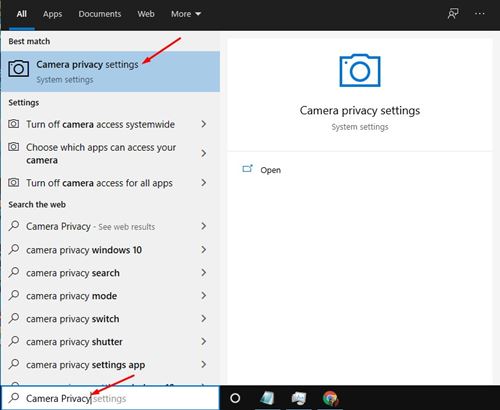
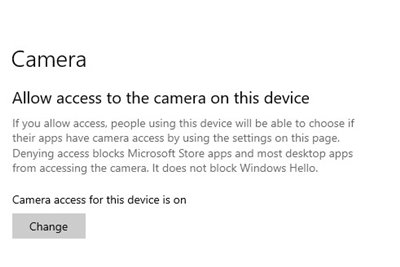
Step 2. On the Camera Settings page, enable the toggle for the ‘Allow access to the camera on this device’ option.
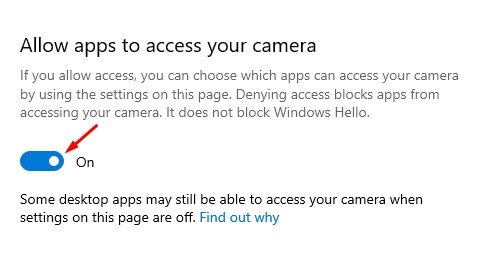
Step 3. Now scroll down and enable the option ‘Allow apps to access your camera’ option.
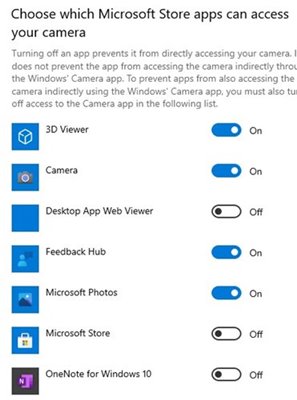
Step 4. Next, scroll down and pick which apps can use the webcam of your PC/Laptop.
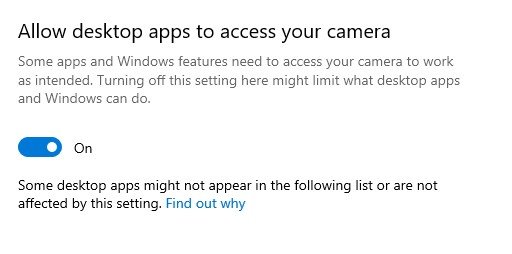
Step 5. At the bottom, enable the option ‘Allow desktop apps to access your camera’ option.
That’s it! You are done. After making the changes, restart your PC and turn on the camera again. The problem will be fixed.

2. Update the Camera driver

In this method, we will update the camera driver to fix the webcam not working in Windows 10. Follow some of the simple steps given below.

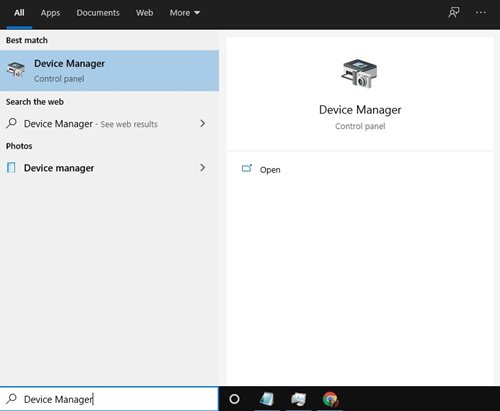
Step 1. First of all, open Windows search and search for ‘Device Manager’. Open Device Manager from the list.
Step 2. On the device manager page, find the camera, right-click on it and select the option ‘Update Driver’
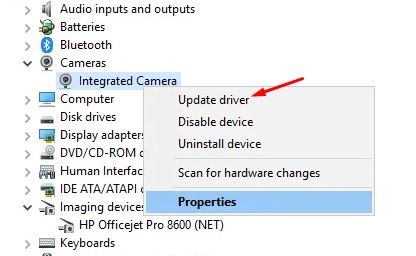
Step 3. Now your system will start looking for the latest driver on the internet. The process might take few seconds to complete. Once updated, restart your PC.

That’s it! After the restart, your PC will be using the latest version of the camera driver.

3. Reinstall the Camera device

If the above method failed to fix the camera problem on your PC, you need to reinstall the device. Follow some of the simple steps given below to reinstall the Camera device on your PC.

Step 1. First of all, open Windows search and search for ‘Device Manager’. Open Device Manager from the list.

Step 2. On the device manager page, find the camera, right-click on it, and select the option ‘Uninstall Device’
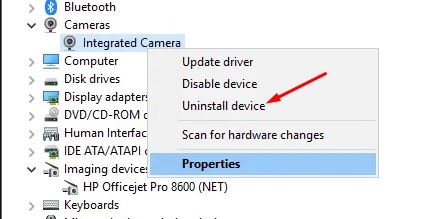
Step 3. Once installed, you need to restart your device.

That’s it! You are done. During the restart, Windows 10 will automatically install the camera device.

4. Reset the Camera Application

If all of the above methods have failed to fix the camera problem for you, you need to reset the Camera application. To reset the camera application, follow the steps given below.

Step 1. First of all, open Windows search and search for ‘Camera’. Next, click on the ‘App Settings’.
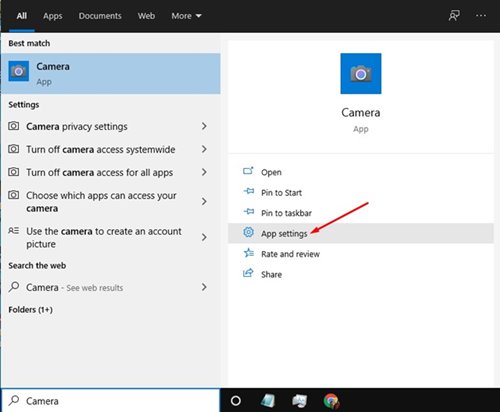
Step 2. On the App Settings page, find the option ‘Reset’. Click on it and wait until the camera app resets.
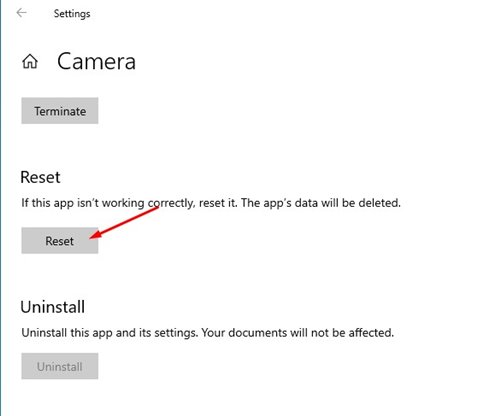
Step 3. Once done, re-open the camera app, and it will work fine.

That’s it! You are done. This is how you can reset the camera application in Windows 10.

So, this guide is all about how to fix the Camera not working on Windows 10. I hope this guide helped you! Please share it with your friends also. If you have any doubts related to this, let us know in the comment box below.

The post How to Fix Webcam or Camera Not Working in Windows 10 (4 Methods) appeared first on TechViral.


from TechViral https://ift.tt/2SDD3rp

Buying a pink NFT cat was a crypto nightmare

Trying to own a virtual feline proves to be an exhausting and expensive process.

from BBC News - Technology https://ift.tt/3wD2Zly

How to Enable Two-Factor Authentication on Instagram App

How to Enable Two-Factor Authentication on Instagram App

Instagram is right now the most used photo and video sharing social media application. The good thing about Instagram is that it allows users to share photos, videos and exchange messages.

Also, Instagram has a TikTok-like feature known as Reels, IGTV, and more. For security, the Instagram app for Android and iOS offers two-factor authentication.

For those who don’t know, Two-Factor authentication is a security feature that helps protect your Instagram. If you set up two-factor authentication, you will receive a notification or be asked to enter a special login code.

So, the feature adds an extra layer of security on top of the Instagram app. Everyone should use this feature as it secures your account from unauthorized logins.

Also Read: 5 Best Instagram Reels Editing Apps for Android

Steps to Enable Two-Factor Authentication on Instagram App

So, in this article, we will share a step-by-step guide on how to enable two-factor authentication on the Instagram app for Android. Let’s check out.

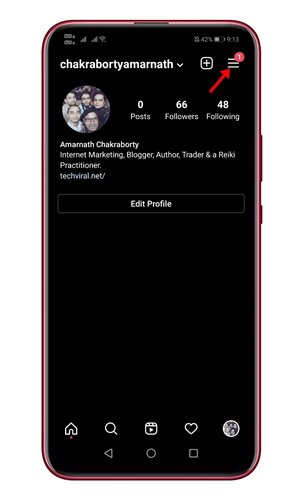
Step 1. First of all, open the Instagram app on your Android device. Next, tap on the profile picture as shown below.

Step 2. On the next page, you need to tap on the three horizontal lines as shown below.

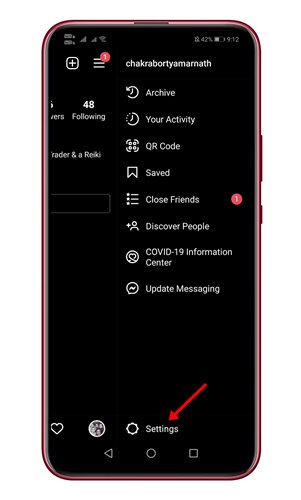
Step 3. Next, tap on the ‘Settings‘ option.

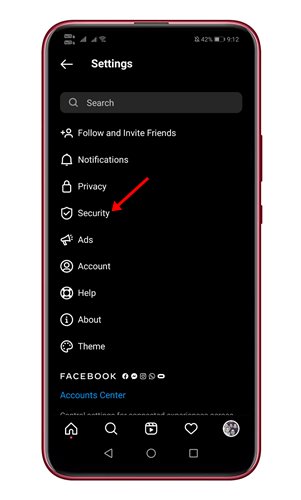
Step 4. On the Settings page, tap on the ‘Security‘ option.

Step 5. On the next page, tap on the ‘Two-Factor Authentication.’

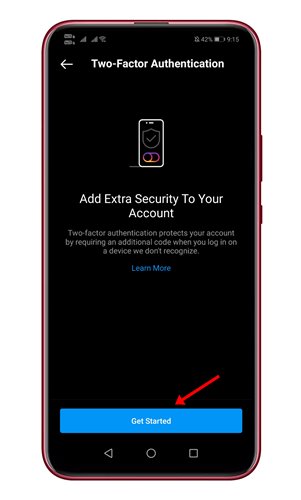
Step 6. On the Two-Factor Authentication page, tap on the ‘Get Started’ button.

Step 7. Now, enable the ‘Text Message’ option.


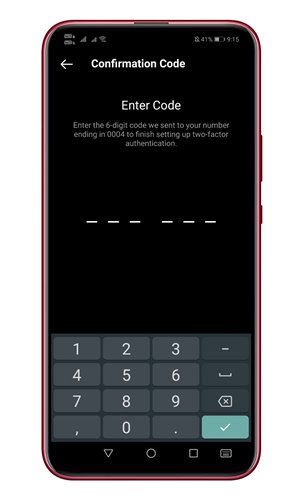
Step 8. You will receive a secret code on your registered number. Enter the confirmation code and tap on the ‘Next‘ button.

Step 9. Once done, tap on the ‘Done‘ button.


That’s it! You are done. Whenever you try to log in to your Instagram account on a new device, you will receive a text message with a secret code on the registered number.

So, this guide is all about how to turn on two-factor authentication on Instagram. I hope this article helped you! Please share it with your friends also. If you have any doubts related to this, let us know in the comment box below.

The post How to Enable Two-Factor Authentication on Instagram App appeared first on TechViral.


from TechViral https://ift.tt/34tU1Lv

Download PPSSPP Emulator Latest Version (Android & Windows)

Download PPSSPP Emulator Latest Version (Android & Windows)

Let’s admit; Android smartphones are getting more powerful with each passing day. These days, Android smartphones can run high graphics games like Fortnite, Call of Duty Mobile, etc., at ease.

Not many would know, but Android smartphones can even handle PSP Games. There are hundreds of PSP games available on the internet that can be downloaded for free.

To play PSP games on Android, one needs to use the PSP emulator for Android. We have already shared a guide where we have listed some of the best PSP emulators for Android. If we have to pick the best PSP emulator for Android, we will pick PPSSPP.

What is PPSSPP Emulator?

What is PPSSPP Emulator?


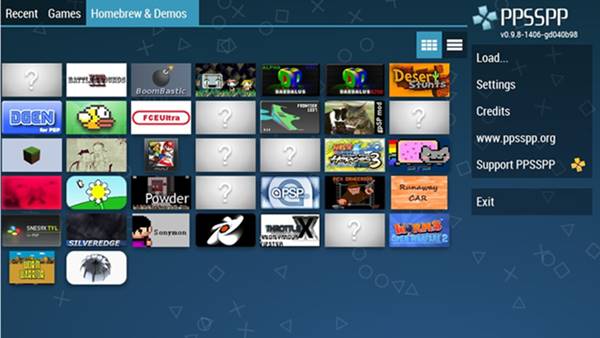
Well, PPSSPP is one of the best PSP emulators available for Android and Windows 10. The great thing about PPSSPP is that it can run PSP games on any platform.

Compared to other PSP emulators, PPSSPP receives frequent updates, and with every update, the app gets new features. Also, when it comes to game compatibility, PPSSPP is compatible with almost all major PSP games.

The PSP emulator is also pretty nicely optimized to provide you the best gaming experience. It’s an entirely free PSP emulator, but it’s ad-supported.

How to Play PSP Games on Android & PC

How to Play PSP Games on Android & PC

As we all know, PPSSPP is available for Windows and Android. That means you can use the PPSSPP emulator to run PSP games on those platforms.

If you want to play PSP games on Android, you need to use the PPSSPP Emulator for Android. Similarly, if you’re going to play the games on your Windows 10, you need to use PPSSPP Emulator for Windows 10.

For a complete guide on how to play PSP games on Android, we recommend you to follow our guide – How To Play PSP Games On Android – PSP Emulator for Android.

Download PPSSPP Emulator Offline Installer

Download PPSSPP Emulator Offline Installer

Now that you are fully aware of the PPSSPP emulator, you might want to install the PSP emulator on your device. Depending on whatever device you are using, you need to download the PPSSPP Emulator for that device.

Below we have shared the working download links of the latest PPSSPP Emulator offline installer. Since there are offline installers, they don’t need an active internet connection during the installation.

You can also use the PPSSPP Emulator offline installer to install the PSP emulator on multiple devices. In this way, you don’t need to re-download the installation file every time.

Both of these are the PPSSPP Offline installer files. You can use these files multiple times to get the emulator installed on your device.

Best Settings for PPSSPP Emulator

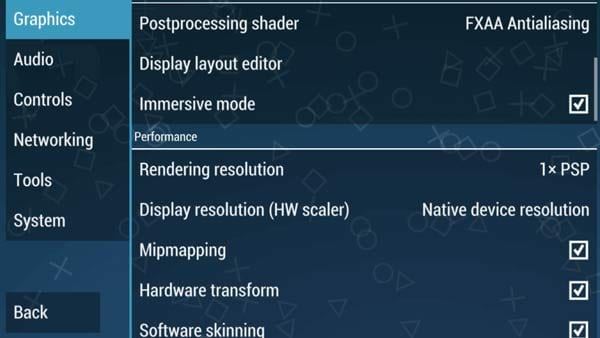
PPSSPP is a full-fledged PSP emulator for Android and macOS. You can also customize the emulator to expand certain features and to enhance the gaming performance.

If you wish to enhance the Gaming performance on the PPSSPP emulator, you need to follow our guide – Best Settings For PPSSPP On Android (100% Working). After making the changes mentioned in the article, you will maximize the potential of the emulator.

So, this guide is all about download the PPSSPP emulator for Android and Windows. I hope this article helped you! Please share it with your friends also. If you have any doubts related t this, let us know in the comment box below.

The post Download PPSSPP Emulator Latest Version (Android & Windows) appeared first on TechViral.


from TechViral https://ift.tt/3vxMBTz

How to Remove Bloatware (Pre-Installed Apps) From Android Device

How to Remove Bloatware (Pre-Installed Apps) From Android Device

Well, Bloatware is commercial apps that are preinstalled on a device by the manufacturer. Most of the time, you won’t need those apps.

These apps do nothing; they just run in the background and slows down the device. So, if you have lots of pre-installed apps on your smartphone and facing problems with the performance, you should uninstall them.

Also, removing the pre-installed apps will free up some storage space. So, if you are looking for ways to remove bloatware from your Android, you are reading the right article.

Methods to Remove Bloatware From Android Device

In this article, we will share some of the best methods to remove bloatware from an Android. Let’s check out.

1. Removing Bloatware Apps on Non-Rooted Android

If you have a rooted Android device, you need to follow this guide to remove pre-installed apps from your smartphone.

Step 1. First of all, you need to enable the developer option to enable by heading to Settings -> About Phone -> Build Number (Tap on build number 7-10 times, and your developer options will get activated).

Step 2. You will now see the developer option in your settings, tap on it, scroll down, and enable USB Debugging.

 Remove Bloatware from Android Device1

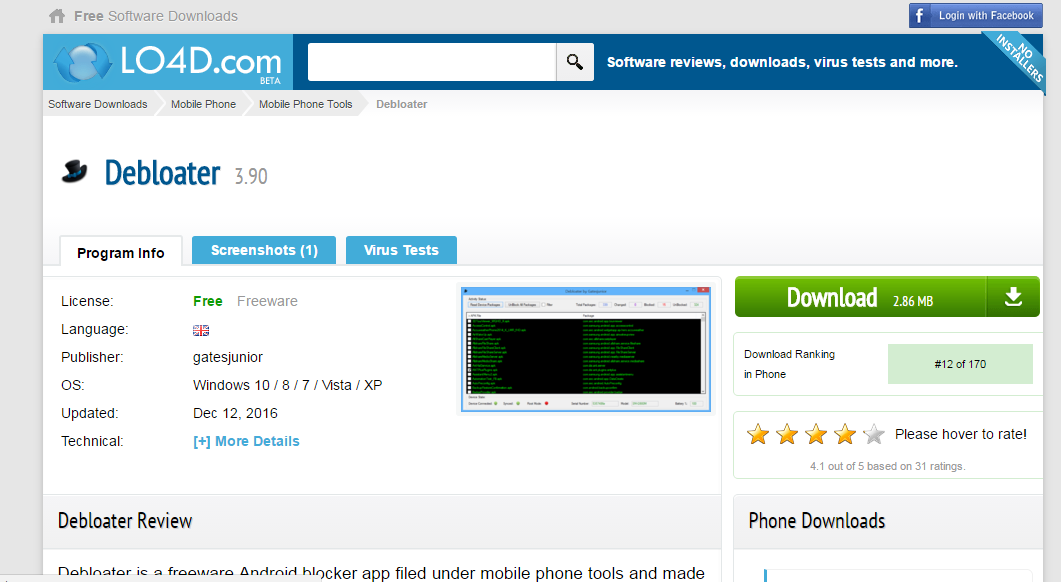
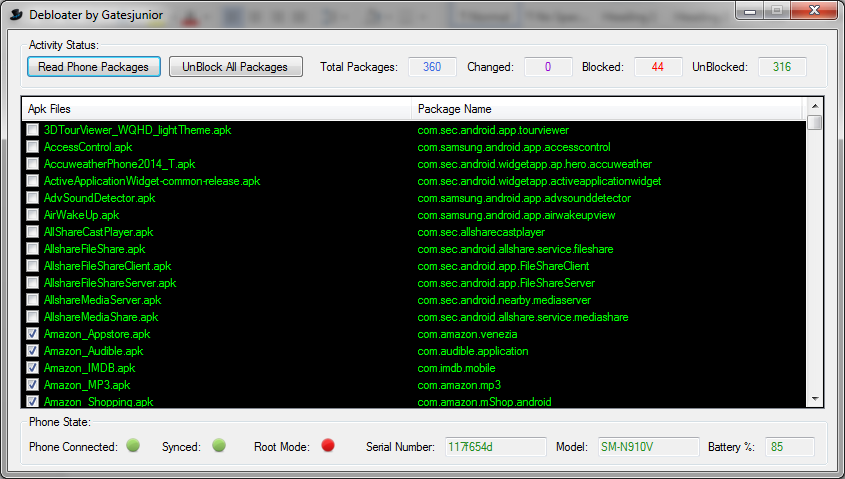
Step 3. Now you need to download and install the Debloater tool on your Windows PC that will allow you to remove system apps from your device.

Remove Bloatware (Pre-Installed Apps) from Android Device

Step 4. Now connect your Android device with a USB cable to your PC and wait for the tool to detect your device.

Remove Bloatware (Pre-Installed Apps) from Android Device

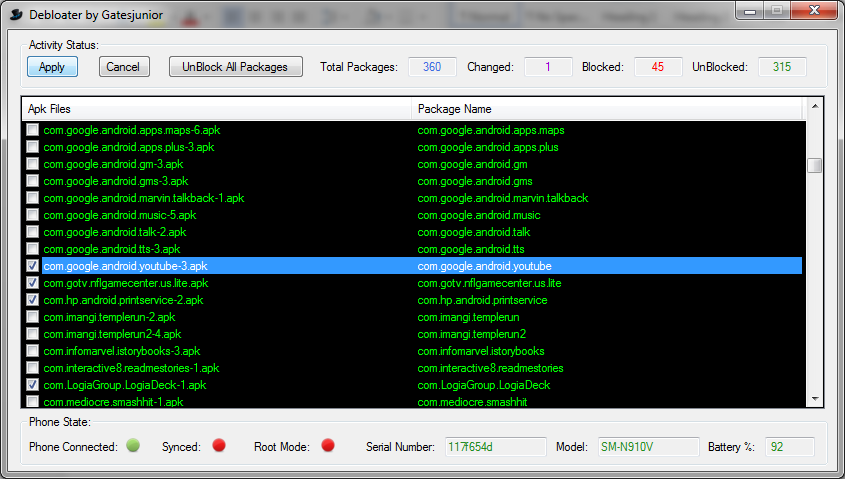
Step 5. After the device is detected, you will need to scan the apps currently installed on your device, including your system apps. Mark the apps that you want to remove.

Remove Bloatware (Pre-Installed Apps) from Android Device

Step 6. You need to click on the Apply button, and this will block all those apps from your device, and they will no longer be there on your device to consume your memory.

Remove Bloatware (Pre-Installed Apps) from Android Device

You can also undo this process by un-ticking them to re-access them. That’s it! You are done, now all those apps will be removed from your device, and your device storage will be free from them.

2. Using NoBloat (Root)

 Remove Bloatware from Android Device3

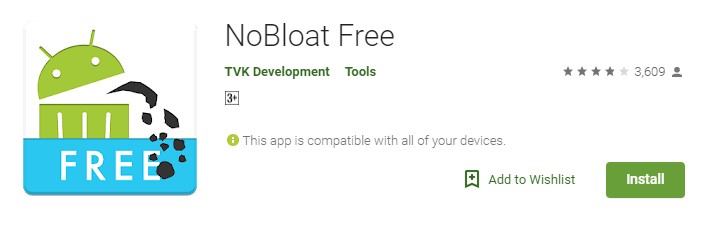
If you already have a rooted Android device, you can try the app NoBloat Free. This will let you remove all the bloatware apps that have no meaning in your device and are just compromising your security. So, this app will help you to remove all the bloatware apps.

Step 1. First of all, download and install Nobloat free on your Android smartphone from here.

Using NoBloat For Android

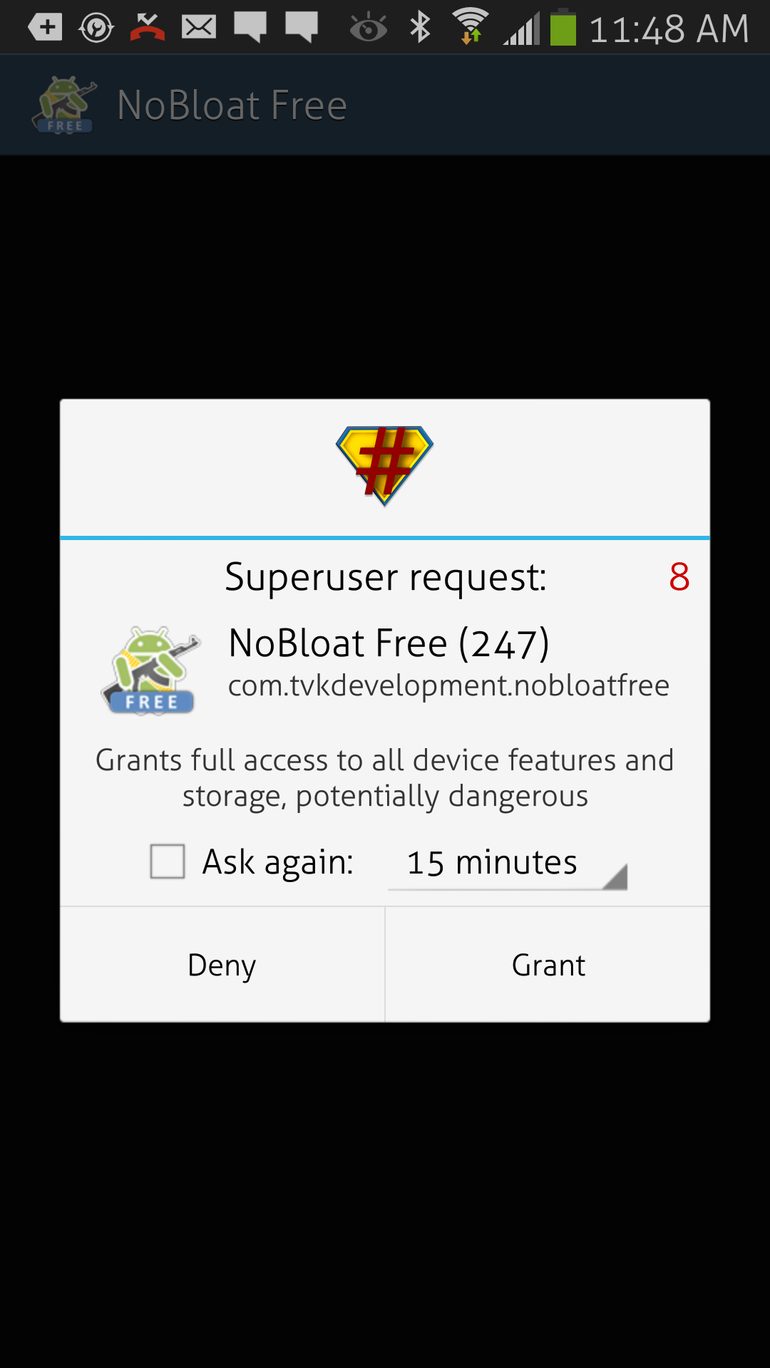
Step 2. Since the app needs a rooted Android device to work, it will ask you for root permission. Make sure to tap on ‘Grant‘ when SuperSU asks for root permission.

Using NoBloat For Android

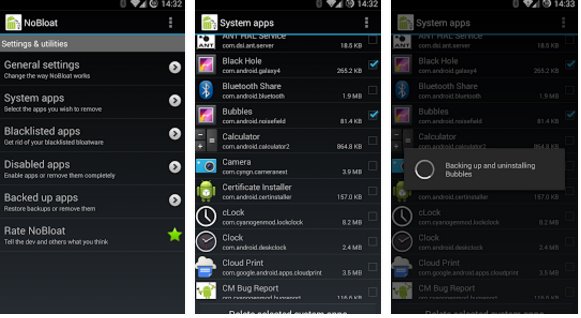
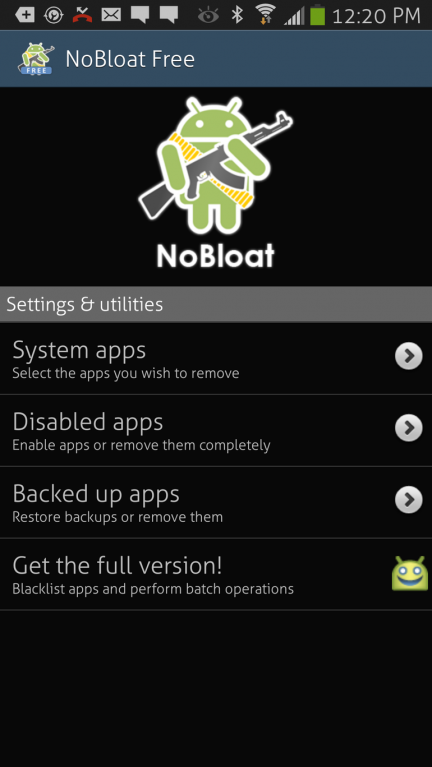
Step 3. Now you will see the main interface of Nobloat free for Android.

Using NoBloat For Android

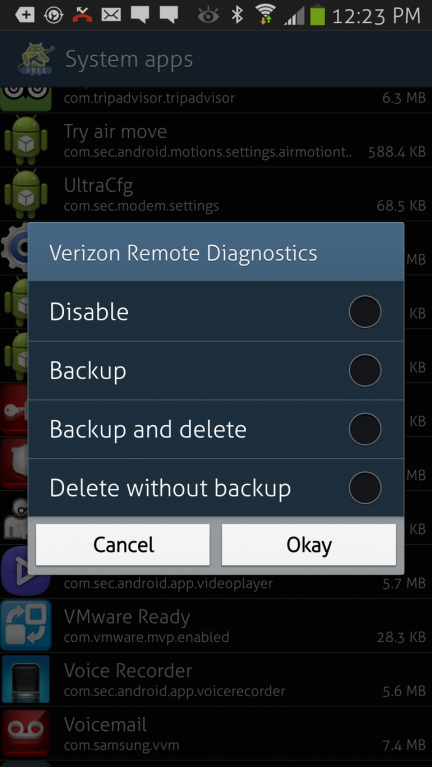
Step 4. Tap on the ‘System Apps’ and list all apps installed on your device, including the bloatware.

Step 5. Now select the app you want to remove (bloatware) and select the option ‘Backup and delete’ or ‘Delete Without Backup.’ If you don’t want the tool, then select the ‘Delete without backup’ option.

Using NoBloat For Android

That’s it; you are done! This is how you can use Nobloat free to remove bloatware from Android devices. If you have any other doubt, then make sure to discuss them with us in the comments.

3. Using System App Remover (Root)

Step 1. First of all, you need to root your Android phone. For that, follow this article How To Root Android Without Risking Android Warranty.

Step 2. Now install the app System App Remover from Google Play Store

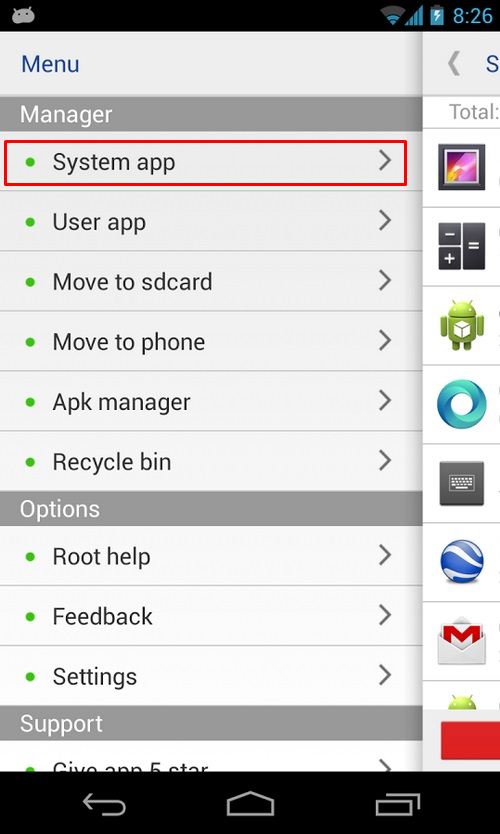
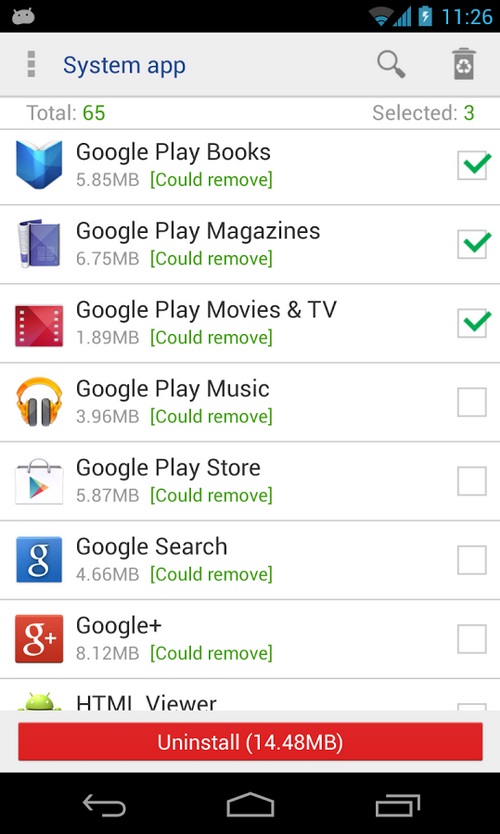
Step 3. Now launch the app and open the menu. From there, select the option ‘System App.’

Using System App Remover

Step 4. , select the app that you want to remove and tap on ‘Uninstall.’

Using System App Remover

That’s it! You are done. This is one of the easiest ways to remove bloatware from your Android smartphone.

Get Rid Of Bloatware On a Rooted Phone

Well, this tutorial is for those who don’t want to go through all the hassle. If you have a rooted Android device, then you might choose to free the bloatware. Look, the method shared below will not help you remove apps; rather, it will help you freeze them. That means the bloatware will no longer consume your CPU Or RAM Resources.

Step 1. First of all, download and install Titanium Pro on your Android Device. You can get the premium version from the Google Play Store.

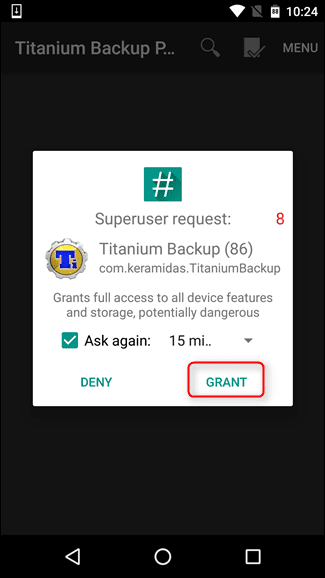
Step 2. Open the app and grant all the much-needed permissions.

Get Rid Of Bloatware On a Rooted Phone

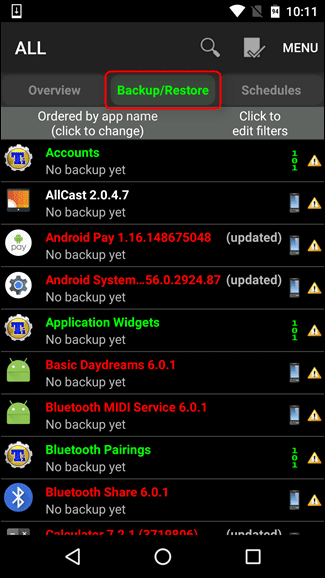
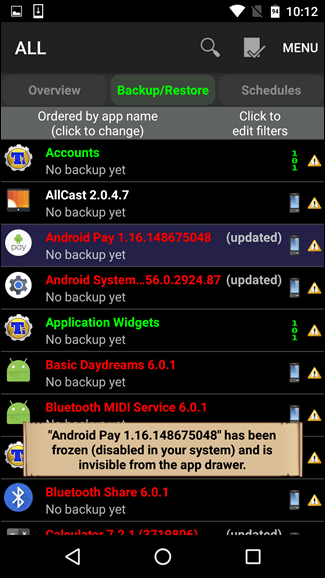
Step 3. You need to select the ‘Backup/Restore’ tab to see the list of apps installed on your Android smartphone. Now you need to select the apps (Bloatware) which you want to freeze.

Get Rid Of Bloatware On a Rooted Phone

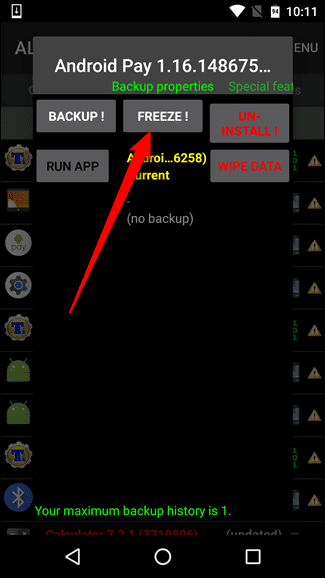
Step 4. Open the app and then tap on the ‘Freeze!’ button located at the top.

Get Rid Of Bloatware On a Rooted Phone

Step 5. Now, wait for few seconds until you get a notification that the app has been frozen.

Get Rid Of Bloatware On a Rooted Phone

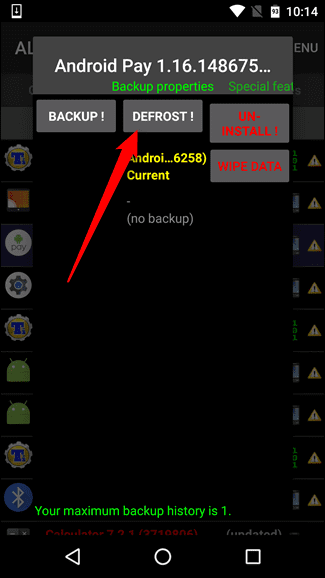
Step 6. Now, to unfreeze the frozen app, open the same app and tap on ‘Defrost!’

Get Rid Of Bloatware On a Rooted Phone

That’s it; you are done! This is how you can use Titanium Backup Pro to get rid of Bloatware on your Android smartphone.

So the above guide is all about how to delete system apps on unrooted and rooted android. I hope this article helped you! Please share it with your friends also.

The post How to Remove Bloatware (Pre-Installed Apps) From Android Device appeared first on TechViral.


from TechViral https://ift.tt/2I5zvnx

How to Install Georestricted Apps on iPhone

How to Install Georestricted Apps on iPhone

Although not much, iOS also offers users plenty of customization options. The app ecosystem of iOS is also rock solid and you will find apps for every different purpose.

If you have been using iPhone for a while, then you might have come across an error message “Item you requested is currently not available in your country” on the app store.

So, what does that error really means? It means that the web content is available only in selected countries or regions and you can’t download that app.

These little things often disappoint iPhone users. So, in this article, we have decided to share a working method that would help you install Georestricted apps on iOS devices like the iPhone. Let’s check out.

Also Read: How To Make iPhone, Automatically Switch To Strongest WiFi

Steps to Install Georestricted Apps on iPhone

The method is quite simple and easy and you just need to follow some of the simple steps to proceed with this.

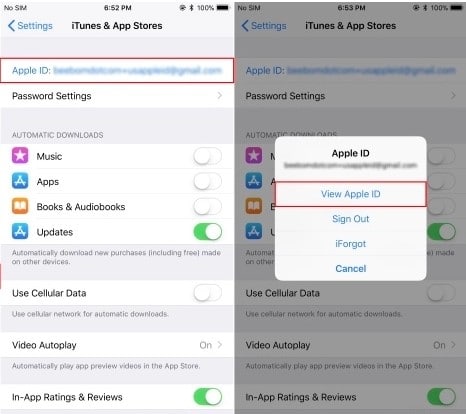
Step 1. First of all, head to the Settings > iTunes & App Store > (Your Apple ID). Under that page, tap on the ‘View Apple ID’ Option.

Install Georestricted Apps on iPhone

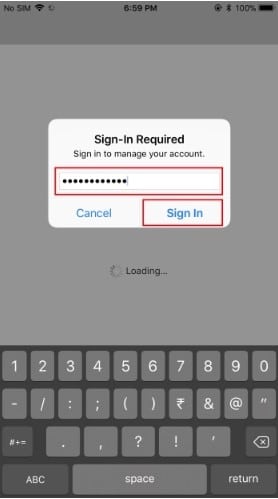
Step 2. On the next page, log in with your Apple ID and Password.

Install Georestricted Apps on iPhone

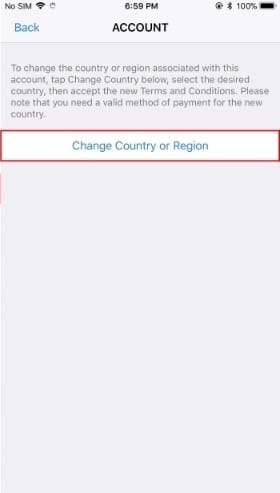
Step 3. On the next page, tap on the ‘Country/Region‘ and on the next screen tap on ‘Change Country or Region’ option.

Install Georestricted Apps on iPhone

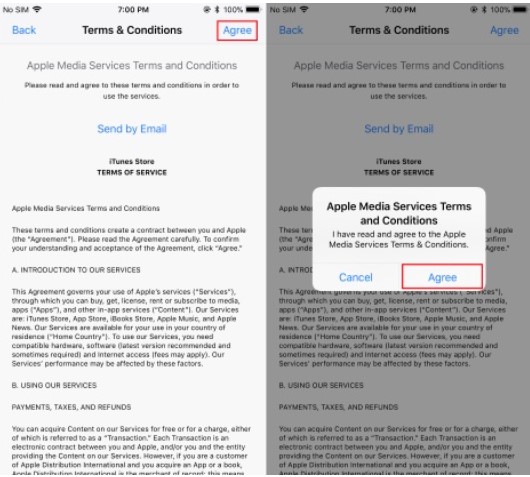
Step 4. Now you will be presented with a list of countries. Select the one as per your wish. Once done, tap on the ‘Agree‘ button.

Install Georestricted Apps on iPhone

Step 5. Now you will be asked to fill in the billing address. You can fill any address of the selected country. Once done, click on the ‘Next‘ button.

That’s it, you are done! Now your Apple store region has been changed. Now visit the app page and download the app. You can now download the geo-restricted app without any error.

So the above discussion is all about how to install geo-restricted apps on iPhone. Use the guide and easily get your favorite apps that are not allowed to be downloaded in your country. I hope this article helped you! Please share it with your friends also. If you have any doubts related to this, let us know in the comment box below.

The post How to Install Georestricted Apps on iPhone appeared first on TechViral.


from TechViral https://ift.tt/2SHycW3

Friday, May 28, 2021

Office Scripts in Excel is Now Available for Everyone on Web

Office Scripts in Excel is Now Available for Everyone

Microsoft has announced a new feature for Excel on the web called Office Scripts. If you are a regular user of Excel spreadsheets, then you will be knowing that many steps need to be repeated regularly, at this time, the new feature Office Scripts will be helpful to you. This feature will reduce repetitive tasks and will speed up your work.

Microsoft Brings Office Scripts Generally in Web Version

Office Scripts in Excel is Now Available for Everyone

In the latest version of Excel, Office Scripts is available for all users. Previously, it was only available to “Office Insiders” and some users with a specific software version and license.

What is Office Scripts?

Office Scripts is an automation feature-set in Excel for the Web. It is based on a different programming experience to automatically do repetitive tasks. However, it is only available in Excel for the Web and you can’t use it on the desktop version.

As of now, Office Scripts can be used with Excel for Web-only. It doesn’t store your scripts on corporate network, or on local machine, code, or any other components.

The developer of Microsoft 365 has shared a video of the feature on YouTube earlier this year. At that time, it was not generally available.

How to Use Office Scripts?

To use Office Scripts, you need to have an educational subscription to Microsoft 365 or OneDrive for Business and commercial. You can have one of the Excel license versions from the following:

  • Microsoft 365 Apps for business
  • Microsoft 365 Business Standard
  • Microsoft 365 Apps for enterprise
  • Office 365 ProPlus for Devices
  • Office 365 Enterprise E3
  • Office 365 Enterprise E5
  • Office 365 A3
  • Office 365 A5

In the Excel for web, you must use the Action Recorder that will record your Excel actions. These actions are translated into a script that you can run anytime. You don’t need any programming knowledge here. To modify the scripts, you can use the Code Editor. You can use it to edit your scripts or can also create new ones by using the Office Scripts API.

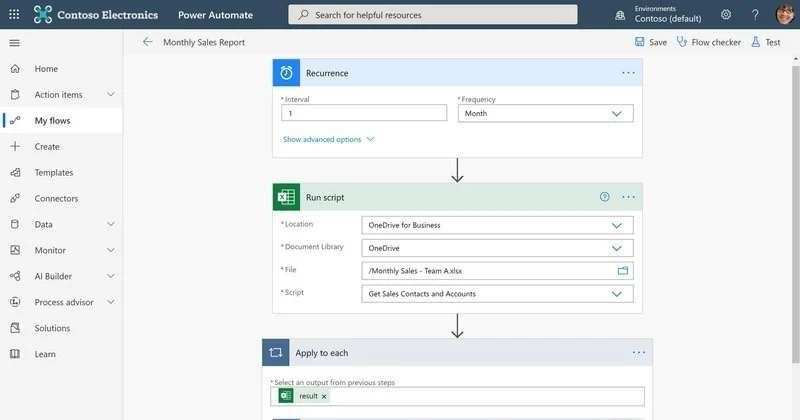
You can also schedule your Office Script by using Power Automate. It also allows you to trigger scripts that are based on events from other apps and services to create cross-app workflows.

The post Office Scripts in Excel is Now Available for Everyone on Web appeared first on TechViral.


from TechViral https://ift.tt/3vyf8Z6