Saturday, January 30, 2021

10 Best Alternatives of Spotify That You Should Try

10 Best Alternatives of Spotify That You Should Try

Right now, there are hundreds of music streaming services available on the web. However, out of all those, it was Spotify that stands out from the crowd. Compared to every other music streaming service, Spotify has premium sound quality, and it has a massive music database.

However, Spotify is a premium service, and it’s expensive compared to all others from the same section. This is the only reason music lovers search for Spotify alternatives. So, if you are amongst those who are searching for a free or affordable alternative to Spotify, then you are reading the right article.

List of Best Alternatives of Spotify That You Should Try

In this article, we are going to share some of the best Spotify Alternative for music streaming. Most of them are free, but they have a massive sound collection. So, let’s check out some of the best alternatives to Spotify.

1. Apple Music

Apple Music

Well, Apple Music is meant for iOS devices. However, you can use it on Android as well. Apple Music is a premium music streaming service that has over 60 million tracks. Despite having more than 60 million paid subscribers, it still lags behind Spotify. Apart from listening to music, Apple Music also gives you an option to upload your music to the platform.

2. SoundCloud

SoundCloud

SoundCloud is a music streaming service for both creators and listeners. The listeners can utilize the platform to listen to. SoundCloud is free, but it also has premium plans. The premium plans were made for creators to earn money. With SoundCloud pro unlimited, you get paid for your plays. So, SoundCloud is one of the best platforms for music lovers and creators.

3. Deezer

Deezer

Many of you must be seeing this name for the first time, but this is the app that grabbed lots of users in a short time, and you can see the number of downloads increasing day by day. This app’s excellent interface helps users discover and play musics from different categories. You can easily stream your favorite music on Deezer without paying anything.

4. Itunes Music Store

Itunes Music Store

All iPhone users must be aware of this. This is the Google play music of iPhone that provides several features to stream music on your device. Also, it gives lots of options to categorize music. So you must try this out.

5. YouTube Music

YouTube Music

Well, YouTube Music is a new music streaming service on the list. YouTube Music now replaces Google Play Music. YouTube Music is basically a platform where you can listen to others’ content or upload your own. It also offers a few useful features like music playback in the background, find covers & remixes of any particular song, etc. It also shows personalized recommendations based on your interests.

6. Pandora Radio

Pandora Radio

This is another best service that is a custom radio station than a jukebox. Users create “stations” based on the stylistic similarities between songs and artists, and then Pandora’s algorithm. So must try out the app on your device, and you will surely love this out.

7. Tidal

Tidal

Well, Tidal is a music streaming service that’s not as big as Spotify, but it can fulfill all your music needs. With the premium version, you can explore over 70+ million audio tracks. Also, you get some essential music features like unlimited skips, ad-free experience, offline playback, and radio. Tidal’s user interface is pretty neat, and it’s available for Android, iOS, and Web.

8. Amazon Music

Amazon Music

Well, Amazon music, which was previously known as Amazon MP3, is another best Spotify alternative on the list you can consider. The best thing about Amazon music is that it allows users to upload, download and access thousands of digital music in the cloud. Guess what? Amazon Music has around 30 million songs in its library.

9. Gaana

Gaana

If you are living in India, then Gaana.com might be the rejoice for you. The platform claims itself as the number one Indian music station. The best thing about Gaana is that it’s available on the Android and iOS app store, and it offers both Bollywood and International music. Not just that, but on Gaana, you can access songs of over 21 different languages, including Hindi, English, Punjabi, etc.

10. Saavn

Saavn

Saavn is another best Spotify alternative on the list which is available for Android and iOS users. The great thing about Saavn is its interface, which looks clean and well organized. Not just that, but Saavn right now has over 40 million songs and 15 million monthly users. On Saavn, you can listen to both Bollywood and International songs. If you are using Reliance JIO telecom services, you can use Saavn Premium for free.

So above is all about the Best Alternatives of Spotify That You Should Try. If you know of any other music streaming services like these, let us know in the comment box below. I hope this article helped you! Please share it with your friends also.

The post 10 Best Alternatives of Spotify That You Should Try appeared first on TechViral.


from TechViral https://ift.tt/2EioQ9Y

How To Reduce PNG File Size Of A Photo in 2021

How To Reduce PNG File Size Of A Photo in 2021

If you are a blogger or web designer, then you might know the importance of PNG files. PNG is one of the most used image file formats that’s well-optimized for the web. However, PNG files are often oversized, especially if compared to JPEG.

It’s because PNG files contain lots of metadata, an overdose of colors, and other stuff. The good thing is that you can remove all those unnecessary data from PNG files to reduce its size. Hence, in this article, we will share some of the best sites to compress PNG files.

How To Reduce PNG File Size Of A Photo

In this article, we will list down some of the best online photo compressors to reduce the file size of the PNG image. So, let’s check out the best online tools to reduce PNG file size.

1. Compress PNG

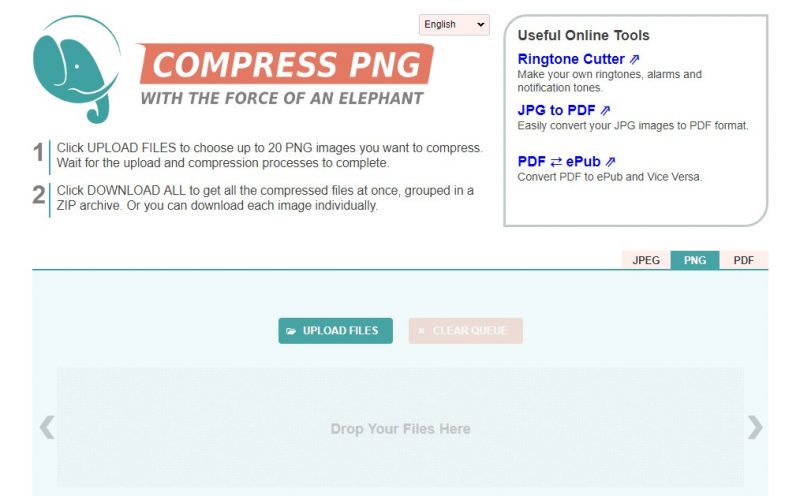
Compress PNG

As the site’s name says, Compress PNG is an online image compressor tool that focuses on PNG files only. The best thing about Compress PNG is that it effectively reduces the file size without compromising the quality of the image. Users need to upload the PNG file and then click on the ‘Compress’ button to quickly compress PNG files.

2. Giftofspeed

Giftofspeed

GiftofSpeed is probably the best online image file compressor that you can use today. Unlike the previous one, GiftOfSpeed’s focus is not limited to PNG only. It has a wide range of web tools to compress files. You can easily compress PNG files, JPEG files, Compress image, optimize javascript, Compress CSS, etc.

3. TinyPNG

TinyPNG

When it comes to reducing a PNG file size, nothing seems to beat TinyPNG. TinyPNG is a website that promises to reduce the PNG file size without compromising the image quality. It’s also one of the oldest PNG compressors available on the web, and it uses some lossy compressing techniques to reduce file size.

4. EzGIF

EzGIF

EzGIF is an all-in-one image compressor that you can use today. This is a web-based tool that you can use to compress every image file format. The best thing about EzGIF is that it effectively reduces the file size of the PNG format. Not just that, but it can be used to compress animated PNG as well.

5. Reduce Images

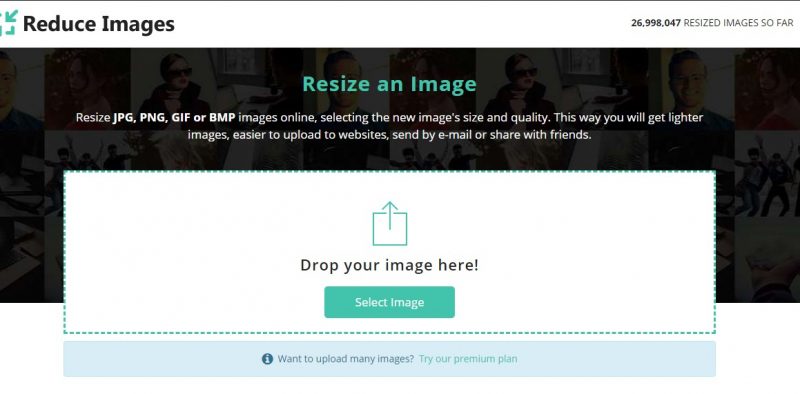
Reduce Images

Reduce Images is another best web-based tool that you can use to compress PNG files in bulk. The great thing about Reduce Images is that it compresses the PNG files without compromising the image quality. So, you could expect lossless image compression with Reduce Images. Users need to upload the PNG file and then click on the ‘Compress’ button to reduce the PNG file size.

6. Image Optimizer

Image Optimizer

Image Optimizer is a free web tool to resize, compress, and optimize your image files. The user-interface of the site is pretty clean, and it isn’t bloated with any unnecessary features. Before compressing the image, you can even set the optimization quality, max-width & height.

7. Compressor.io

Compressor.ioWell, Compressor.io is another powerful online tool capable enough to reduce the size of any image format. Not just PNG, Compressor.io can also compress other image formats as well. The tool drastically reduces the size of your image files while maintaining the quality.

8. Iloveimg

Iloveimg

If you are looking for a powerful image compressor tool that only focuses on PNG files, then ILoveimg might be the best pick for you. Guess what? The web-based tool can drastically reduce the size of your PNG file format. Apart from compressing images, it has other useful tools like converting image files, photo editor, meme generator, and more.

9. PS2PDF

PS2PDF

PS2PDF is another site where you can compress PNG images. The site specializes in PDF files, and it can convert PNG to PDF, PS to PDF, JPG to PDF, Merge PDF, etc. The PNG compress tool of PS2PDF is one of the fastest PNG compressors out there, and users can expect lossless/lossy PNG image compress.

10. WebsitePlanet

WebsitePlanet

If you are searching for a bulk image compressor, then you need to visit WebsitePlanet. The great thing about WebsitePlanet is that it allows users to compress multiple PNG files at once, and it can compress your PNG/JPG files by up to 80% and retain full transparency.

So, these are the best online PNG compressor which you can use today. It’s worth noting that there are plenty of other online PNG compressors available on the internet, but we have listed only the best ones. I hope this article helped you! Please share it with your friends also.

The post How To Reduce PNG File Size Of A Photo in 2021 appeared first on TechViral.


from TechViral https://ift.tt/2SCujMO

How to Quickly Remove Temporary Files in Windows 10 PC

How to Quickly Remove Temporary Files in Windows 10 PC

If you have been using Windows 10 for a while, you might know that the operating system does offer lots of customization options and features. It also has a disk management utility to manage storage drives, a storage sense feature to clean temp files, etc.

While exploring Windows 10, we found another best storage management feature. The new feature allows you to remove temporary files stored on the operating system quickly. By default, the temporary files are stored in what’s called the Windows Temp Folder. Although it takes a few clicks to locate the Temp folder, Windows 10 offers you another method to quickly access the temp files.

Cleaning out the temp folder in Windows 10 usually takes less than a minute. However, it could take longer depending on how extensive the temp file collection is. In this article, we will share a detailed guide on how to remove Windows temporary files quickly.

Also Read:  10 Best CCleaner Alternatives For Windows 10

Steps to Quickly Remove Temporary Files in Windows 10 PC

Note: You will be able to free up disk space as much as 8GB to 10GB in size. Before cleaning up the files, make sure to review the file categories. Some of the files may not be reclaimable.

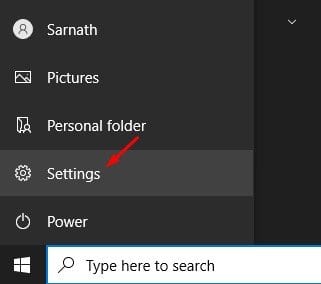
Step 1. First of all, click on the Windows button and click on ‘Settings.’

click on 'Settings.'

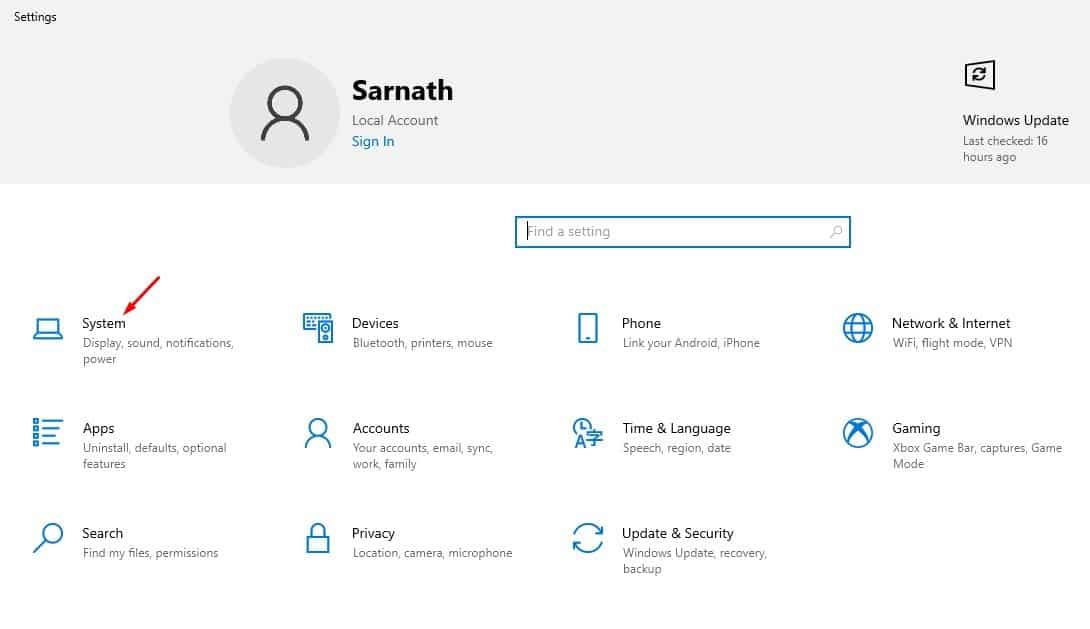
Step 2. Now on the Settings page, click on the ‘System’ option.

click on the 'System' option

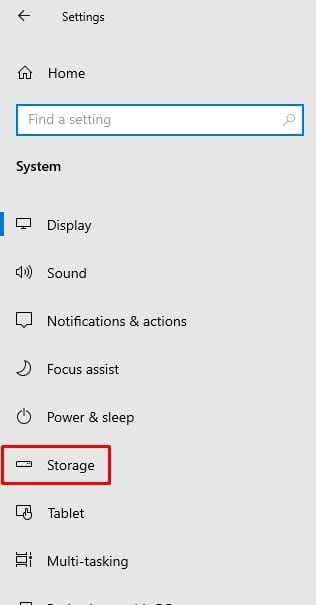
Step 3. On the left pane, click on the ‘Storage’ option.

click on the 'Storage' option

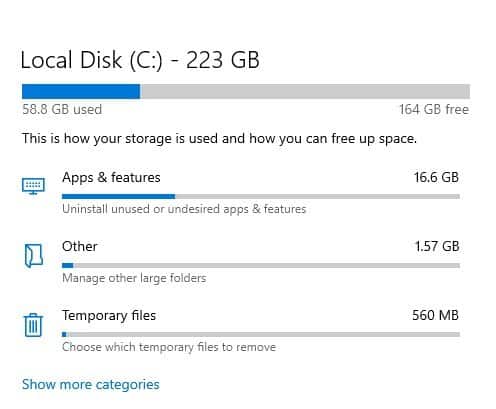
Step 4. The Storage section will show you a list of file categories. Click on the ‘Temporary files’ option.

Click on the 'Temporary files' option

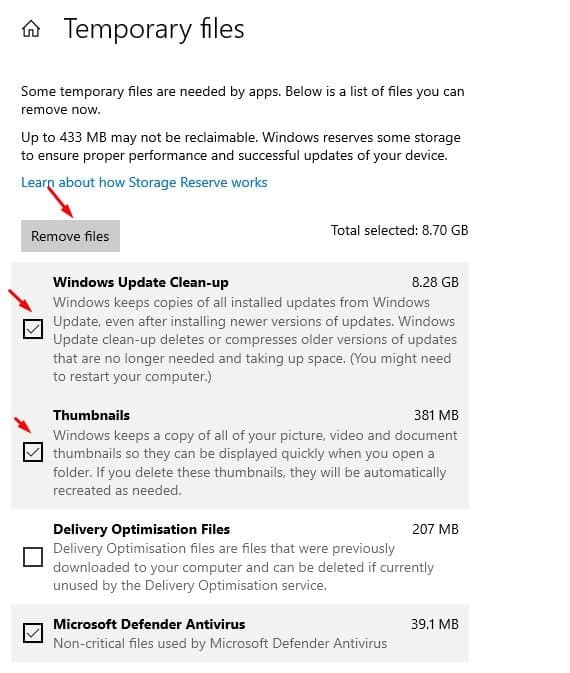
Step 5. Now Windows 10 will list all temporary files that you can remove now. You can free up to 10GB of file size just by removing the temporary files. Just select the file types and click on the ‘Remove now’ button.

select the file types and click on the 'Remove now' button

That’s it! You are done. This is how you can remove temporary files on Windows 10 computer. This is by far the easiest way to free up disk space on Windows 10 operating system.

So, this article is all about how to remove temporary files on Windows 10 computer. I hope this article helped you! Please share it with your friends also. If you have any doubts related to this, let us know in the comment box below.

The post How to Quickly Remove Temporary Files in Windows 10 PC appeared first on TechViral.


from TechViral https://ift.tt/3oyyLM8

Friday, January 29, 2021

You can now give Facebook’s Oversight Board feedback on the decision to suspend Trump

Facebook’s “Supreme Court” is now accepting comments on one of its earliest and likely most consequential cases. The Facebook Oversight Board announced Friday that it would begin accepting public feedback on Facebook’s suspension of former President Trump.

Mark Zuckerberg announced Trump’s suspension on January 7, after the then-president of the United States incited his followers to riot at the nation’s Capitol, an event that resulted in a number of deaths and imperiled the peaceful transition of power.

In a post calling for feedback, the Oversight Board describes the two posts that led to Trump’s suspension. One is a version of the video the president shared the day of the Capitol riot in which he sympathizes with rioters and validates their claim that the “election was stolen from us.” In the second post, Trump reiterates those views, falsely bemoaning a “sacred landslide election victory” that was “unceremoniously & viciously stripped away.”

The board says the point of the public comment process is to incorporate “diverse perspectives” from third parties who wish to share research that might inform their decisions, though it seems a lot more likely the board will wind up with a tidal wave of subjective and probably not particularly useful political takes. Nonetheless, the comment process will be open for 10 days and comments will be collected in an appendix for each case. The board will issue a decision on Trump’s Facebook fate within 90 days of January 21, though the verdict could come sooner.

The Oversight Board specifically invites public comments that consider:

Whether Facebook’s decision to suspend President Trump’s accounts for an indefinite period complied with the company’s responsibilities to respect freedom of expression and human rights, if alternative measures should have been taken, and what measures should be taken for these accounts going forward.

How Facebook should assess off-Facebook context in enforcing its Community Standards, particularly where Facebook seeks to determine whether content may incite violence.

How Facebook should treat the expression of political candidates, office holders, and former office holders, considering their varying positions of power, the importance of political opposition, and the public’s right to information.

The accessibility of Facebook’s rules for account-level enforcement (e.g. disabling accounts or account functions) and appeals against that enforcement.

Considerations for the consistent global enforcement of Facebook’s content policies against political leaders, whether at the content-level (e.g. content removal) or account-level (e.g. disabling account functions), including the relevance of Facebook’s “newsworthiness” exemption and Facebook’s human rights responsibilities.

The Oversight Board’s post gets very granular on the Trump suspension, critiquing Facebook for lack of specificity when the company didn’t state exactly which part of its community standards were violated. Between this and the five recent cases, the board appears to view its role as a technical one, in which it examines each case against Facebook’s existing ruleset and then makes recommendations for future policy rather than working backward from its own broader recommendations.

The Facebook Oversight Board announced its first cluster of decisions this week, overturning the company’s own choice to remove potentially objectionable content in four of five cases. None of those cases pertained to content relevant to Trump’s account suspension, but they prove that the Oversight Board isn’t afraid to go against the company’s own thinking — at least when it comes to what gets taken down.


from Social – TechCrunch https://ift.tt/39sUQYb

Stocks explained: What's been going on at GameStop?

Chris Fox explains stocks, short-selling and what has been happening with GameStop shares.

from BBC News - Technology https://ift.tt/3r5Ij3c

How to Transfer Chat history from WhatsApp to Telegram

How to Transfer Chat history from WhatsApp to Telegram

If you have been reading tech news regularly, you might know about the recent WhatsApp incident. WhatsApp has received a backlash from users after making it necessary to comply with the revised privacy policy. According to the new policy, WhatsApp will share your data with Facebook and other third-party services.

Such a step has forced lots of WhatsApp users to switch to an alternate instant messaging app. Even many users have deleted their WhatsApp account. If you have also planned to ditch WhatsApp due to its shady practices, it’s the best time to start using Telegram or Signal Private Messenger.

Recently, Telegram introduced a new feature that allows WhatsApp users to transfer their chat history to Telegram. What’s more interesting is that the new feature allows Telegram users to transfer media files and documents from both individuals and group chats.

Also Read: How to Send Self Destructing Messages in Telegram

Steps to Transfer Chat history from WhatsApp to Telegram

In this article, we will share a step-by-step guide on how to transfer chat data from WhatsApp to Telegram in 2021 easily. You don’t need to install any extra app to transfer the chat data from WhatsApp to telegram. Just follow the simple steps given below

Step 1. First of all, open the WhatsApp app on your Android device.

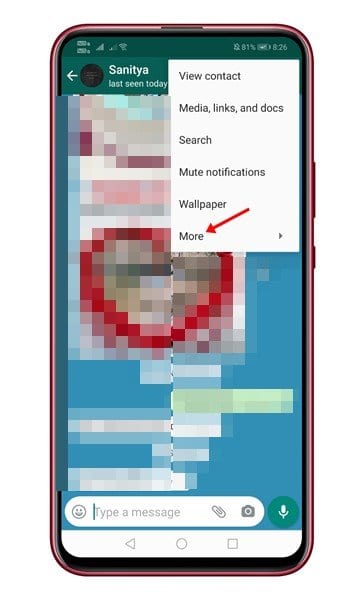
Step 2. Now select the chat that you want to export. Next, tap on the ‘Menu’ button (three dots).

tap on the 'Menu' button

Step 3. From the list of options that appears, tap on the ‘More’ button.

tap on the 'More' button

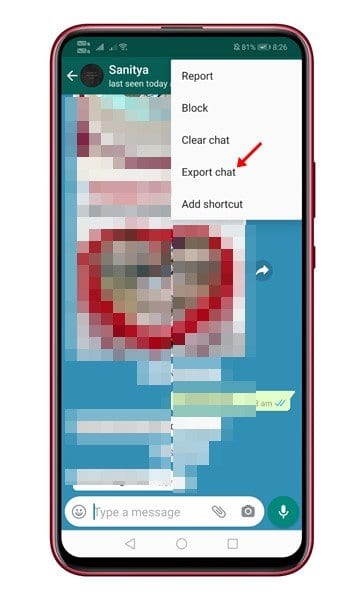
Step 4. From the next menu, tap on the ‘Export Chat’ option.

tap on the 'Export Chat' option

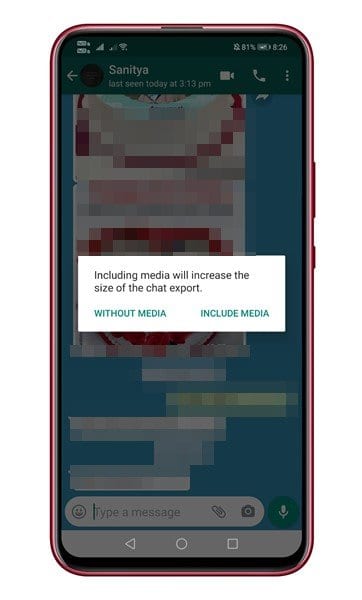
Step 5. You will find two options for exporting the chat – Without Media and Include Media. Select the one you prefer.

Select the export option

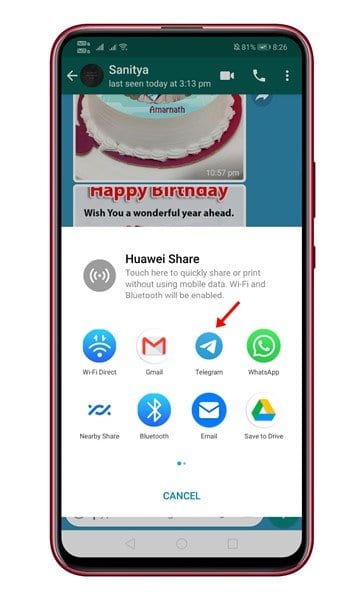
Step 6. From the sharing menu, select ‘Telegram’.

select 'Telegram'

Step 7. This will open the Telegram app. Just select the contact for whom you want to import the chat history. Next, tap on the ‘Import’ button

Tap on the 'Import' button

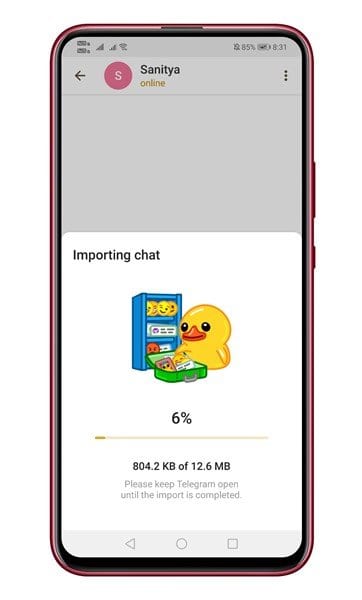
Step 8. Now, wait until the process gets completed. Once completed, tap on the ‘Done’ button.

tap on the 'Done' button

That’s it! You are done. This is how you can transfer chat history from WhatsApp to Telegram.

So, this article is all about how to transfer chat history from WhatsApp to Telegram. I hope this article helped you! Please share it with your friends also. If you have any doubts related to this, let us know in the comment box below.

The post How to Transfer Chat history from WhatsApp to Telegram appeared first on TechViral.


from TechViral https://ift.tt/3iYmMXa

Satellite boom attracts technology giants

Tech giants promise faster, wider access to data thanks to cheaper satellite launches.

from BBC News - Technology https://ift.tt/3t4Tzyo