Tuesday, May 2, 2023

How to Fix 5G Battery Drain on Android in 2023 (6 Methods)

How to Fix 5G Battery Drain on Android

5G has been around for years, and major smartphone makers are releasing 5G-ready smartphones. Popular smartphone makers such as Google, Realme, Samsung, and OnePlus have already delivered a few 5G ready smartphones to the market.

Not only that, but telecom operators have also enabled the 5G services, but it will take a few months/years to reach every city. 5G rollout could be faster, and the ones who already have access to it face problems.

Recently, many 5G users have reported battery-draining issues on Android. Users have claimed that using the 5G services drains battery life faster. So, if you are also dealing with 5G battery-draining issues on your Android, continue reading the guide.

How to Fix 5G Battery Drain on Android

Below, we have shared some tried and tested methods to reduce 5G battery drain on Android. These are basic battery-saving tips that would benefit you a lot. Let’s get started.

1. Turn on the Dark Mode

If your phone has a 5G mode, it will also have a dark mode. While the Dark Mode on Android is designed to reduce eye strain in low-light environments, it somehow saves battery life.

Dark Mode will not only reduce battery consumption but will also reduce headaches or eye stress that happens due to prolonged smartphone use. To enable dark mode, follow the steps we have shared.

1. To start, open the Settings app on Android.
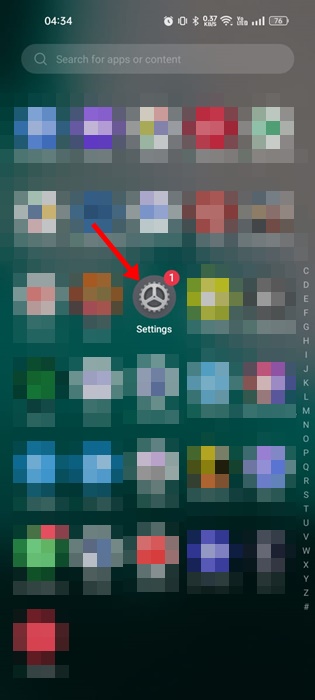
Settings

2. On the Settings, tap on the Display & Brightness option.
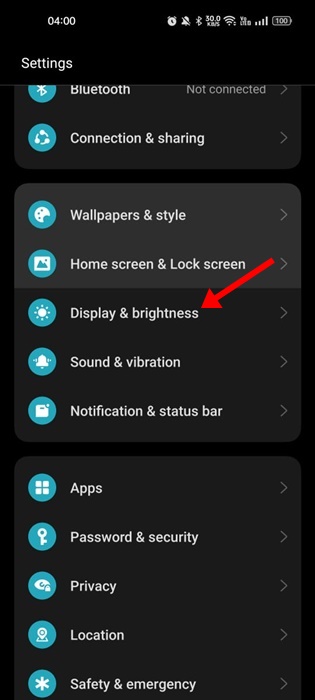
Display & Brightness

3. Next, on the Display & brightness, turn on the ‘Dark Mode‘
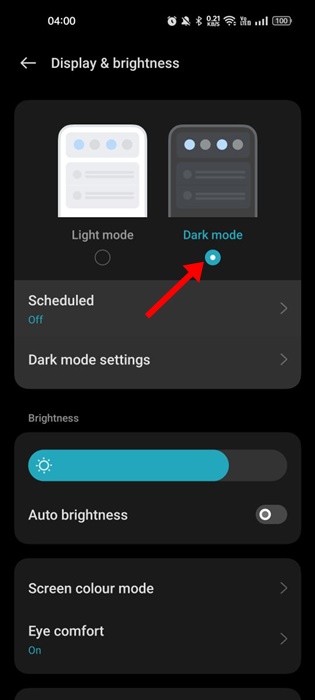
Dark Mode

That’s it! This is how you can turn on dark mode on your Android device to reduce battery consumption.

2. Reduce the Screen Refresh Rate

If you have a high-end smartphone, it will likely have a 120Hz of refresh rate. And the screen refresh rate can impact your phone’s battery life.

A higher refresh rate is needed for smoother animations and operations, but it can drain your battery life fast. If you will use the 5G services and want to reduce the battery drainage, you can at least switch to a standard refresh rate of 60Hz.

1. Pull down the notification shutter on Android and tap on the Settings gear icon. Or else, open App drawer and select Settings.

Settings

2. When the Settings app opens, tap on ‘Display & Brightness‘.

Display & Brightness

3. Next, scroll down and tap ‘Screen refresh rate‘.
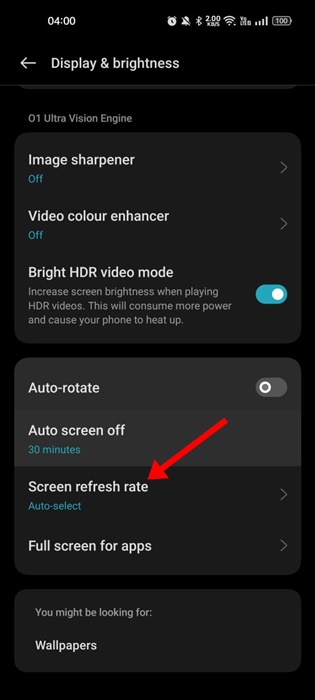
Screen refresh rate

4. On the Screen refresh rate, select ‘Standard‘
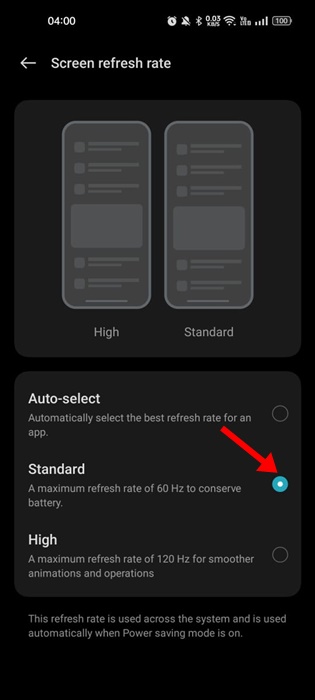
Standard

That’s it. This will switch to the Standard refresh rate of 60Hz to conserve battery life.

3. Enable the Adaptive Battery feature

Pixel smartphones or other phones running on Android 9 or above have a feature that reduces battery drain while using 5G. The feature is called ‘Adaptive Battery’ and must be enabled manually from the Settings. Here’s how to enable the feature.

  • Open the Settings app on your Android.
  • On Settings, select ‘Battery‘.
  • Next, tap on Adaptive Preferences.
  • On the Adaptive Preferences, turn on the toggle for ‘Adaptive battery‘.

That’s it! That’s how easy it is to turn on an Adaptive battery on an Android smartphone. Please note that the feature may reside on your phone with a different name. You must explore the battery settings to find the feature that extends battery life based on your phone usage.

4. Disable the Location Services

If you aren’t a frequent traveler, it’s recommended to keep the location services disabled. Some apps, like Weather, Maps, etc., require location access to provide you with accurate information. However, if you rarely use such apps, it’s best to keep the location services disabled.

1. To disable the Location services, first open the Settings app.

Settings

2. When the Settings app opens, tap on the Location.
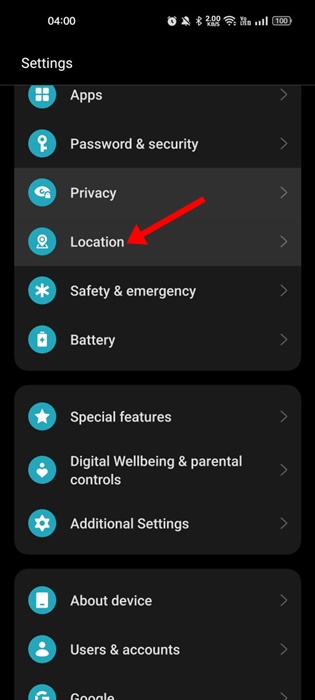
Location

3. On the next screen, turn off the toggle for Location.
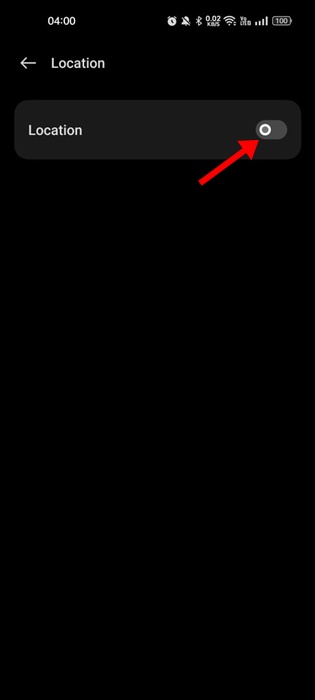
turn off

That’s it! That’s how easy it is to turn off location services on an Android smartphone.

5. Turn on Smart 5G or Auto 5G Mode

Android smartphones these days have a feature called ‘Smart 5G‘ or ‘Auto 5G‘. The feature basically switches your phone’s network mode from 5G to 4G to save battery life.

If your phone has enough battery life, it will remain connected to 5G. But your phone will switch to 4G connectivity when the battery level drops.

1. Open the Settings app and tap on the Mobile Network.
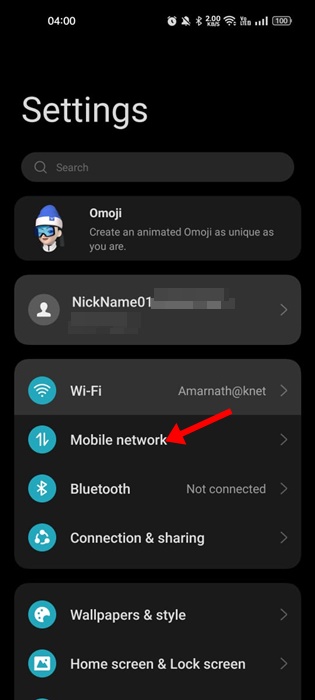
Mobile Network


2. Select your SIM with 5G services enabled on the Mobile network.

3. Next, tap on ‘More Settings‘.
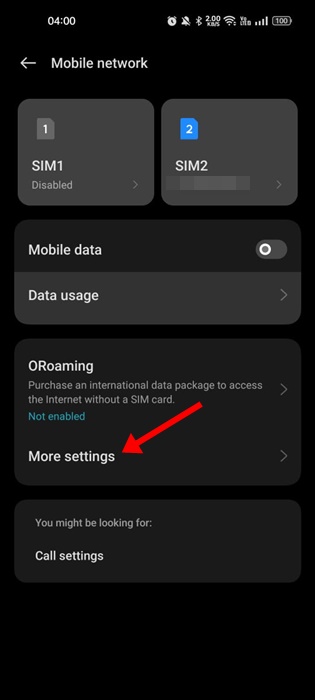
More Settings

4. Toggle on the ‘Smart 5G‘ option on the next screen.
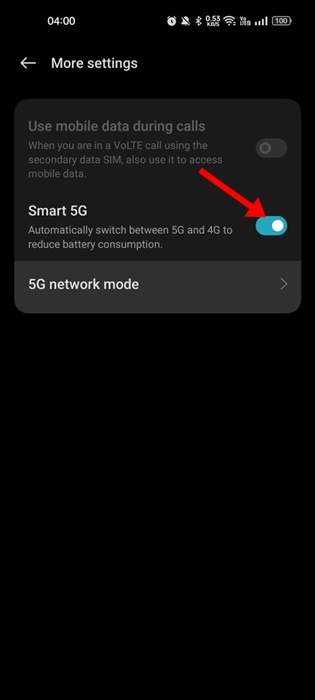
Smart 5G

That’s it! This is how you can enable the Smart 5G feature to automatically switch between 5G and 4G to reduce battery consumption.

6. Switch to 4G LTE Mode

Switching back to 4G may not be an appropriate solution to preserve the phone battery life, but it can still be your savior.

Assume you are in a situation where you want your phone to run for the next 1-2 hours without dying. But due to 5G battery draining, your phone will last only for a maximum of 30 minutes.

In such case, you can turn off the 5G and connect to 4G network. This will definitely give your phone a few extra minutes or hours of battery life to survive.

1. First, open Settings and tap on the Mobile Network.

Mobile Network

2. Select your 5G enabled SIM card on the Mobile Network.
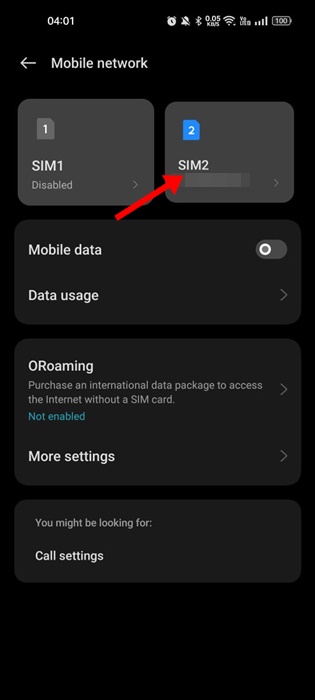
5G enabled SIM

3. Next, tap on the ‘Preferred network type‘ option.
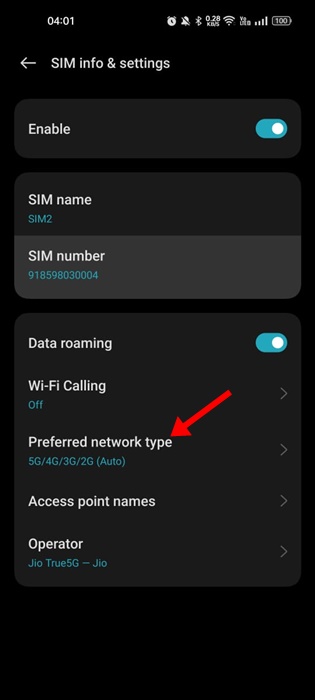
Preferred network type

4. Select the ‘4G/3G/2G (Auto)’ option on the Preferred Network type.
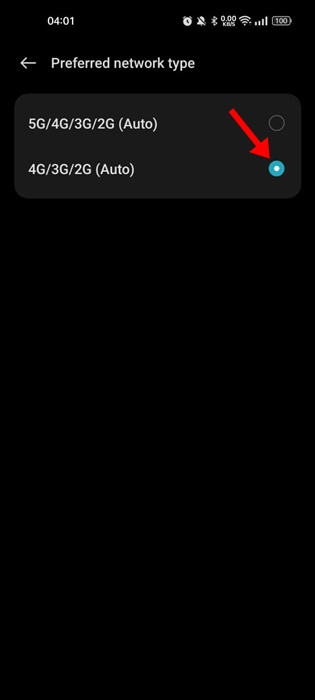
4G/3G/2G (Auto)'

That’s it! Now your phone will automatically switch to the 4G services of your SIM card.

Also Read: How To Charge Your Android Battery Faster

Reducing the battery consumption while using 5G services may be difficult, but our shared methods would help. You can try these tweaks to improve your phone’s battery life and avoid 5G battery drain on Android. Let us know if the tweaks we have shared helped you.

The post How to Fix 5G Battery Drain on Android in 2023 (6 Methods) appeared first on TechViral.


from TechViral https://ift.tt/UfdxmZn

Monday, May 1, 2023

AI 'godfather' Geoffrey Hinton warns of dangers as he quits Google

Geoffrey Hinton tells the BBC some of the dangers in the artificial intelligence field "are quite scary".

from BBC News - Technology https://ift.tt/gJw4RMp

13 Best Calorie Counter Apps For Android in 2023

10 Best Calorie Counter Apps For Android in 2022

In recent years, we have seen how sports have gone from entertainment to enjoy on a sofa to becoming a habit. It has been filtering society’s day-to-day that increasingly goes to the gym, run, or on a bicycle to exercise. Why? Because in addition to distracting the mind momentarily, it helps us achieve a healthy and healthy body.

But playing sports is not enough, as food plays a fundamental role since many have correctly pronounced the phrase “we are what we eat” throughout history. Hence, a diet adapted to our needs can bring many benefits, so it is essential to know what each food comprises, like proteins, salt, energy value, etc.

This is where the new technologies for smartphones or tablets come into play, responsible for developing apps that count the number of calories that enter our bodies.

What is a Calorie Counting application?

A Calorie Counting Application keeps track of all the calories we consume daily. Each time we consume a meal, we use the application to count our calories and add them to our records. In this way, we can know whether we are eating healthy foods and meeting our goals.

The best calorie-counting application provides different ways to scan food simply by taking the image, scanning the barcode, and more. It also creates an extensive database and graphics regarding our eating habits, diet plans, etc. Therefore, these applications are widely used by fitness enthusiasts and weight watchers.

List of Best Calorie Counter Apps For Android

Hence, today in this article, we have created a list in which we have mentioned the best calorie counter apps.

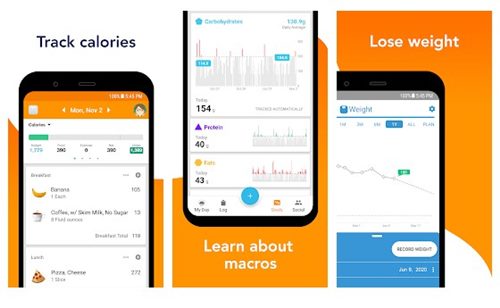
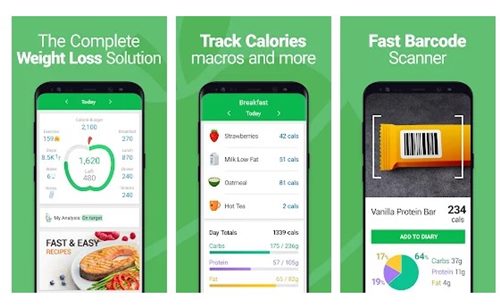
1. Lose it!

Lose it

This is the best and most trusted calorie count application that you can try. It is already used by more than 10 million people worldwide and is aimed at those who want to lose weight by counting their calorie consumption.

The app can quickly scan food barcodes, track nutrients, synch with fitness devices, plan meals & set targets, and more. Keeping track of your calorie and nutrition intake helps you find what is hindering or helping you lose weight.

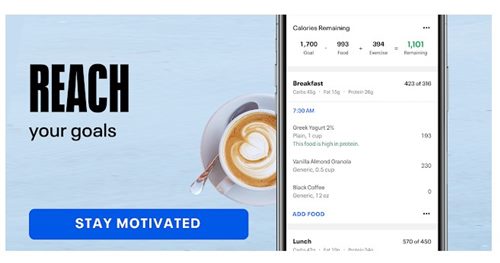
2. My Fitness Pal

My Fitness Pal

MyFitnessPal is one of the complete fitness apps that you can use to track or count your calorie intake.

The calorie counter application has a database of more than 6 million foods. The app uses that database to show you the nutritional value of the food you enter. You can also use this app to set fitness goals and track your progress.

3. HealthifyMe

HealthifyMe

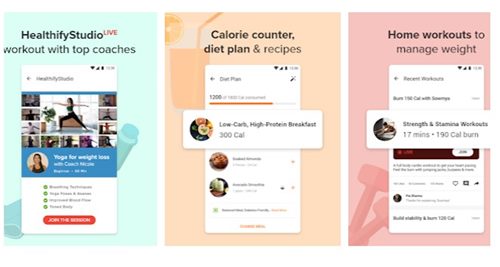
Well, HealthifyMe is a full-fledged fitness app for Android. The app provides weight loss tips, diet plans, and personal trainers.

In addition, it has a calorie counter that helps you keep track of your calorie intake to lose weight and get fit quickly. Overall, it’s a great health app for Android.

4. Track – Calorie Counter

Track - Calorie Counter

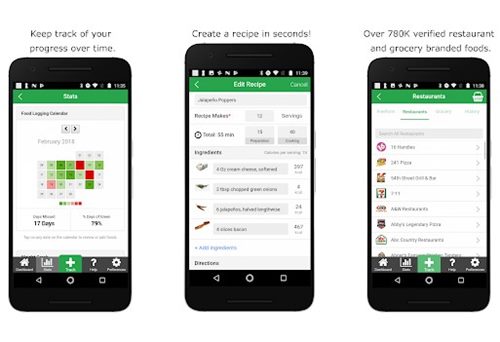
Track from Nutritionix is one of the best fitness-tracking apps developed for Android smartphones. The good thing about the app is that it was maintained by a team of dietitians.

Track – Calorie Counter is an app that lets you log all your food intake. You can even use this app to track nutrient totals, exercise, weight management processes, calories, water intake, and more.

5. Fooducate

Fooducate

If you want to learn about diet planning and compare different foods, don’t worry; this app could help. Fooducate Healthy Weight Loss & Calorie Counter would be the best calorie-counting application, as it has an extensive database and an easy-to-use interface.

It has a huge food database that has over 250,000 products. You can use the app’s barcode scanner to scan your foods. A meal tracker option also allows you to plan meals for proper health.

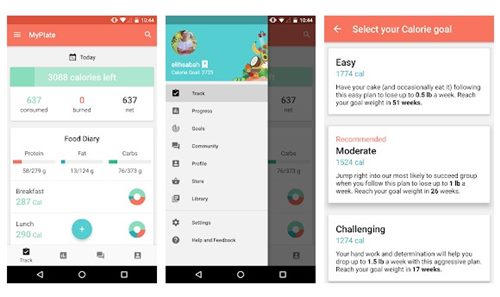
6. MyPlate Calorie Tracker

MyPlate Calorie Tracker

MyPlate is probably the best calorie tracker app on the Play Store. Guess what? The app allows you to browse a comprehensive food database with over 2 million items.

It also provides personalized daily calorie goals based on your profile information. In addition, MyPlate also offers you the nutritional values of the food you are about to intake.

7. Calorie Counter – MyNetDiary

Calorie Counter - MyNetDiary

The MyNetDiary app is an easy-to-use and complete diet tracker app for Android. As the MyNetDiary calorie counter application can help you better understand and control diabetes and pre-diabetes – along with improving your diet, losing weight, and providing feedback.

MyNetDiary also has a premium version that unlocks premium diets such as low-carb, keto, high-protein, and more. The app also features a calorie and macros tracker

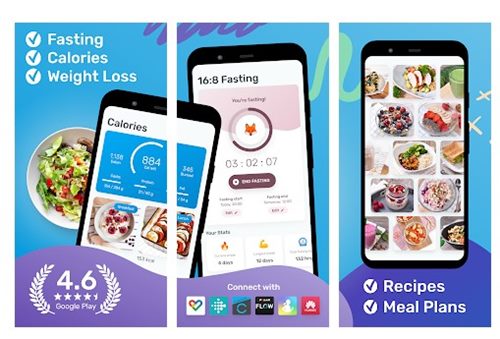
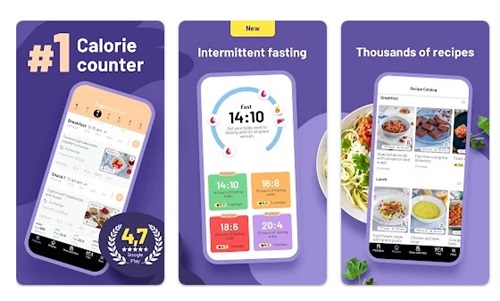
8. YAZIO

YAZIO

This calorie-counting app simply provides healthy recipes, tracks all your activity and fitness goals, connects with other fitness apps and devices, and helps you achieve all your fitness goals and stay in shape.

It’s an excellent calorie counting, intermittent fasting, and weight loss app. The free version of YAZIO has more than 4 million foods in its database and includes a built-in barcode scanner for easy scanning.

9. Calorie Counter by FatSecret

Calorie Counter by FatSecret

It is a powerful tool for tracking calories and weight loss effectively. FatSecret is an Aussie company based in Melbourne. It’s an app that’s tailored for Australian foods and brands. If you are living in Australia, you might find FatSecret very useful.

It lets you keep track of your food, exercise, and weight. It also has an image recognition tool that identifies foods, meals, and products from a photo.

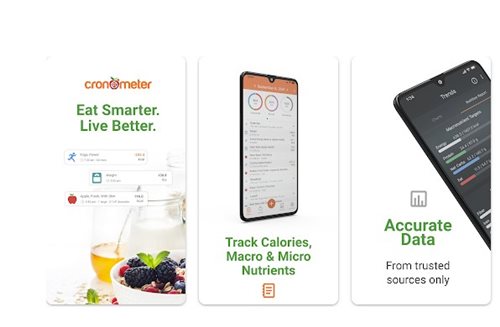
10. Cronometer

Cronometer

Well, Cronometer is more than a calorie counter app. You can use it to track your calorie intake and food. The app is designed to help you develop healthy habits because it forces you to focus on your nutrition.

You can use this app to log your food and exercises, keep track of your water intake, scan foods with a barcode scanner, and more.

The app is entirely free to download & use, and it’s fully ad-free. Overall, Cronometer is a great calorie counter app for Android that you shouldn’t miss.

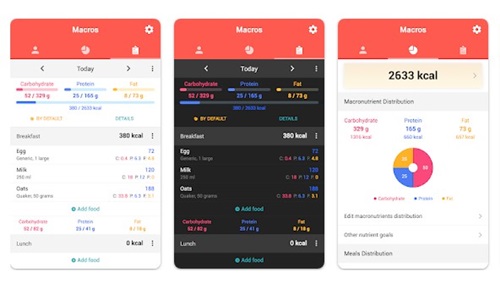
11. Macros

Macros

Macros is a simple-to-use calorie counter and a meal planner app for Android. This free calorie counter app calculates your calories and registers your food diary easily.

You can take Macros as a diet app as it lets you calculate your caloric needs, calculate all your macronutrients, set goals, etc. Also, there’s an option to plan meals with the app.

However, to unlock all features of Macros, you need to purchase its premium version. Nevertheless, the premium plans are quite affordable.

12. Fitatu Calorie Counter & Diet

Fitatu Calorie Counter & Diet

Fitatu Calorie Counter & Diet is similar to the Macros app. This app can count your calorie intake and lose weight accordingly.

The app is very popular on the Google Play Store and has over 10 million active users. On this app, you have to add your food, and the app will calculate the appropriate calories, carbs, nutrients, and proteins.

Other than that, Fitatu Calorie Counter & Diet has a meal planner that lets you plan up to 6 meals daily.

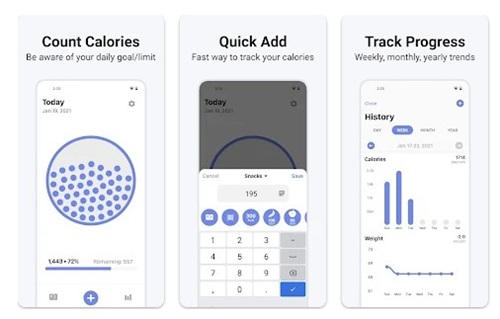
13. Calory

Calory

Calory is not as popular as the other apps on the list; it’s still one of the best and simple apps to track your daily calorie intake.

The app automatically suggests a daily calorie goal by analyzing your weight, height, and activity level. Once diagnosed, you get the calorie goal and must maintain it for good health.

You can track your macronutrients, daily water intake, etc. Also, the app shows weekly, monthly, and yearly progress chats to help you make comparisons.

With these free Android apps, you can calculate and track your daily calorie intake. I hope this article helped you! Please share it with your friends also. Also, if you know of other such apps, let us know in the comment box below.

The post 13 Best Calorie Counter Apps For Android in 2023 appeared first on TechViral.


from TechViral https://ift.tt/6S4J2Ad

How to Play MKV File on Android in 2023

How to Play MKV File on Android

If you often download videos online, you may know how popular the MKV file format is. MKV is a Matroska video file format supporting unlimited pictures, subtitles, and audio files.

There are hundreds of video formats available now, but only a few selected ones are popular; one of them is MOV. The file format is mainly used for storing TV Shows, Movies, and short video clips since it supports adding cover art, ratings, and description.

While MKV files are very popular, you may sometimes face problems running MKV videos if you have an Android smartphone. Unless you use an MKV video player on your Android device, you won’t be able to play the MKV videos.

How to Play MKV File on Android

Hence, if you want to play MKV videos on an Android smartphone, continue reading the article. Below, we have shared some of the best methods to play MKV files on Android. Let’s get started.

Play MKV Files on Android – MKV Players for Android

The best and easiest way to play MKV files on Android is to download & install an MKV media player app. Many MKV video players are available for Android, and all of them can handle MKV videos well.

Below, we have shared some of the best Android apps to play MKV files. These apps are free but ad-supported. Let’s check out.

1. VLC for Android

VLC for Android

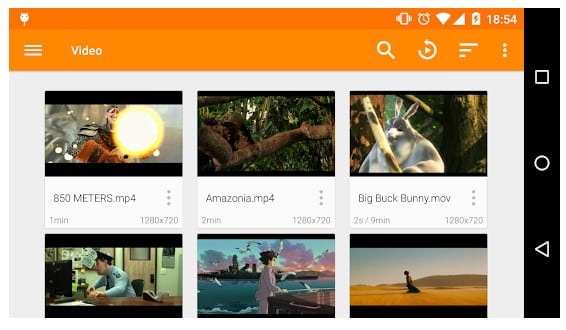
The popular media player app for PC is also available for Android. It’s a free, open-source, cross-platform media player application that handles MKV file format well.

Regardless of the video file format, VLC for Android can easily handle it. Besides handling the MKV file formats, VLC for Android can handle other complex video file formats.

Some of the key features of VLC for Android include multi-track audio support along with subtitles, auto-rotation, aspect ratio adjustments, and gestures to control volumes, brightness, and seeking.

2. MX Player

MX Player

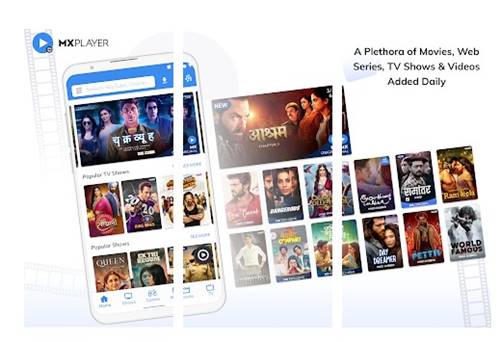
MX Player is probably the best media player app for Android smartphones. It has not become a full-fledged OTT service, but you can still use it as a media player.

MX Player supports MKV file format out of the box. Along with the MKV format, MX Player is also compatible with hundreds of other media file formats.

Some key highlights of MX Player are hardware acceleration, subtitle gestures, etc. Overall, MX Player is the ultimate app for all your media consumption needs.

3. Zea Player

Zea Player

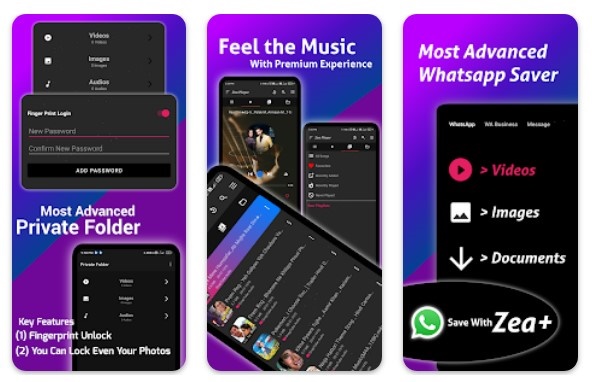
If you are searching for a free MKV player app for Android smartphones, look no other than Zea Player. Zea Player is known for its effortless compatibility with the MKV file format.

It can smoothly play all MKV file formats regardless of size. Along with the MKV format, Zea Player can handle FLV and a few common video & audio formats.

Some useful features of Zea Player include hiding the audio, videos, and images, supporting dual audio tracks, stream with URL, easy control volume, etc.

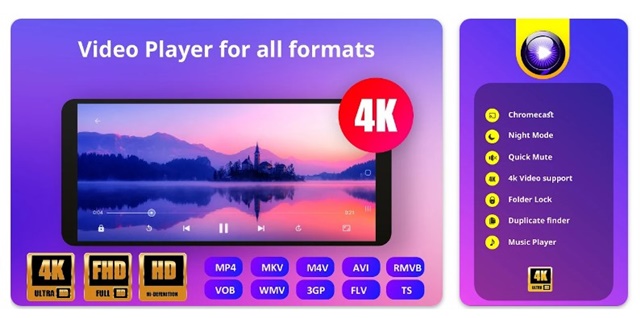
4. InShot Video Player

InShot Video Player

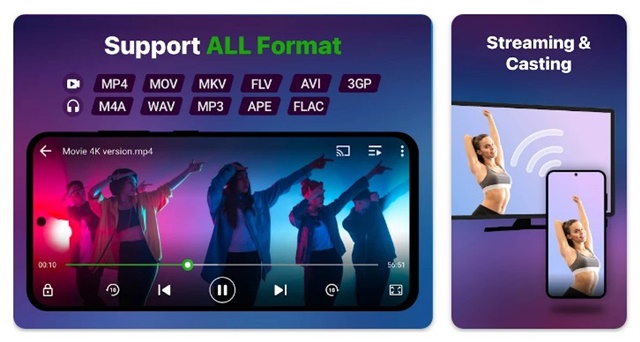
InShot Video Player, also known as XPlayer, can support all major video and audio file formats. In addition, it can easily handle your 4L/Ultra HD video files as well.

It effortlessly plays the MKV file format along with subtitles. Besides being a video player app, InShot Video Player also offers you a private folder to keep your video safe.

The media player also supports 4K, has hardware acceleration support, casts videos to TV with Chromecast, subtitle downloader, media player controls, etc.

5. UPlayer

UPlayer

UPlayer is a beautifully crafted HD video player app for Android, which is packed with powerful features. The good thing about UPlayer is that it can handle all major video and audio files well.

The media player app’s user-friendly interface supports PAN and ZOOM video files. You can also play HD and 4K videos with this media player app.

Some of the other key features of UPlayer include playing videos in a floating window, video locker, equalizer support, video/mp3 cutter, video casting options, etc.

Convert MKV video into MP4 format

If you want to avoid using any additional MKV media player app on your Android smartphone, the next best option is an MKV video converter.

Every video convert app available for Android smartphones will work with the MKV file format. We have already shared a list of the best video converter apps for Android.

You must check out that article and pick the video converter that suits your need and supports MKV file conversion.

Also Read: 10 Best Free MKV Players For Windows

So, this guide is about playing MKV files on Android. With these apps, you can easily play MKV file on phone. If this article helped you, please share it with your friends. And, if you want to suggest any other media player MKV or Android MKV file converter, drop the app name in the comments.

The post How to Play MKV File on Android in 2023 appeared first on TechViral.


from TechViral https://ift.tt/6VBu75R

How to Turn Off Chat History in ChatGPT

How to Turn Off Chat History in ChatGPT

Recently, OpenAI, the company behind the popular AI Chatbot ChatGPT, has announced a set of new privacy features to help its user have more control over data while using ChatGPT.

One of the most noticeable features is the ability to turn off Chat History in ChatGPT. Before this new feature, ChatGPT users had to manually clear their Chat history.

Along with it, ChatGPT also got a new option to export the chat history. This means users no longer need a screenshot tool or third-party extensions to export any conversation from ChatGPT.

Disable Chat History in ChatGPT & Export Data

Now that the features are live, you can use them. Hence, if you are interested in disabling chat history in ChatGPT, continue reading the guide. Below, we have discussed some easy steps to disable chat history and how to export ChatGPT conversations without any extensions.

How to Turn off Chat History in ChatGPT

ChatGPT has always allowed users to delete conversations in simple steps without any extension. However, until now, there’s no option to turn off the Chat History.

However, with the new update, you can disable Chat History completely in the ChatGPT. Below, we have shared the steps to turn off Chat History in ChatGPT.

1. Open your favorite web browser and visit the ChatGPT Login page. Next, log in with your OpenAI credentials.

Sign up

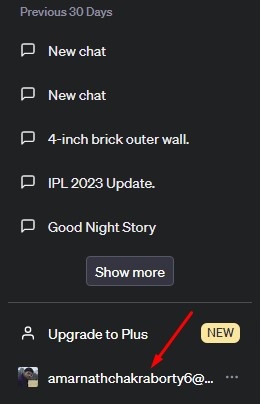
2. Once signed in, you must access the new Account Settings. For that, click on the Profile picture at the bottom left corner.

Account Settings

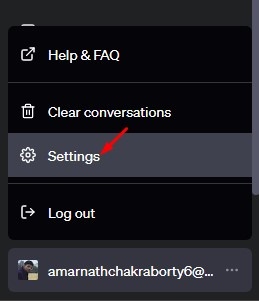
3. From the list of options that appears, select ‘Settings‘.

Settings

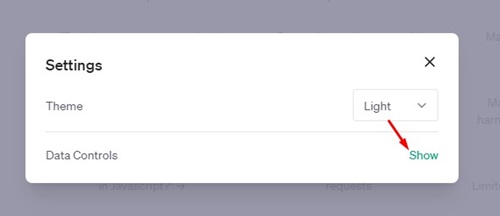
4. Click the ‘Show‘ button beside the Data Controls on Settings.

Show

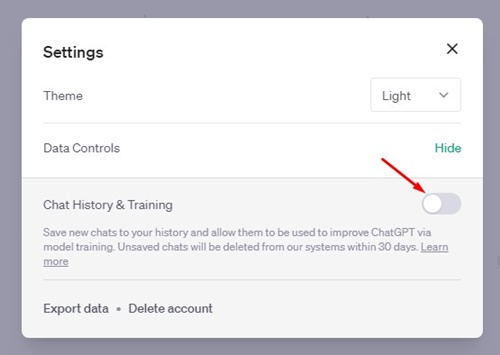
5. Next, find the Chat History & Training section. Toggle off the ‘Chat History & Training‘ option to avoid saving the new chats.

Chat History & Training

That’s it! Disabling the ‘Chat History & Training’ option will disable the Chat History saving completely on your ChatGPT account.

How to Clear Old ChatGPT Conversations?

After disabling Chat History on ChatGPT, it’s also a good idea to clear your old conversations to keep the interface clean. For that, follow the steps we have shared below.

1. Head to chat.openai.com and log in with your OpenAI account.

Sign up

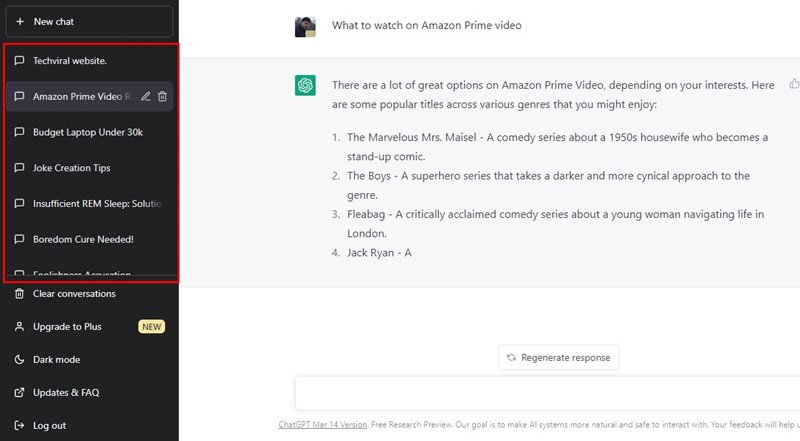
2. You will find all your saved chats on the left side.

ChatGPT history

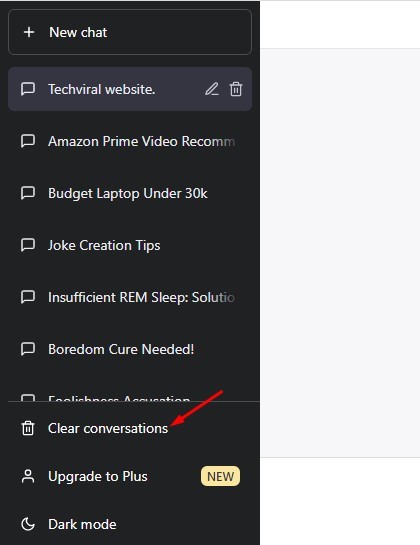
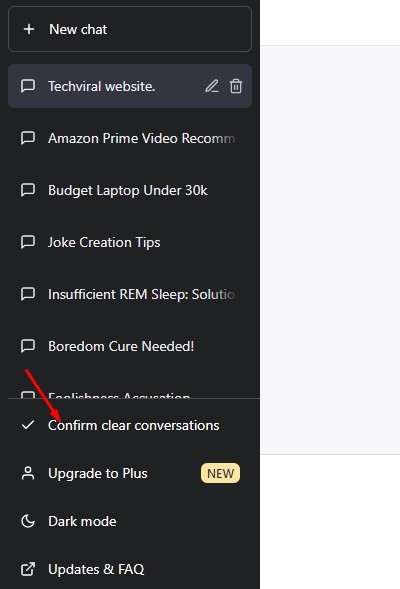
3. Just underneath the chat section, you will find the ‘Clear Conversations‘ option. Click on it.

Clear Conversations

4. Next, click on the ‘Confirm clear conversations’ option.

Confirm clear conversations

That’s it! This will clear all your old saved ChatGPT history.

How to Export ChatGPT Data

The new update also brings the ability to export ChatGPT data. So, if you want the ChatGPT data for your personal records, you can now export your entire ChatGPT data. Here’s how to do it.

1. First, open the ChatGPT webpage and click the Settings option on the left.

Settings

2. On the Settings screen, click the Show button beside the Data Controls.

Show

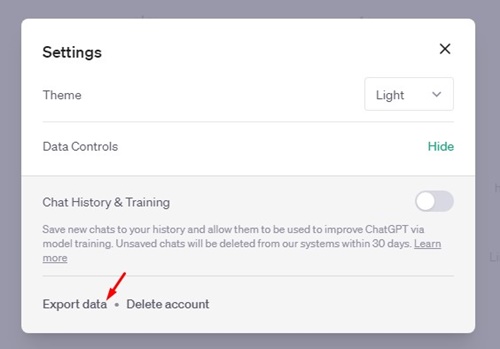
3. On the Chat History & Training section, click ‘Export Data‘.

Export Data

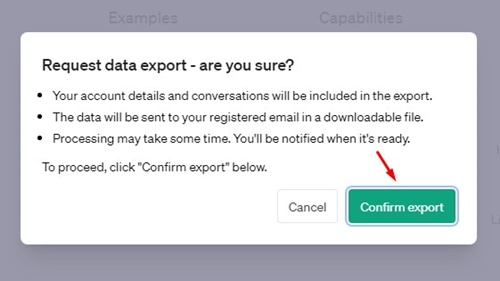
4. Click the ‘Confirm export‘ button on the Confirmation prompt.

Confirm export

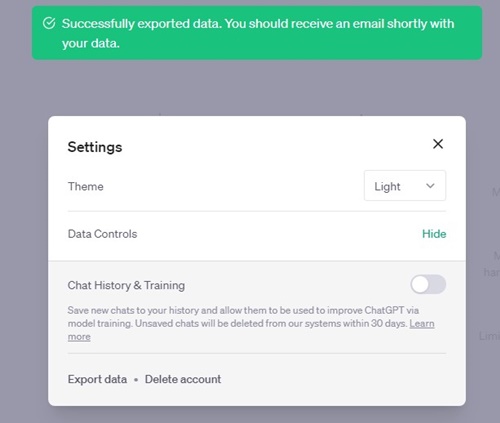
5. This will raise a ChatGPT data export request to OpenAI. You will see a confirmation message like this.

confirmation message

That’s it! You need to keep a check on your email address. You will receive an email from OpenAI containing all your ChatGPT data.

Frequently Asked Questions

How to Enable Chat History on ChatGPT?

Once you turn off the Chat History on ChatGPT, you will see an option to enable the Chat History on the left. You can click on that button to enable chat history again.

What happens when I turn off ChatGPT history?

Once you turn off the ChatGPT history, your conversations won’t be saved. Also, OpenAI stops using your new conversations for training and improving its LLM models.

How to Delete ChatGPT data completely?

Even when the chat history is disabled, the existing data and conversations can still be used by OpenAI. To fully delete your data, follow our guide – Delete ChatGPT Account and Data.

Can ChatGPT use the web to provide you with answers?

No, ChatGPT can’t use the web to provide you with answers. However, in one of our articles, we discussed how to give ChatGPT internet access. So you can check out that guide to give ChatGPT internet access.

Also read: How to Save and Export ChatGPT Conversations

So, that’s all about how to turn off chat history in ChatGPT and export your data. Let us know if you need more help using these two new features in the comments. Also, if the article helped you, make sure to share it with your friends.

The post How to Turn Off Chat History in ChatGPT appeared first on TechViral.


from TechViral https://ift.tt/pz7ejl2