Saturday, March 4, 2023

Why Does Snapchat Keeps Logging me out? 8 Ways to Fix it

Fix Snapchat Keeps Logging me out

When it comes to photo sharing, Snapchat fairs better than Instagram. While Instagram is a social networking platform, Snapchat is a photo-sharing app with a few communication features.

Snapchat is an app that teenagers and young adults mainly use. This is because it gives them an easy way to capture and share photos. It’s a perfect platform for young adults to share their precious moments.

However, like every similar app, Snapchat has a few problems. Quite a few bugs in the app prevent users from making the most out of the photo & video sharing app.

Why Does Snapchat Keep Logging Me Out?

Sometimes the app can show you errors and log you out for no genuine reason. While the app has all unique features, it could be better regarding the app experience.

Recently, many users have reported having trouble logging into the Snapchat application. Users have reported that their Snapchat app keeps logging them out for no apparent reason.

So, if you are experiencing the same problem and wondering ‘why Snapchat keeps logging me out?’, continue reading the guide.

Snapchat can log you out for several reasons like a server outage, third-party app access to your Snapchat app, use of VPN proxies, locked user account, and so on. Below, we have shared some best ways to resolve Snapchat keeps logging you out error.

How to Fix Snapchat Keep Logging Me Out Issue?

Since we don’t know why Snapchat keeps logging out repeatedly, troubleshooting it can be tricky. You need to go through all methods to resolve the issue. Here’s what to do if Snapchat keeps logging out randomly.

1. Restart your smartphone
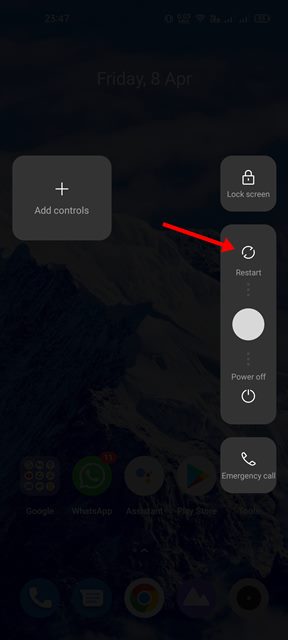
Restart Your Android smartphone

Most problems with the Snapchat app not functioning properly are linked to background processes and running apps. If any background process prevents Snapchat from communicating with the servers, you may experience many problems using the app.

Sometimes, the app may fail to capture or send a snap; you will be logged out repeatedly, and so on.

You can deal with such issues by restarting your smartphone. Restart is the first thing to do to deal with app-related problems on Android.

2. Check if Your Snapchat Account is Locked

If the Snapchat app repeatedly logs you out, you need to check if your Snapchat account is locked out.

Snapchat is quite fast at banning accounts that trigger the red flag. When Snapchat detects suspicious activities on your account, it immediately locks and logs you out.

However, if your Snapchat account is locked, you can unlock it during the login process. So, if you are asked to unlock the account, your Snapchat account is locked, so the app keeps logging you out.

3. Check if Snapchat is down
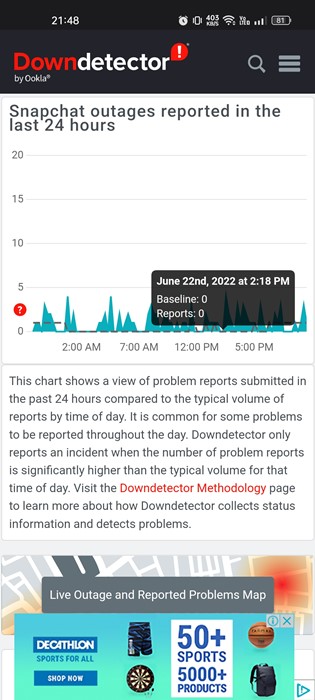
Check if Snapchat is Down

A server outage is one of the foremost reasons why Snapchat keeps logging out. Like every other similar app, Snapchat also faces server outages.

You can experience problems while using the App features when the servers of Snapchat are down for maintenance.

If the servers are down, you can only wait until the servers are restored. Once restored, you can access Snapchat again.

You can easily check the Snapchat server status from this webpage. The site shows the real-time status of Snapchat’s servers.

4. Disable Background App Refresh

Bug or glitch in the background app refresh feature of Snapchat can log you out for no reason. Hence, you can disable the background app refresh to get the problem fixed.

1. First, long press on the Snapchat app icon on your home screen and select ‘App Info‘.
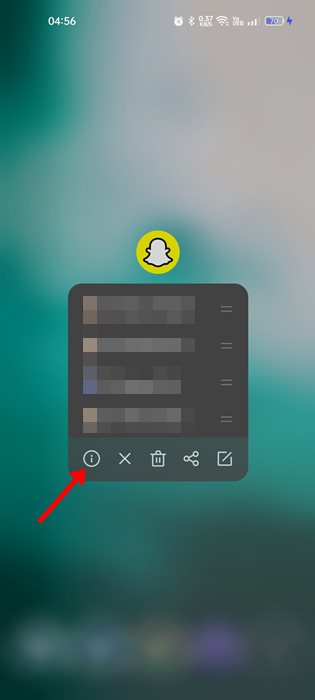
App Info

2. On the App Info screen, tap on Data Usage.
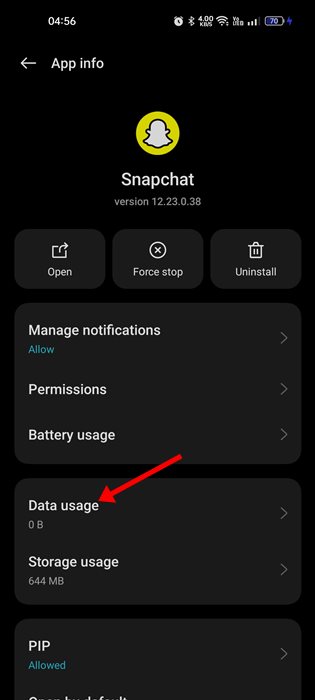
Data Usage

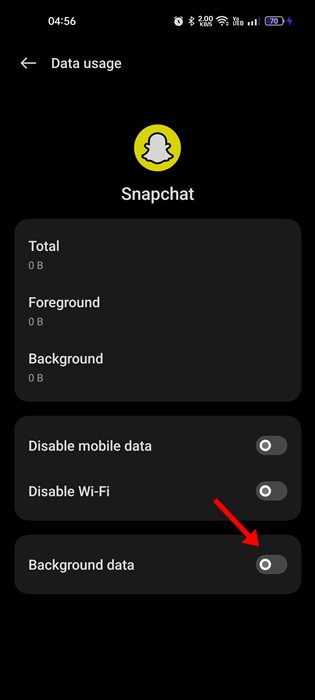
3. On the Data Usage, disable the toggle for ‘Background Data

Background Data

That’s it! This will disable the background app refresh feature of the Snapchat app.

5. Remove Access to third-party apps

Third-party apps connected to your Snapchat app can often be a reason for automatic and repeated log out. If you are wondering ‘Why Snapchat keeps logging me out’, the third-party apps linked with your Snapchat account could be the reason. Here’s how to remove them.
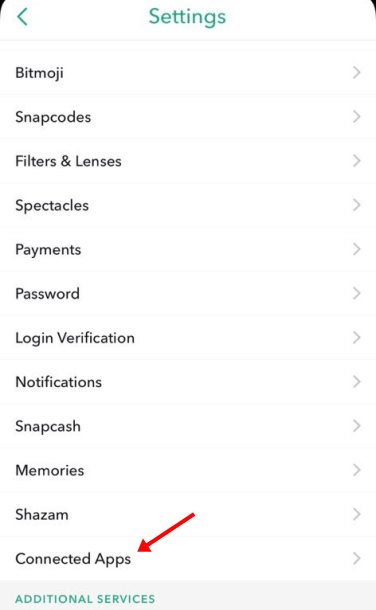
Remove Access to third-party apps

  • Launch the Snapchat app and tap on your Bitmoji in the top-left corner.
  • Tap the Settings gear icon at the top-right corner of the profile page.
  • On Settings, tap on Connected Apps.
  • Now tap on the app linked to your account. On the next screen, tap on the Remove app option.

That’s it! This is how you can remove access to third-party apps from your Snapchat account.

6. Disable the VPN/Proxy Connection
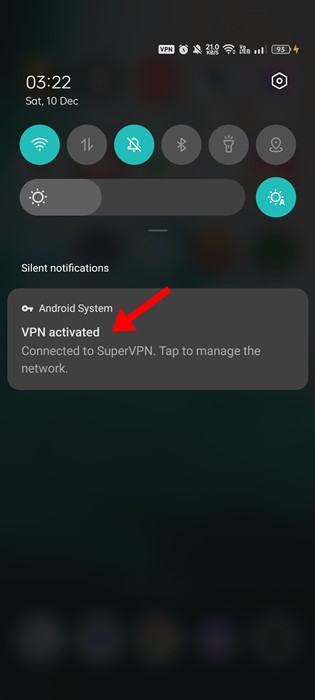
Disable the Security Apps/Firewall/VPN

If your phone is connected to a VPN or Proxy, disable it to check whether the app still logs you out.

The problem with using a VPN connection is that the Snapchat app deems your network unstable and logs you out. It also blocks spam or suspicious IP address.

So, if the IP address you are connected to using a VPN is spam or has a security issue, the Snapchat app will log you out repeatedly. Hence, make sure to disable the VPN/Proxy connection to resolve the issue.

7. Clear the Snapchat App Cache

While the App cache has no direct link with Snapchat logging out randomly, it has still helped many Android users. Hence, you can also try to fix the Snapchat app that logs you out randomly.
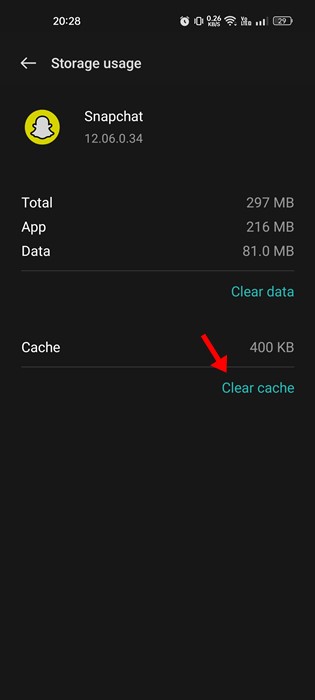
Clear Cache

  • First, long press on the Snapchat app icon on the home screen and select ‘App Info‘.
  • On the App Info screen, tap on Manage Storage.
  • Next, on the Manage Storage Screen, tap on ‘Clear Cache

That’s it! That’s how easy it is to clear the Snapchat app cache.

8. Reinstall the Snapchat App

Reinstallation is the last option, but it’s pretty effective. Reinstalling the Snapchat application is recommended if nothing has worked to fix the ‘Snapchat keeps logging out’ problem.

Doing so will probably rule out the corrupted data or incorrect settings associated with the app. To reinstall Snapchat, long press on the app icon on your home screen and select ‘Uninstall‘.

This will uninstall the Snapchat app. Once installed, install the app again from the Google Play Store.

Also Read: How To Increase Snapchat Score Fast

Snapchat keeps logging me out problem can be irritating, but the app has experienced similar issues in the past. And these are the methods that have helped thousands of users deal with the same problem. If you need more help with your question, ‘Snapchat keeps logging me out’, let us know in the comments.

The post Why Does Snapchat Keeps Logging me out? 8 Ways to Fix it appeared first on TechViral.


from TechViral https://ift.tt/jqZDKYG

Friday, March 3, 2023

Arm opts for New York stock listing in blow to London

The 'crown jewel' of the UK tech sector says it will only pursue a US listing this year.

from BBC News - Technology https://ift.tt/YS2VoQZ

Download Windows 365 App Latest Version

Download Windows 365

Back in July 2021, Microsoft introduced Windows 365, a cloud-based service that allows the creation of Windows virtual machines for your end users.

It’s more like a virtualization or remote access software where you assign Cloud PC to an individual user. The Cloud PC assigned to individual users will serve as a dedicated Windows device.

We are talking about Windows 365 because Microsoft recently announced a new Windows 364 application on the Microsoft Store.

Windows 365 App Details

Windows 365 App Details

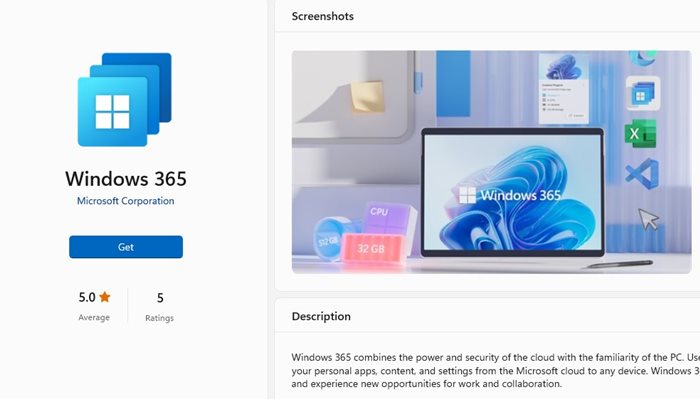
The new Windows 365 cloud PC app is now available in the Microsoft Store for both Windows 10 and Windows 11 users. It’s available as a free download, but you must have a Windows 365 subscription to use its features.

Download Windows 365 App Latest Version

Windows 365 App is now available for businesses and customers only and runs on Windows 10 and 11. While the app itself is free to download, it still requires a Windows 365 subscription.

If you are an active Windows 365 user, you can download and install the official app from the Microsoft Store. Also, since the new Windows 365 app is delivered via Microsoft Store, it’s updated automatically on end-user devices.

How to Download Windows 365 App?

Download Windows 365 App Latest Version

Before the Windows 365 desktop app, the only way to access the Windows 365 virtual desktops is through a web browser. However, with the arrival of the Windows 365 desktop app, you can now access the Cloud PCs straight from the taskbar or Start menu.

To download Windows 365 on Windows 10 or Windows 11, open the Microsoft Store and search for Windows 365. You will find the new Windows 365 app on the search result.

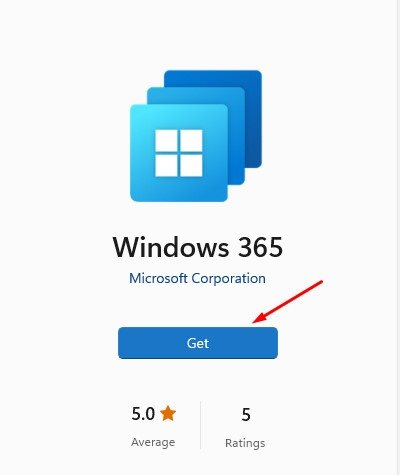
Get

Open the app listing and click on the Get button. This will download & install Windows 365 on Windows 10/11 PC. After installing it, you can access Windows 365 from the Start Menu or Taskbar. Alternatively, click this link to open the Windows 365 app directly on the Microsoft Store.

That’s it! That’s how easy it is to download & install Windows 365 on Windows 10/11 computers.

System Requirements for Windows 365 App

If you use the Windows 365 desktop app, you must ensure your device meets these requirements.

  • CPU: 2vCPU with 1 GHz or faster processor.
  • Operating Systems: Windows 10/11.
  • Hard Drive: 200 MB or More.
  • RAM: 4GB or More.
  • Video: DirectX 9 or later with WDDM 1.0 driver
  • .NET Framework: 4.6.1 or later

And if you are using Microsoft Teams or Multi-Media redirection on the Cloud PCs, here are the hardware requirements.

  • CPU: At least 2vCPU with a minimum 1.6 GHz or faster processor. (4 Core processor is recommended)
  • RAM: At least 4GB.
  • Hard Drive: 3GB or more
  • Video: DirectX 9 or later with WDDM 1.0 driver. A dedicated GPU is recommended and ensures better performance.
  • .NET Framework version: 4.6.1 or later.

Windows 365 Plans & Pricing Details

If you downloaded the Windows 365 app from the Microsoft Store, you would still require a Windows 365 subscription to use the cloud services.

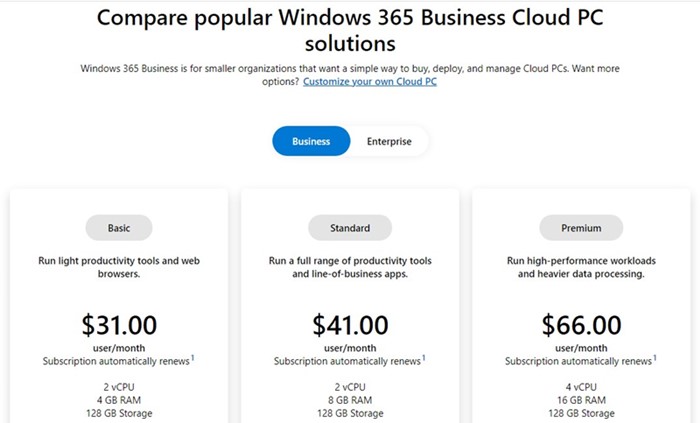
Windows 365 is available for Business and Enterprise customers and has two editions – Business and Enterprise.

Windows 365 Plans & Pricing Details

Windows 365 Business Details: Windows 365 Business is designed for smaller companies and allows Cloud PC creation for up to 300 seats. Each of the ready-to-use Cloud PCs will have simple management options.

Windows 365 Enterprise Details: Windows 365 Enterprise is designed for larger companies and offers unlimited seats for creating Cloud PCs. The Enterprise edition provides more management options, full integration with Microsoft Endpoint Manager, etc.

Business and Enterprise editions are available in three monthly plans:

  • Basic
  • Standard
  • Premium

The Basic one starts at $31 per user/month, the Standard one is $41 per user/month, and the top-tier Premium plan is priced at $66 per user/per month. Cloud PCs are billed in a per-user per-month cost model. For more pricing details, check this webpage.

When Microsoft announced Windows 365, it also introduced several new wallpapers. The new wallpapers of Windows 365 are called ‘Bloom’.

Even though the Bloom wallpapers were designed for Windows 365, you can download and use them on your Windows 10, 11, or any other desktop operating system.

Also Read: Microsoft Office 2021 Free Download Full Version

So, that’s all about Windows 365 Business and Enterprise edition. We have also shared steps for downloading the latest Windows 365 app on computer. Let us know in the comments below if you need more help. Also, if the article helped you, make sure to share it with your friends.

The post Download Windows 365 App Latest Version appeared first on TechViral.


from TechViral https://ift.tt/NQHksYy

Zoom boss Greg Tomb fired ‘without cause’

The video conferencing company abruptly terminates its president's contract.

from BBC News - Technology https://ift.tt/iUczdwf

Thursday, March 2, 2023

Snapchat Got ‘AI Chatbot’ Powered by Open AI’s GPT Technology

Snapchat Got 'AI Chatbot' Powered by Open AI's GPT Technology

We all know about Snapchat, but it is not going to stay as it is because the platform now has an AI chatbot, and what makes it special is that this AI chatbot is powered by Chat GPT’s parent company, Open AI’s GPT technology.

You might be wondering what could be the reason for adding this chatbot and how this addition will provide more features to the platform users, so let’s delve into all details below.

Snapchat’s ‘My AI’ Chatbot: All Details

Snapchat's 'My AI' Chatbot All Details

Last year, the company revealed that its platforms have around 750 million active users, and approximately only two million people have subscribed to their premium subscription, which is called Snapchat+.

In a strategic way to increase the number of paid users in the Snapchat+ service, the company has launched an AI chatbot named ‘My AI‘ and if you want to use this ‘My AI’, you have to pay for a Snapchat+ subscription, which cost $3.99 monthly.

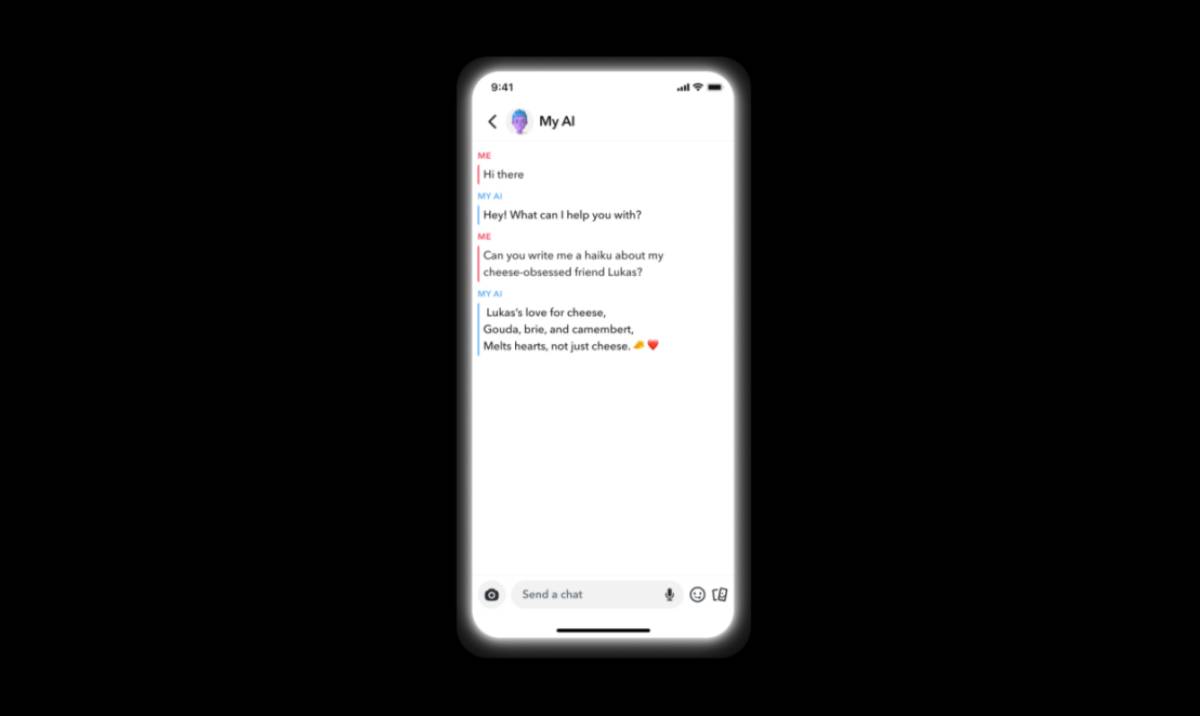
And this ‘My AI’ chatbot is capable of doing all the things which famous ChatGPT can do. The main difference between the both is that My AI is trained by Snapchat’s employees, so it is like Snapchat’s version of ChatGPT that follows their platform’s atmosphere.

You can also see the above screenshot that shows its way of talking. Besides, the company trained it to avoid misinformation and make it work under safety guidelines, such as you will not get any reply from it if your text contains any violent, sexual, or political content.

And the company said sorry in advance for this, and it may have decided that after seeing other chatbot incidents, for example, Google’s Bard provided the wrong answer, and the company lost around $100 billion.

The company’s CEO, Evan Spiegel, expressed his thought on this AI and said, “The big idea is that in addition to talking to our friends and family every day, we’re going to talk to AI every day”.

The post Snapchat Got ‘AI Chatbot’ Powered by Open AI’s GPT Technology appeared first on TechViral.


from TechViral https://ift.tt/qgPHmiu

Wednesday, March 1, 2023

Microsoft Word 2021 Free Download (32-Bit/ 64-Bit)

Microsoft Word 2021 Free Download (32-Bit/ 64-Bit)

You have many word processors in the market today, but Microsoft Word is exceptional and is known for its simplicity, compatibility, and ease of use.

Microsoft Word is used by millions of users worldwide; this includes students, teachers, business persons, home PC users, organizations, etc.

Microsoft Word allows you to create, edit, and share documents like every other word processor. This article will discuss Microsoft Word 2021, the latest version of Microsoft Word.

About Microsoft Word 2021

Microsoft Word 2021 is a part of Microsoft Office Suite 2021. But it’s also available as a stand-alone application for those who don’t want to purchase the entire Office Suite.

It’s a word processor developed by Microsoft that allows you to create, edit and share documents. The reason it fairs better than its competitors is its features.

It can’t be considered a ‘simple’ word processor since it features that would entice professionals looking for ways to give presentations. One of the most amazing features of Microsoft Word is that it helps you get creative with 3D Models.

After downloading Microsoft Word 2021 on Windows, you will notice all the classic features, along with a few new ones.

Microsoft Word 2021 Free Download for Windows

Microsoft Word 2021 Free Download for Windows

You can’t download Microsoft Word 2021 directly from the Microsoft Store because it has been removed in an attempt to push Microsoft 365.

If you don’t know what Microsoft 365 is, check out the difference between Office and Office 365. And remember, you can get Microsoft Word 2021 by installing Microsoft Office 2021. Hence, installing the full office suite package is the best option to get Microsoft Word 2021.

Since Microsoft doesn’t let you download Word 2021 from their official website, you need to rely on a few workarounds to download & install Microsoft Word 2021. Here are some working methods to download latest Microsoft Word 2021.

Microsoft Word 2021 System Requirements

Microsoft Word 2021 is the latest version, and it’s demanding. Even though you can use it on older Windows versions, you will miss the amazing features.

To get the most out of Microsoft Word 2021, it’s best to download or purchase it only if your device meets these system requirements.

  • Processor: Dual Core Processor or Quad-Core Processor.
  • RAM: 4GB or more for smooth performance.
  • Disk Space: Minimum 4GB of storage space.
  • Graphics: DirectX 9 or above.
  • Net Framework: .NET3.5, 4.6, or above.
  • Operating System: Windows 10, 11 (Also Available for Mac)

Download Microsoft Word 2021 64-Bit/32-bit (Office 2021 Installation)

The best and easiest way to get Microsoft Word 2021 is by installing the full Office 2021 suite.

You can get the full office suite from the Internet Archive and install it manually on your device. Once installed, you will have the Microsoft Word application on Windows. Here are the download links for Microsoft Office 2021 to get Microsoft Word 2021.

How to Install the ISO Files?

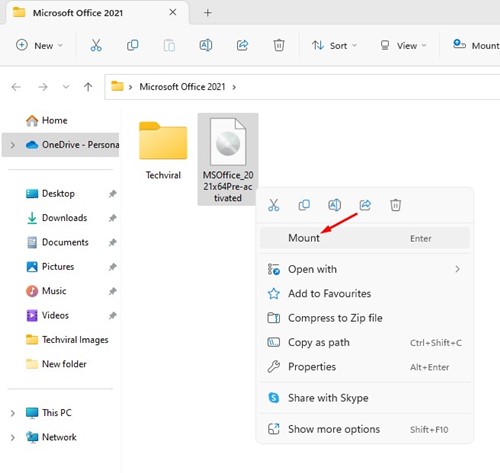
Well, installing Microsoft Office 2021 is pretty. You just need to download & install an ISO mounter on your PC and mount the ISO File.

Mount

After mounting it, you can install it on your computer from the virtual drive. Once installed, you will have the Word 2021 application on your Windows computer. If you want complete steps, check out our guide: Microsoft Office 2021 Download.

Download Microsoft Word 2021 from Microsoft 365 Apps Admin Center

Microsoft 365 Apps Admin Center is a site that helps IT admins deploy, manage, monitor, and secure Microsoft 365 apps within their organization.

You can use it to create a custom installation package for Microsoft Word 2021. Here’s what you need to do.

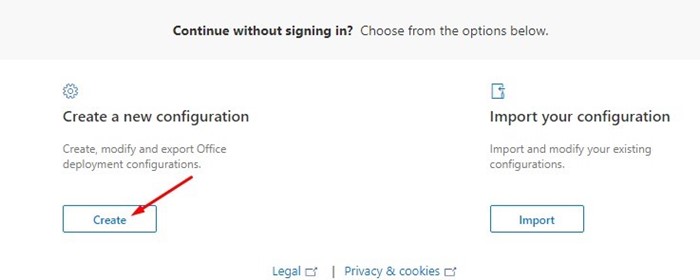
1. First, open this webpage and scroll down a bit. Next, click the Create button in the Create a new Configuration section.

Create

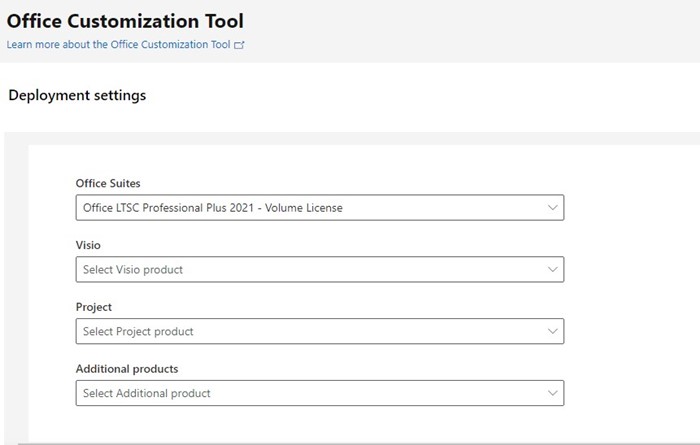
2. Now, you will see the Office Customization Tool. Here you will find many details; you need to follow the setup we have shared below:

  • Architecture: 32-bit or 64-bit (Depending on your OS Configuration)
  • Office Suite: Office LTSC 2021 – Volume License
  • Visio: Leave it as it is (None)
  • Project: None
  • Additional Products: None

follow the setup

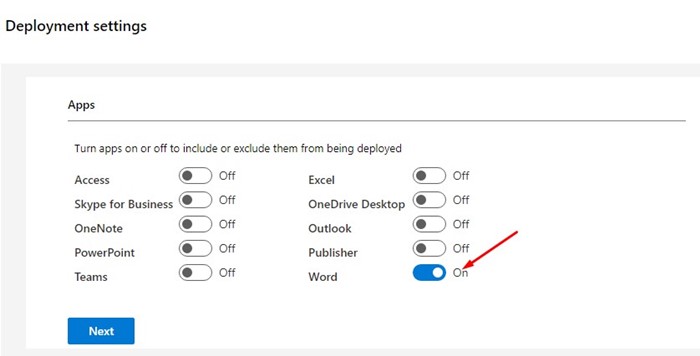
3. After making the changes, scroll to the Apps section and select only the Word Application. Once done, click on the Next button.

select only the Word

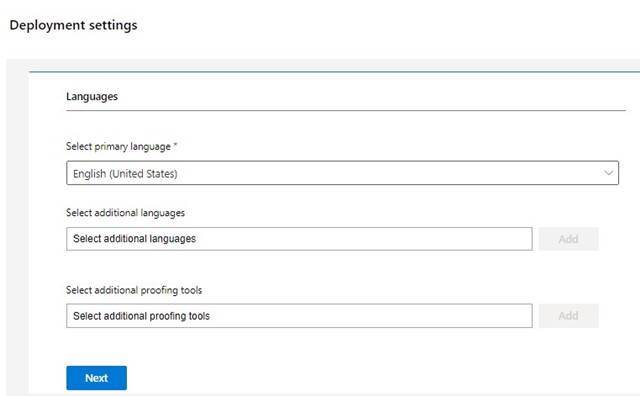
4. On the Language section, select your primary language and click on the Next button.

primary language


5. After selecting the language, click the Export button in the top-right corner.

Export

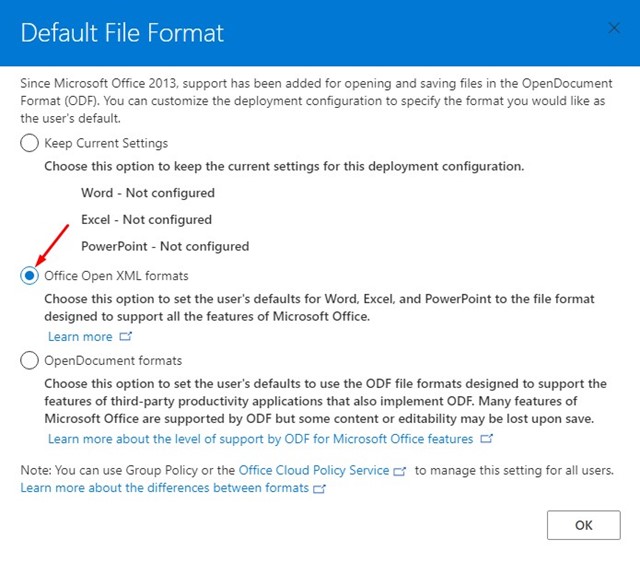
6. Next, on the Default File Format prompt, select ‘Office Open XML Formats‘ and click the Ok button at the bottom right corner.

Office Open XML Formats

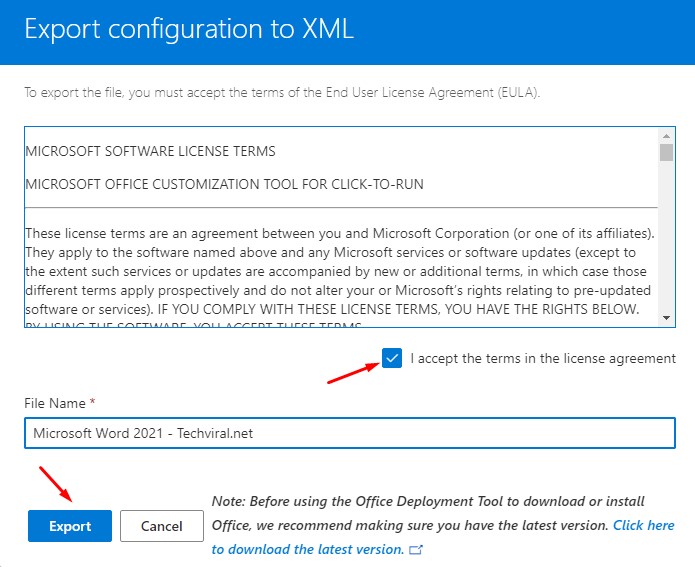
7. Next, on the Export configuration to XML prompt, accept the terms and conditions and enter the file name. Once done, click on the Export button.

Export

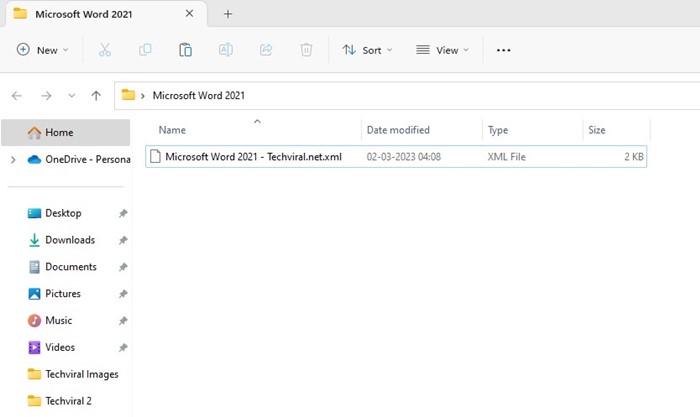
8. An XML file will be downloaded. Moving the file to a new folder and placing it on the desktop is recommended.

XML file will be downloaded

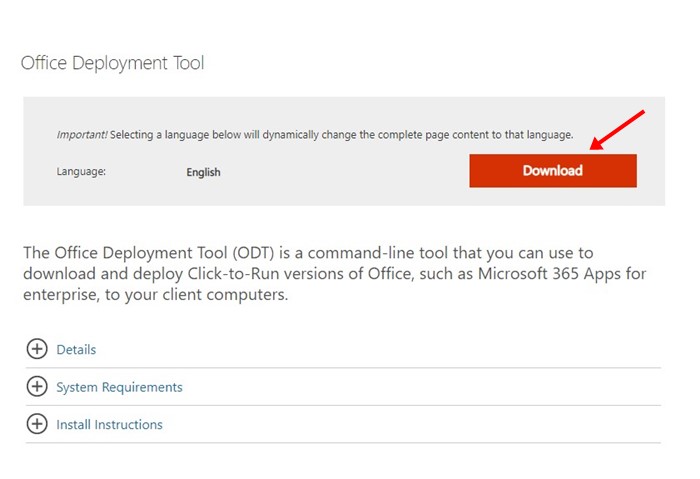
9. Once done, head to this webpage and download Office Deployment Tool.

download Office Deployment Tool

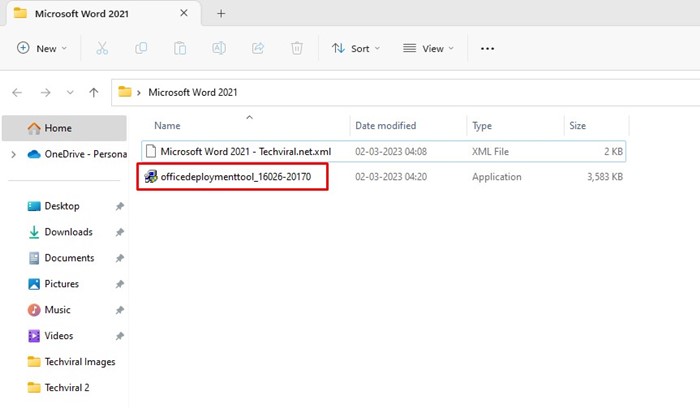
10. Once downloaded, double-click on the Office Deployment Tool setup file to run it.

Office Deployment Tool setup file

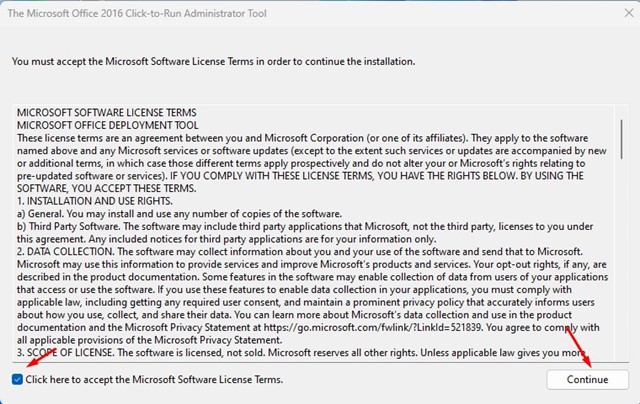
11. Next, accept the license terms and click the Continue button.

Continue

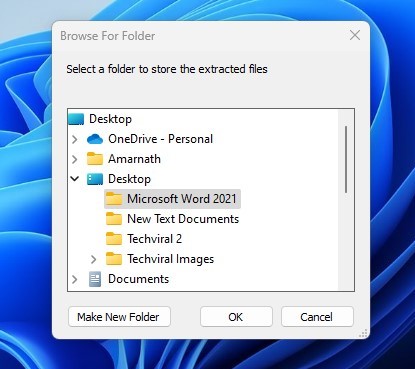
12. Now, you will be asked to browse for a folder. You need to select the folder where you have stored the XML file downloaded in Step 8.

select the folder

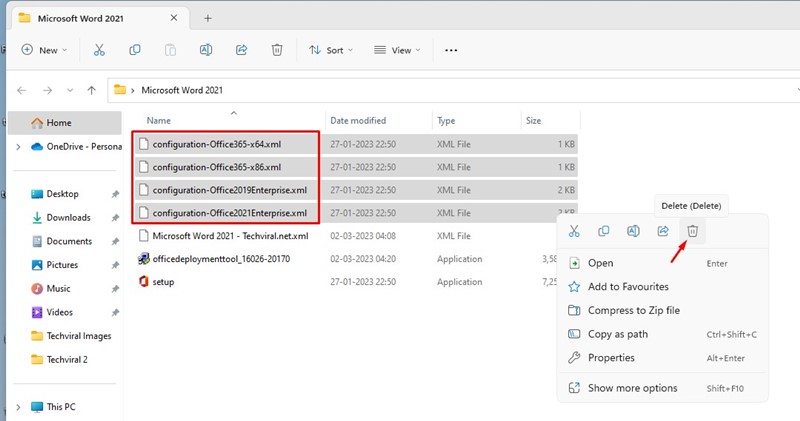
13. Now open that folder and delete the four files shown in the screenshot below.

delete the four files

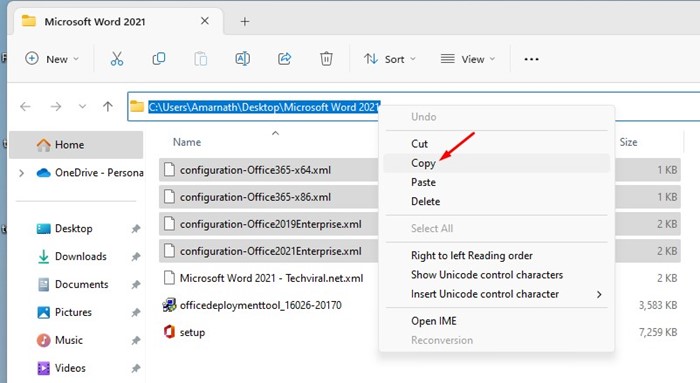
14. Copy the folder address displayed on the File Explorer’s Address bar.

Copy the folder address

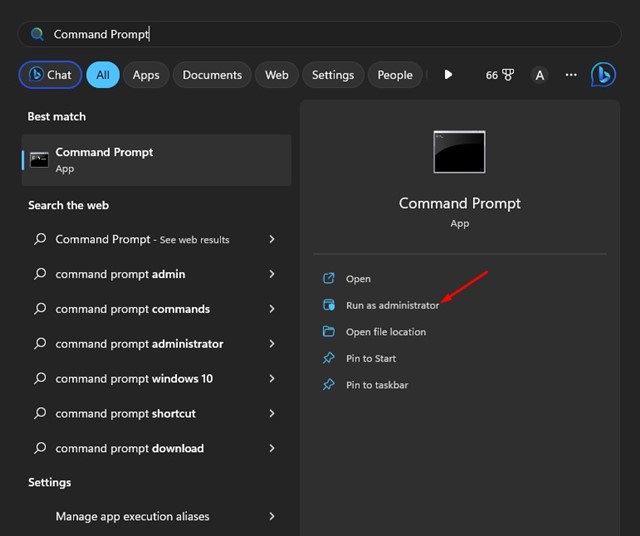
15. Click on Windows Search and type CMD. Right-click on the Command Prompt and select ‘Run as administrator‘.

Run as administrator

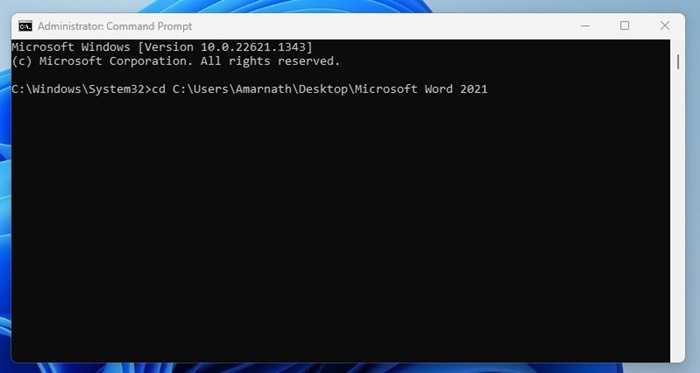
16. Select the folder path you copied in the command prompt. For that, execute the command below:

cd C:\Users\Amarnath\Desktop\Microsoft Word 2021

execute the command

Important: You must paste the folder address you’ve copied in step 14 after cd.

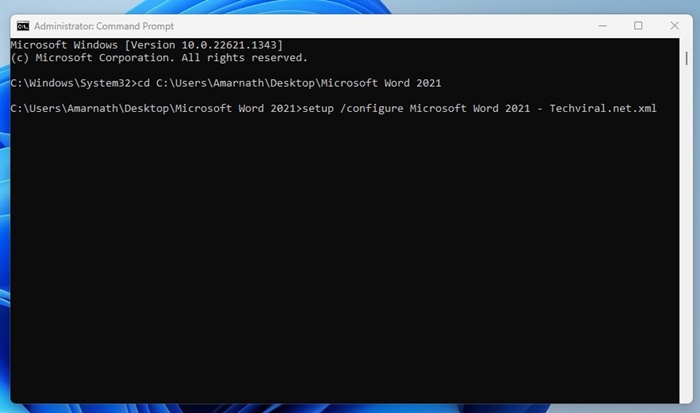
17. This will select your folder. Next, execute the command:

setup /configure Microsoft Word 2021 - Techviral.net.xml

execute the command

Important: Replace the ‘Microsoft Word 2021 – Techviral.net.xml’ with the name you gave in Step 7.

That’s it! This is a lengthy process, but it still works. Since the XML file you’ve created only has the Microsoft Word app, only the Word App will be downloaded & installed on your device.

Download Microsoft Word 2021 Standalone App

Microsoft Word standalone app

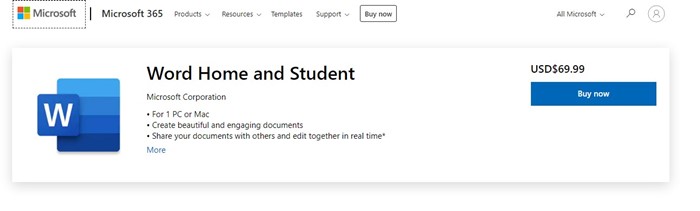
Microsoft has the Word Home and Student app available for home users and students who can’t afford to purchase the Microsoft Office suite.

It’s a standalone app of Microsoft Word, but you can use all new features if you purchase it. You will enjoy every new feature of Microsoft Word 2021 with this app.

Word Home and Student is available for non-commercial use, and you will get a lifetime license for Word 2021. It can be a bit expensive for students, but it’s worth the price.

Purchase Microsoft Word 2021 From Microsoft (Office 2021 Home & Student)

Purchase Microsoft Office 2021

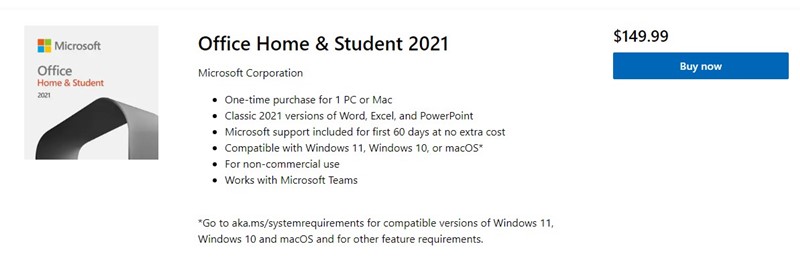
Even though you can get Microsoft Office 2021 from the download links we have shared, using an original copy is still recommended.

Original Microsoft Word 2021 will receive updates, and you will have Microsoft support for the first 60 days at no extra cost.

The Office Home & Student 2021 will get you Microsoft Word 2021 as part of the office suite application. But the license is priced at $149.99 for a single user on a PC or Mac and for non-commercial use.

If you can afford and want to credit the Microsoft Word Developer, contribute by purchasing the original Microsoft Word 2021 from the Microsoft Store.

Download Microsoft Word 2021 for Mac

Download Microsoft Word 2021 for Mac

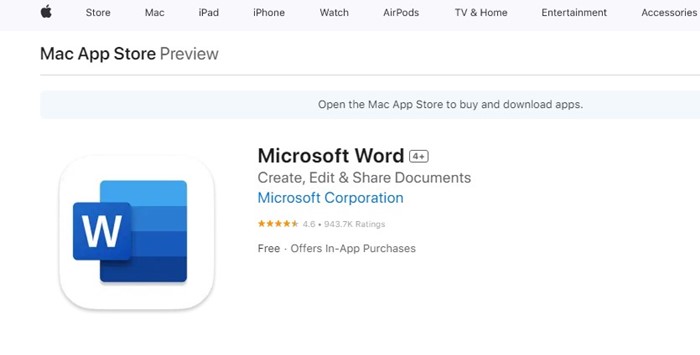
Mac users can directly download Microsoft Word 2021 for Mac from the Apple App Store. The app is free to download, but to use the new features, you must log in with the same Microsoft account you used while purchasing the office suite.

Just download Microsoft Word 2021 for Mac and log in using the Microsoft account credential used for the Microsoft Office 2021 purchase. You can use Microsoft Word 2021 on Mac with full sets of features.

Other Ways to Get Microsoft Word 2021 for Free?

Almost all of the methods to download Microsoft Word 2021 free relies on downloading the Office 2021 package. Alternatively, you can subscribe to Microsoft 365 to enjoy Word 2021 at an affordable price.

In one of our articles, we have shared a few working ways to get Microsoft Office for free. The methods explained how to get Microsoft Office free trial, using for free with Education account, etc.

Also Read: Microsoft Office 2021 Free Download

You need to go through that article to know all possible ways to download Microsoft Word for free.


FAQs

We understand you may have many questions before downloading any ISO file from third-party sites. It’s normal to have several security or privacy-related questions as well. Below, we have answered some of the most asked questions about Microsoft Word 2021 Download.


Is Microsoft Word 2021 free?

No Microsoft Word 2021 is not free. You need to subscribe to Microsoft 365 or purchase Microsoft Office 2021 to use it.

If you want it free, you need to download Microsoft Office 2021 ISO files we have shared. Office 2021 will get you Word 2021, and you can use it free for a lifetime.


Is there any Microsoft Word 2021 Crack?

Many websites claim to provide you with Microsoft Office 2021 or Microsoft Word 2021 crack.

It’s recommended to avoid downloading any crack because they are usually filled with malware. Some may even try to install cryptominer on your device.


How to Activate Microsoft Word 2021 for free?

You can’t activate Microsoft Word 2021 for free. But, if you have the Microsoft Office 2021 suite installed, you can activate it by opting for a free trial.

Students with education accounts get an extended trial period and discounts for Office Home & Student 2021.


Does Microsoft 365 Give You Word?

Microsoft 365 is a subscription-based version of the Microsoft Office suite. It has some added features like cloud storage, but you will get the fully installable version of Office Apps.

Office apps include Word, Excel, PowerPoint, Outlook, Publisher, and Access. Since it’s a subscription-based service, you can use the latest version of the Microsoft Word app.


Downloading Microsoft Word 2021 is straightforward because you have many options. The best way to get Microsoft Word 2021 is by installing the latest Office Suite or using a Microsoft 365 subscription.

Also, if you can afford it, you should purchase the original Microsoft Word 2021 (via Office Package) from the Microsoft Store. Let us know if you need more help on this topic in the comments.

The post Microsoft Word 2021 Free Download (32-Bit/ 64-Bit) appeared first on TechViral.


from TechViral https://ift.tt/lmbL9rH

Twitter goes down with users unable to view tweets

The outage comes two days after the social media company reportedly laid off 200 employees.

from BBC News - Technology https://ift.tt/TI71l2e