Sunday, February 5, 2023

How to Merge Instagram and Messenger

How to Merge Instagram and Messenger

Meta, formerly Facebook, Inc., owns both Instagram and Messenger, and both apps allow users to exchange text messages.

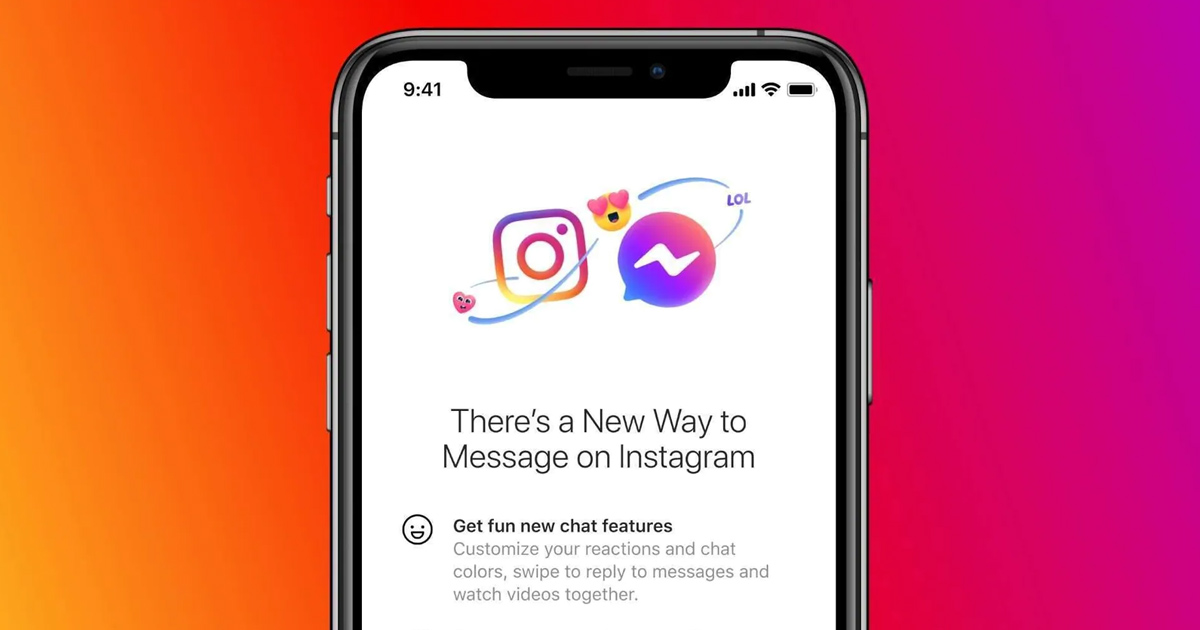
On Instagram, you get to use Direct Message (DM) feature to connect with your followers via chat. On Messenger, you connect with your Facebook friends. Since the same company owns both apps, it has a merging feature available for users.

A feature on Instagram lets you merge your Instagram account with Messenger to provide seamless cross-messaging options. This feature was rolled out in 2020, allowing users to connect Instagram and Messenger.

Users quickly respond to the prompt, and many have chosen not to merge. For many users keeping Instagram and Messenger separate is the best option, whereas others may find this new feature very useful.

What does this integration do?

Before you go ahead and merge Instagram and Messenger, it’s important to know what this integration allows and how it will benefit you.

With this feature, you can message your Instagram friends from the Messenger app and vice versa. Not only that, but you will also receive message requests and video chat options from any Facebook account.

So, let’s say you don’t have the Messenger app installed on your smartphone; you can use your Instagram app to reply to Messenger messages. The feature is available for all Instagram users, but it’s hidden deep under the settings.

Merge Instagram and Messenger

Now that you know what the feature does, you may want to merge Instagram and Messenger. Below, we have shared some simple steps that let you merge Instagram and Messenger. Let’s check out.

1. First of all, open your favorite web browser and head to Instagram.com.

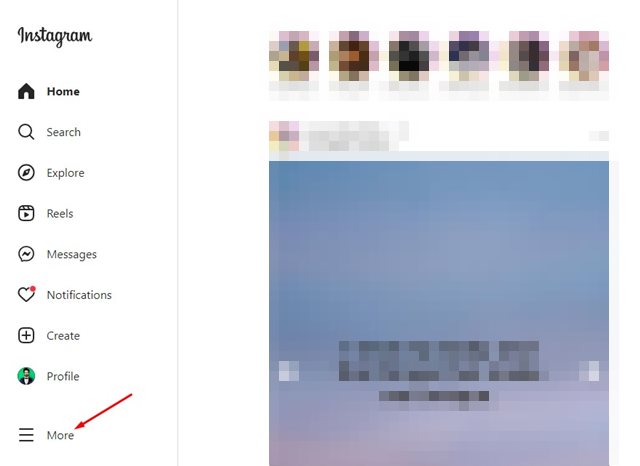
2. Next, log in to your Instagram account. On the right side, click on More.

More

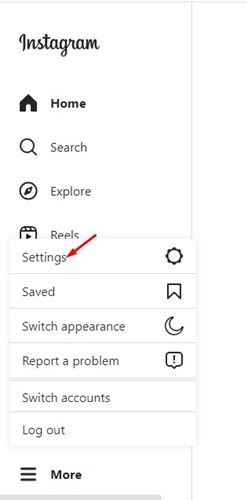
3. From the prompt that appears, select Settings.

Settings

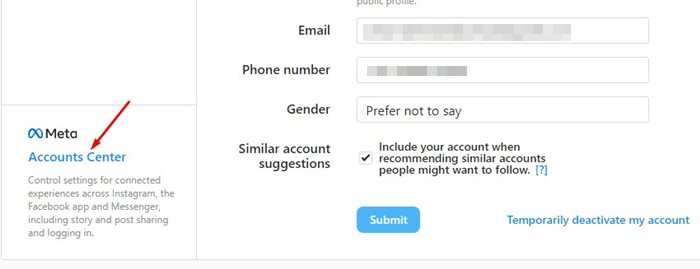
4. On Settings, scroll down to the bottom and click on the Accounts Center link.

Accounts Center

5. On the Accounts center, click on Add accounts.

Add accounts

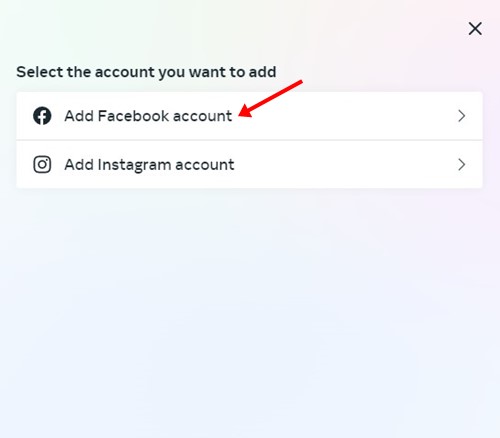
6. Next, on the Select the account you want to add prompt, click on the ‘Add Facebook Account‘.

Add Facebook Account

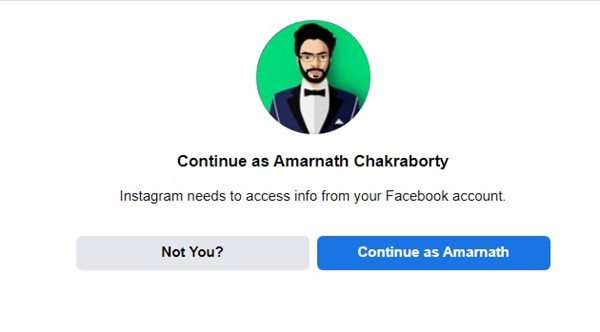
7. Now, you will see a screen asking you to continue with your Facebook account. Simply click on Continue as (Profile name).

Continue as (Profile name)

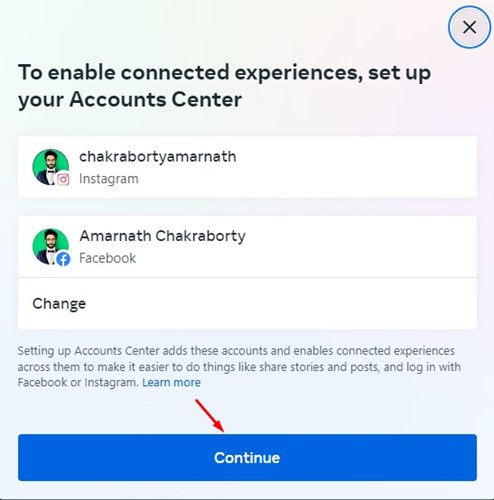
8. Next, to enable connected experiences, click on the Continue button.

Continue

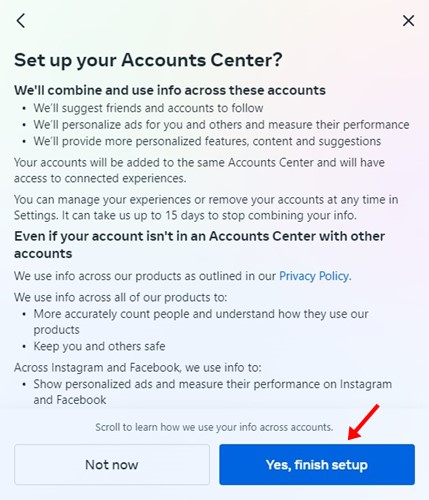
9. On the Set up your Accounts Center prompt, click the ‘Yes, finish setup‘ button.

Yes, finish setup

That’s it! That’s how easy it is to merge Instagram and Messenger. The feature allows you to access both the inbox of Messenger and Instagram from a single app.

How to Confirm the Merge?

If you want to know whether the merge is successful, you need to follow these steps.

1. Open the Instagram app on your Android or iPhone.

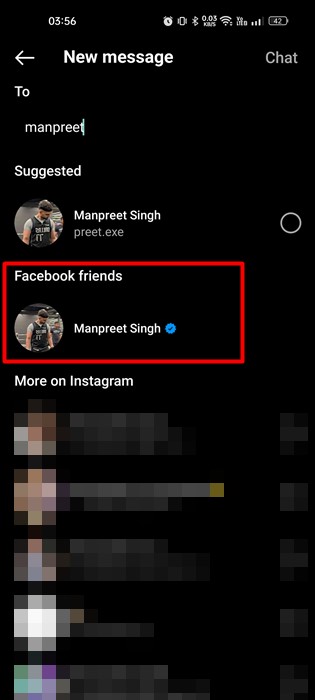
2. Next, tap on the search field and search for a profile name. You will find that Instagram will show your Facebook friends.

Instagram will show your Facebook friends

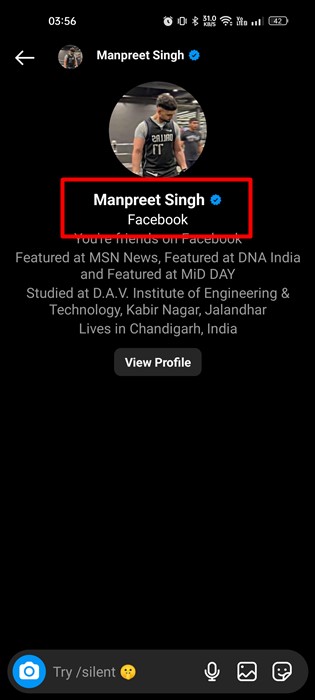
3. You just need to tap on the profile name and send them a message. The message will be sent to Messenger.

message will be sent to Messenger

So, this guide is all about how to merge Instagram and Messenger. If you need more help merging Instagram and Messenger, let us know in the comments. Also, if the article helped you, make sure to share it with your friends.

The post How to Merge Instagram and Messenger appeared first on TechViral.


from TechViral https://ift.tt/noXcOIW

Saturday, February 4, 2023

Microsoft Might Bringing ChatGPT in ‘Bing’ with Advance Features

Microsoft Might Bringing ChatGPT in 'Bing' with Advance Features

Microsoft has played the best move for its search engine Bing between the popularity of ChatGPT. A leak that was spotted by multiple people on Bing search confirmed that the company is planning a new version of it.

The Windows giant could revolutionize the way of searching on the web as it will integrate OpenAI’s ChatGPT technology in its Bing search engine, and it will be more advance than all other available AI chatbots.

ChatGPT Would Soon Integrate With Microsoft’s Bing

ChatGPT Would Soon Integrate With Microsoft's Bing
Image: Owen Yin

As we all know, Artificial intelligence (AI) tools are currently at their peak, mainly AI chatbots, and multiple companies are developing them as it has attracted millions of users.

But Microsoft is capitalizing on the return on investment by integrating ChatGPT on its unpopular search engine Bing as it earlier funded ChatGPT’s developer company OpenAI.

A Twitter user named Owen Yin was the first to share details on Bing’s new interface, and he also shared a screenshot which you can see above, but then Yin released a complete report regarding it.

As you can see in the above screenshot, Microsoft Bing’s main interface will suggest you “Ask Me Anything” in up to 1000 words rather than a search bar, and below, there is also some example of how you can interact with its chatbot.

As I mentioned above, this will be more advanced than ChatGPT because Microsoft will use OpenAI’s GPT-4 language model for the new version of Bing, and its data will not be limited to up to 2021, like ChatGPT.

ChatGPT In Bing

Unlike ChatGPT, it will not only answers your asked questions but instead it will try to answer them in a conversational manner, whose example you can see in the above screenshot.

Also, it will reveal its sources below the chats, which will be better for the user who is interacting with it. Currently, there is no information regarding when Microsoft will release it for everyone.

Separately Google is also rumored to be working on the launch of its own AI chatbot like ChatGPT, which will be powered by Google’s popular language model, LaMDA.

The post Microsoft Might Bringing ChatGPT in ‘Bing’ with Advance Features appeared first on TechViral.


from TechViral https://ift.tt/C1yvbWY

Download iTunes Offline Installer (Windows 11 & Mac OS)

Download iTunes Offline Installer

If you are a Mac user, you might know that Apple has already killed the popular iTunes, which used to be a music player app. As a replacement, Apple introduced three new apps – Apple Music, Podcasts, and Apple TV.

Although Apple replaced iTunes in the new version of macOS, it still lives elsewhere within Apple’s ecosystem. iTunes continues to work on an older macOS version, and the Windows version remains untouched.

So, in this article, we will discuss Apple’s iTunes and how one can download it on Windows 10/11. So, let’s know about iTunes.

What is iTunes?

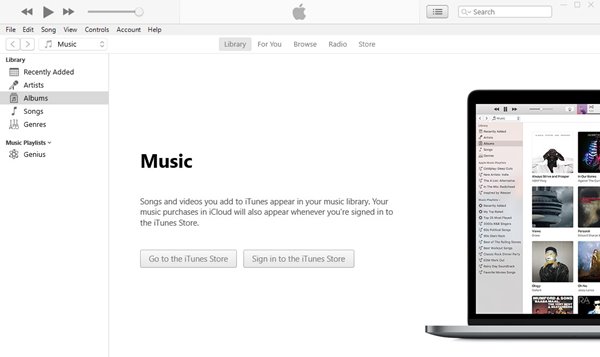
iTunes

Well, iTunes is a media management software created by Apple for both Mac and Windows operating systems.

Software is mainly used to download, play and manage audio and video files from the iTunes Store. Another benefit of iTune is that it can share files between your computer and your iOS or iPadOS devices.

So, iTunes is a must-have software for every iPhone/iPad/iPod user as it lets them organize their music library, manage and import audio CDs, and even create music CDs.

Features of iTunes

Now that you are fully aware of iTunes, you might be interested to know its features. Below, we have highlighted some of the best features of iTunes. Let’s check out.

Automatic Synchronization

If you are an Apple device user like iPhone or iPad, you might be amazed by iTunes automatic synchronization feature. The media player automatically syncs all music libraries across devices.

Music Management features

Well, iTunes is initially known as a music player app. Hence, it offers lots of music management features. You can create different playlists with iTunes, arrange your music or video files into categories, and more.

Purchase Music/Video Files

Well, iTunes has a media store from which you can purchase music or video files. That means you no longer need to rely on any other premium media streaming app to get your favorite files downloaded. You can directly head to the iTunes store to purchase your favorite content.

Sound Enhancer

iTunes also has a sound enhancement feature that improves the audio output quality. The feature adds an audio filter that expands and brightens the sound coming from any iTunes tracks. This is one of the helpful features of iTunes.

Sharing Options

The latest version of iTunes allows you to share your music library on a local network. So, if your friends are asking you to share your music library, connect the device to a local network and share the entire music library.

iTunes Store

iTunes Store is a paradise for all music, video, and book lovers. The iTunes Store provides access to millions of music, movies, and eBooks. Although most items on iTunes stores were paid, occasionally, it lists items on sale. You can grab those items at an affordable price.

So, these are some of the best features of iTunes. You need to start using the app to explore more features.

Download iTunes Latest Version (Offline Installer)

Download iTunes Latest Version Offline Installer

Now that you are fully aware of iTunes, you might want to install the media management software on your PC. Please note that iTunes is available for both macOS and Windows 10.

macOS users don’t need to install anything as iTunes comes built-in. However, if you want to run iTunes on Windows 10, you need to download the installation file.

Below, we have shared the latest iTunes download links for Windows 10 and macOS. These are the offline installer file. Hence, they don’t need an internet connection during the installation.

How to Install iTunes on PC?

Installing iTunes is easy; you just need to follow some of the simple steps below. Here’s how to install iTunes on a PC.

1. First, double-click on the iTunes installer file you downloaded.

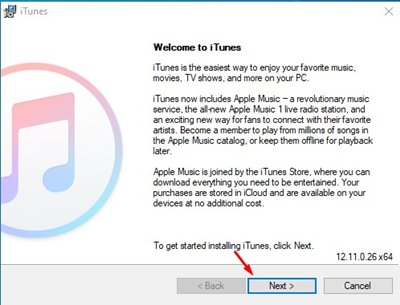
2. Click on the Next button on the Setup screen.

Install iTunes on PC

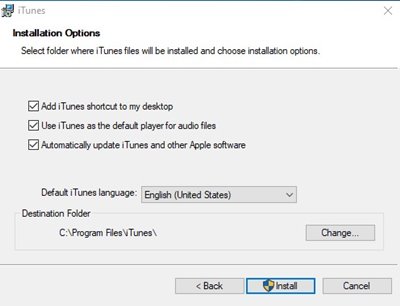
3. On the next page, select the installation language and click on the Install button.

Install button

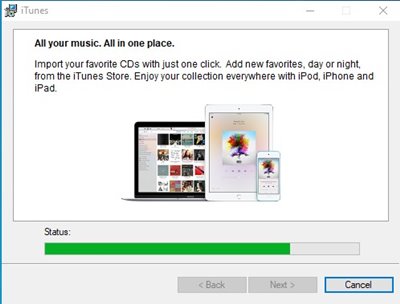
4. Now, wait until iTunes gets installed on your PC for a few seconds.

iTunes gets installed

5. Once installed, run the iTunes application from the desktop shortcut.

run the iTunes application

That’s it! You are done. This is how you can install iTunes on your Windows 10 PC.

So, this guide is all about downloading & install iTunes on a PC. I hope this article helped you! Please share it with your friends also. If you have any doubts about this, let us know in the comment box below.

The post Download iTunes Offline Installer (Windows 11 & Mac OS) appeared first on TechViral.


from TechViral https://ift.tt/842b6Q0

Friday, February 3, 2023

Interpol working out how to police the metaverse

The global police agency has built its own virtual reality (VR) space, for users to do training.

from BBC News - Technology https://ift.tt/UorjJYf

What Does ‘PMO’ Mean on Snapchat? (Meaning with Examples)

What Does 'PMO' Mean on Snapchat?

Technology is still evolving at a rapid pace. We are now in an era where phone calls are made over the internet, shopping is done online, local businesses are shifting online, and what’s not. Yes, this new era is awesome, but users who have recently shown interest in technology may need help understanding certain things.

For example, social media and instant messaging app users often use acronyms and abbreviations that you may find abstruse. Your ego may even prevent you from asking what certain acronyms mean on social networking platforms.

What Does ‘PMO’ Mean on Snapchat? (Meaning with Examples)

Now, if we move to the main topic, recently we received a question from our reader asking about What does ‘PMO’ mean on Snapchat? If you have the same question, continue reading the article till the end.

What Does PMO mean on Snapchat?

What Does PMO mean on Snapchat?

You can call ‘PMO’ on Snapchat an acronym. While many call it an abbreviation or slang, whatever it is, it’s just a word formed from the first letters of each of the words in the phrase.

But, before you understand what PMO means on Snapchat, you first need to know about using acronyms on social networking platforms.

Social networking platforms like Facebook, Instagram, etc., have a massive user base and allow users to connect with their friends and relatives via voice/video calls and text chats. The use of acronyms is very popular in text-based chats.

The same goes for instant messaging apps like WhatsApp, Snapchat, Telegram, Signal, etc. Acronyms on social networking & instant messaging app are popular among teenagers and young adults because of the ease of communication.

Now if we come to the main question, the PMO on Snapchat has two different meanings. Most of the time, it means ‘Put me On‘. But, in the context of showing frustration, it can mean ‘Pisses Me Off‘

Meaning of PMO on Snapchat, Along with Examples

As mentioned above, the ‘PMO’ on Snapchat has two different meanings. Not only on Snapchat, but this acronym is used on other chat-based apps, such as Messenger, WhatsApp, Discord, TikTok, etc.

If someone sends you a message containing ‘PMO’ in it, it could mean one of these two things:

  • Put Me On
  • Pisses Me Off

Put Me On:

Put Me On is mainly used when users want someone to follow them on Snapchat. For example, ‘Hey David, PMO your SC!’

In the above message, a user is asking David to put them on Snapchat. Additionally, PMO is also used while making a connection between two people.

For example, ‘Hey David, can you PMO about this new singer in the town?’. In this example, a user is asking David to introduce the new singer.

You will find Snapchat users using ‘PMO’ to engage with their followers. If someone sends you a message containing PMO, where the context is either to follow or introduce, it will probably mean ‘Put Me On’.


Pisses Me Off:

Now that you know where the ‘Put Me On’ is used, you may want to know about the other meaning of PMO as well.

The other meaning of PMO on Snapchat is ‘Pisses Me Off’, and it’s used when someone or something annoys or frustrates you.

Teenagers mainly use this meaning to show anger towards someone or something. Take this example to better understand the context where ‘Pisses Me Off’ fits well.

Tim: Hey David, where are you now?

David: I am on my way; please wait for a few more minutes.

Tim: Nothing PMO more than waiting endlessly for hours.

In the above message, Tim used ‘PMO’ to show anger & frustration for waiting endlessly for hours. So, if someone uses ‘PMO’ in the context of showing anger, it could mean ‘Pisses Me Off’.


Some other Meanings of PMO

The acronym PMO is not limited to Snapchat or other instant messaging apps; it’s also used in IT fields where it means ‘Project Management Office’.

PMO also means ‘The Prime Minister’s Office’. So, the meaning of PMO varies depending on the context; therefore, make sure to use them carefully.

So, this guide is all about what does PMO mean on Snapchat. If you need more help understanding this acronym, let us know in the comments. Also, if the article helped you, make sure to share it with your friends.

The post What Does ‘PMO’ Mean on Snapchat? (Meaning with Examples) appeared first on TechViral.


from TechViral https://ift.tt/DFS59bw

Twitter: Number of staff suing goes up daily - lawyer

One former senior manager tells the BBC the treatment of workers by Elon Musk was "unjustifiable".

from BBC News - Technology https://ift.tt/4GpgiSs

Thursday, February 2, 2023

How to Fix Steam Error Code (41) on Windows

Fix Steam Error Code (41) on Windows

Steam is one such platform that shortly became viral. It’s not new; the video game digital distribution service and storefront by Valve was launched way back in 2003.

Even since its launch, the site has been climbing the ladder of success. Today, it has become a go-to platform for millions of users to download & play games online.

We are talking about Steam because, recently, many users have been getting ‘Steam Error Code (41)’ while launching certain games on their Windows computers. The error message reads, ‘The Steam servers are too busy to handle your request‘ followed by the game name you are about to play.

The error message can be frustrating, especially if you desperately want to play the game. The appearance of the error message indicates that Steam’s servers were facing a problem, and you needed to wait for a few minutes or hours.

Sometimes the error message can appear due to incorrect settings, outdated Steam client, corrupted app installation files, and other factors. However, the good thing is that Steam Error Code (41) can be easily fixed on a Windows computer if it’s on your side.

Best Methods to Fix Steam Error Code (41) on Windows

Hence, if you often get the ‘Steam Error Code (41)’ while playing your favorite game, continue reading the guide. Below, we have shared some easy steps to resolve Steam Error Code 41 on Windows PC. Let’s get started.

1. Check if your internet is working
Fix Download Pending Error

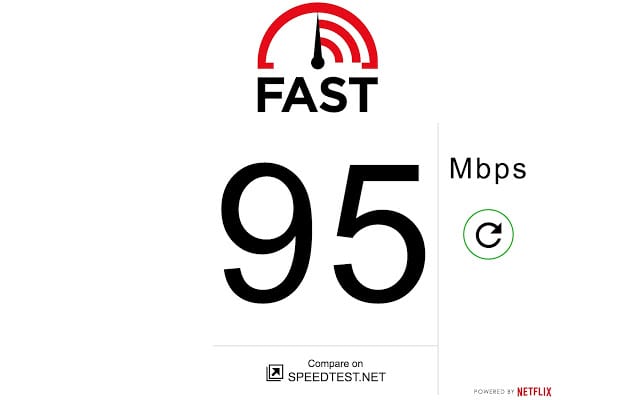
The very first thing you should do if you get the ‘Steam error code 41’ is to check whether your internet is working.

Even if your internet is working, you need to ensure there’s no connection drop issue. The steam desktop client relies on the internet to connect to the server. Hence, if the internet connection drops, you will get this error message.

You can use any speed test website to check your current internet speed. For accurate speed test information, we recommend you use fast.com.

2. Check Whether Steam’s servers are down
Check If Steam's servers are down

If you read the error message carefully, ‘The Steam servers are too busy to handle your request’, you will know that Steam’s servers are too busy.

Steam’s servers are busy when too many users connect to the client. While it’s a rare issue, sometimes it can happen. Another possibility is that Steam’s servers are facing an outage or are down for maintenance.

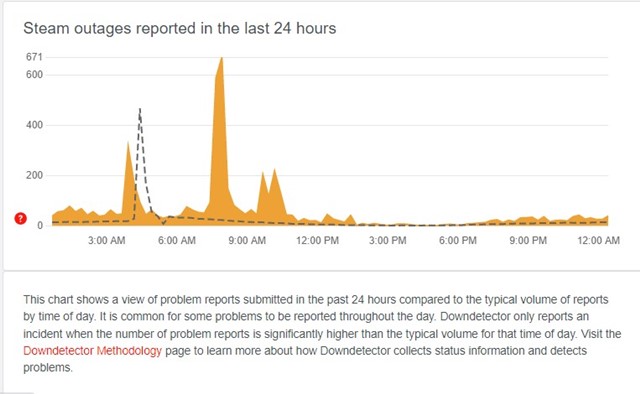
You will get the same ‘The Steam servers are too busy to handle your request’ error message in both situations. To confirm whether Steam’s servers are up, you need to check the Steam server status page at downdetector.

If the downdetector page shows that users have reported problems, you must wait until the servers are restored. Once restored, you can play your favorite game without any errors.

3. Update your Graphics Driver

While updating the graphics driver is irrelevant, you can still try this. Updating the graphics driver will rule out glitches that may interfere with the Steam desktop client.

Also, having an updated graphic driver is recommended for better graphics performance and smooth gameplay. Here’s how to update the graphics driver on Windows.

1. First, click on Windows search and type in Device Manager. Next, open the Device Manager app from the list.
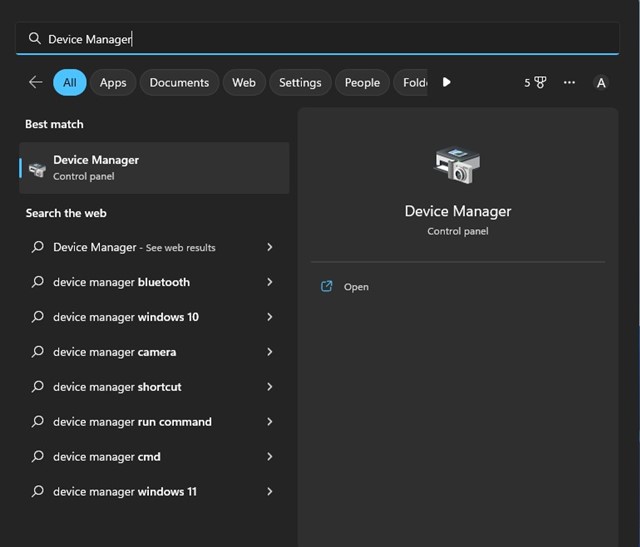
Device Manager

2. On the Device Manager, expand the Display adapters section.
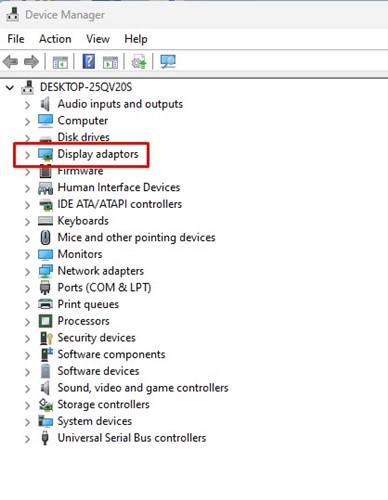
Display adapters

3. Right-click on your graphic driver and select Properties.

4. On the Properties dialog box, tap on the Update driver option.
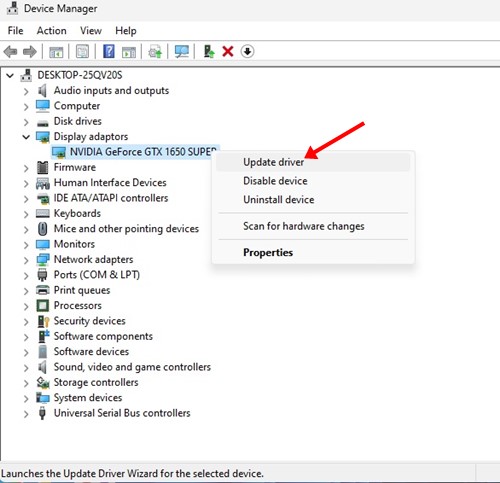
Update driver

5. On the prompt that appears next, select ‘Search automatically for drivers‘.
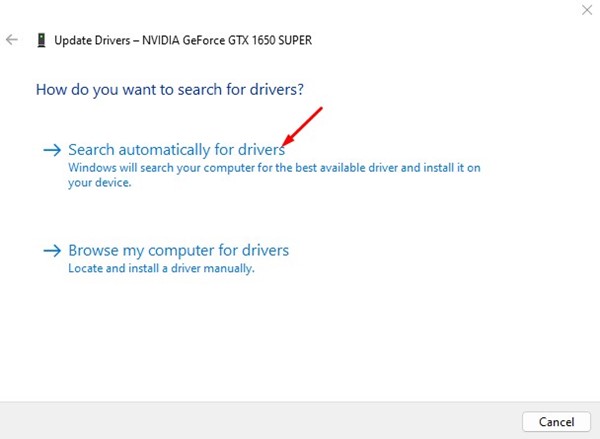
Search driver automatically

That’s it! Now follow the on-screen instructions to update your graphics driver on a Windows computer.

4. Allow Steam Through the Firewall

Windows Defender is the built-in security tool of the Windows operating system. While the security tool works great, sometimes it can block apps from running. Chances are that Windows Defender Firewall is blocking the steam client from connecting to the server. As a result, you are getting the error message.

Hence, this method will allow steam through the firewall on Windows defender to fix the Steam error code 41. Here’s what you need to do.

1. First, click on Windows search and type in Windows Firewall. Next, open the Windows Defender Firewall from the list of available options.
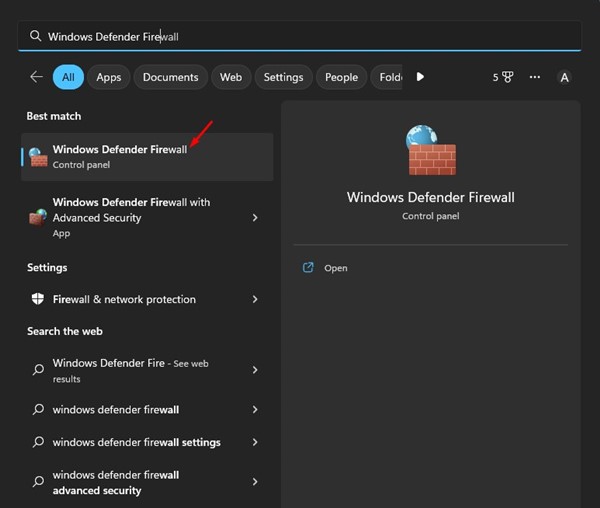
Windows Firewall

2. When the firewall program opens, click on the ‘Allow an app or feature through Windows Defender Firewall‘ link on the left side.
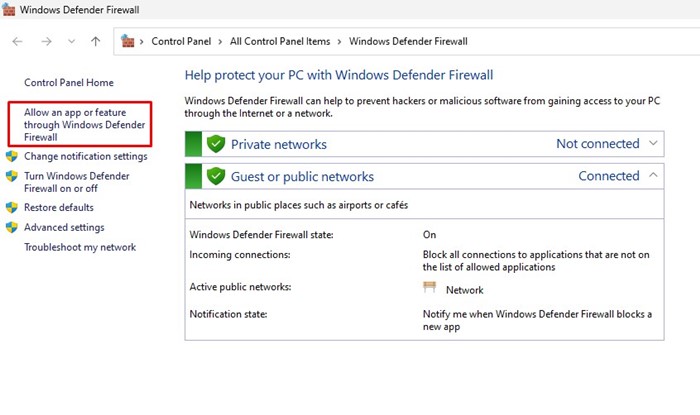
'Allow an app or feature through Windows Defender Firewall

3. On the next screen, click on the Change settings button.
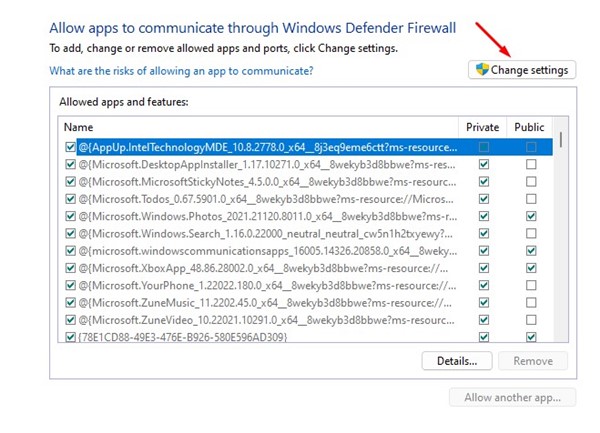
Change settings

4. Now find Steam and check the boxes for both ‘Private‘ and ‘Public‘. You need to do the same for Steam Web Helper.
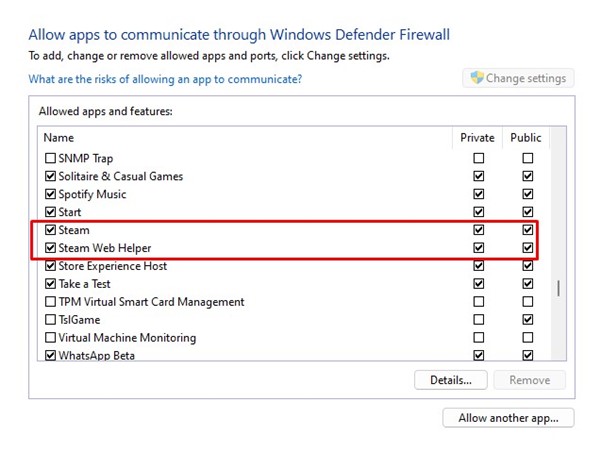
Steam

That’s it! After making the changes, click on the Ok button and restart your Windows computer. This should fix the Steam error message.

5. Verify the Integrity of the Game File

If you are still getting the error code while running a specific game on Steam, chances are that the game files are faulty. In that case, you need to verify the integrity of the game file to repair corrupted or faulty files. Here’s what you need to do.

1. Launch the Steam desktop client on your PC and switch to the Library tab.

Library

2. On the Library, right-click on the game you are trying to launch and select ‘Properties‘.
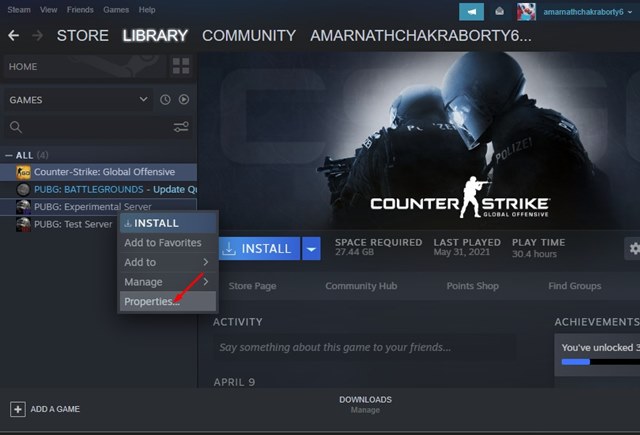
Properties

3. On the Properties screen, switch to the Local Files tab.
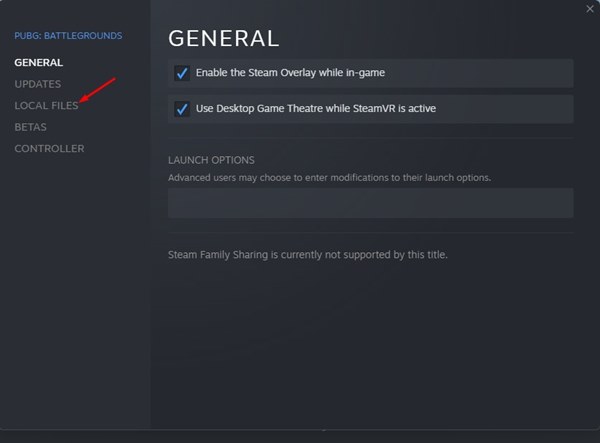
Local Files

4. On the right side, click on the ‘Verify integrity of game files‘ option.
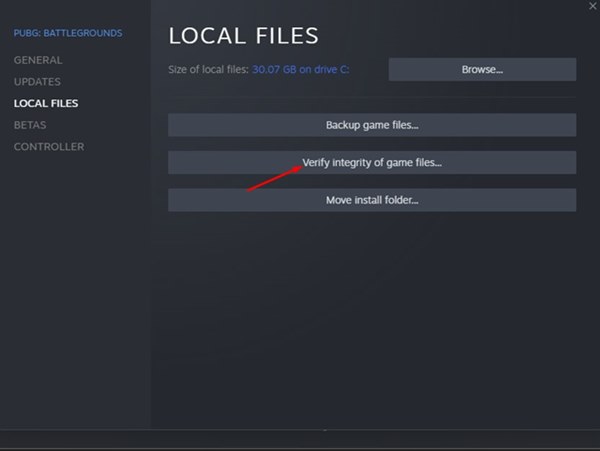
Verify integrity of demo files..

That’s it! Now steam will automatically find and fix the fault files of your selected game.

6. Disable the VPN/Proxy Server

Disable Proxies or VPN

If you are connected to a VPN or Proxy server while running the game, you need to disable it. VPNs and Proxies force the Steam desktop client to connect from a different location.

The error appears when the Steam client tries to connect to a server far away from you. So, you need to disconnect the VPN apps or Proxy servers as you try to run a game.

7. Reinstall the Problematic Game

Well, if the game you are trying to run still shows you the Steam error code 41, the next best option is reinstalling the problematic games.

However, reinstallation must be your last option because it will remove the game via Steam. You have to download the game from scratch again, which may take a lot of time and consume internet bandwidth.

It’s easy to reinstall games on Steam. For that, follow some of the simple steps shared below.

  • First of all, open the Steam app on your computer.
  • Next, switch to the Library tab to see all installed games.
  • Now, right-click on the problematic game and select ‘Uninstall‘.
  • On the Uninstall confirmation prompt, click on the Uninstall button Disable Proxies or VPNagain.

That’s it! Now restart your Windows computer and install the game again. Once installed, run the game. You won’t get the error anymore.

So, this guide is all about how to fix Steam error code 41. The Steam servers are too busy to handle your request and are usually linked with the steam servers. So, before following the methods, it becomes important to check whether Steam’s servers are facing any outages. If you need more help fixing Steam errors, let us know in the comments. Also, if the article helped you, make sure to share it with your friends.

The post How to Fix Steam Error Code (41) on Windows appeared first on TechViral.


from TechViral https://ift.tt/MlIpfj2