Thursday, August 4, 2022

How to Switch Back to Old Gmail View (Easy Steps)

Switch Back to Old Gmail View

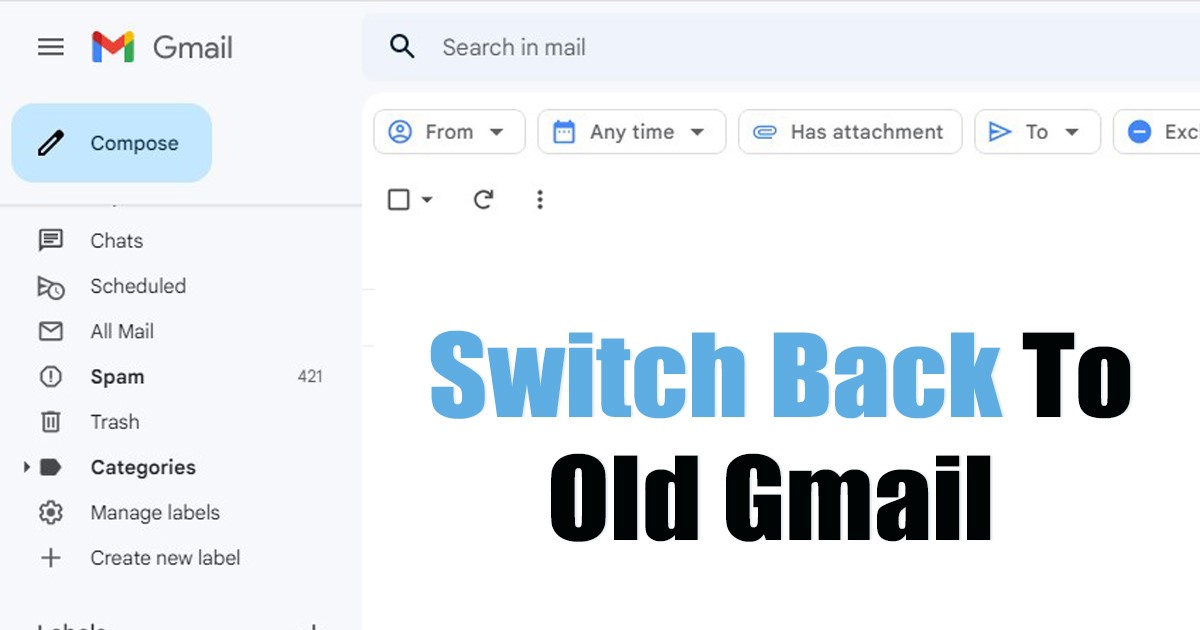
The previous month, Google began to test its new design layout for Gmail. The brand-new Material You redesign for Gmail’s web version was rolled out to the selected group of users in the first month of testing, and then Google gradually rolled it out to all users.

Today, the new Gmail Material You design that takes cues from Android 12 has been rolled out to almost everyone. The new design looks good, feels lightweight, and fits well with the latest Windows 11 operating system.

The new design is lightweight and supposed to be faster than the older one, but many users find it difficult to adjust to the visual change. Many users feel the new Gmail design change is unnecessary and difficult to operate.

If you feel the same, we have some good news for you. Gmail has just added an option to switch back to the old Gmail view. Original Gmail view means the previous design of Gmail, not the one you saw in the early days of Google’s Gmail.

Also read: How to Create Gmail Without Phone Number

Switch Back to Old Gmail View

Hence, it’s best to revert to the old design layout if you don’t find the new Gmail view comfortable. Below, we have shared a step-by-step guide to revert to the original Gmail view in easy steps. Let’s get started.

1. First, open your favorite web browser and visit Gmail.com. Next, log in with your Gmail username and password.

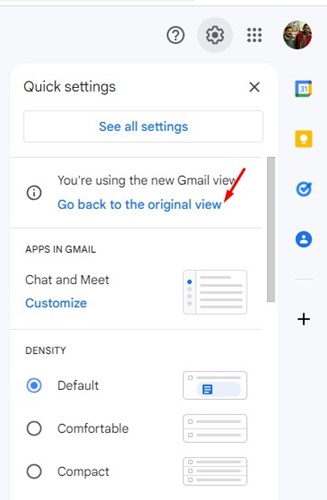
2. Once done, click on the Settings gear icon in the top-right corner of the screen.

Settings gear icon

3. If you are using the new design, you will see a card that says ‘You’re using the new Gmail view’. Underneath the card, click on the Go back to the original view option.
Go back to the original view

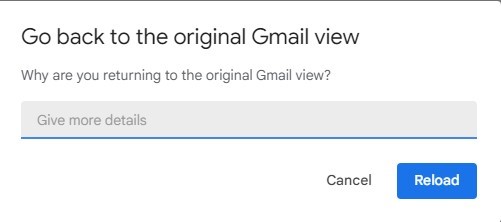
4. Now, you will see a dialog box asking you for an appropriate reason for switching view. Enter your feedback and click on the Reload button.
click on the Reload button

5. If you don’t want to leave feedback, press the reload button or CTRL+R.

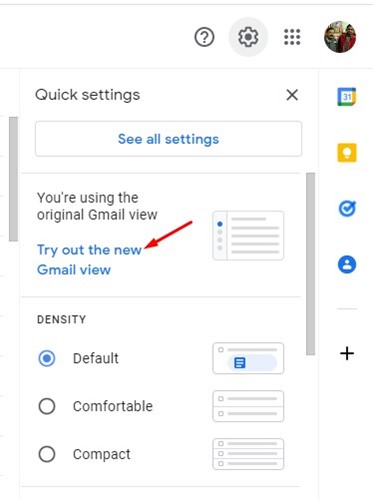
That’s it! After the reload, you will be able to see the previous design of Gmail. If you want to use the new view, click on the Settings gear icon and select the Try out the new Gmail view option.
Try out the new Gmail view

Also read: How to Recover Deleted Emails in Gmail

So, this guide is about how to revert to the old Gmail view in easy steps. The new design looks great; hence, before switching it, make sure to give the new design a try for a few days. If you need more help getting back to the old Gmail view, let us know in the comments below.

The post How to Switch Back to Old Gmail View (Easy Steps) appeared first on TechViral.


from TechViral https://ift.tt/xG14BMq

iPhone 14’s Base Model Reportedly Priced at $799

iPhone 14's Base Model Reportedly Priced at $799

iPhone 14 rumors are now coming more briefly than before as there is only one month left for its launch, and now, for the first time, a report showed up that suggests a price freeze for the starting models.

This report comes from a Korean leaker named Landsk, who also suggested many other leaks in the past. Besides, he has good authority on the Korean website Naver.

iPhone 14 Starting Price Might Be Same As iPhone 13

iPhone 14 Starting Price Might Be Same As iPhone 13As we all know, Apple has faced many challenges in the supply chain and production delays in China due to the lockdown in the country.

And because of these problems, many sources suggested that the company might increase the price of the iPhone 14 series. Even Bloomberg’s Mark Gurman also said, “we see some prices for iPhone 14 series.”

But now, according to Landsk, iPhone 14’s base model will cost you $799, and the price bump is expected for other models such as iPhone 14 Pro and Pro Max, which are coming with many new features.

It makes a lot of sense because, as we get information from the beginning, Apple wants to make many differences between Pro and Non-Pro models. Besides, the non-pro models come with last year’s A15 bionic chip.

Even recent reports suggested a performance boost, but compared to the A16 chip, it is less powerful, so it seems great that its pricing will be the same as iPhone 13’s base model.

Separately, last month, the industry folk, Dan Ives from Wedbush Securities, reported to The Sun, “We believe a $100 price increase is coming for the iPhone 14.” This means the iPhone 14 could cost you $899.

And the iPhone 14 Pro could be priced at $1,099, and the iPhone 14 Pro Max could cost you $1,199, which is higher than ever.

Still, these all are just assumptions based on facts, and Landsk also mentioned that “The accuracy of iPhone-related rumors in the U.S. is over 90 percent,” so we can rely on them.

The post iPhone 14’s Base Model Reportedly Priced at $799 appeared first on TechViral.


from TechViral https://ift.tt/d401eBy

Wednesday, August 3, 2022

UK Parliament closes TikTok account after China data warning

Senior MPs had raised data security concerns and had called for the account to be taken down.

from BBC News - Technology https://ift.tt/5kMonU0

Booking.com scam: Tourists descend on north London private home

A woman says she feels vulnerable after dozens of tourists arrived at her private home throughout July.

from BBC News - Technology https://ift.tt/SBR1bYo

OnePlus 10T 5G Launched Globally, Check Out All Details

OnePlus 10T 5G Launched Globally, Check Out All Details

OnePlus has launched the OnePlus 10T globally, and the best part is that the company has launched this smartphone with an in-person event after a long time.

OnePlus 10T is built to keep the gamers in mind with its new cooling system and more gaming features, which we also saw in the OnePlus 10 Pro.

Is OnePlus 10T Better Than OnePlus 10 Pro

Is OnePlus 10T Better Than OnePlus 10 Pro

The OnePlus 10 Pro is still a pro in terms of specs, but the 10T is also so good. Take a look at its specs.

Additionally, this event was held in New York City and live-streamed on their official YouTube channel, and you will also find it out below.

Design

OnePlus 10T doesn’t have a unique design like the OnePlus 10 Pro, but there are some changes in its camera bump, such as its design now seems to be dissolved from the side and edges.

This flagship arrives in two different color options Moonstone Black and Jade Green.

Camera

OnePlus 10T camera details

OnePlus 10T has three camera setup on the back, whose lens placement is similar to the OnePlus 10 Pro’s camera setup.

This setup includes  Sony IMX766 50MP wide-angle camera as the primary camera, an 8MP ultrawide lens, and a 2MP macro camera. And it also has a 16MP sensor as a selfie camera.

Display

This smartphone has a 6.7-inch HDR 10+ display that supports a 120Hz refresh rate with LTPO technology and 10-bit colors.

Performance

The OnePlus 10T is powered by Snapdragon 8 Plus Gen 1 chipset, and for the first time, OnePlus launched a smartphone with 16GB RAM, but you can also buy an 8GB RAM variant.

There is a new 3D cooling system containing the largest vapor chamber for gaming. This device will run on OxygenOS 13 based on Android 13, which hasn’t been launched yet.

Battery

The flagship comes with a 4,800 mAh battery that supports 150W fast charging, but for North American users, the charging speed is limited to 120W. And the company has claimed the device will get fully in 20 minutes.

Besides, you will also get a 150W Supervooc charger and USB cable in the box.

Availability

OnePlus 10T Pricing and availiablity

OnePlus 10T will be available on August 25 in Europe and September 1 in North America, and you can buy it from online stores, in actual stores, and some selected retailers. But, you are allowed to pre-order from today.

Besides, this smartphone comes with two different options.

OnePlus 10T with 8 RAM+128GB storage will cost you $649, and on the other side, the OnePlus 10T with 16GB RAM+256GB storage is priced at $749.

The post OnePlus 10T 5G Launched Globally, Check Out All Details appeared first on TechViral.


from TechViral https://ift.tt/oxZpEwO

How to Hide What Game You’re Playing on Discord

Hide What Game You're Playing on Discord

Hundreds of free voice, video, and text applications are available for gamers. However, out of all, Discord seems to be the best option. Discord is a popular gaming-centric voice, video, and text chat application that offers many features to gamers.

It’s a platform that allows gamers to come together with friends, form communities, and enjoy the game together. If you are an active Discord user, you might know that the app displays your game activity just below the username. You can also quickly look at your friend’s list on Discord to find what your friends are playing.

While it’s a great feature as it allows you to join your friends in the game directly, you may like to turn it off for privacy reasons. Discord allows you to hide what games you’re playing to increase your privacy in easy steps.

Also read: How to Connect Your Spotify Account to Discord

Hide What Game You’re Playing on Discord

Below, we have shared a step-by-step guide on hiding your Game activity in Discord for desktop & mobile. Hence, if you are interested in hiding what games you’re playing on Discord, you are reading the right guide. Let’s get started.

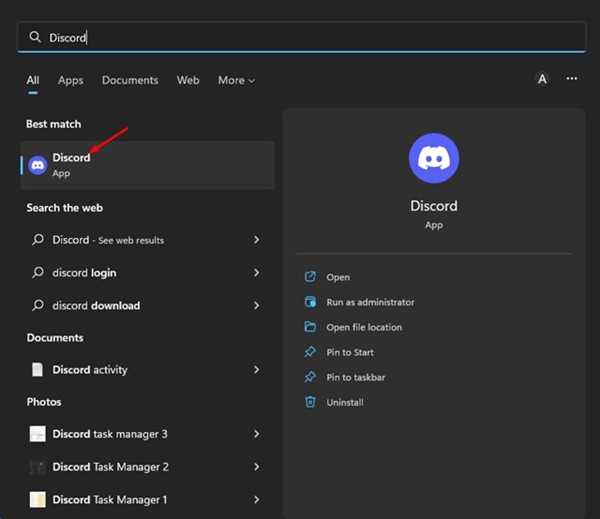
1. First, open the Discord app on your desktop. Or else, open the Discord web version and log in with your Discord account.

Discord app

2. Now, tap on your profile picture on the right side. This will open the Settings Menu in Discord.

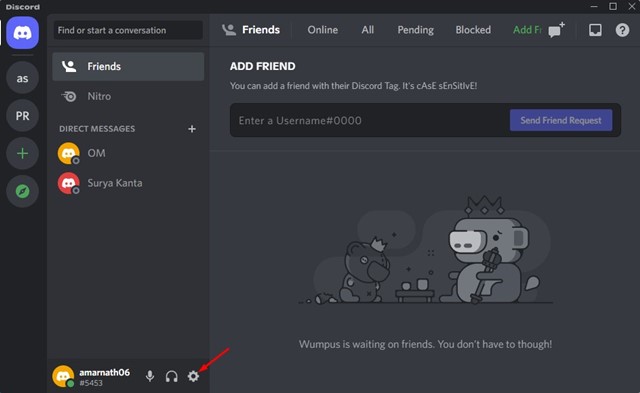
3. On the Settings menu, click on the Settings gear icon at the bottom left corner.

Settings gear icon

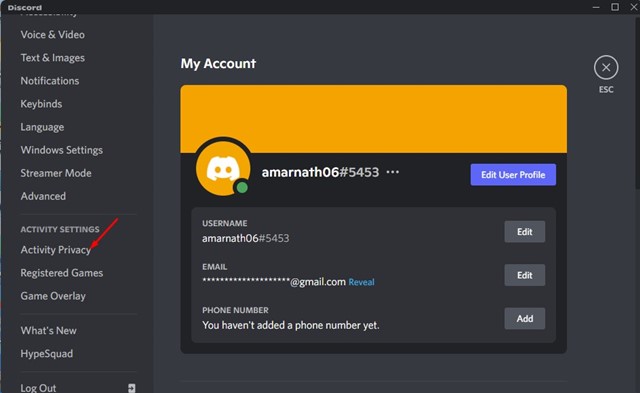
4. Next, on the Settings page, click on the Activity Privacy tab under the Activity Settings.

Activity Privacy

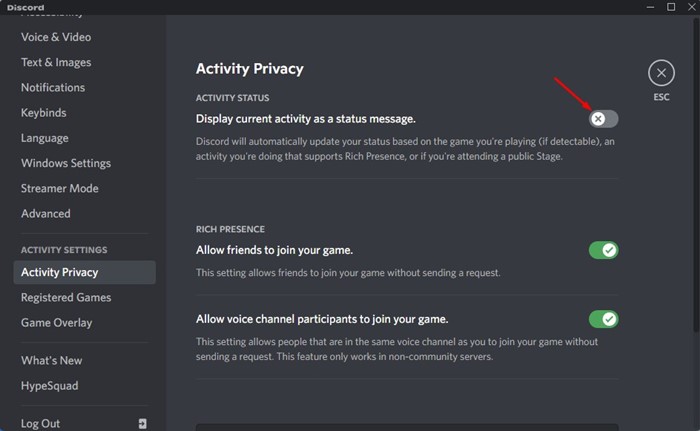
5. On the right side, turn off the toggle for the ‘Display current activity as a status message’ option.

Display current activity as a status message'

That’s it! This will hide your games from your Discord friends.

Hide What Games You’re Playing on Discord via Mobile

You can also use the Discord mobile app to hide what games you’re playing from your friends. You need to follow some of the simple steps we have shared below.

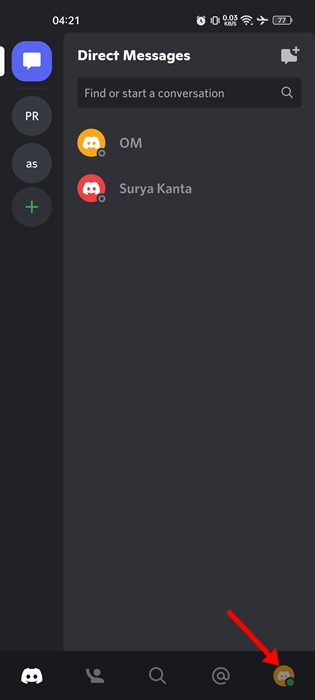
1. First, open the Discord app on your mobile device and tap on your profile picture.

profile picture

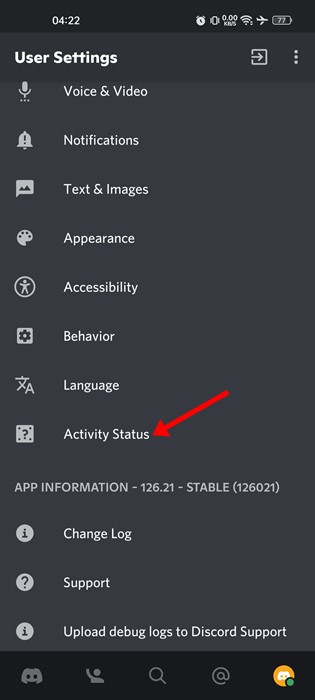
2. This will open the User Settings page of Discord.

3. Now scroll down to the App Settings and tap on Activity Status.

Activity Status

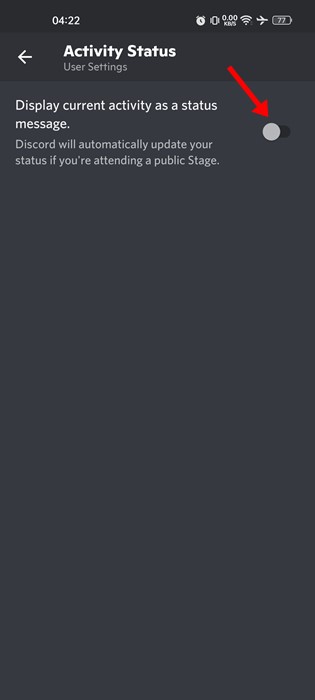
4. On the Activity Status screen, turn off the toggle for the ‘Display current activity as a status message’ option.

Display current activity as a status message

That’s it! This will hide your current activity on your Discord Profile.

Also read: How to Stop Discord from Opening on Startup

So, these are the two best ways to hide what games you’re playing on Discord. If you care for your privacy, you should disable your activity status. If you need more help, let us know in the comments below.

The post How to Hide What Game You’re Playing on Discord appeared first on TechViral.


from TechViral https://ift.tt/TVodmK6

How to Check if a Song is Copyrighted on Spotify

Check if a Song is Copyrighted on Spotify

Well, music streaming apps have entirely changed the way we consume music. These days, you don’t need to download music or songs on your Android device to listen to them offline; you can subscribe to Spotify Premium and download music for offline playback.

Spotify is not the only music streaming app with an offline playback feature; most music streaming apps today supports downloading music. However, in our opinion, Spotify is the best and offers songs with better audio quality.

Since Spotify is a house for millions of songs, sometimes you may want to download music for your personal use. Maybe you’re interested in using a specific Spotify song in a video or streaming it on Discord/Twitch.

Also read: How to Recover Deleted Spotify Playlists

Check if a Song is Copyrighted on Spotify

However, Spotify has both copyrighted and non-copyrighted music, and you should double-check before using a song on any platform to avoid legal troubles. Hence, in this article, we will share the easiest way to know if a song is copyrighted or not on Spotify. Let’s get started.

1) Check if a Song is Copyrighted on Spotify Web Version

Spotify doesn’t offer you any direct option to check for a song’s copyright. Hence, you need to manually check the song’s credits to know whether it’s copyrighted.

1. First of all, open your favorite web browser and launch Spotify.

2. Open the song you want to find the credits for.

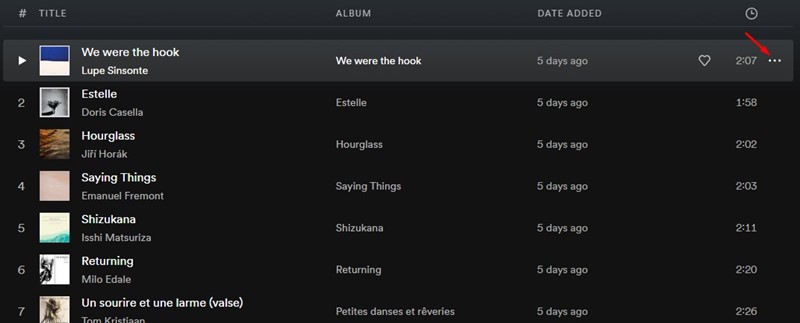
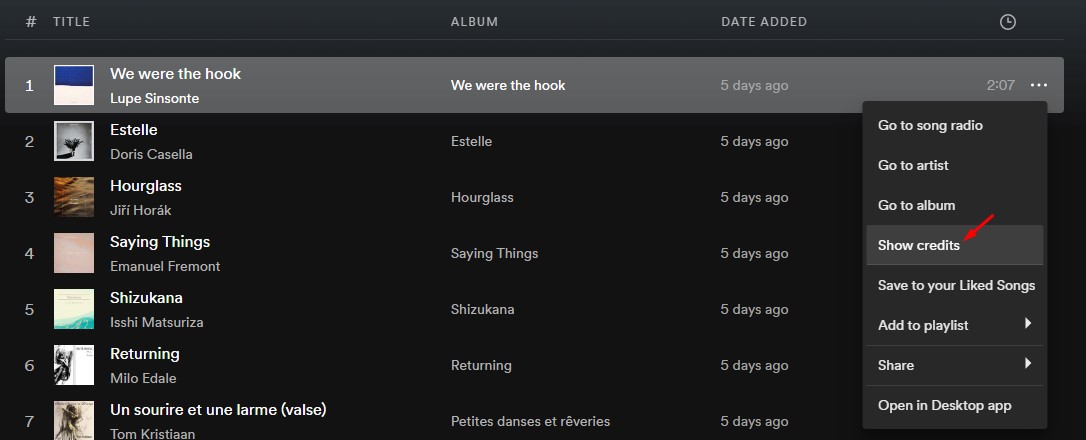
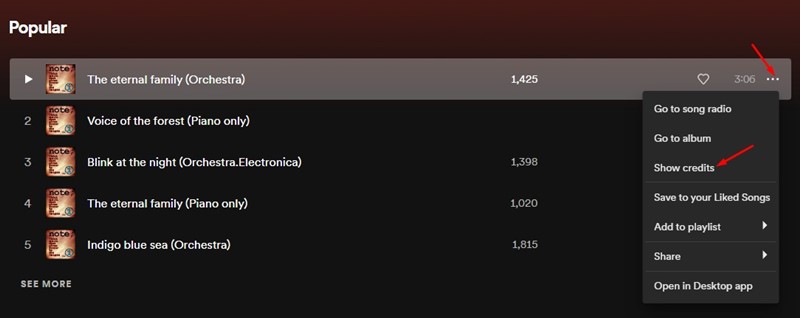
3. Next, click on the three dots beside the song name, as shown below.

three dots

4. From the list of options that appears, click on the Show credits.

Show credits

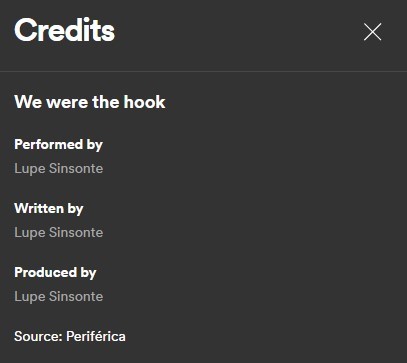
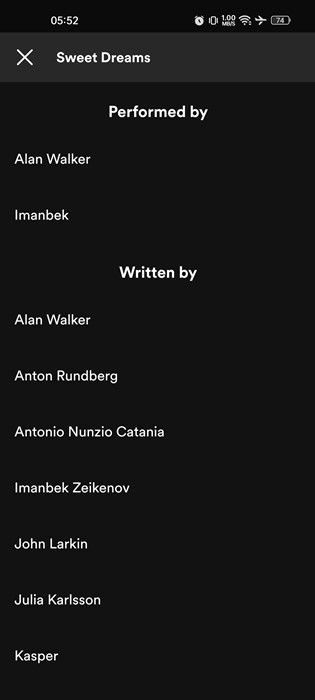
5. Now check the Credits information page. If the Credits page shows people or company names in the Performed by, Written by, and Produced by field, it’s likely to be copyrighted, and you should seek permission before using it.

Credits information page

That’s it! You can know if a song is copyrighted on Spotify by checking the Song credit page.

2) Check Credits for Song on Spotify for Mobile

You can also use the Spotify mobile app to check the credits for a song. Here’s how you can see a song’s credit on Spotify for Mobile.

1. Open the Spotify app on your Android or iOS device.

2. Now, locate the song you want to check the credits for.

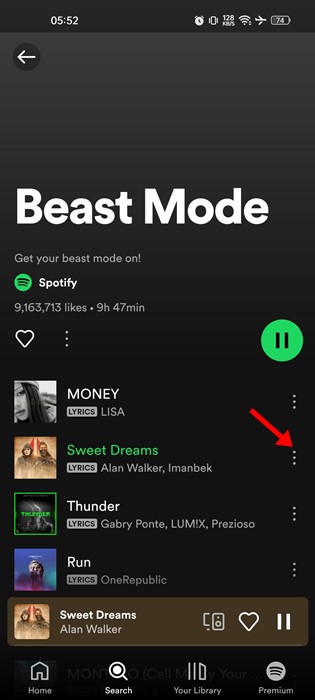
3. Tap on the three dots beside the song name.

three dots

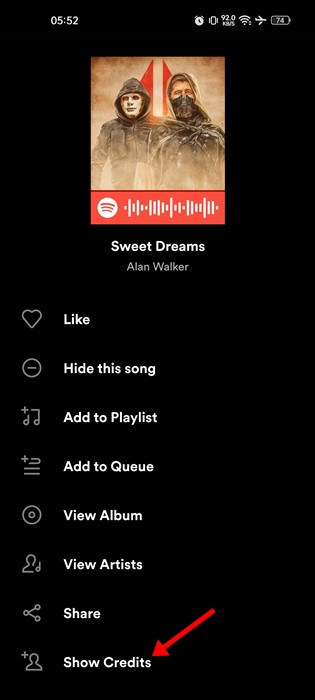
4. From the list of options that appears next, tap on the Show credits.

Song credits

5. Now, Spotify will show you the credit information of your selected song.

credit information

That’s it! This will tell you if a song is copyrighted on Spotify.

3) How to Find Copyright-Free Music on Spotify?

There’s no direct option to find copyright-free music, but you can still find it by doing some hard work. You can use Copyright-free music on your videos or any project without worrying about a penalty. Here’s how you can find copyright-free music on Spotify.

1. Open the Spotify web version and click on the Search bar.

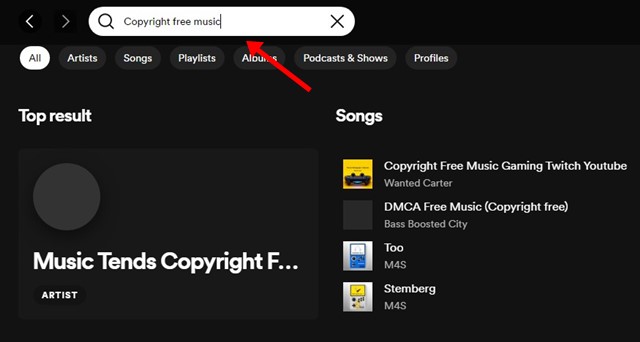
2. On the Search field, type ‘Copyright free music‘. You can also search for other terms like ‘Royalty-free music‘.

Copyright free music

3. Now, Spotify will show you the song search results. You need to select the song from the search result and tap on the three dots next to it.

4. From the list of options that appears next, tap on the Show credits.

Show credits

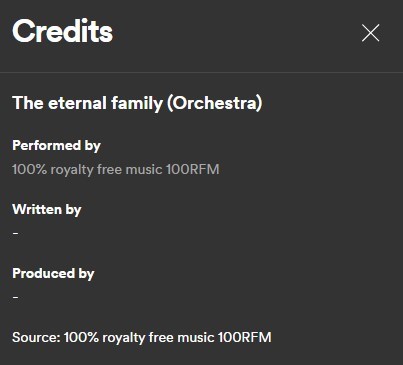
5. On the Credits screen, look at the Source field. This will give you a clear hint on whether the song is copyright-free.

Source

That’s it! You need to repeat the steps until you find copyright-free music.

Also read: How to Hide and Unhide Songs on Spotify

So, this guide is all about how to know if a song is a copyright free on Spotify. If you need more help, let us know in the comments below.

The post How to Check if a Song is Copyrighted on Spotify appeared first on TechViral.


from TechViral https://ift.tt/x7oEubD