Wednesday, August 3, 2022

5 Best Guest Mode Apps For Android in 2022

5 Best Guest Mode Apps For Android in 2022

The Android operating system offers many useful features since it is based on Linux and is open-source by nature. You can use different types of apps to enhance the operating system’s features.

We are sure that you all might have gone through situations where you have to share your smartphones with friends or relatives. Since our smartphone contains many sensitive data, it’s normal to feel uncomfortable sharing our smartphones with others.

Also Read: How To Add Guest Mode Feature In Any Android

List of 5 Best Guest Mode Apps For Android

To deal with such situations, Android’s Guest mode apps exist. With Guest Mode apps for Android, you can easily hide your personal and financial stuff before handing over the device. This article will share some of the best Guest Mode apps for Android.

1. Kids Mode
Kids Mode

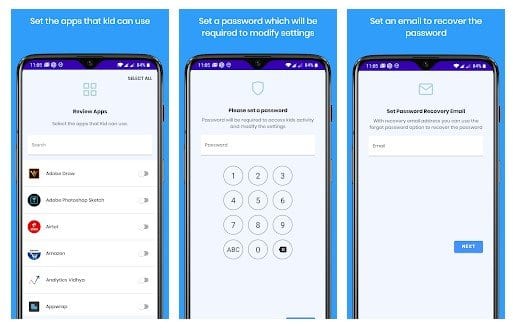
Kids Mode is a parental control app for Android. With this app, you can easily manage your kid’s screen time, block apps, set a time limit on app usage, etc.

Kids Mode can also be used as a guest mode app as it allows you to create profiles. After creating a profile, you can group multiple apps under the same restriction.

You can select apps manually on each guest mode profile, set time limits, set an Unlock Pin, and more.

2. SwitchMe Multiple Accounts
SwitchMe Multiple Accounts

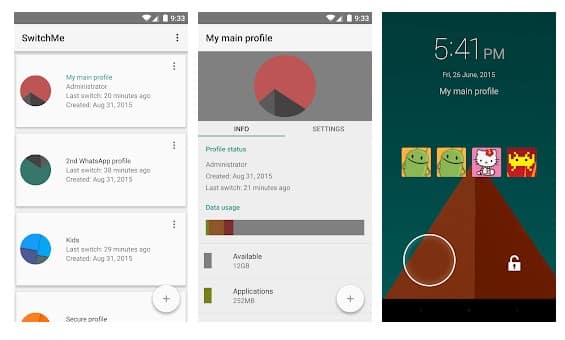
SwitchMe Multiple Accounts is another best Android guest mode app on the Google Play Store. With SwitchMe Multiple Accounts, you can easily create a user profile as you create one on a Windows computer.

The user interface of SwitchMe Multiple Accounts is pretty excellent and well organized. With each profile, you can assign apps and games with different settings. However, on the downside, the app only works on rooted Android smartphones.

SwitchMe Multiple Accounts is fully compatible with all new Android smartphones, but it consumes lots of storage space to create profiles.

3. Double Screen
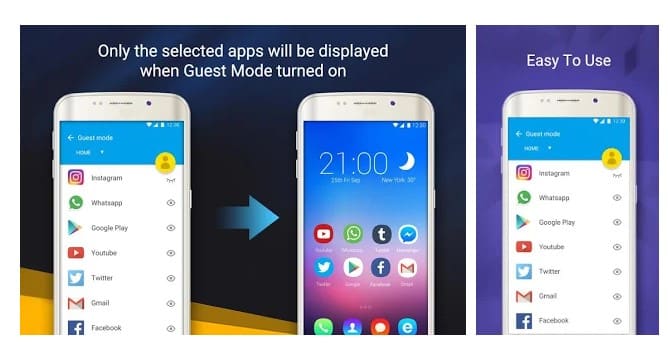
Double ScreenDouble Screen is another best guest mode app for Android that can show only selected apps on the home screen. The app is pretty much similar to the Safe app listed above.

Right now, Double Screen provides users with two modes to operate. One is for Work and another one for home. In both modes, you can select different apps.

5. AUG Launcher
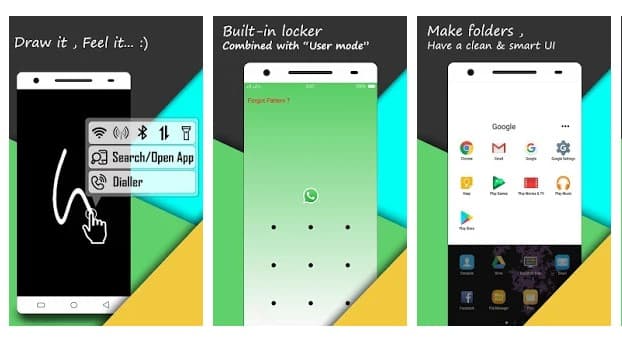
AUG LauncherAUG Launcher is one of the best Android gesture launcher apps on the Google Play Store. The app also provides users with two user modes – Owner and Guest.

The launcher will not lock any hidden apps visible on your App drawer in the owner mode. Similarly, in the Guest mode, the hidden apps will not appear.

Apart from that, AUG Launcher also provides a full-fledged app locker. Overall, this is a great guest mode app to have on Android.

5. Island
Island

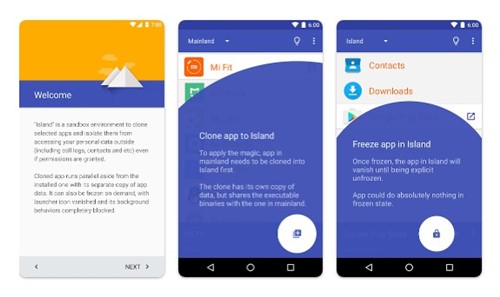
Island is very different from other guest mode apps listed in the article. This one creates a sandbox environment where you can run cloned versions of select apps and isolate them from your main profile.

The profile it creates in the sandbox environment will have no connection with your main profile. The guest mode profile will have separate call logs, contacts, etc.

The only downside of the Island app is that it consumes lots of resources and storage space. So, Island is one of the unique guest mode apps you can ever use on Android.

You can use these apps to create multiple profiles on your Android. If you know of any other guest mode apps for Android, let us know in the comment box below. I hope this article helped you! Please share it with your friends also.

The post 5 Best Guest Mode Apps For Android in 2022 appeared first on TechViral.


from TechViral https://ift.tt/ol7YZx4

10 Best Team Management Apps For Android 2022

10 Best Team Management Apps For Android 2022

Everyone has a different mindset when it comes to working. Some prefer working alone whereas others prefer to work in a team. In our opinion, working as a team is way better than working alone. Therefore, team management is something that every business owner should learn.

Nowadays, smartphones are more capable than desktop computers, and since we carry them everywhere, it makes sense to know the best team management apps for Android. Many Android team management apps on the Google Play Store can help you and your team perform any task efficiently.

List of 10 Best Team Management Apps For Android

In this article, we have decided to share some of Android’s best team management apps. With these apps, you can help yourself and your team manage different projects more efficiently and productively.

1. monday.com

monday

Well, monday.com is one of the top-rated productivity apps available on the Google Play Store. Guess what? It’s a work and team management app designed to help your team.

It brings you a wide range of project management and collaboration features that you need to manage your team. Some key features of monday.com include reporting, calendar, time tracking, planning, and more.

2. TeamSnap

TeamSnap

Well, TeamSnap is slightly different from all other apps listed in the article. It’s a sports team management app for Android specially designed for coaches.

If you are a coach, you can use TeamSnap to share field numbers, uniform colors, start times, important practice details, etc., with your team. In addition, it allows you to send messages to your entire team or select groups.

3. Microsoft Teams

Microsoft Teams

Microsoft Teams is a team management app that combines everything a team needs. With Microsoft Teams, you can easily chat with your team, arrange meetings & video conferencing, make calls, etc.

For communication, it supports HD audio and video calls. Team members can even create, edit and share Microsoft Powerpoint slides, Word documents, and spreadsheets in real-time with others.

4. Asana

Asana

Asana is the most effective and reliable project manager app available for Android users. This cross-platform project management app can help you in multiple ways. The most notable feature of Asana is that it allows users or team members to create a dashboard and assign different tasks.

The app is available for Android and iOS devices and offers two versions – Premium & Free. The free one has some limitations, but the premium version removes all restrictions and can create unlimited dashboards.

5. Trello

Trello

Well, it’s another best Team Management app you can use today. The great thing about Trello is that it allows users to create unlimited boards, cards, checklists, etc.

Not just that, the app also allows you to assign tasks to different team members through the cards. Apart from all of these, Trello also brings in a wide range of tools like analytics, communication, marketing, automation, etc.

6. MeisterTask

MeisterTask

If you are looking for a project management app with tracking features, you must pick MeisterTask. MeisterTask is known for its project management features, and it also helps to track the performance of different team members in real-time.

Not just that, but MeisterTask also allows users to set timers and add checklists to any assigned task.

7. Slack

Slack

Slack is available for both Android & iOS. It’s one of the best and most popular project management tools you can use on your smartphones. The tool allows users to create private and public communication channels with other team members.

The free version of Slack can store 10,000 messages, and you can integrate 10 channels on the free version.

8. SmartSheet

SmartSheet

SmartSheet could be the best choice for those looking for an easy-to-use team management app for Android. The most notable thing about the app is the spreadsheet-like interface, which makes the app easy to use.

Apart from these, the tool allows users to manage multiple projects in real-time. Not just that, you can also track the performance of other members using SmartSheet.

9. ClickUp

ClickUp

Well, it’s a full-fledged productivity app that brings teams, tasks, and tools together in one place. Compared to other apps on the list, ClickUp is easier to use.

Over 800,000 teams right now use the app as it allows them to create tasks on the go. Other than that, it also offers you a few team collaboration features. Overall, ClickUp is a great team management app that you can have on Android.

10. ProofHub

ProofHub

If you are looking for an app to help you in project management and team collaboration, you need to start using the ProofHub Android app.

On the ProofHub Android app, you can easily add tasks and edit them when needed, add recurring tasks, and more. Apart from regular project management features, ProofHub also offers team collaboration options.

The app has features that can help you stay connected with your in-house and remote teams. Overall, ProofHub is excellent team management & work collaboration app for Android that you shouldn’t miss.

These are the best Team management apps for Android that can help your team manage different projects. Every app listed in the article is available on the Play Store and can be downloaded for free. If you know of any other Team Management apps, let us know in the comment box below.

The post 10 Best Team Management Apps For Android 2022 appeared first on TechViral.


from TechViral https://ift.tt/xuH4KS5

Samsung Galaxy Foldable Could Come With Different Name

Samsung Galaxy Foldable Could Come With Different Name

Samsung has already announced the launch of some new smartphones, and we all know they will be foldable, but it didn’t confirm the names of these devices.

But, some rumors are coming that the Korean tech giant might be planning to drop the “Z” letter from the name, or we might see any name for foldable smartphones. Let’s discuss all the details below.

Samsung Could Drop ‘Z’ From Foldable Smartphones Name

Samsung Could Drop 'Z' From Foldable Smartphones Name

In March this year, Samsung removed the Z letter from the Samsung Galaxy Z Fold 3 and Flip 3 in some European countries such as Lithuania, Latvia, and Estonia.

Because supposedly, it is related to Russia’s war against Ukraine and represents a kind of victory for Russia. Korea’s Samsung wants to be neutral at the moment and support Ukraine.

And now, according to leaker SnoopyTech, Samsung will not use the “Z” letter in the upcoming foldable smartphone branding. And the new name might be like Samsung Galaxy Flip 4 & Fold 4.

Besides, SnoopyTech’s tweet also suggested that the company will also not print it on the box.

And this seems to be valid because the Russian defense ministry has selected the “Z” as their symbol, which stands for “za pobedu,” meaning “for victory“.

At the beginning of this war, Samsung implemented the removal in Europe only, and now this war impacted the whole world, and the company might want to do the same, but globally from the start.

Currently, the company hasn’t detailed anything about this and has not even hinted what its name could be, but we can confirm that in Europe, they will surely remove a Z letter from everywhere in the branding.

Additionally, Samsung will launch the foldable smartphones on 10 August with a Galaxy  Unpacked event. Besides, the company is also expected to unveil Galaxy Watch 5 series and Galaxy Buds 2 Pro.

The post Samsung Galaxy Foldable Could Come With Different Name appeared first on TechViral.


from TechViral https://ift.tt/upoz3Hx

Tuesday, August 2, 2022

How to Change APN Settings on Android (Best APN Settings)

Best APN Settings 2022

If you are using an Android smartphone, you might already know about the APN. APN or Access point name is a gateway between a GSM, GPRS, 3G, or 4G Mobile number. An Android device making a data connection must be configured with the correct APN to present to the carrier.

What is Access Point Name?

Only after setting the correct APN your carrier be able to read your settings, generate an IP Address, and connect to the correct gateway. If everything is right, you will get a faster network speed.

Usually, the network operators send a configuration message containing the APN settings as soon as you insert a SIM card into your phone, but sometimes, the message may fail to reach your phone.

There could also be times when you might have to change the APN settings manually for a few reasons. For example, the customer support team of your telecom operator might ask you to change the APN settings to resolve internet connection problems.

Edit or Add APN Settings on Android Devices

Similarly, you may change the APN settings to improve the internet speed. Whatever the reasons, Android allows you to change the APN settings in easy steps. Your APN details will differ depending on your network operator. Still, below, we have shared the APN Settings for JIO, Airtel, BSNL, and VI that are supposed to fix internet connectivity problems.

Steps to Change APN settings on Android

Before knowing the APN settings of network operators, first, you need to know how to change the APN Settings on Android. Here are some of the simple steps to change APN settings on Android.

Change APN settings on Android

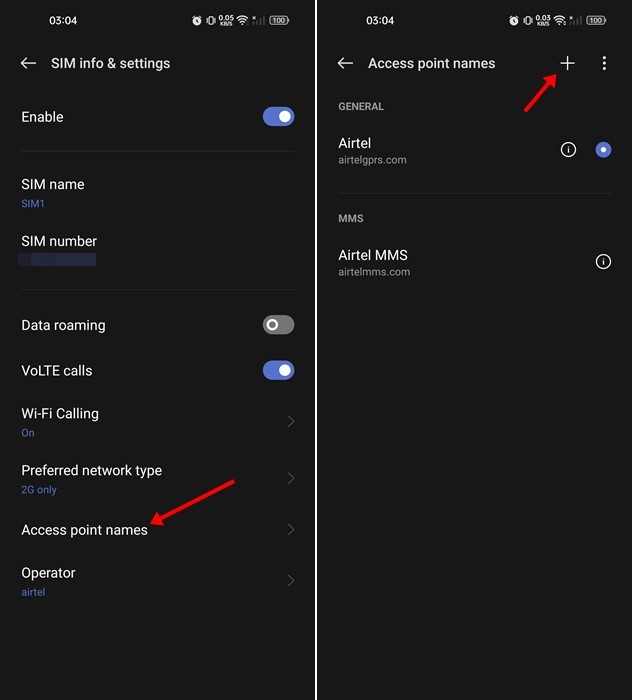
  • Open Settings > Mobile Networks.
  • On the Mobile Networks, select your network operator.
  • Next, tap on the Access Point Names. On the next screen, you will Access point names for the internet and MMS.
  • You can now edit the APN configuration as per your requirement.
  • If you want to add your own APN profile, tap on the (+) button at the top.

That’s it!! This is how you can change APN settings on Android.

Best APN Settings for Airtel 4G LTE High-Speed Internet

Airtel

If you are using Airtel and want to enjoy high-speed internet without interruption, then you need to use these APN settings.

Name: AIRTEL
APN: airtelgprs.com
Proxy: Blank
Port: 8080
Username: Blank
Password: Blank
Server: Airtellive.com
MMSC: Blank
MMS Proxy: Blank
MMS Port: 80
MCC: 404
MNC: 10
APN Protocol: IPV4/IPV6
APN: Enable

Airtel MMS Settings

Name: Airtel
APN: airtelgprs.com
Proxy: No Changes
Port No: Changes
Username: No Change required
Password: No Change required
Server: No Changes
MMSC: https://ift.tt/IoqPy1v
MMS Proxy: 100.1.1201.172
MMS Port: 8799
MCC: No Change required
MNC: No Change required
Authentication Type: No Change required
APN Type: MMS
APN Protocol: IPv4
APN Roaming Protocol: IPv4
Bearer: Unspecified

You need to edit the default APN settings or create your own APN profile with these settings to enjoy uninterrupted high-speed internet on Airtel.

Best APN Settings for JIO 4G LTE High-Speed Internet

JIO

To resolve the internet connectivity issue on your JIO network, you need to save these JIO 4G LTE High-Speed Internet APN settings.

Name: Internet
APN: Jionet
Proxy: Not Set
Port: Not Set
Username: Not Set
Password: Not Set
Server: Not Set
MMSC: Not Set
MMS Proxy: Not Set
MMS Port: Not Set
Authentication Type:Not Set
APN Type: default,supl
APN Protocolp: IPv4/IPv6
APN Roaming: Protocol IPv4/IPv6
Bearer: Unspecified

Best APN Settings for BSNL 4G LTE High-Speed Internet

BSNL

If you use BSNL to connect to the internet, these APN settings will fix the slow internet issue. Here are the best APN settings for BSNL.

Name: BSNL
APN: Bsnlnet
Proxy: No Change required
Port: No Change required
Username: No Change needed
Password: No Change required
Server: No Change needed
MMSC: No Change required
MMS Proxy: No Change is needed
MMS Port: No Change is needed
MCC: Leave default
MNC: Leave the default
Authentication Type: No Change is needed
APN Type: default, supl
APN Protocol: IPv4/IPv6
APN Roaming: ProtocolIPv4
Bearer: Unspecified

Best APN Settings for VI 4G LTE High-Speed Internet

VI

We also have APN settings for Vodafone IDEA users. VI users need to use these APN settings on their Android phones to resolve internet connectivity errors & slow internet speed.

Name: VI internet 4G
APN: VI Net Speed
Proxy: Leave it
Port: Leave it
Username: Leave it
Password: Leave it
Server: Leave it
MMSC: Leave it
MMS Proxy: Leave it
MMS Port: Leave it
MCC: Keep default
MNC: Keep default
Authentication Type: PAP or CHAP
APN Type: default, supl
APN Protocol: IPv4/IPv6
APN Roaming Protocol: IPv4/IPv6
Bearer :LTE, HSPAP, HSPA, HSUPA, HSDPA, UMTS, EDGE, GPRS.

So, these are the best APN settings for Vodafone IDEA, Airtel, BSNL, and JIO. These APN settings will surely resolve internet connectivity errors and provide better speed. If you need more help, it’s best to contact the customer service center of your network provider.

The post How to Change APN Settings on Android (Best APN Settings) appeared first on TechViral.


from TechViral https://ift.tt/cH3tsvD

Cristiano Ronaldo & Harry Maguire most abused players on Twitter - report

Manchester United's Cristiano Ronaldo and Harry Maguire receive the most Twitter abuse of any Premier League players, a report finds.

from BBC News - Technology https://ift.tt/G3PfxYA

Google Pixel 7 & 7 Pro Launch Date Seem To Get Leaked

Google Pixel 7 & 7 Pro Launch Date Seem To Get Leaked

Google Pixel 7 & 7 Pro launch date seems to get leaked before 3 months of its launching month. Google has already launched the Pixel 6a in the last month and is now preparing for Google Pixel 7.

At the Google IO event in June, the company unveiled many new devices, including Google Pixel 6a, Google Pixel Buds, and Google Pixel Watch. Surprisingly, it also revealed the Pixel 7 & 7 Pro.

Google Pixel 7 & 7 Pro Tipped To Launch On October 13

Google Pixel 7 & 7 Pro Tipped To Launch On 13 OctoberThe leaks are coming up from reliable Jon Prosser on the Front Page Tech website, where he also revealed Apple Watch Series 8 first renders.

According to Jon Prosser, Google has planned to start pre-orders for the Pixel 7 and 7 Pro from October 6, and Google is expected to do an event that will take place on the same day.

And both smartphones will go on sale on October 13. Besides, Jon also mentioned in the report that this information comes from “very reputable sources,” so we can rely on it.

This information also seems real because we all know that Apple launches every new iPhone in September, and Google likes to launch in October.

If you look at its track record, it launched every base model of the Pixel series smartphone in October, but on different dates.

Besides, the company hasn’t revealed any detail about its specification, so we only know what it will look like. The company confirmed that it would be powered by the next generation of Google Tensor chip.

The Pixel 7 will be available in three color options: Obsidian, Snow, and Lemongrass. And the Pixel 7 Pro will also come in three color options Obsidian, Snow, and Hazel.

Also, there are many design changes in it but mainly changes in the design of the back camera bump; it is now twisted to silver and shiny rather than the previous glass texture.

Additionally, Google Pixel Watch is also expected to launch with it.

The post Google Pixel 7 & 7 Pro Launch Date Seem To Get Leaked appeared first on TechViral.


from TechViral https://ift.tt/d1mAjBV

Pornhub: Judge rules Visa can be sued in abuse claim

A woman who was thirteen when an explicit video of her was posted, is suing Mindgeek and Visa.

from BBC News - Technology https://ift.tt/OpoSrYk