
If you have been using Windows 10 for a while, then you might be well aware of the Control Panel. It’s a centralized hub from where you can excess different Windows settings. Not just settings, but adding/removing programs were also done through the Control Panel.
Although you can uninstall programs from the app drop-down list on Windows 10, still Control Panel is the easiest way to add/remove new programs. If your computer is shared with others, then you may not want users to access certain items of Control Panel as through the control panel, one can modify the registry, modify system files, etc.
How to Hide Items from the Control Panel in Windows
So, if your computer is used by others also, then you can always stop others from changing certain settings on the Control Panel. In this article, we are going to share a working method that would let you hide Control Panel Settings on Windows 10 operating system.
Hide Items from the Control Panel in Windows:
Step 1. First of all, open Run dialog box on your Windows 10 operating system.
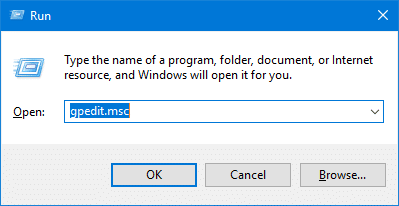
Step 2. On the RUN dialog box, enter ‘gpedit.msc’ and hit enter.
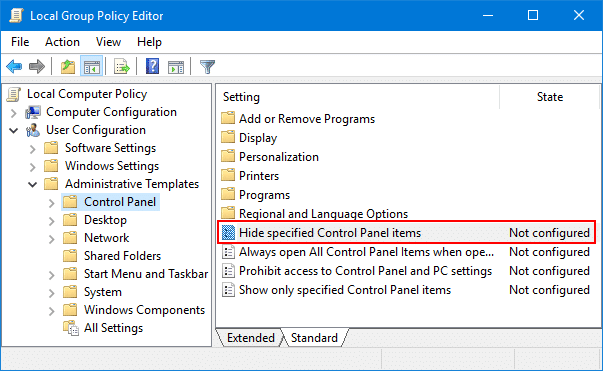
Step 3. This will open the Local Group Policy Editor. There you need to browse to the User Configuration > Administrative Templates > Control Panel. There double click on the ‘Hide specified control panel items’ from the right-hand side panel.
Step 4. In the next window, you need to enable the ‘Hide Specified Control Panel Items’ and clock on the ‘Show’ button near the List of disallowed control panel items.

Step 5. In the next window, you need to add the Canonical name of the Control Panel item which you want to hide. Below we have shared a list of Canonical name for any specific control panel item.
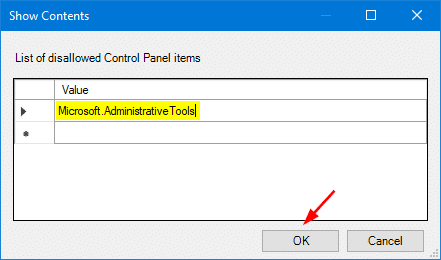
Step 6. Once added, close the opened window and restart your computer.
| Control Panel Item | Canonical Name |
|---|---|
| Action Center | Microsoft.ActionCenter |
| Administrative Tools | Microsoft.AdministrativeTools |
| AutoPlay | Microsoft.AutoPlay |
| Backup and Restore | Microsoft.BackupAndRestore |
| Biometric Devices | Microsoft.BiometricDevices |
| BitLocker Drive Encryption | Microsoft.BitLockerDriveEncryption |
| Color Management | Microsoft.ColorManagement |
| Credential Manager | Microsoft.CredentialManager |
| Date and Time | Microsoft.DateAndTime |
| Default Location | Microsoft.DefaultLocation |
| Default Programs | Microsoft.DefaultPrograms |
| Desktop Gadgets | Microsoft.DesktopGadgets |
| Device Manager | Microsoft.DeviceManager |
| Devices and Printers | Microsoft.DevicesAndPrinters |
| Display | Microsoft.Display |
| Ease of Access Center | Microsoft.EaseOfAccessCenter |
| Folder Options | Microsoft.FolderOptions |
| Fonts | Microsoft.Fonts |
| Game Controllers | Microsoft.GameControllers |
| Get Programs | Microsoft.GetPrograms |
| Getting Started | Microsoft.GettingStarted |
| HomeGroup | Microsoft.HomeGroup |
| Indexing Options | Microsoft.IndexingOptions |
| Infrared | Microsoft.Infrared |
| Internet Options | Microsoft.InternetOptions |
| iSCSI Initiator | Microsoft.iSCSIInitiator |
| Keyboard | Microsoft.Keyboard |
| Location and Other Sensors | Microsoft.LocationAndOtherSensors |
| Mouse | Microsoft.Mouse |
| Network and Sharing Center | Microsoft.NetworkAndSharingCenter |
| Notification Area Icons | Microsoft.NotificationAreaIcons |
| Offline Files | Microsoft.OfflineFiles |
| Parental Controls | Microsoft.ParentalControls |
| Pen and Touch | Microsoft.PenAndTouch |
| People Near Me | Microsoft.PeopleNearMe |
| Performance Information and Tools | Microsoft.PerformanceInformationAndTools |
| Personalization | Microsoft.Personalization |
| Phone and Modem | Microsoft.PhoneAndModem |
| Power Options | Microsoft.PowerOptions |
| Programs and Features | Microsoft.ProgramsAndFeatures |
| Recovery | Microsoft.Recovery |
| Region and Language | Microsoft.RegionAndLanguage |
| RemoteApp and Desktop Connections | Microsoft.RemoteAppAndDesktopConnections |
| Scanners and Cameras | Microsoft.ScannersAndCameras |
| Sound | Microsoft.Sound |
| Speech Recognition | Microsoft.SpeechRecognition |
| Sync Center | Microsoft.SyncCenter |
| System | Microsoft.System |
| Tablet PC Settings | Microsoft.TabletPCSettings |
| Taskbar and Start Menu | Microsoft.TaskbarAndStartMenu |
| Text to Speech | Microsoft.TextToSpeech |
| Troubleshooting | Microsoft.Troubleshooting |
| User Accounts | Microsoft.UserAccounts |
| Windows Anytime Upgrade | Microsoft.WindowsAnytimeUpgrade |
| Windows CardSpace | Microsoft.CardSpace |
| Windows Defender | Microsoft.WindowsDefender |
| Windows Firewall | Microsoft.WindowsFirewall |
| Windows Mobility Center | Microsoft.MobilityCenter |
| Windows SideShow | Microsoft.WindowsSideShow |
| Windows Update | Microsoft.WindowsUpdate |
Also Read: 15 Must Have Essential Softwares For Your Windows Computer
So, this article is all about How to Hide Items from the Control Panel in Windows. By following the method given above, you can easily hide any items from the Control Panel. I hope this article helped you! Share it with your friends also. If you have any doubts related to this, let us know in the comment box below.
The post How to Hide Items from the Control Panel in Windows appeared first on Tech Viral.
from Tech Viral https://ift.tt/2O119aH

No comments:
Post a Comment