
If we look around, we will find that the smartphone industry has improved a lot over the past few years. These days, Android smartphones are offering 3-4 camera which are capable enough to compete with DSLRs.
Social media has played a vital role in the advancement of smartphone technology, especially on the camera front, as it forces users to capture and share images. Social networking platforms like Facebook, Instagram, Twitter, etc. are now considered a big thing, and users are always looking at ways to ensure that their photos stand out from the crowd.
To improve photos, there are plenty of photo editing apps available on the Google Play Store like Snapseed, Pixlr, etc., but nothing comes close to the Scribbl. In this article, we are going to discuss everything about the free app Scribbl
What is Scribbl?
Scribbl is an animation maker app that is developed by an XDA Senior Member Prithvee. The app allows users to add animations to the images. The app simplifies the process of animating the images by letting you draw over the picture.
Apart from that, Scribbl also offers a wide variety of tools and lets you decide which animations are best for your photos and videos. So, let’s know how to add animations to your Photos with Scribbl 2019.
How To Add Animations To Your Photos
Adding animations to the images is a complicated task, but Scribbl makes things easy for you. To animate your images, follow some of the simples steps given below.
Step 1. First of all, download & install Scribbl on your Android smartphone.
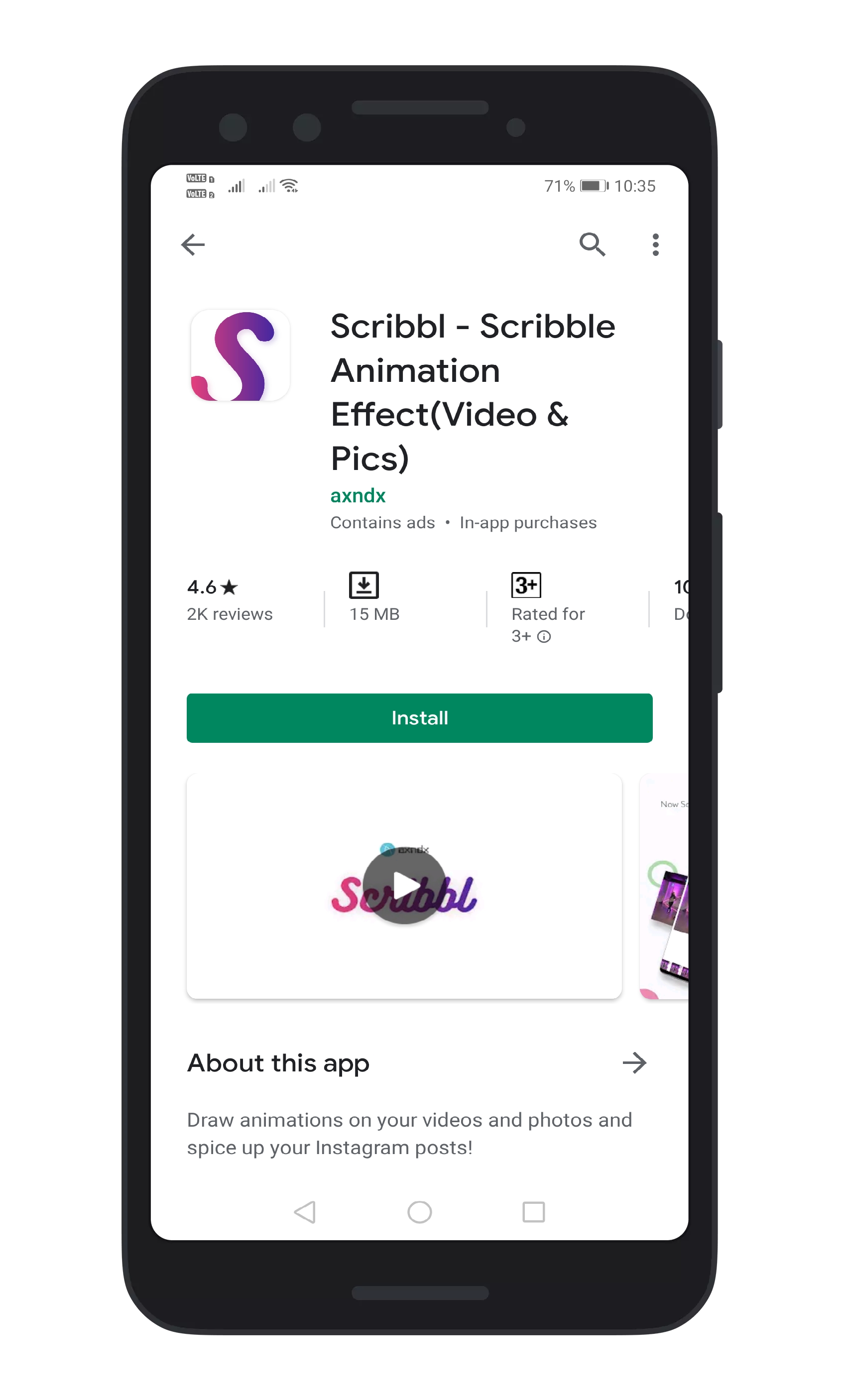
Step 2. Open the app, and you will see a screen like below. You need to tap on the (+) button.

Step 3. Now you will be asked to grant the storage permission. Simply tap on the ‘Allow’ button.

Step 4. Next, you will be asked to select between Photos and Videos. Select ‘Photo’.
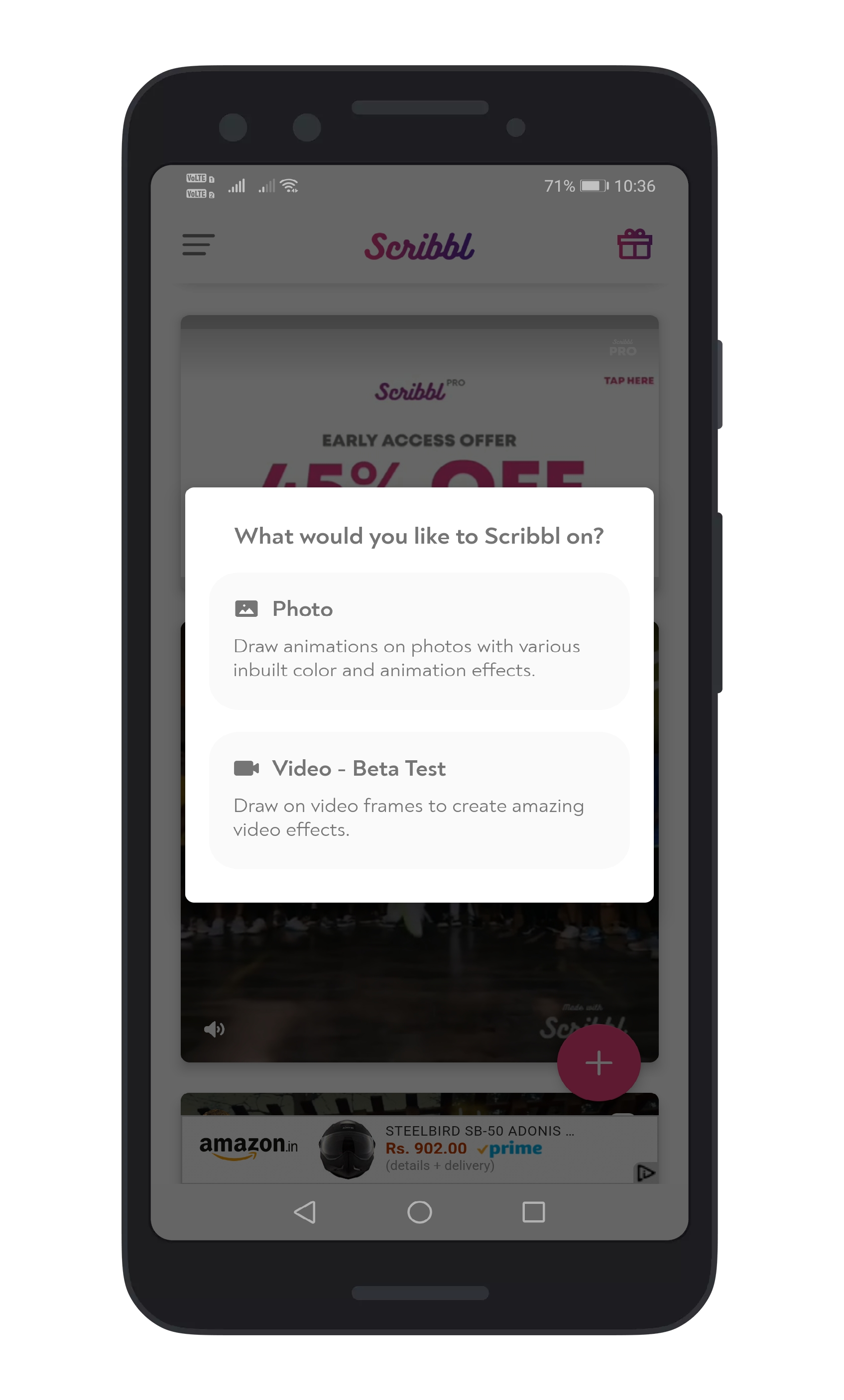
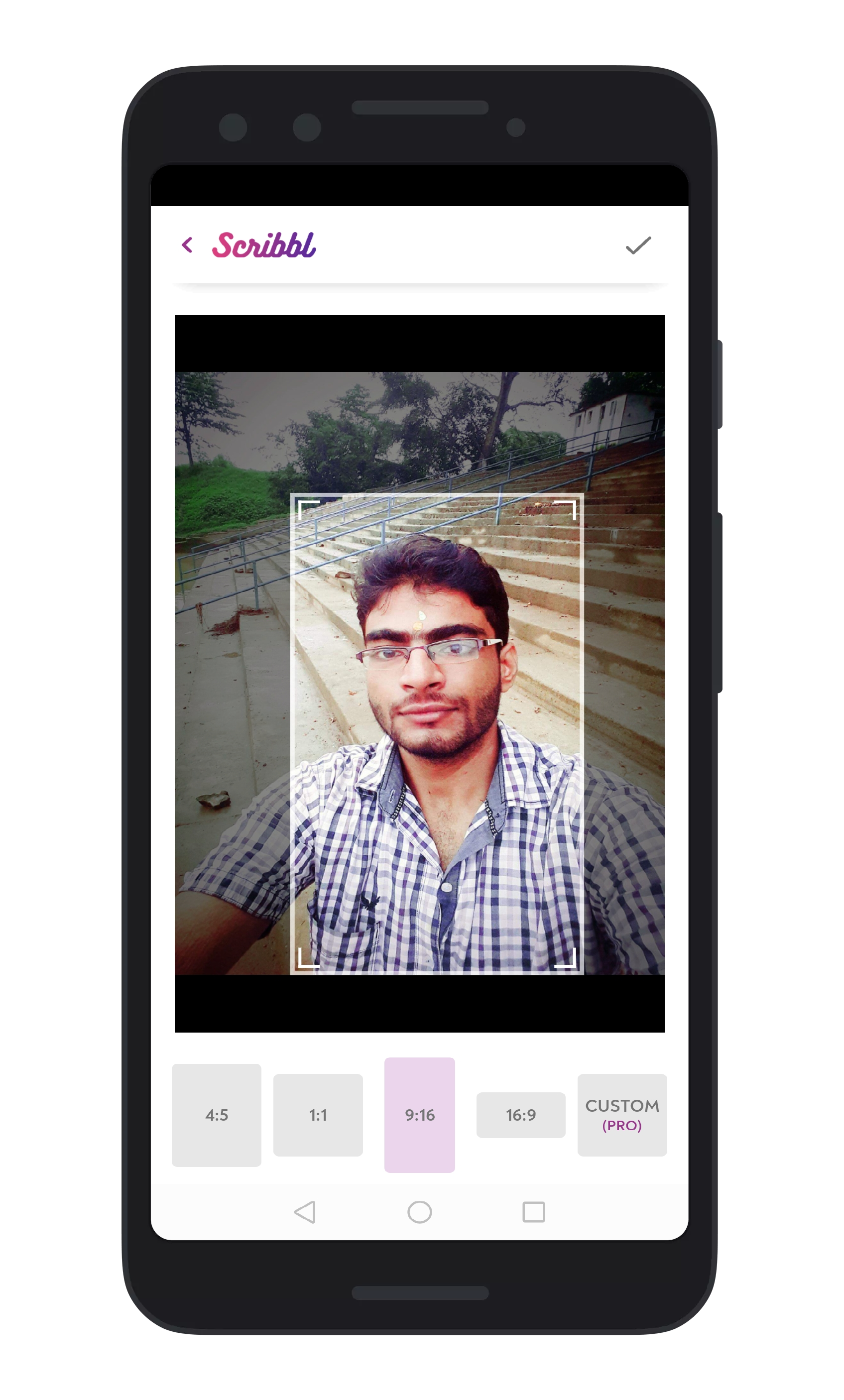
Step 5. Once done, select the frame size.
Step 6. Now tap on the Edit icon located on the top-right corner. You will now see a screen like below.
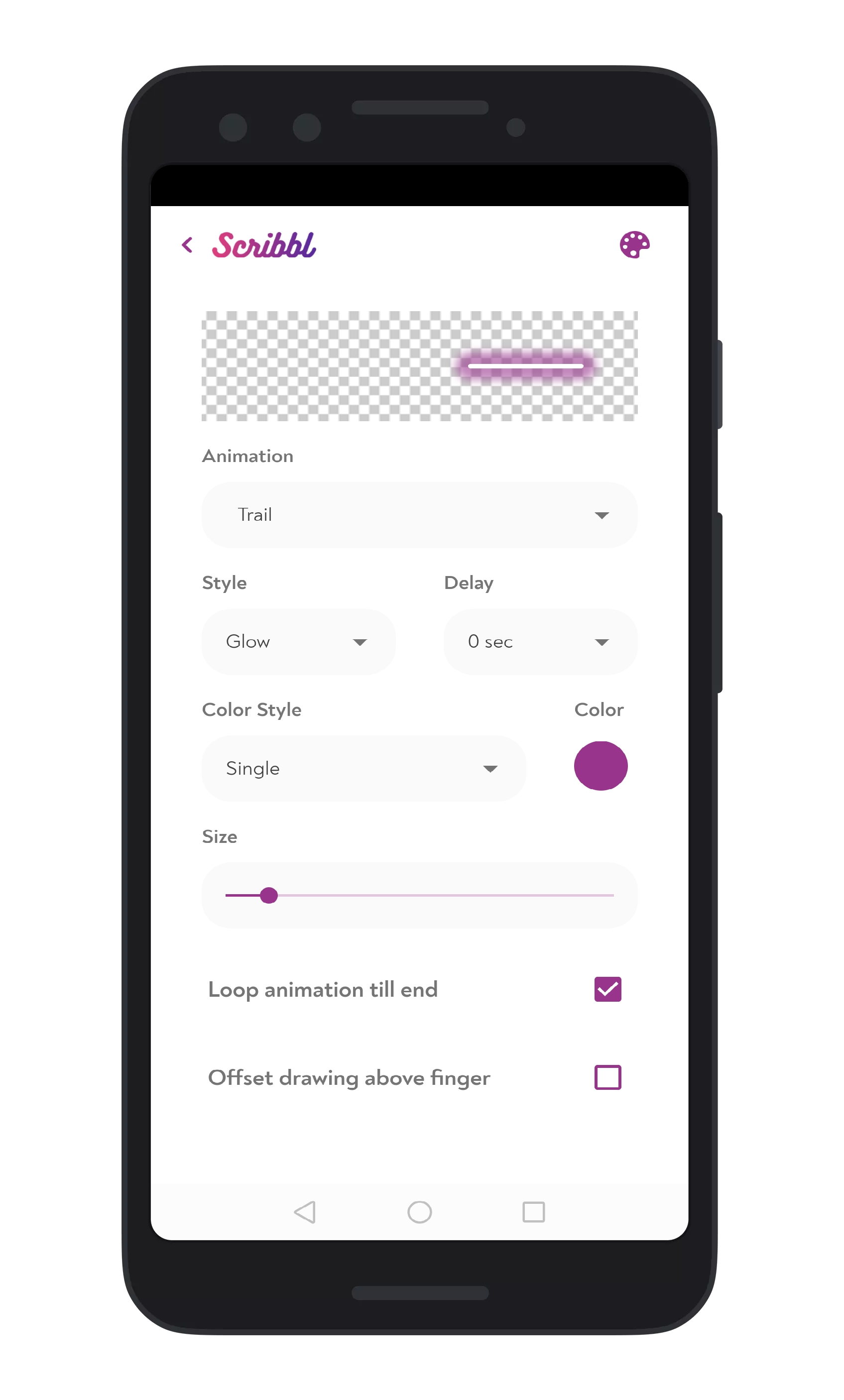
Step 7. There you can choose an animation from a variety of drawing options.
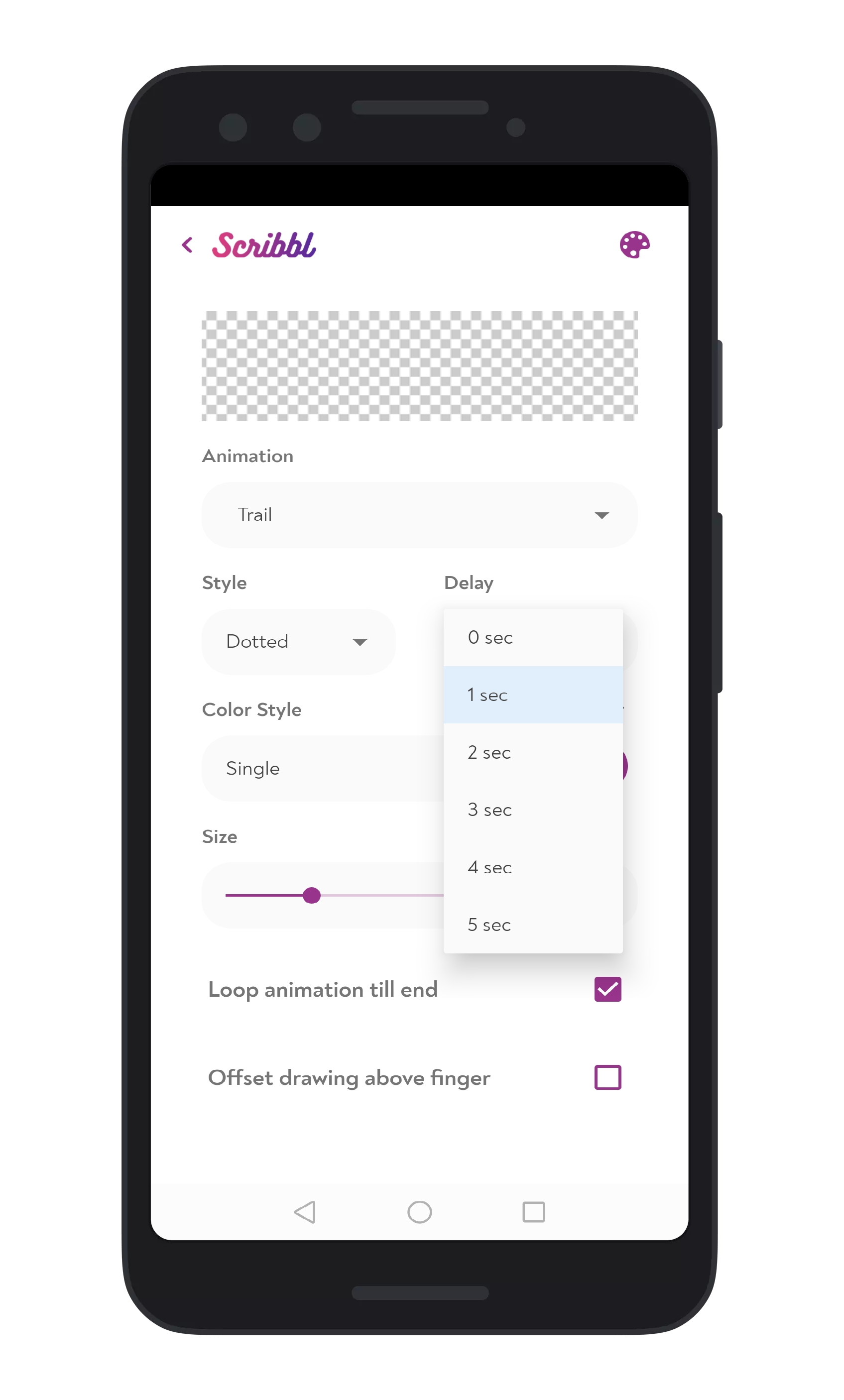
Step 8. Once you are ready, go back and draw on the photo and then tap on the play icon. If you want to make changes, change the configuration accordingly before drawing on the image.
Step 9. To save the image, tap on the ‘Export button’ at the top right corner. This will save the animated photos as an HD video by default, but you can also choose SD or FHD option.
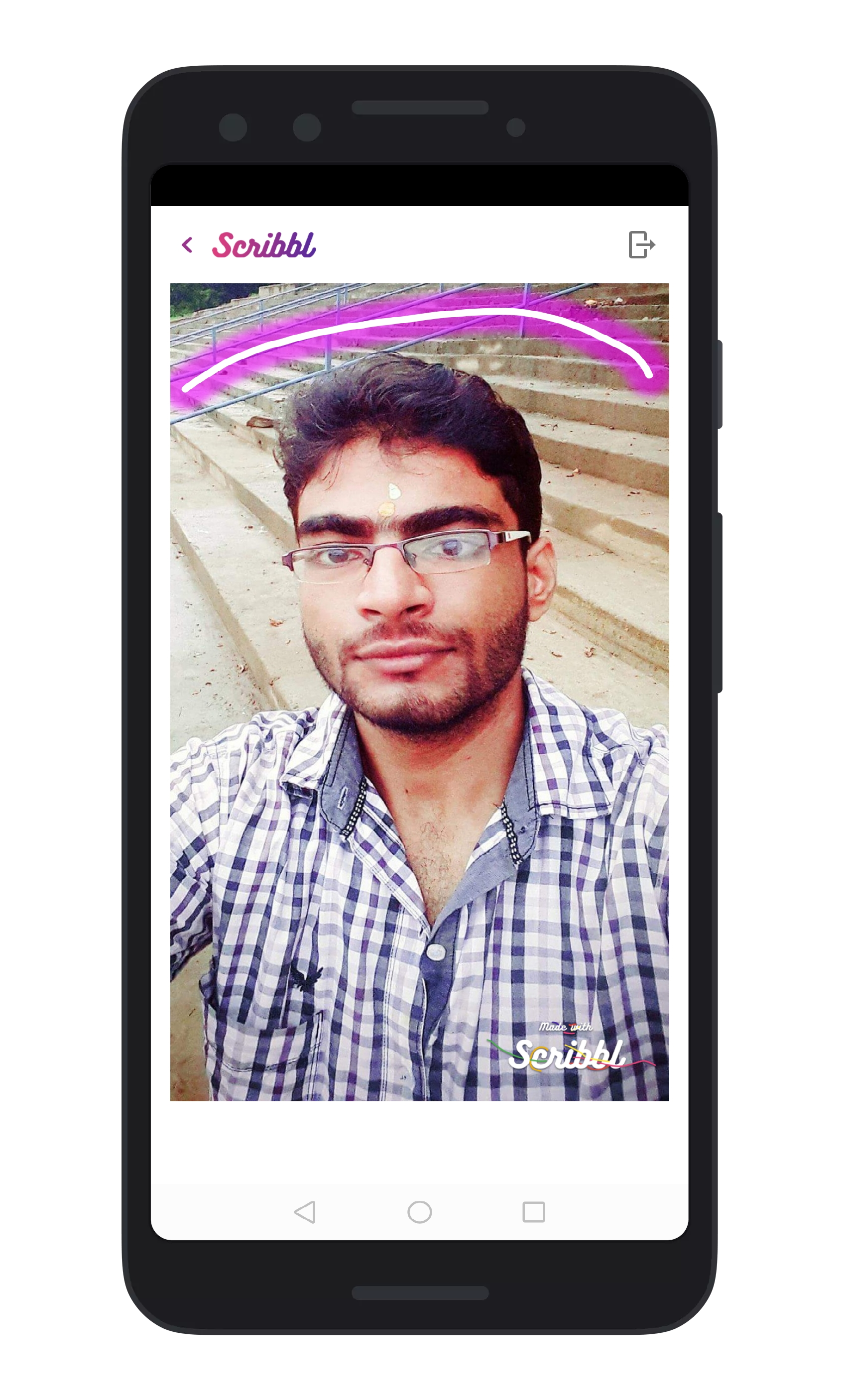
That’s it, you are done! This is how you can add animation to your photos on Android. If you have any other doubts related to this, let us know in the comment box below. I hope this article helped you! Share it with others as well.
The post How To Add Animations To Your Photos appeared first on Tech Viral.
from Tech Viral https://ift.tt/32NQxQT

No comments:
Post a Comment